

To keep YouTube open on Android, enable the picture-in-picture mode in your settings. **This allows YouTube to stay visible even when you open other apps.** Simply activate this feature, and your videos will continue playing while multitasking.
Next, ensure your app is updated and permissions are granted for seamless operation. Adjust your device’s settings to prevent the app from closing automatically. With these quick steps, you can easily make YouTube stay open on Android and enjoy multitasking without interruptions.

How to Make YouTube Stay Open on Android
Most Android users love watching videos on YouTube, but sometimes, the app stops or crashes unexpectedly. Maybe you want to keep a music playlist playing, or you’re following a tutorial while doing other things. Whatever your reason, keeping YouTube open on your Android device can make your viewing experience much smoother. In this section, we’ll explore different methods and tips to help you keep YouTube running in the background or prevent it from closing automatically. Whether you’re a casual viewer or someone who uses YouTube frequently, these steps will help you make sure your favorite videos stay open as long as you want.
Understanding Why YouTube Closes or Pauses
Before jumping into solutions, it’s helpful to understand why YouTube might not stay open all the time. Here are some common reasons:
- App Restrictions: Android sometimes closes apps to save battery or free up memory.
- Automatic Sleep Settings: If your device goes to sleep, YouTube might pause or stop playing.
- Background Restrictions: Some Android settings or apps restrict background activity, causing YouTube to close.
- App Updates or Bugs: Outdated or buggy app versions can cause stability problems.
- Device Performance: Low RAM or high CPU usage can lead Android to force close apps like YouTube.
Knowing these causes helps us target specific fixes and avoid unnecessary frustrations.
Using YouTube in Picture-in-Picture Mode
One of the easiest ways to keep YouTube open while doing other things is to use Picture-in-Picture (PiP) mode. This feature lets the video play in a small window that stays on your screen even when you’re browsing other apps. Here’s how you can enable PiP mode for YouTube:
Steps to Enable PiP Mode
- Open your Android device’s Settings app.
- Scroll down to find and select “Apps & Notifications” or simply “Apps.”
- Tap on “Special app access” (may vary depending on your device).
- Choose “Picture-in-picture.”
- Find YouTube in the list and make sure the toggle is turned on.
- Now, open YouTube and start playing a video.
- Press the home button or swipe up (depending on your device) to go to your home screen.
- You should see the video pop out into a small window. You can move or resize this window as needed.
Benefits of Using PiP Mode
- Continue watching videos while browsing other apps.
- Enjoy multitasking without stopping your video playback.
- Easy to control playback directly within the PiP window.
Preventing YouTube from Closing in the Background
Sometimes, you want to listen to music or podcasts on YouTube without keeping the app open on the screen. Android offers features to keep apps running in the background, but some settings might interfere. Here’s what you can do:
Change Battery Optimization Settings
- Go to Settings > Battery or Battery & Device Care.
- Tap on Battery Optimization or App Power Management.
- Find YouTube in the list of apps.
- Select “Don’t optimize” or “Allow background activity.”
- Save your changes and restart your device if needed.
Use YouTube Premium for Background Play
YouTube Premium offers an official way to listen to videos in the background. Here’s how to activate it:
- Subscribe to YouTube Premium through the app or website.
- Open YouTube and play your favorite video.
- Press the home button or switch to another app; the audio continues to play.
- Control playback from the notification bar or lock screen.
This method guarantees that your videos keep playing regardless of other apps or device sleep settings, providing a seamless listening experience.
Using Third-Party Apps to Keep YouTube Open
If you’re looking to keep YouTube open or playing in the background without subscribing to Premium, some third-party apps can help. These apps often simulate continuous playback or bypass restrictions. However, use caution when downloading apps outside the Google Play Store, and avoid apps that violate YouTube’s terms of service.
Popular Apps and Tools
- Float Tube: Allows playing YouTube videos in a floating window, similar to PiP but with more flexibility.
- NewPipe: An open-source YouTube client that supports background playback and ad-free videos. It doesn’t require Google services.
- Vanced (discontinued but replaced by similar apps): Previously, Vanced offered background play without a subscription, but now alternatives like NewPipe serve similar functions.
Steps to Use Third-Party Apps Effectively
- Download the app from a trusted source or official website.
- Install the app on your device (may require enabling “Unknown sources” in settings).
- Open the app and find your desired video.
- Use the app’s background or floating window features to keep playback going.
*Note:* Always check the legality and safety of third-party apps, as they can sometimes contain malware or violate YouTube’s policies.
Adjusting Device Settings for Better Performance
To keep YouTube open longer and prevent unexpected closures, optimizing your device settings can make a big difference. Here are some tips:
Disable Battery Saver When Watching Videos
- Open Settings > Battery.
- Turn off or disable Battery Saver mode.
- This prevents your device from shutting down apps to save power.
Close Unused Apps and Clear Memory
- Use your recent apps menu to close apps running in the background.
- Go to Settings > Storage and clear cache for apps if needed.
- This frees up RAM, helping YouTube stay open longer.
Update Your Android System and YouTube App
Keeping your device and app updated ensures better stability and performance. Head to Google Play Store and check for updates regularly.
Tips for Seamless Watching Experience
To make sure YouTube remains open and plays smoothly:
- Always use the latest version of the app.
- Ensure your internet connection is stable and fast.
- Reduce other background activity to free resources.
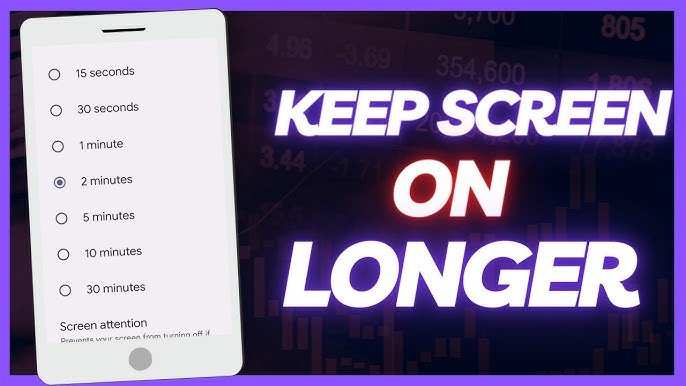
- Adjust screen timeout settings to prevent your device from sleeping too quickly.
- If your device has aggressive power management, consider adjusting those settings to favor YouTube.
Keeping YouTube open on your Android device can significantly improve your viewing and listening experience. By enabling picture-in-picture mode, adjusting background restrictions, subscribing to YouTube Premium, or using third-party apps, you can enjoy your videos without interruptions. Remember to optimize device settings and keep the app updated to prevent unexpected shutdowns. Whether you’re multitasking, listening to music, or following a tutorial, these tips make sure YouTube stays available when you need it most. Always stay aware of device restrictions and app policies, and choose methods that suit your preferences and needs best.
Frequently Asked Questions
How can I prevent YouTube from pausing when I switch to other apps on Android?
To keep YouTube playing when you switch to other apps, you can enable picture-in-picture mode if your device supports it. Open YouTube and start playing a video, then press the home button. If picture-in-picture is enabled, the video will continue to play in a small window. To activate this feature, go to your device’s Settings > Apps & Notifications > Advanced > Special app access > Picture-in-picture, and ensure YouTube is allowed. Additionally, subscribing to YouTube Premium allows background playback, which keeps videos running even when you exit the app.
What settings should I check to keep YouTube open in the background on Android?
Check your device’s battery optimization settings, as they may restrict background activity for YouTube. Navigate to Settings > Apps & notifications > YouTube > Battery, and set it to ‘Unrestricted’ or disable battery optimization for YouTube. Also, verify that the app isn’t restricted in your system’s app restrictions. If you use a custom launcher or battery saver, adjust their settings to allow YouTube to run in the background without interruption.
Can I use third-party apps to keep YouTube open on Android?
Yes, some third-party apps can help keep YouTube videos playing in the background or in a floating window. However, many of these apps might violate YouTube’s terms of service or cause security concerns. Use them cautiously and ensure you download from reputable sources. The safest approach remains subscribing to YouTube Premium or using official features such as picture-in-picture mode, which are designed to support background playback responsibly.
Final Thoughts
To make YouTube stay open on Android, you can use split-screen mode or picture-in-picture feature. These options allow you to keep YouTube running while using other apps. Adjust your settings in the multitasking menu to enable these features.
Additionally, some third-party apps can help lock YouTube in the foreground. Regular updates to your device and app ensure smooth functioning.
In conclusion, knowing how to make YouTube stay open on Android helps enhance your multitasking experience. Practicing these simple techniques ensures YouTube remains accessible while navigating other tasks.
