

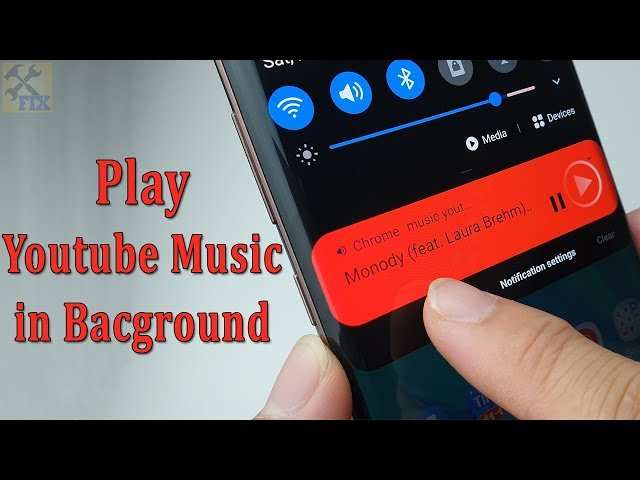
To make YouTube run in the background on Android, you can use picture-in-picture mode or third-party apps. **Most devices support picture-in-picture, allowing videos to continue playing while you navigate elsewhere.** Simply start playing a video, tap the home button, and the video shrinks into a small window.
If your device or YouTube app doesn’t support this, apps like YouTube Vanced offer a built-in background playback feature.
Knowing these options helps you listen to music or podcasts without keeping the app open constantly.

How to Make YouTube Run in Background Android
Playing YouTube videos in the background on your Android device can make your experience more enjoyable. Whether you’re listening to music, a podcast, or a lecture while doing other tasks, it’s handy to keep the audio running without keeping the screen active. This guide walks you through various methods to make YouTube run in the background on Android devices, ensuring you can enjoy your content seamlessly across different scenarios.
Understanding Why You Need Background Play on Android
Before diving into the methods, it’s helpful to understand why background play is important. Many users want to continue listening to videos or music without constantly keeping the app in the foreground. This saves battery, reduces screen time, and allows multitasking. However, YouTube’s default settings restrict background play to premium users, making it vital to explore alternative options.
Official Methods for Background Play on YouTube
The most straightforward way to play YouTube in the background is through the official app, but with some limitations. Here are the available options:
Subscribe to YouTube Premium
YouTube Premium is a paid service that allows users to play videos in the background, among other benefits such as ad-free videos and offline downloads. If you’re willing to spend a small amount monthly, this method provides a reliable and seamless background playback experience.
- Subscription cost varies by country but is generally affordable.
- Once subscribed, open the YouTube app, play your video, and then press the home button.
- The video continues to play in the background, and you can control playback from the notification panel.
Using the YouTube App in Picture-in-Picture Mode
Android supports Picture-in-Picture (PiP) mode, which allows videos to float over other apps. To enable this:
- Go to your device’s Settings > Apps & Notifications > Special app access > Picture-in-Picture.
- Find YouTube on the list and enable PiP mode.
- Open YouTube, start a video, then press the home button. The video shrinks into a small window that stays on your screen while you use other apps.
Note: PiP mode works only on Android 8.0 (Oreo) and above, and requires the feature to be enabled in settings.
Third-Party Apps and Browsers to Play YouTube in Background
If you’re not a YouTube Premium subscriber, there are alternative ways to listen to YouTube videos in the background. These usually involve using browsers or unofficial apps.
Using a Mobile Browser (Chrome, Firefox, or Opera)
Most modern browsers can play YouTube videos in the background with a few simple steps:
- Open your preferred browser and go to the YouTube website.
- Search for the video you want to listen to.
- Tap on the three dots menu in the browser and select “Request Desktop Site.”
- Start playing the video.
- Press the home button; the audio might stop, but you can then pull down the notification panel and press play to continue listening.
Note: Some browsers like Chrome may pause the video when you switch apps, but other browsers like Firefox handle background audio better.
Using YouTube in a Standalone App (YMusic, NewPipe, and Others)
Several third-party apps provide an experience similar to YouTube Premium, allowing background play:
- NewPipe: An open-source app that lets users play YouTube videos in the background without ads. It downloads videos or streams directly, and supports background playback.
- YMusic: Designed specifically for background music playback from YouTube.
- Firefox with Add-ons: Use browser add-ons that enable background playing of YouTube videos.
When choosing third-party apps, always ensure they are safe and downloaded from trusted sources to protect your device.
Adjusting Device Settings for Better Background Playback
Sometimes, background play issues stem from device settings. Here’s how to optimize your Android device for continuous playback:
Disable Battery Optimization for YouTube or Browsers
Battery optimization can hinder background audio playback. To disable this:
- Navigate to Settings > Battery > Battery Optimization.
- Find your app (YouTube, Chrome, Firefox, etc.) and select “Don’t optimize.”
- This prevents the system from closing the app when it’s running in the background.
Enable Data Usage in Background
Ensure your app can access data in the background:
- Go to Settings > Apps & Notifications > YouTube or your browser.
- Select Data Usage and toggle on “Background data.”
Using Workarounds for Background Play on Android
If none of the above methods work, consider these additional tricks:
Playing Videos with Split-Screen Mode
Android allows split-screen multitasking on supported devices. To play YouTube in one window and listen in another:
- Open YouTube and start your video.
- Tap the recent apps button and select split-screen mode.
- Choose another app or the home screen, and the video continues playing in the small window.
Using Notification Controls for Playback
Most methods allow control via notifications:
- When playing in the background, a notification appears with playback controls.
- You can pause, play, skip, or adjust volume directly from there.
- This makes managing background audio quick and simple.
Summary of Methods to Play YouTube in Background on Android
Here’s a quick comparison of the options:
| Method | Requires Subscription | Best for Stability | Ease of Use |
|---|---|---|---|
| YouTube Premium | Yes | High | Very Easy |
| Picture-in-Picture Mode | No | Moderate | Easy |
| Browser Method | No | Low to Moderate | Moderate |
| Third-Party Apps (like NewPipe) | No | High | Moderate to Difficult |
Choosing the best method depends on your budget, device compatibility, and how seamless you want the experience to be. For most users, subscribing to YouTube Premium offers the simplest and most reliable background playback, but free methods work well with a little patience and setup.
Playing YouTube videos in the background on Android can be accomplished in various ways, from paid subscriptions to free browser tricks and third-party apps. By understanding these options and tweaking device settings, you can enjoy listening to your favorite content while multitasking. Remember to choose the method that best fits your needs, and always prioritize safety by downloading apps from trusted sources. With a little setup, background playback on Android becomes simple, making your YouTube experience more flexible and enjoyable.
Frequently Asked Questions
Can I listen to YouTube videos in the background without subscribing to YouTube Premium?
Yes, you can listen to YouTube videos in the background without a Premium subscription by using certain browser features or third-party applications. Browsers like Chrome or Firefox allow you to play videos in the background if you open the video in desktop mode and then switch to another app. Additionally, some third-party apps can enable background playback, though they may have limitations or require specific device configurations. Always ensure you use trusted sources to avoid security risks.
How can I use picture-in-picture mode to keep YouTube playing while I multitask on Android?
YouTube supports picture-in-picture (PiP) mode on Android devices running Android 8.0 or higher. To activate it, open the YouTube app, play a video, then tap the home button or use gestures to exit the app; the video will appear in a small window. You can move this window around your screen and continue watching while navigating other apps. Make sure PiP mode is enabled in your device settings and within the YouTube app settings if necessary.
Are there any software features or settings on Android that facilitate background playback of YouTube videos?
Android offers certain features that may help, like notification controls or split-screen mode, which can assist in multitasking with YouTube. For background playback specifically, enabling “Picture-in-Picture” mode is the most effective built-in option. Some devices also have device-specific settings that allow apps to run in the background longer. However, using YouTube in the background without Premium often relies on these Android features or third-party apps, which can sometimes be inconsistent or limited due to app restrictions.
Final Thoughts
To make YouTube run in background on Android, users can utilize features like Picture-in-Picture mode or third-party apps. Enabling Picture-in-Picture allows videos to continue playing while browsing other apps. Some browsers also support background playback for YouTube without a subscription.
In summary, knowing how to make YouTube run in background Android helps you stay connected with content seamlessly. Whether through native settings or alternative methods, you can enjoy continuous playback effortlessly.
