

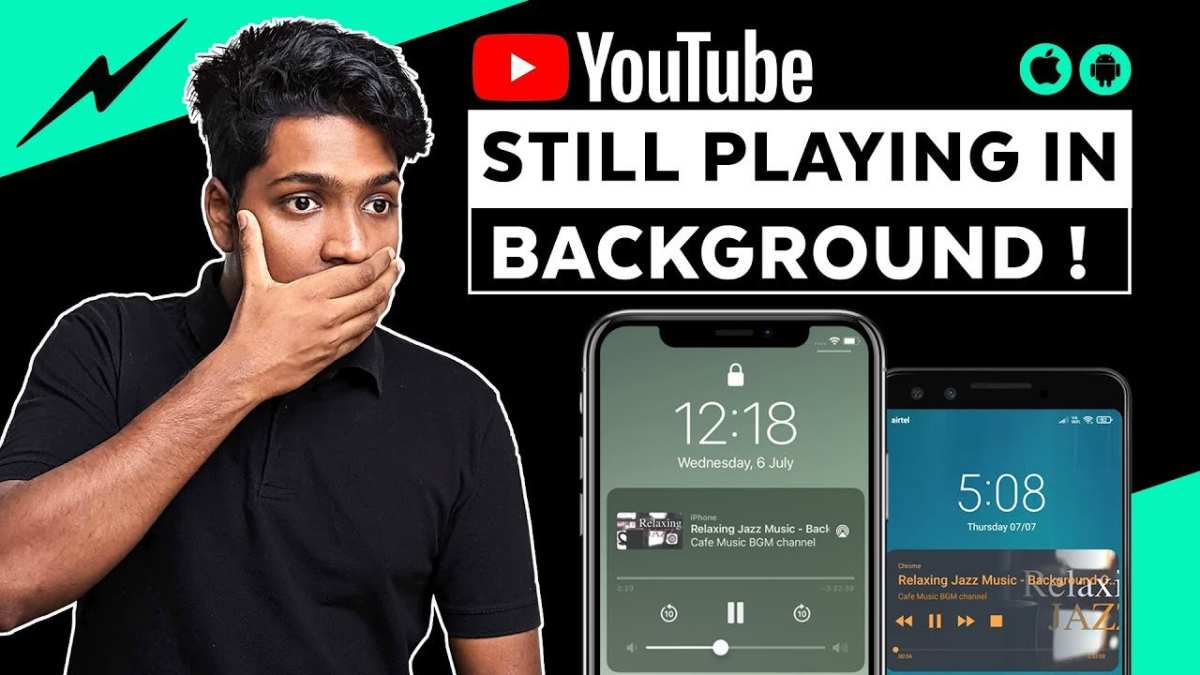
To make YouTube play in the background on Android, you can use picture-in-picture mode or third-party apps. **Enabling picture-in-picture mode for YouTube allows you to keep listening while using other apps.** Just open YouTube, start your video, then press the home button; the video shrinks into a small window.
If picture-in-picture isn’t available, try using desktop mode in Chrome or installing a music app that supports background playback. Knowing how to make YouTube play in background android means you can enjoy videos without interruption, even when switching between apps.

How to Make YouTube Play in Background Android
When you enjoy listening to music or podcasts on YouTube, it can be frustrating to have the app stop when you switch to another app or turn off your screen. Luckily, there are several ways to keep YouTube playing in the background on your Android device. This guide will walk you through various methods, from simple workarounds to using official features and third-party apps, so you can listen to your favorite content seamlessly.
Understanding Why YouTube Stops Playing in the Background
Before diving into the solutions, it helps to understand why YouTube stops playing when you minimize the app or turn off your screen.
- Official restrictions: YouTube’s free version is designed to pause videos when you switch away to encourage users to subscribe to YouTube Premium for background play.
- App behavior: The app is optimized for in-app viewing, so background playback isn’t built into the standard free version.
- System limitations: Android’s battery saver and app management settings can also interrupt playback to save power.
Knowing these reasons helps you choose the right method for your needs.
Using YouTube Premium for Background Play
The most straightforward way to play YouTube videos in the background on Android is by subscribing to YouTube Premium.
What You Get with YouTube Premium
- Background playback — videos continue playing when you switch apps or turn off your screen
- Ad-free videos
- Offline downloads
- Access to YouTube Music
How to Enable Background Play with YouTube Premium
- Open the YouTube app and sign into your Premium account.
- Tap your profile icon in the top right corner.
- Select “Settings” from the menu.
- Tap on “General”.
- Find the “Background & Offline” option.
- Make sure “Playback in the background” or “Background playback” is enabled.
Once done, play any video, minimize the app, and the audio will keep playing. Keep in mind, YouTube Premium is a paid service, but it offers full, reliable background playback.
Using the Desktop Version of YouTube via Browser
If subscribing isn’t an option, you can use your Android browser to access YouTube’s desktop site, which allows background listening.
Steps to Play YouTube in Background Using the Browser
- Open Chrome or your preferred browser on Android.
- Navigate to m.youtube.com.
- Tap the three-dot menu in the top right corner.
- Select “Desktop site” or “Request desktop site”.
- Play your desired video.
- Press the home button or switch to another app; the video should keep playing in the background.
- Note: On some browsers, you might need to pull down the notification bar and tap “Play” to keep the audio active.
This method is a free workaround but might not work smoothly on all devices or browsers.
Using a Third-Party App to Enable Background Playback
Several third-party apps can help you play YouTube videos in the background without subscribing to Premium. However, use these carefully, as some may violate YouTube’s terms of service or compromise your device’s security.
Popular Apps for Background Playback
- YMusic
- NewPipe
- Vanced (modified YouTube app)
Installing and Using These Apps
Note: Always download apps from trusted sources like F-Droid or their official websites to protect your device.
- Download and install your preferred app, such as NewPipe.
- Open the app and search for your favorite video.
- Start playing the video.
- Minimize the app; the audio continues to play in the background.
Be cautious that some apps may get updates or cease to work, so keep an eye on their status.
Using Picture-in-Picture Mode on Android
Android has a feature called Picture-in-Picture (PiP) that allows videos to continue playing in a small window while you use other apps.
How to Enable PiP for YouTube
- Ensure your device is running Android 8.0 Oreo or later.
- Update the YouTube app to the latest version.
- Go to your device’s Settings > Apps & notifications > Special app access > Picture-in-Picture.
- Locate YouTube in the list and ensure PiP is enabled.
Using PiP with YouTube
- Open YouTube and start playing your video.
- Press the home button or use the gesture to go to the home screen.
- The video shrinks to a small window, and audio continues playing.
- You can move and resize the PiP window as needed.
Note: PiP mode may only work for videos watched while logged into a YouTube Premium account, depending on your device.
Adjusting Settings to Improve Background Playback
Sometimes, background playback stops unexpectedly. Here are some tips to prevent that:
- Disable battery optimization for the YouTube app or your browser.
- Ensure you have a stable internet connection.
- Keep the app updated to avoid bugs.
- Check your device’s notification settings to allow background activity.
These small tweaks can make a big difference in ensuring continuous playback.
Additional Tips for a Better Background Listening Experience
- Connect your device to a Bluetooth speaker or headphones for better sound quality.
- Use a stand or holder to keep your device in a comfortable viewing position while listening.
- Adjust your device’s screen timeout settings so the screen doesn’t turn off automatically during playback.
- Explore third-party apps that specifically enhance background audio playback for Android devices, always considering safety and legality.
Common Troubleshooting Tips
When background playback doesn’t work, consider these troubleshooting steps:
- Restart your device to refresh app and system processes.
- Clear the cache and data of the browser or third-party app used.
- Check for app updates or reinstall the app.
- Review your device’s battery and app management settings to allow background activity.
- Switch to a different method, such as using YouTube Premium or another browser.
By following these steps, you can enjoy your favorite YouTube content without interruptions.
Summary
Making YouTube play in the background on Android is possible through multiple methods, each suited for different preferences and budgets. Using YouTube Premium offers the most seamless experience, but browser tricks and third-party apps provide free alternatives. Adjusting device settings and enabling features like Picture-in-Picture can also help enhance your listening experience. Remember, always use trusted apps and stay within YouTube’s terms of service to keep your device safe and your experience smooth.
Whether you’re listening to music, podcasts, or lectures, these methods ensure you can enjoy your YouTube content on your Android device without having to keep the app open or your screen on all the time.
Frequently Asked Questions
What options are available to keep YouTube playing after exiting the app on Android?
You can keep YouTube playing in the background on Android by using the Picture-in-Picture (PiP) mode available on supported devices. To enable this, go to your device settings, navigate to Apps & Notifications, then Special app access, and turn on Picture-in-Picture for YouTube. When watching a video, tap the home button or press the home gesture, and the video will continue playing in a small window. Alternatively, subscribing to YouTube Premium allows background playback without needing extra steps.
Can I use third-party apps or browser tricks to play YouTube in the background on Android?
Yes, some third-party apps and web browser tricks can enable background playback. Using browsers like Firefox or Kiwi Browser, you can open YouTube, then switch to desktop mode through the browser menu. Play the video, then switch to another app or turn off the screen; the audio will continue to play. Be cautious when using third-party apps, as they may not be officially supported and could affect security or violate YouTube’s terms of service.
What are the steps to enable background playback for free without a subscription?
To enable background playback without subscribing to YouTube Premium, you can use browsers that support desktop mode, such as Kiwi Browser or Firefox. Open YouTube, request the desktop site, start your video, then switch to another app or turn off your screen. The audio continues playing in the background. Keep in mind that this method might not work consistently and can be affected by browser updates or device restrictions.
Does enabling developer options help in making YouTube play in the background?
Enabling developer options alone typically won’t allow background playback of YouTube videos. However, some users modify device settings or install custom apps through developer options that can enable background playback. Such modifications involve risks and may require rooting your device, which can void warranties or cause security issues. Stick to supported methods like Picture-in-Picture or subscribing to YouTube Premium for a reliable experience.
Are there any risks involved in attempting to make YouTube play in the background on Android?
Using third-party apps or browser tricks to enable background playback may expose your device to security risks, as some apps can contain malware or violate privacy. Additionally, these methods might breach YouTube’s terms of service, leading to possible account issues. Rooting your device to access advanced options also affects device security and stability. Always proceed with caution and prefer official solutions like YouTube Premium for safe and consistent background playback.
Final Thoughts
Pour faire en sorte que YouTube joue en arrière-plan sur Android, les utilisateurs peuvent utiliser différentes méthodes. L’une consiste à utiliser la version web de YouTube dans un navigateur en mode desktop pour continuer à écouter tout en utilisant d’autres applications. Une autre option consiste à activer la fonction Picture-in-Picture (PiP) disponible sur certains appareils et versions d’Android.
Certaines applications tierces ou extensions peuvent également aider à poursuivre la lecture en arrière-plan. Comprendre ces options permet d’écouter vos vidéos préférées sans interruption lorsque vous naviguez entre autres applications.
En résumé, faire en sorte que YouTube play in background android implique d’adopter des méthodes simples comme la version web ou la fonction PiP. En suivant ces étapes, vous pouvez continuer à profiter de votre contenu audio sans limitations.
