

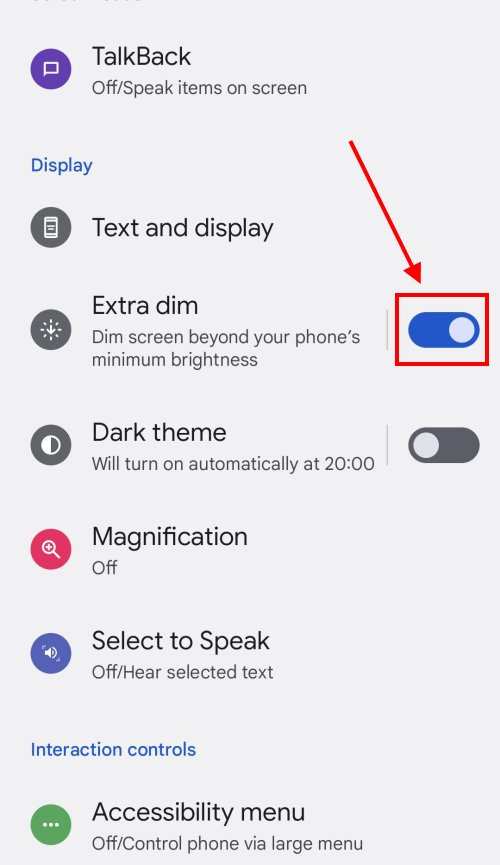
To make your screen darker on Android, simply adjust your display brightness or enable dark mode. **You can easily do this through your device settings or quick toggle.** When asking how to make your screen darker android, it’s straightforward to find these options. Lowering brightness or switching to dark mode reduces eye strain and saves battery. Just a few taps, and your screen becomes more comfortable to use in low-light conditions.

How to Make Your Screen Darker on Android
When you’re using your Android device, sometimes the screen can be too bright, making it uncomfortable to look at, especially in low-light environments. Reducing the screen brightness not only helps prevent eye strain but also conserves your device’s battery life. If you’re wondering how to make your screen darker on Android, there are several simple ways to do this, depending on your device’s settings and Android version. This guide will walk you through each method step-by-step, ensuring you find the perfect balance between visibility and comfort.
Adjusting Brightness Manually
One of the easiest ways to make your screen darker is by manually adjusting the brightness settings. Most Android devices offer an easy-to-use brightness slider accessible directly from the quick settings menu or within the device’s settings app. Here’s how to do it:
Using the Quick Settings Panel
- Swipe down from the top of your screen to open the quick settings panel.
- Look for the brightness slider, which usually appears as a bar with a sun icon.
- Slide the toggle to the left to reduce brightness to your preferred darker level.
- If you want to make the screen even darker, slide it all the way to the left or tap the icon that might toggle the mode for automatic brightness off.
Adjusting Brightness from Settings
- Open your device’s Settings app. Usually, you can find it as a gear icon on your home screen or app drawer.
- Scroll to find the display options, often labeled as “Display” or “Screen.”
- Tap on “Brightness” or “Brightness level.”
- Use the slider to set the brightness to a darker level. For a more comfortable viewing experience, try setting it around 20–30% of maximum brightness.
Enabling Dark Mode or Dark Theme
Dark mode, also called dark theme, changes the background and interface colors of your device to darker shades, making the overall display easier on the eyes, especially at night. In addition to making the screen darker, this mode can also make your device look sleek and modern.
Steps to Enable Dark Mode on Android
- Open the Settings app and navigate to “Display.”
- Look for an option called “Dark theme,” “Dark mode,” or “Night mode.”
- Toggle the switch to turn it on. Some devices might have a schedule option, allowing you to set dark mode to activate automatically during certain times.
- If available, select the option to apply dark mode to supported apps, making them darker and easier on your eyes.
Benefits of Using Dark Mode
- Reduces eye strain, especially in low-light conditions.
- Helps save battery life on devices with OLED screens.
- Creates a modern look for your interface.
- Improves readability for many users, especially at night.
Reducing Screen Brightness Beyond the Minimum Setting
Sometimes, the default lowest brightness setting isn’t dark enough for your comfort. In such cases, you can take extra measures to lower the brightness even further.
Using Developer Options
Developer options allow you to fine-tune many device settings, including screen brightness. Here’s how to enable and use them:
- Go to Settings > About phone.
- Scroll down to “Build number” and tap it seven times. You’ll see a message confirming that developer options are enabled.
- Return to the main Settings menu and tap on “System” or “Additional settings,” then find “Developer options.”
- Scroll down to find “Simulate color space” or similar options. While not directly adjusting brightness, some devices have options to simulate darker themes or adjust display parameters that might help with darker visuals.
Note: Adjusting developer options is more advanced; use caution and only change settings you understand.
Using Third-Party Apps for Darker Screen
If your device doesn’t offer more granular brightness control, certain apps can help darken your screen further. These apps overlay a semi-transparent dark layer on top of your display, effectively dimming everything. Popular options include:
- CF.lumen
- Dark Mode
- Lux Auto Brightness
Install these apps from the Google Play Store, grant the necessary permissions, and adjust their settings until you reach your preferred level of darkness.
Using Blue Light Filter or Night Mode
In addition to reducing brightness, controlling blue light can make your screen easier on your eyes at night. Apps and settings that filter blue light can darken the screen visually and add a warmer hue.
Built-in Night Mode or Blue Light Filter
- Open Settings > Display.
- Look for options like “Night Light,” “Blue light filter,” or “Night mode.”
- Activate the feature and set a schedule if available, such as from sunset to sunrise.
- Adjust the intensity of the filter for a darker, warmer effect.
Third-Party Blue Light Filtering Apps
Apps like Twilight and f.lux can be downloaded from the Play Store to provide more customized blue light filtering options, often with additional features to reduce eye strain and make your screen appear darker and more comfortable in low light.
Using Accessibility Settings to Make Your Screen Darker
Many Android devices include accessibility features that can assist in making your display darker and easier to view.
Invert Colors and Color Correction
- Go to Settings > Accessibility.
- Look for options like “Color correction” or “Color inversion.”
- Enable “Invert colors” to make all colors on the screen darker or more subdued, which can be easier on your eyes.
Magnification and Display Size
Adjusting text size and display zoom can also contribute to a darker and more comfortable viewing experience, especially if you prefer larger, more prominent text and icons. Find these options under Settings > Accessibility > Display size or Font size.
Additional Tips for Reducing Screen Brightness and Eye Strain
To keep your eyes comfortable, consider combining multiple methods:
- Use dark themes or modes wherever possible.
- Lower brightness settings gradually until you find a comfortable level.
- Enable blue light filters during nighttime usage.
- Take regular breaks from screen time, following the 20-20-20 rule: every 20 minutes, look at something 20 feet away for at least 20 seconds.
- Use a matte screen protector or anti-glare film to reduce reflections and glare, making the screen appear darker and easier to see.
Making your Android device’s screen darker involves several straightforward steps you can take directly from your settings or with additional apps. Whether you want to simply lower the brightness, switch to dark mode, or use specialized filters, these options empower you to customize your display for maximum comfort. Remember to adjust settings gradually and find what works best for your eyes and your environment, making your device truly more user-friendly in low-light conditions.
Frequently Asked Questions
Can I adjust the screen brightness to make my Android screen darker without affecting other display settings?
Yes, you can manually reduce the brightness level on your Android device to make the screen darker. Access the quick settings panel by swiping down from the top of your screen and slide the brightness slider to the lowest level. Some devices also allow you to set a custom brightness level or enable automatic brightness, which adjusts based on ambient light, so turning off automatic brightness and manually lowering the slider helps achieve a darker display.
How can I use third-party apps to dim my Android screen more than the default settings allow?
Download a screen dimming app from the Google Play Store that offers advanced brightness controls. Apps like ‘Twilight’ or ‘Darker’ provide additional options to reduce screen brightness below system defaults. After installing, grant the necessary permissions, and use the app’s controls to set the desired darker level. Keep in mind that some apps may require you to enable overlay permissions or activate accessibility features for full functionality.
Is there a way to enable a night or blue light filter to make my screen feel darker and more comfortable at night?
Yes, most Android devices come with a built-in night mode or blue light filter setting. You can activate it by going to Settings > Display > Night Mode or Blue Light Filter. Enable the feature, and adjust the intensity slider to reduce blue light and make the screen appear darker and warmer. This not only dims the display but also reduces eye strain during nighttime use.
Final Thoughts
To make your screen darker android, start by adjusting the brightness setting in your quick settings panel. Tap the brightness slider and slide it down to a preferred level. Additionally, enable the night mode or dark theme in your device settings for a more comfortable viewing experience.
You can also utilize third-party apps that offer further customization of your screen darkness. These apps often provide more granular control over brightness and screen filters.
In summary, how to make your screen darker android involves simple steps like adjusting brightness, enabling dark themes, and utilizing dedicated apps. These methods ensure comfortable viewing without straining your eyes.
