

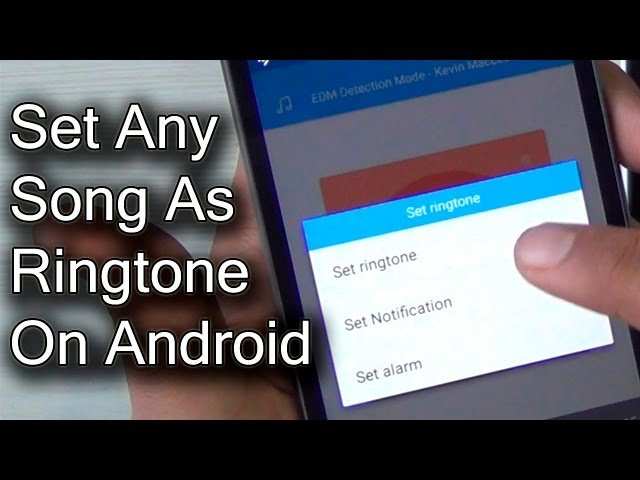
To make your ringtone a song on Android, simply select the desired song in your settings or use a third-party app to set it as your ringtone. **This process is straightforward and quick.** If you want to personalize your phone, knowing how to make your ringtone a song on Android lets you choose your favorite tunes effortlessly. Just pick a song, trim it if needed, and set it as your ringtone directly from your device or through an app. In no time, your phone will ring with your preferred melody.

How to Make Your Ringtone a Song on Android
When you’re tired of hearing the same old ringtone every time your phone rings, why not customize it with your favorite song? Making your ringtone a song on Android is a fun and easy process that lets you personalize your device. In this guide, we will walk through everything you need to know—from choosing the right song to setting it as your official ringtone. Whether you want a catchy tune, a special memory, or a comedy clip, this step-by-step overview will help you get it done smoothly.
Understanding the Basics of Ringtones and Customization
Before jumping into the practical steps, let’s understand what a ringtone is and how Android phones handle them. Ringtones are audio files that play when someone calls your phone. Most Android devices support common audio formats such as MP3, WAV, and OGG, which means you can choose almost any song or sound clip to set as your ringtone.
Customizing a ringtone involves:
- Getting the right audio file (your song)
- Editing the song if needed to fit the ringtone length
- Saving it in the correct format and location
- Setting it as your default or contact-specific ringtone
Knowing these basics makes the process more straightforward. Now, let’s look at how to pick or create the perfect song ringtone for your Android device.
Choosing the Perfect Song for Your Ringtone
The first step is selecting a song that suits your personality or mood. Keep in mind:
- The song should be clear and high-quality for better sound clarity.
- Pick a segment that is short and catchy—usually 15 to 30 seconds long—to serve as an effective ringtone.
- Make sure you have the legal right to use the song, especially if sharing or using it publicly.
Popular options include:
- Favorite pop or rock song
- Funny or quirky sound clips
- Sound effects or custom recordings
Once you’ve chosen the song, you might need to trim it down to create a ringtone segment. This is where editing tools come into play.
How to Edit Your Song for Use as a Ringtone
Most songs are longer than the typical ringtone length, so you will want to cut a specific part. Here’s how to do it:
Using Built-in Android Tools
Some Android phones come with in-built editing features:
- Go to your music or audio files app
- Select the song you want to use
- Look for an edit or crop option
- Trim the song to the desired segment (usually 15-30 seconds)
- Save the clip as a new file
Using Third-Party Apps
If your device lacks editing features, you can download free apps like MP3 Cutter, Ringtone Maker, or AZ Audio Editor:
- Install the app from Google Play Store
- Open the app and load your chosen song
- Select the portion you want to set as your ringtone
- Save the segment as a new file in your device storage
Remember to choose a file format compatible with Android, such as MP3 or WAV, when saving your edited clip.
Storing and Managing Your Song Ringtone Files
Once you have your ringtone segment ready, you need to store it where your phone can access it easily. Here’s how:
- Save the file in your device’s internal storage or SD card
- Create a dedicated folder named “Ringtones” for better organization (optional but helpful)
- Ensure the filename is simple, with no special characters, to avoid compatibility issues
To verify, you can use a file manager app to browse your storage and check where your ringtone file is located.
Setting Your Song as a Ringtone on Android
Now, the fun part: setting your custom song as the ringtone. Android devices have slightly different ways of doing this depending on the manufacturer and Android version, but the core process is similar.
Using Phone Settings
Follow these steps:
- Open the Settings app on your device
- Scroll down and select “Sound” or “Sound & Vibration”
- Tap on “Ringtone” or “Phone Ringtone”
- You’ll see a list of available ringtones. Tap “Add” or “Choose more”
- Navigate to the folder where you saved your song ringtone
- Select your custom song and confirm
Your device will now use this song as the default ringtone.
Assigning Ringtone to Specific Contacts
If you want certain people to have their unique ringtone, do the following:
- Open the Contacts app
- Select the contact you want to assign a custom ringtone to
- Tap on “Edit” or the pencil icon
- Look for the “Ringtone” option (may be under “More” or “Details”)
- Select your custom song from the list
- Save the contact
Now, whenever that person calls, your favorite song will play.
Tips and Troubleshooting for a Smooth Experience
Sometimes, things don’t go as planned. Here are some tips:
- Ensure your song file is in a compatible format like MP3 or WAV.
- If your ringtone isn’t showing up, restart your device or refresh your media library.
- Make sure the ringtone file is saved in the proper folder—usually “Ringtones” or “Notifications.”
- Use good quality audio files for better sound clarity and volume.
- If your device has a different menu, look for options like “Sound Settings,” “Device Settings,” or “Notifications & Sounds.”
With these pointers, setting your favorite song as a ringtone becomes a simple process.
Additional Methods: Using Ringtone Apps and Online Tools
If you want more customization options or find the manual way complicated, several apps and online tools can help:
- Ringtone Maker Apps: These apps allow you to select, cut, and set ringtones directly from your phone.
- Online Converters: Websites that convert your uploaded songs into ringtone clips, which you can download and set.
- Sync Tools: Programs like Google Drive or Dropbox let you upload your song files and access them across devices, making it easy to transfer and set ringtones.
Always download apps from trusted sources like Google Play Store and read reviews before installing.
Summary of Key Steps
Here’s a quick overview of what to remember:
- Choose a song that you love and that fits the ringtone length
- Edit and trim the song as needed using available tools
- Save the ringtone in a suitable format and location on your device
- Set the song as your ringtone through your phone’s settings or contacts
By following these steps, you can enjoy a personalized ringtone that matches your style and mood.
Making your ringtone a song on Android is straightforward and adds a personal touch to your device. Whether you want to display your musical taste or create fun alerts, customizing your ringtone with a favorite song brings extra enjoyment to your daily phone use.
Frequently Asked Questions
Can I set a specific section of a song as my ringtone on Android?
Yes, you can choose a specific part of a song to use as your ringtone. First, open a song editing app compatible with Android, such as Ringtone Maker or Audio Editor. Import the song, then select and trim the segment you want to set as your ringtone. Save the clip, and then set it as your ringtone through your device’s sound settings.
What steps should I follow to convert a song into a ringtone on an Android device?
Start by downloading a ringtone creation app from the Google Play Store. Open the app and import your preferred song. Use the app’s tools to cut and select the desired portion of the song. Once satisfied, save the clip and navigate to your phone’s sound settings to assign the new ringtone to your calls or notifications.
Are there any apps recommended for making a song into a ringtone on Android?
Many apps work well for this purpose, including Ringtone Maker, MP3 Cutter, and Audio Cutter. These apps allow you to easily select, trim, and save parts of your songs as ringtones. Choose an app with good reviews and clear instructions to simplify the process.
Can I edit the volume or add effects to my song ringtone on Android?
Yes, some ringtone editing apps offer features to adjust volume levels, add fade-in or fade-out effects, and even apply filters. Explore the editing options within the app you select to customize your ringtone further and make it sound exactly how you want.
Is it possible to set a custom song as a notification sound on Android?
Absolutely. After creating and saving your custom ringtone, go to your device’s notification sound settings. From there, select your new audio file to assign it as a notification sound. This allows you to have a personalized alert for messages or app notifications.
Final Thoughts
To make your ringtone a song on Android, start by selecting the desired audio file. Use a free app like Ringtone Maker to edit the song and set it as your ringtone. Save the clip and assign it to your contacts or general calls for a personalized touch.
Ensuring your music file is correctly formatted and trimmed helps avoid glitches. Adjust the settings within the app to finalize your ringtone easily. With these simple steps, you can enjoy your favorite song every time your phone rings.
In conclusion, how to make your ringtone a song on Android involves selecting, editing, and setting your favorite track. Follow these easy steps to customize your ringtone seamlessly and enjoy personalized notifications.
