

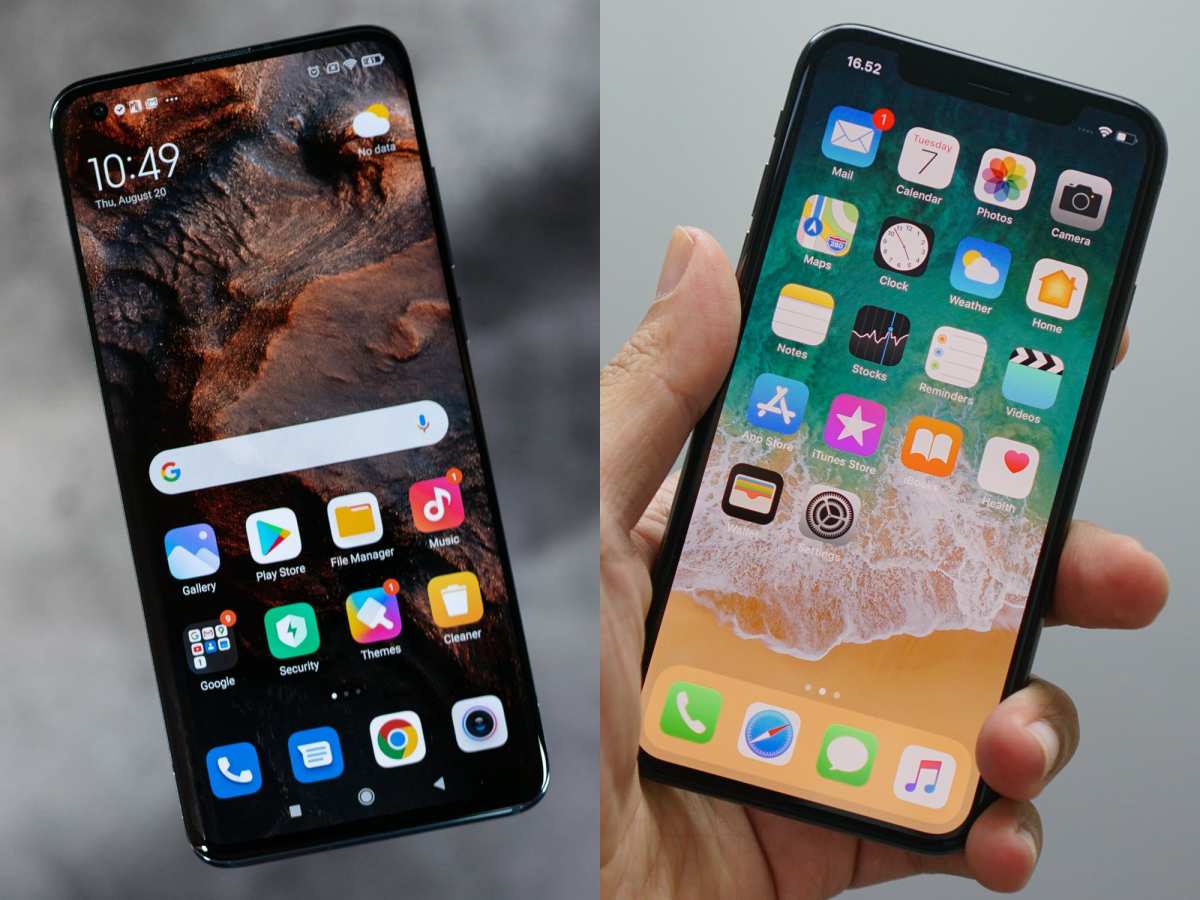
To make Android look like an iPhone, start by customizing your launcher to mimic iOS’s clean interface. **Changing icons, wallpapers, and adding iPhone-style widgets instantly gives your phone a new look.** You can easily download themes and icon packs that replicate iOS’s aesthetic.
Adjusting your settings and installing specific apps helps you achieve a seamless iPhone experience. This way, your Android device captures the sleek, minimalistic style of an iPhone without complex modifications.

How to Make Your Android Look Like an iPhone
If you love the sleek design of the iPhone but prefer to use an Android device, you’re in luck. You don’t need to buy a new iPhone to enjoy that minimalist, stylish look. Instead, you can customize your Android phone to resemble an iPhone’s appearance and feel. This guide walks you through the easy steps to achieve that smooth, iPhone-like aesthetic on your Android device. Let’s explore what you need to do to transform your Android into a device that looks and feels like an iPhone.
Understanding the Key Differences Between Android and iPhone Designs
Before diving into customization, it’s helpful to understand what makes iPhones look unique compared to Android phones. Some of these features include:
- Clean and minimalistic icons: iPhones use simple, flat icons with consistent shapes and spacing.
- Dock design: The bottom dock holds a few essential apps with a transparent or subtly styled background.
- Control Center: iOS offers a quick-access panel for settings like Wi-Fi, Bluetooth, and brightness, accessed by swiping from the top or bottom.
- Consistent font and text style: iPhones often use the San Francisco font with clean, uniform text.
- Rounded app icons: App icons are typically circular or rounded squares on iOS.
- Home Screen layout: iPhones tend to keep a consistent grid with minimal clutter, emphasizing simplicity.
Knowing these aspects will help you design your Android interface to mimic the iPhone’s elegance.
Choosing the Right Launcher for iPhone Look
Your launcher plays a pivotal role in customizing your Android device. It changes the overall appearance, icon styles, app drawer, and layout. To make your Android look more like an iPhone, pick a launcher specifically designed for that purpose.
Recommended Launchers to Replace Your Default Home Screen
- iLauncher: Mimics the iOS home screen with circular app icons and smooth animations.
- Launcher iOS 16: Offers a very close visual replica of the latest iPhone interface, including the Control Center and app icons.
- X Launcher: Emulates iOS features such as the notification center, control panel, and app icons.
- Phone 13 Launcher: Designed to replicate the appearance of recent iPhones, with quick access to iOS-style widgets and icons.
Once you download and install a launcher, set it as your default to instantly give your home screen an iPhone-inspired look.
Customizing the Launcher Settings
After installing your chosen launcher, explore its customization options:
- Set icon shape to circle or rounded square.
- Adjust grid size to mimic iPhone’s app layout.
- Enable or disable the app drawer to mirror iOS’s homepage layout.
- Change transition effects for smoother, iOS-like animations.
- Customize the dock, making it transparent or matching iPhone design.
Most launchers also allow you to hide app labels for a cleaner aesthetic, just like iOS.
Applying iPhone-Style Icons and Wallpapers
The visual appeal largely depends on icons and wallpapers. To complete the transformation:
Downloading iOS-Style Icons
You can find icon packs designed to resemble iPhone icons on the Google Play Store. Search for terms like “iOS icon pack,” “iPhone icon theme,” or “iOS icon set.” Install your preferred pack and apply it through your launcher’s settings.
Some popular icon packs include:
- “iOS Icon Pack” by Snap Design
- “Apple iOS Icon Pack” by DevilX
- “iOS Icon Pack Free” by Apk Pure
Make sure to set the icon pack as the default for your launcher, so all app icons automatically update.
Selecting iPhone-Style Wallpapers
A matching wallpaper enhances the illusion of iPhone. You can search online for high-quality images matching iOS backgrounds or download wallpapers from apps like Zedge or Walli. Choose minimalistic or abstract designs that resemble the default iPhone wallpapers.
Creating a Control Center Similar to iOS
One of the hallmark features of iPhones is the Control Center — quick access for toggles like Wi-Fi, Bluetooth, brightness, and more. You can replicate this feature on your Android device with specialized apps.
Apps to Design an iOS-Style Control Center
- Control Center iOS 15: Mimics the iPhone Control Center and can be accessed via a swipe gesture.
- Notification & Control Center: Offers a customizable panel with toggles, brightness slider, and music controls.
- iOS 16 Control Center: Provides a very similar look and feel to the latest iOS versions.
Configure these apps to appear when you swipe down from the top of your screen, giving your Android device that familiar iPhone feel.
Adjusting Fonts and Text Style
Fonts contribute significantly to the overall look. iPhones use the San Francisco font, which is sleek and modern. To imitate this:
Installing a Similar Font
– Download a font similar to San Francisco, like “SF Pro” or “Helvetica Neue,” from font repositories such as Google Fonts or dafont.com.
– Use a font app like iFont or FontFix to install custom fonts on your Android device.
– Apply the font through your launcher if supported, or via your device’s display settings.
This ensures that all text on your device appears clean and consistent, much like an iPhone.
Customizing App Icons and Widgets
To replicate the iPhone interface further:
- Use icon packs that feature circular icons with minimal designs.
- Add widgets that look like iOS widgets, such as weather, calendar, or clock, from third-party widget apps.
- Position your icons and widgets symmetrically for a tidy, iOS-inspired home screen.
Many launchers support widget customization and can mimic iOS widgets with specific apps.
Adding Minimalist Apps for a Cohesive Look
Choose apps that align with the minimal aesthetic, such as:
- Weather apps with clean designs (e.g., Beautiful Widgets or Weather Widget-Retrofit)
- Calendar apps with simple interfaces (e.g., DigiCal or aCalendar)
- Music players with sleek controls (e.g., Musicolet or Poweramp)
Keep your app icons uncluttered and well-organized for the best visual experience.
Enhancing the Lock Screen Experience
An iPhone’s lock screen is clean and functional. You can emulate this on your Android:
Apps to Customize Your Lock Screen
- “Lockscreen Notifications & App Locker”: Displays notifications in a style similar to iOS.
- “Always On AMOLED Lock Screen”: Provides a simple lock screen with minimal controls.
- “Oxygen OS or other custom ROM lock screen options”: If your device supports it, tweak the lock screen for a more iPhone-like experience.
Adjust these settings to show minimal notifications and a sleek unlock animation, mirroring iOS.
Other Tips for Achieving the Perfect iPhone Look
Aside from visual tweaks, small details matter:
- Disable app labels in your launcher for a cleaner look.
- Use a transparent or semi-transparent app dock.
- Set up gestures if your launcher allows, mimicking iOS swipe actions.
- Regularly update your wallpaper and icons for a fresh aesthetic.
Maintaining consistency across your home screen and lock screen will make your Android device look remarkably like an iPhone.
Transforming your Android device to resemble an iPhone isn’t just about changing icons or wallpapers, but about creating a cohesive, minimalistic aesthetic that captures the essence of iOS. Choosing the right launcher, customizing icons, wallpapers, fonts, and control options makes this possible without altering the core functionalities of your device. With patience and attention to detail, your Android phone can look like an elegant iPhone in no time. Enjoy the process of personalizing your device to match your style and preferences!
Frequently Asked Questions
What apps can I use to customize my Android interface to resemble an iPhone?
Several apps on the Google Play Store allow you to mimic the iPhone’s appearance. Launchers like “iOS Launcher” or “Control Center iOS 15” provide iPhone-style icons, home screens, and control panels. These launchers replace your default Android interface, giving it a sleek, familiar look. Choose a launcher that offers customization options to better match your preferred iPhone style.
How can I change my Android icons to resemble those on an iPhone?
Download an icon pack designed to imitate iPhone icons from the Play Store. You can also use a custom launcher that supports icon changing. Once installed, select the icon pack within the launcher settings, and apply it to update your app icons. This approach provides a consistent look similar to an iPhone’s minimalistic icon style.
Is it possible to add a control center similar to iPhone on Android?
Yes, many apps enable you to incorporate a control center on your Android device. Apps like “Control Center iOS 15” or “Power Shade” allow you to access quick toggles, settings, and notifications with an iPhone-like swipe. Customize these apps to resemble the iPhone’s control panel, making it easier to access commonly used functions.
Can I make my Android wallpaper look like iPhone’s default wallpaper?
Absolutely. Search online for high-quality images of the latest iPhone default wallpapers, then set them as your home or lock screen wallpaper. Many wallpaper apps also curate collections of iPhone-style backgrounds, so you can easily find one that matches the aesthetic you’re aiming for.
How do I change my Android notification panel to look like an iPhone?
Use a custom notification panel app such as “iOS Notifications” or “Control Center” to replicate the look of iPhone notifications. These apps modify your notification menu to display iOS-style toggles, alerts, and arrangement. Adjust the settings to match your preferred layout and the style of notifications similar to an iPhone.
Final Thoughts
To make android look like an iphone, start by installing a launcher that mimics iOS design. Customize your icons and widgets to resemble the clean, minimal style of iPhone interfaces. Use wallpapers and icon packs to enhance the overall aesthetic.
Adjust your settings to hide Android-specific features, creating a seamless iOS experience. With these simple tweaks, your Android device can visually replicate an iPhone, giving you the sleek look you desire. Making android look like an iphone is achievable with these easy customization steps.
