

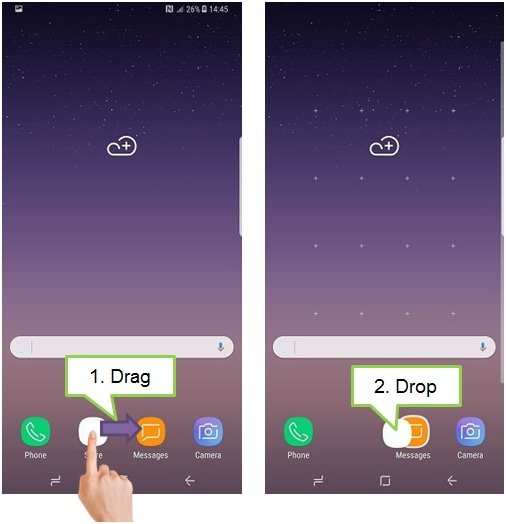
To make an app folder on Android, simply drag one app icon over another. This quick action creates a new folder instantly. If you’re wondering how to make an app folder on Android, it’s straightforward and requires just a few taps.
Once you’ve created the folder, you can add more apps by dragging them into it. Organizing your apps this way keeps your home screen tidy and easy to navigate. In just a few steps, your Android device becomes more organized and user-friendly.

How to Make an App Folder on Android
Creating organized space on your Android device makes it easier to locate your favorite apps and keeps your home screen tidy. One of the best ways to achieve this is by making app folders—groups of related apps placed together for quick access. In this guide, we will walk through each step of creating an app folder, explore different customization options, and provide helpful tips to make your Android experience more efficient and enjoyable.
Understanding the Benefits of Creating App Folders
Before diving into the how-to, let’s talk about why using app folders is beneficial. When you make app folders, you:
- Reduce clutter on your home screen, giving your device a cleaner look
- Save space by consolidating multiple apps into a single folder
- Make it easier to find related apps quickly, improving your navigation experience
- Organize your apps based on categories such as Games, Productivity, Social Media, or Work
Knowing these benefits can motivate you to customize your Android home screen to suit your needs better.
Step-by-Step Guide to Creating an App Folder on Android
Let’s go through the process of creating an app folder on your Android device. Keep in mind that the exact steps might vary slightly depending on your device model and Android version, but the overall process remains similar.
Preparing Your Home Screen
Before creating a folder, decide where you want it. Follow these tips:
- Clear some space on your home screen by removing or moving existing apps if necessary.
- Choose an area where the folder will be easily accessible and visible.
- Ensure the apps you want to include are already installed on your device.
Creating the Folder
Follow these simple steps to make your first app folder:
- Tap and hold on an app icon that you want to include in the folder.
- Drag the app icon over another app you want to group it with. When you see a visual cue, such as a change or a shadow indicating overlap, release your finger.
- The system automatically creates a folder containing the two apps.
Adding More Apps to the Folder
Once the folder exists, you can add more apps:
- Tap and hold on additional app icons one by one.
- Drag each app icon into the folder. As you do this, the folder will expand to accommodate more apps.
Renaming the App Folder
Customizing the folder’s name helps you easily recognize its contents:
- Tap on the folder to open it.
- Look for the default name, such as “Folder” or the name of the first app added.
- Tap on the name text to edit it.
- Enter a descriptive name, like “Games,” “Work,” or “Photos.”
- Tap outside the folder or press ‘Done’ to save the new name.
Rearranging and Moving the Folder
You can customize where your folder lives:
- Tap and hold the folder icon.
- Drag it to your preferred location on the home screen or to another page.
- Release it when it’s in the desired spot.
Customizing Your App Folder
Beyond simply creating a folder, you can enhance its appearance and functionality.
Changing the Folder Icon
Some Android launchers allow you to customize the folder icon:
- Tap and hold the folder icon.
- Select “Edit” or “Customize” if available.
- Choose from default icons or upload your own via gallery or app icon packs.
- Save the changes, and your folder will display the new icon.
Adding a Cover Image or Background
In some launchers, you can add a unique cover image or background to your folder:
- Open the folder.
- Look for an option such as “Change cover” or “Customize background.”
- Select an image or color that suits your style.
- Apply the changes to personalize your folder further.
Tips for Managing Multiple Folders
As you add more apps, organizing your folders becomes important:
- Create categories—such as “Music,” “Social,” or “Utilities”—to keep similar apps grouped.
- Use consistent naming conventions for easier recognition.
- periodically review and reorganize folders to keep your home screen clutter-free.
Using Widgets and Shortcuts Alongside Folders
Combine app folders with widgets for maximum efficiency:
- Add widgets for weather, calendar, or news on your home screen.
- Place app folders next to these widgets for quick access.
- Drag app shortcuts or folders to your dock for always-on-top access.
Advanced Customization Using Third-Party Launchers
If your device offers limited options, third-party launchers can provide more features:
- Download popular launchers like Nova Launcher, Action Launcher, or Microsoft Launcher from the Play Store.
- Explore their customization settings to change folder styles, icons, and behaviors.
- Create more personalized and visually appealing folders that fit your style.
Troubleshooting Common Issues
Sometimes, creating or managing folders may present challenges. Here are common issues and how to fix them:
Folder Not Creating
- Ensure your touch isn’t too brief or too long during drag-and-drop.
- Check if your launcher supports folder creation.
- Update your launcher or device software if needed.
Apps Not Adding to Folder
- Make sure the app is installed and visible on the home screen.
- Try removing and re-adding the app to a different location before adding it to a folder.
- If necessary, restart your device.
Folder Disappearing or Not Opening Properly
- Restart your device to refresh the launcher.
- Clear cache of your launcher app via device settings.
- Update your launcher or reset to default if persistent issues remain.
Creating app folders on Android may seem simple, but customizing and managing them effectively can make your device more fun and organized. Experiment with different categories, icons, and layouts to find what works best for your daily routines. Whether you stick to basic folders or explore advanced customization options with third-party launchers, a well-structured home screen can boost your productivity and make your Android experience much more pleasant.
Frequently Asked Questions
How do I group apps into a folder on my Android home screen?
To organize your apps, press and hold any app icon until a menu appears or the icon enlarges. Then, drag the app onto another app you want to include in the folder. When they overlap, a folder is created automatically. You can add more apps to the folder by repeating this process. To name the folder, tap on the folder icon and enter a custom name. Finally, tap outside the folder to save your changes.
What is the process to rename an app folder on Android?
Open the folder by tapping on it. Once opened, look for the folder’s name at the top or within the folder interface. Tap on the name to activate the text box, then enter your preferred name. Confirm the change by pressing OK or tapping outside the text box. Your folder now displays the new name, helping you identify groups of apps easily.
Can I add or remove apps from an existing folder on Android?
Yes, to add apps, open the folder and then drag additional app icons into it from your home screen or app drawer. To remove an app, open the folder, press and hold the app icon, then drag it out of the folder onto the home screen or app drawer. The folder will update automatically to reflect these changes. Regularly managing your folders helps keep your device organized and accessible.
Final Thoughts
Creating an app folder on Android helps keep your device organized and access apps easily. Simply tap and hold an app icon, then drag it over another app you want to group. Release the icon to form a folder automatically. You can rename the folder by tapping on its name area and entering a new title. To add more apps, just drag and drop them into the existing folder.
In conclusion, knowing how to make an app folder on Android simplifies app management and enhances user experience. Follow the steps above to create organized groups that suit your needs, making your device more efficient.
