

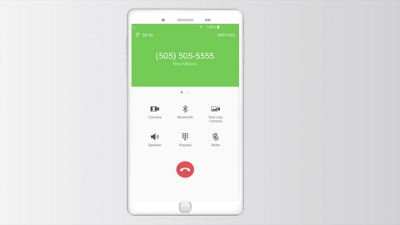
To make a wifi call on Android, you simply need to enable Wi-Fi calling in your device settings. **It’s a quick process that improves your call quality in areas with weak cellular signals.** If you’re wondering how to make wifi call on android, start by opening the “Connections” or “Network & Internet” menu. Turn on Wi-Fi calling, and your device will automatically switch to Wi-Fi for calls when needed. This feature ensures clearer calls and better connectivity without extra apps.

How to Make WiFi Call on Android
Making a WiFi call on your Android device can be a real game-changer, especially when you find yourself in areas with weak cellular signals. Instead of relying solely on your cellular network, WiFi calling allows you to make and receive calls using a WiFi connection, giving you clearer conversations and fewer missed calls. Whether you’re at home, in a cafe, or traveling abroad, learning how to use WiFi calling on your Android helps you stay connected more easily. This guide will walk you through the entire process, from checking if your device supports WiFi calling to troubleshooting common issues.
Understanding WiFi Calling
Before diving into the steps, let’s clarify what WiFi calling really is. WiFi calling is a feature that uses your internet connection to place calls instead of the traditional cellular network. It’s particularly useful in:
- Areas with poor cellular reception, like underground parking or rural locations
- When traveling abroad, to avoid expensive roaming charges
- In homes with weak cell signals but strong WiFi
Most modern Android phones support WiFi calling, but you’ll want to check if your device and carrier support this feature.
Check if Your Android Device Supports WiFi Calling
The first step is to ensure your device and network can handle WiFi calling. Here’s how:
Device Compatibility
– Most newer Android phones from brands like Samsung, Google, OnePlus, and LG support WiFi calling.
– You can verify compatibility by checking your phone’s user manual or product specifications online.
– To see if your phone supports WiFi calling directly:
- Open your device’s Settings app.
- Look for a section called “Connections,” “Network & Internet,” or something similar.
- Find “WiFi Calling” or “Calls” options. If it’s there, your device likely supports this feature.
Carrier Compatibility
– Not all carriers support WiFi calling, so contact your mobile provider or check their website.
– Usually, if your device is compatible, your carrier offers WiFi calling as an optional feature you can enable.
– Some carriers require you to have an active plan or specific plan type for WiFi calling.
Enable WiFi Calling on Your Android Device
Once you’ve confirmed your device and carrier support WiFi calling, follow these steps to activate it:
Turning on WiFi Calling
– Open your device’s Settings app.
– Tap on “Connections” or “Network & Internet.”
– Locate “WiFi Calling” and select it.
If you don’t see this option, try searching for “WiFi Calling” in the search bar within Settings.
– Toggle the switch to turn it on.
– You may be prompted to enter or confirm your emergency address. This is required for legal reasons and ensures emergency services can locate you if needed.
– Save your settings.
Set Your Preferred Calling Method
– Some Android phones let you choose whether to prefer WiFi calling or cellular calls.
– In the WiFi Calling menu, select your preferred method:
- Always ask me
- Prefer WiFi for calls
- Prefer cellular network
Making Calls Using WiFi on Android
After enabling WiFi calling, you can start making calls through WiFi just like you normally would. Here’s how:
Calling a Contact
– Open your phone’s dialer or contacts app.
– Choose the contact you want to call.
– Tap the call button. If WiFi calling is active and your WiFi connection is strong, your call will go over WiFi.
Some devices display a small icon showing a WiFi signal or “WiFi Calling” in the status bar when the call uses WiFi.
Making Emergency Calls
– WiFi calling allows emergency calls even if you lack cellular service.
– Dial emergency numbers as usual.
– Keep in mind that your device might need to be connected to WiFi and have the feature enabled to make emergency calls via WiFi.
Optimizing WiFi Calling for Better Performance
To ensure your WiFi calls sound clear and don’t disconnect unexpectedly, follow these tips:
Improve WiFi Signal Strength
– Place your router in a central location.
– Avoid physical obstructions like thick walls or metal objects.
– Use a WiFi extender or mesh network if your signal is weak in certain areas.
– Connect to a 5 GHz network if your device and router support it, as it’s faster and less congested.
Limit Other Devices on the Network
– Too many devices using the same WiFi network can slow down your connection.
– Disconnect unnecessary devices or prioritize your phone’s connection.
Update Your Software
– Regularly check for system updates and app updates.
– Manufacturers often release improvements for WiFi calling that enhance stability and call quality.
Troubleshooting Common WiFi Calling Issues
If you encounter problems with WiFi calling, here are some simple troubleshooting steps:
WiFi Calling Not Working or Not Showing Up
– Ensure your WiFi is active and stable.
– Restart your device.
– Turn WiFi calling off and then on again in the settings.
– Check for any software updates.
– Confirm your carrier supports WiFi calling and that your plan includes it.
Calls Drop or Sound Quality Is Poor
– Move closer to your WiFi router.
– Reduce the number of devices connected to the same network.
– Switch to a different WiFi network if possible.
– Restart your router.
Emergency Calls Fail via WiFi
– Verify your emergency address is correctly entered.
– Check if WiFi calling is enabled.
– Contact your carrier for support if issues persist.
Additional Tips for Using WiFi Calling Effectively
To make the most out of WiFi calling, consider these additional tips:
- Keep your phone’s software up to date for the latest features and fixes.
- Ensure your WiFi connection is secure—avoid public or unsecured networks when making important calls.
- Use a reliable WiFi network for important calls or business communication.
- If you experience frequent issues, consider resetting your network settings in your device’s settings menu.
Learning how to make WiFi calls on your Android device can significantly enhance your communication experience, especially in areas where cellular signals are weak. By verifying compatibility, enabling the feature, and improving your WiFi connection, you open up a new way to stay connected. Remember to troubleshoot common issues patiently and keep your device updated to enjoy smooth, clear conversations. With these simple steps and tips, WiFi calling becomes a handy tool to help you communicate more effectively wherever you are.
Frequently Asked Questions
What are the steps to enable Wi-Fi calling on an Android device?
To enable Wi-Fi calling on your Android device, go to the Settings app and select ‘Network & Internet.’ Tap on ‘Mobile Network’ or ‘Cellular Network,’ then look for ‘Wi-Fi Calling.’ Toggle the switch to turn it on. You might need to agree to terms and conditions or enter your emergency address if prompted.
How can I verify if Wi-Fi calling is active on my Android phone?
After enabling Wi-Fi calling, check your status bar for a phone icon with a Wi-Fi symbol or the words ‘Wi-Fi Calling.’ You can also navigate to Settings > Network & Internet > Mobile Network > Wi-Fi Calling to see if the feature shows as active. Additionally, making a call while connected to Wi-Fi will confirm that the feature works correctly.
What should I do if Wi-Fi calling isn’t working on my Android device?
If Wi-Fi calling isn’t functioning properly, ensure your device is connected to a stable Wi-Fi network. Restart your phone and verify that Wi-Fi calling is enabled in the settings. Check with your carrier to confirm your account supports this feature. Updating your device’s software and resetting network settings can also resolve common issues.
Final Thoughts
To make wifi call on android, first ensure your device and carrier support Wi-Fi calling. Enable Wi-Fi in your settings and turn on Wi-Fi calling option. You might need to set your preferred network during the setup process. Once activated, your calls will route over Wi-Fi, providing better connectivity in areas with weak cellular signals.
