

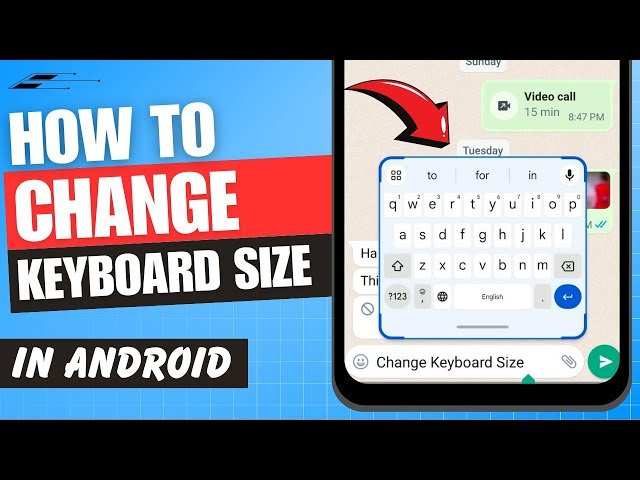
If you want to make your Android keyboard larger, simply adjust the keyboard size in your device settings. **Navigate to Settings, then Languages & Input, select your keyboard, and find the size adjustment option.** This quick change makes typing more comfortable, especially on smaller screens.
Knowing how to make android keyboard larger helps prevent strain and enhances your overall experience. Just follow a few simple steps, and you’ll have a more accessible keyboard in no time.

How to Make Android Keyboard Larger
Having a bigger keyboard on your Android device can make typing easier and more comfortable, especially if you have larger hands or find small keys frustrating. Whether you’re looking to improve accuracy, reduce typos, or simply want a more accessible typing experience, there are several ways to enlarge your Android keyboard. In this guide, we’ll walk through different methods, settings adjustments, and third-party options to help you customize your keyboard size to fit your needs.
Understanding Why Your Android Keyboard Might Be Small
Before jumping into solutions, it’s helpful to understand what influences your keyboard size and why it might feel too small. Common reasons include:
- Default system settings that prioritize compactness for screen space
- Using third-party keyboards that have their own sizing options
- Screen size and resolution, which affect how keys are displayed
- Need for accessibility features if you have vision or motor challenges
Knowing these factors can help you choose the right approach and avoid unnecessary adjustments.
Adjusting Keyboard Size Through Android Settings
Many Android devices offer built-in options to adjust the size of the keyboard directly. Here’s how you can do it:
Using the Gboard Keyboard Settings
Gboard—Google’s default keyboard on most Android devices—provides a straightforward way to resize your keyboard:
- Open any app that allows text input, like Messages or Notes.
- Tap on the keyboard to bring up Gboard.
- Tap the gear icon or the three-dot menu on the keyboard to access settings.
- Go to Preferences.
- Select Keyboard height.
- Choose a larger size from the options—small, normal, tall, or very tall.
**Tip:** If you don’t see the option, make sure your Gboard app is updated to the latest version.
Adjusting Key Size in Other Popular Keyboard Apps
Some third-party keyboards also allow customization:
- SwiftKey: Navigate to Settings > Typing > Keyboard layout, then adjust Key size or Keyboard height.
- Fleksy: Access Settings > Keys > Key size, then drag the slider to resize keys.
- Any other keyboard app: Look for options labeled “Appearance,” “Layout,” or “Size” in the settings menu.
This customization enables you to tailor the keyboard size to your preferred comfort level.
Enabling Accessibility Features for Larger Keys
If you need even bigger keys, accessibility settings can help:
Using Android’s Accessibility Menu
The Android Accessibility menu offers options that make typing easier:
- Go to your device’s Settings.
- Select Accessibility.
- Tap on Display or Interaction controls (name varies by device).
- Turn on Magnification gestures or similar options to zoom in on parts of the screen.
While this doesn’t directly enlarge the keyboard, zooming makes all on-screen text and keys larger, improving usability.
Enable Large Text and Display Size Settings
Adjusting overall display size impacts the size of on-screen elements, including the keyboard:
- Navigate to Settings.
- Tap on Display.
- Select Display size or Font size.
- Increase the slider to make everything, including your keyboard, larger.
These changes are quick and effective, especially for users with visual impairments.
Using Third-Party Keyboard Apps for Custom Sizing
If your current keyboard doesn’t offer enough options or you want more control, third-party launchers are a great choice. Popular options include:
Customizing with Gboard and Other Keyboards
Many third-party keyboards let you set precise key dimensions and layout preferences. Here’s what to look for:
- Download a keyboard app from the Google Play Store. Recommended: Gboard, SwiftKey, or Fleksy.
- Open the app and grant the necessary permissions.
- Navigate to its settings menu.
- Find options for Keyboard size, Key height, or Layout customization.
- Adjust sliders or input specific measurements to create larger keys.
Advantages of Third-Party Keyboards
- More precise control over key size and layout.
- Additional features like themes, gestures, and shortcuts.
- Better accessibility options for users with special needs.
Additional Tips for Improving Typing Comfort
Making your keyboard larger is a great start, but you can also try these tips:
- Use a stand or holder for your device for better viewing angle.
- Adjust the font size on your device to make text easier to read.
- Enable predictive text and auto-correct features for fewer errors.
- Practice slow, deliberate typing to get used to larger keys.
How to Troubleshoot Common Issues
Sometimes adjusting the keyboard size can cause problems:
- Keys not resizing: Make sure your keyboard app is updated and compatible with your device.
- Lag or slow response: Clear cache and data for the keyboard app or reinstall it.
- Other apps not recognizing changes: Restart your device after adjusting settings to ensure changes take effect.
Changing your Android keyboard size can significantly enhance your typing experience, making it more comfortable and accessible. Whether you prefer using built-in settings, accessibility features, or third-party keyboards, there are plenty of options to customize how your keyboard looks and feels. Spend a few minutes exploring the available settings, and you’ll likely find a configuration that makes typing on your device much easier. Remember, a larger keyboard doesn’t just improve comfort—it can also boost your productivity and reduce frustration during everyday tasks.
Frequently Asked Questions
Can I adjust the size of my Android keyboard through settings?
Some Android devices allow you to change the keyboard size directly within the settings menu. To do this, open your device’s Settings app, navigate to Language & Input or Keyboard settings, select your current keyboard, and look for size or layout options. If available, adjust the size slider or select a larger keyboard layout to make keys bigger and easier to tap.
Are there third-party keyboards that offer customizable key sizes?
Yes, many third-party keyboard apps, such as Gboard, SwiftKey, or Fleksy, provide options to customize key sizes. Download and install one of these keyboards from the Google Play Store. Once installed, go into the keyboard’s settings, find the appearance or layout section, and increase the key size slider to make the keyboard larger and more comfortable to use.
Does enabling zoom or magnification features help in making the keyboard larger?
Enabling zoom or magnification features on your Android device allows you to enlarge specific areas of your screen, including the keyboard. Activate this feature in Accessibility settings by turning on Magnification or similar options. Once enabled, you can pinch-to-zoom on the keyboard area, making it easier to see and tap keys accurately.
How can I increase the overall display size to make the keyboard appear larger?
You can increase your device’s display size by adjusting the display settings. Go to Settings > Accessibility > Display size or Font size. Move the slider towards larger sizes to enlarge on-screen elements, including the keyboard. This change makes all interface elements bigger, aiding in easier typing.
Is it possible to customize individual key sizes on my Android keyboard?
Some advanced keyboard apps allow you to customize the size of individual keys or create a personalized layout. Check the settings of your current keyboard or try installing a more flexible one like Fleksy. These apps often provide options to adjust key dimensions to suit your preferences, helping you type more comfortably.
Final Thoughts
To make android keyboard larger, adjust the font size in your device settings or within the keyboard app itself. You can also enable a larger keyboard layout through accessibility options to improve comfort. Additionally, using third-party keyboard apps often provides more customization options for size and layout.
Ultimately, knowing how to make android keyboard larger ensures easier typing and a better user experience. Applying these tips can significantly improve your device interaction.
