

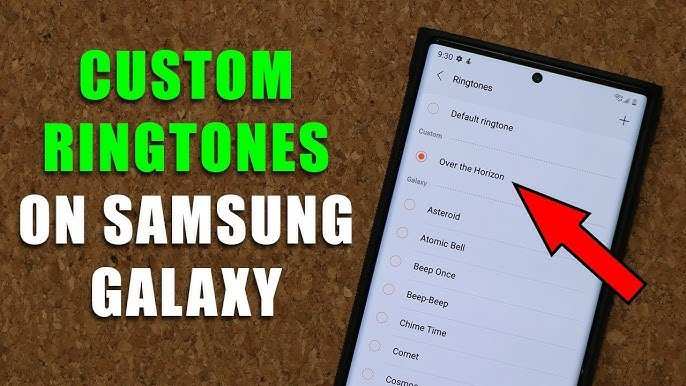
To make a custom ringtone for Android, you can easily do it using built-in apps or third-party tools. **Simply select your favorite song or clip, trim it to the desired length, and set it as your ringtone.** If you’re wondering how to make a custom ringtone for Android, start by choosing an audio file and editing it with a simple app like the default music editor or a dedicated ringtone creator. This process makes your device uniquely yours and adds a personal touch to your everyday experience.

How to Make a Custom Ringtone for Android
Creating a personalized ringtone for your Android device might seem tricky at first, but once you understand the steps involved, it becomes a simple and fun process. This guide will walk you through everything you need to know about making your own ringtone, from choosing the right sound to setting it up on your phone. Whether you want a catchy song clip, a funny sound, or a special recording, you’ll find all the details right here.
Why Make Your Own Ringtone?
Before diving into the steps, let’s talk about why creating a custom ringtone can be a great idea:
- Personalization: Show off your personality with a ringtone that matches your style.
- Easy Identification: Know who’s calling without looking at your screen.
- Fun and Unique: Stand out from the crowd with a sound other people don’t have.
- Save Money: Use your favorite songs or sounds without paying for ringtones from stores.
Choosing the Right Sound for Your Ringtone
The first step is picking the perfect audio clip. Consider these tips:
- Favorites: Use a favorite part of a song or sound that makes you happy or alert.
- Length: Keep the clip between 20 and 30 seconds. Too long can be annoying, and too short might be hard to recognize.
- Clear Sound: Choose sounds that are easy to hear, without too much background noise.
- Legal Considerations: Use sounds you own or have permission to use to avoid copyright issues.
Gathering Your Audio Files
Once you’ve decided what sound you want, gather the files onto your device:
- Download music or sound clips from trusted sources.
- Transfer audio files from your computer using a USB cable or cloud services like Google Drive.
- Make sure the files are in common formats like MP3, WAV, or OGG for easy editing.
Editing Your Audio for the Perfect Ringtone
Many audio clips are longer than necessary, so you’ll want to cut them down to the best part. Here’s how:
Using Built-in Editing Tools
Most Android devices have basic editing features in their default music or voice recorder apps. If yours does, follow these steps:
- Open the sound in the app.
- Use the trim or cut tool to select the 20-30 second section you want.
- Save the new clip as a separate file.
Using Third-Party Apps
For more control and precision, consider downloading an audio editing app like Ringtone Maker, MP3 Cutter, or WavePad. These apps offer advanced features:
- Import your audio file into the app.
- Play and select the start and end points of your ringtone.
- Preview the trimmed ringtone before saving.
- Export the file in MP3 or other supported formats.
Saving and Naming Your Ringtone Files
Once you’ve edited the clip, make sure to save it with a clear name:
- Choose descriptive names like “My Favorite Song” or “Funny Sound.”
- Ensure the file format matches your device’s requirements, usually MP3 or OGG.
Transferring the Ringtone to Your Android Device
If you created your ringtone on a computer, you need to move it to your phone:
- Using USB Cable: Connect your phone to the computer, then copy the file into the folder named “Ringtones” or “Notifications” in your device’s internal storage.
- Using Cloud Services: Upload the file to Google Drive, then download it directly onto your phone.
- Via Email: Send an email to yourself with the ringtone attached, then download it on your phone.
Setting Your Custom Ringtone on Android
Now that your ringtone file is on your device, it’s time to set it as your default or for specific contacts. Here’s how:
Setting as Default Ringtone
- Go to your device’s Settings.
- Tap on Sounds & Vibration or Sound.
- Select Ringtone.
- Tap on Add or the “+” symbol if available.
- Find your custom ringtone in the list and select it.
- Confirm your choice, and now your ringtone is set.
Assigning Ringtones to Specific Contacts
To personalize your contacts:
- Open the Contacts or Phone app.
- Select a contact you want to assign a special ringtone to.
- Tap Edit or the pencil icon.
- Scroll to the Ringtone option and tap it.
- Choose your custom ringtone from the list.
- Save your changes.
Tips for Making the Most of Your Custom Ringtone
To ensure your custom ringtone works perfectly:
- Keep the file size small to avoid delays in playback.
- Test the ringtone by calling your phone to hear it.
- Back up your custom ringtones to prevent loss if you reset or lose data.
- Use different sounds for different contacts for easy identification.
Advanced Options and Troubleshooting
If you run into issues, here are some solutions:
- The ringtone isn’t showing up: Make sure the file is saved in the correct folder (“Ringtones”).
- Cannot set the file as a ringtone: Check the file format; convert it to MP3 if needed.
- Audio quality sounds poor: Use high-quality sound files and avoid too much editing.
For advanced users, creating unique ringtones through coding or using specific apps can offer more flexibility, but for most, following these straightforward steps works perfectly.
This full process empowers you to create, customize, and enjoy your very own Android ringtones. It makes your device more fun and truly yours, reflecting your personality with every call.
Frequently Asked Questions
What are the best apps to create a custom ringtone on Android?
Several Android apps make it simple to create personalized ringtones. Popular options include Ringdroid, Zedge, and Ringtone Maker. These apps allow you to select or record audio clips, trim them to your preferred length, and save them directly as your new ringtone. Choose an app based on your needs for editing features and ease of use.
How can I transfer my custom ringtone to Android easily?
To move your custom ringtone to your Android device, connect your phone to a computer via USB. Transfer the audio file into the ‘Ringtones’ folder in your device’s internal storage or SD card. Once the file is in the correct folder, go to your phone’s sound settings to select and set the new ringtone. Alternatively, you can share the file via Bluetooth or email and save it directly on your device.
Is it possible to edit existing audio files to create a ringtone on Android?
Yes, you can edit existing audio files directly on your Android device. Use a ringtone editing app like Ringtone Maker or Audacity for Android. These apps let you import your audio files, cut out specific sections, and save the edited portion as a ringtone. Ensure the final clip is short, usually between 15 to 30 seconds, for optimal use as a ringtone.
What steps should I follow to set a custom ringtone on an Android device?
After creating or transferring your ringtone, go to your device’s Settings app. Tap on Sound & Vibration or Sounds. Choose Ringtone, then browse through the list of available tones. Select your newly added custom ringtone and confirm. This sets it as your default or assigns it to specific contacts if desired.
Can I create a ringtone from a YouTube video or online audio source?
To create a ringtone from online audio, first download the audio file from the source or convert the YouTube video to an audio format using an online converter. Then, use a ringtone editor app to trim the clip to the preferred length. Save the edited file as a ringtone, transfer it to your device, and set it through your sound settings.
Final Thoughts
To make a custom ringtone for Android, choose a song or sound clip you like. Use a ringtone maker app or simple editing tools to trim the file to your desired segment. Save the new file in your device’s ringtone folder.
Next, go to your phone’s settings, select ‘Sound,’ then ‘Ringtone,’ and pick your custom file. This easy process personalizes your device and enhances your experience.
In conclusion, to make a custom ringtone for Android, select your favorite sound, edit it, and set it as your ringtone. This simple method allows you to customize your phone effortlessly.
