

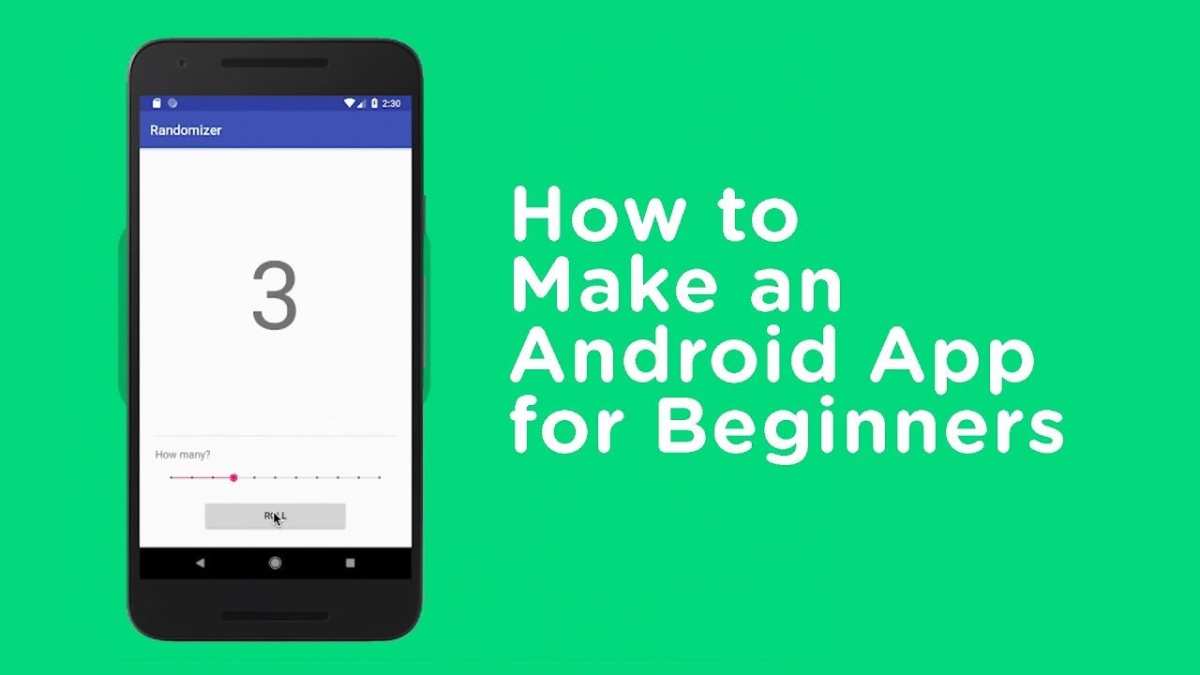
To make an android app, start by learning the basics of programming and familiarizing yourself with Android Studio. **The quickest way is to follow online tutorials and practice by building simple projects.** Once you understand the fundamentals, you can design, develop, and test your app step by step. Knowing how to make an android app involves combining creativity with technical skills, making the process both rewarding and manageable. Get started today, and you’ll be creating your own app in no time.

How to Make an Android App
Building an Android app might seem like a big task at first, but if you take it step by step, it’s very doable. Whether you’re a complete beginner or have some coding experience, creating your own app can be a fun and rewarding project. In this guide, we’ll go through each part of making an Android app from start to finish. We’ll explain everything in simple words and give you practical tips to help you succeed.
Understanding the Basics of Android App Development
Before diving into the actual building process, it’s important to understand what Android app development involves. Android apps are software programs that run on smartphones and tablets using the Android operating system. To make these apps, developers usually use special tools and languages like Java or Kotlin.
Some basic facts to keep in mind:
- The Android platform is open-source, so anyone can create apps for it.
- Apps are made up of different parts called components—such as activities, services, and broadcast receivers.
- The user interface (UI) is what your app looks like and how users interact with it.
- Most apps require permissions, like access to the camera or the internet, which users need to approve.
Knowing these concepts helps make the rest of the process easier.
Setting Up Your Development Environment
To create an Android app, you need the right tools. The most popular tool for Android development is Android Studio. It’s free and available for Windows, Mac, and Linux.
Steps to set up your environment:
- Download Android Studio from the official website.
- Install the program following the instructions for your operating system.
- Open Android Studio and set up a new project.
- Choose a project template that matches your app idea, like a “Basic Activity.”
- Familiarize yourself with the user interface of Android Studio. It has a code editor, layout editor, and a device emulator for testing your app.
Once your environment is ready, you can start designing your app and writing code.
Designing Your App’s User Interface
The user interface is what your app looks like and how users will navigate through it. Creating an attractive and simple UI is key to a good app experience.
Tips for designing your UI:
- Use the Layout Editor in Android Studio to drag and drop elements like buttons, text boxes, and images.
- Arrange elements logically. For example, place buttons where they are easy to reach.
- Keep the design clean and uncluttered. Less is often more when it comes to user interface.
- Test your design on different screen sizes to ensure it looks good everywhere.
Common UI components include:
- Buttons: for user actions like submitting or clicking.
- Text Views: for displaying information or labels.
- Edit Texts: for user input.
- Images: to make your app visually appealing.
Writing the Core Functionality
Once your UI looks good, you need to make it work. This is called coding the app’s functionality. Typically, you’ll write code in Java or Kotlin.
Key steps in coding:
- Define what happens when users press buttons. For example, show a message or move to another screen.
- Connect your UI elements to the code by assigning IDs, so you can reference them in your program.
- Use event listeners to detect user actions, like clicks or swipes.
- Handle data input and output. For example, save user preferences or display information.
Example:
When a user taps the “Submit” button, your code can show a message like “Thank you for submitting!” or process the input data.
Remember, testing each feature as you add it helps prevent errors and makes the process smoother.
Adding Extra Features and Functionality
After you get the basics working, you might want to add more features:
- Connecting to the internet to download or upload data.
- Using device sensors such as GPS, camera, or accelerometer.
- Adding notifications to alert users about updates or messages.
- Creating in-app purchases or user accounts for personalized experiences.
Every feature involves writing more code and sometimes permissions. Always test new features thoroughly.
Testing Your App
Testing is a crucial step before sharing your app with others. Android Studio provides an emulator, which acts like a phone to run your app without needing a physical device.
Ways to test:
- Run your app on different virtual devices with various screen sizes and Android versions.
- Test on real devices by connecting your phone via USB and enabling developer options.
- Check all functionalities: buttons, navigation, data inputs, and responsiveness.
- Ask friends or family to try your app and give feedback.
Fix any bugs or issues that come up during testing before moving forward.
Preparing Your App for Launch
Before publishing, make sure your app is ready:
- Optimize your app size and performance.
- Ensure all features work properly and the UI looks good on all devices.
- Create a clear and attractive app icon and a compelling description.
- Add screenshots and videos showing how your app works.
Now, you need to sign your app by creating a key. This step is necessary for publishing on Google Play.
Publishing Your App on Google Play Store
The final step is to upload your app to the Google Play Store so millions of people can download it.
Here’s what to do:
- Create a developer account on Google Play Console, which may require a one-time fee.
- Prepare your app’s listing with all the information, screenshots, and videos.
- Upload your signed APK file (the app package).
- Fill out the content rating, privacy policy, and other required details.
- Submit your app for review. After approval, it will be available for download.
Once published, keep an eye on user feedback and reviews. Regular updates improve your app and keep users happy.
Summary and Next Steps
Creating an Android app involves planning, designing, coding, testing, and sharing. It may seem like a lot at first, but breaking it down into small tasks makes it manageable. With patience, practice, and curiosity, you can develop apps that solve problems, entertain, or help others.
If you want to improve further, consider learning more about advanced programming techniques, designing for different devices, or integrating new technologies like augmented reality or machine learning. The world of Android development is big, and your possibilities are endless!
Frequently Asked Questions
What are the initial steps to start developing an Android application?
Begin by setting up Android Studio, which is the official IDE for Android development. Download and install it on your computer, then familiarize yourself with its interface. Next, create a new project, choose a suitable template, and configure your project settings. Planning your app’s features and user interface design beforehand helps streamline the development process from the start.
How can I choose the right programming language for Android development?
Most developers opt for Kotlin or Java, with Kotlin being the preferred choice due to its modern syntax and improved safety features. Consider your familiarity with these languages, the specific requirements of your app, and community support when making your selection. Kotlin offers a more concise and expressive coding experience, making it ideal for new projects.
What tools and resources should I use to test my Android app effectively?
Utilize Android Studio’s built-in emulator to simulate different devices and screen sizes. Test your app on physical devices to identify real-world issues. Take advantage of testing libraries like Espresso for UI testing and JUnit for unit tests. Access online resources, forums, and official documentation to stay updated and solve potential problems during development.
How do I optimize my Android app for better performance?
Optimize your app by writing efficient code, reducing unnecessary processes, and managing memory usage carefully. Use profiling tools within Android Studio to monitor app performance and identify bottlenecks. Implement best practices for UI responsiveness and consider minimizing app startup time to enhance user experience.
What are important considerations for submitting my app to the Google Play Store?
Ensure your app complies with Google Play policies and guidelines. Prepare complete app descriptions, high-quality app icons, and screenshots. Test your app thoroughly to fix bugs and improve stability. Generate a signed APK or App Bundle, and create a compelling store listing to attract users. Follow the submission process carefully to avoid delays or rejection.
Final Thoughts
To make a android app, start by defining your app’s purpose and target audience. Then, choose an appropriate development environment like Android Studio. Focus on writing clear, efficient code and test your app regularly.
Finally, optimize your app for performance and user experience before publishing it on the Google Play Store. Becoming familiar with these steps is essential to make a android app successfully.
