

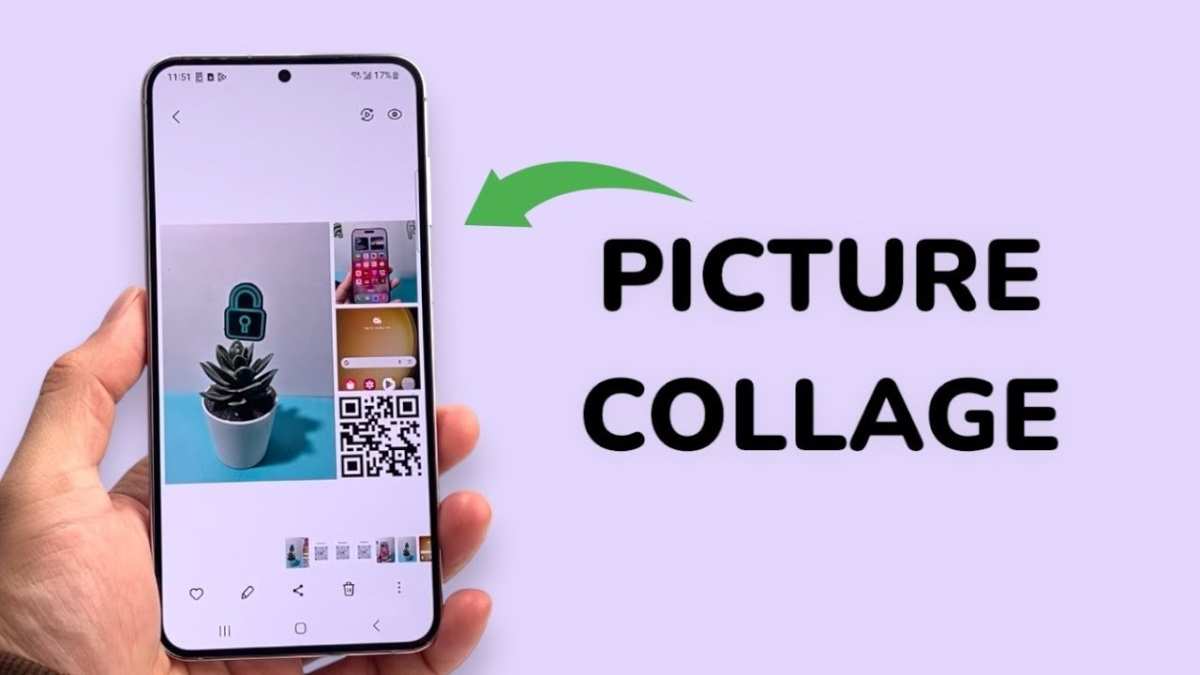
To make a photo collage on Android, you simply need to use a dedicated app designed for this purpose. **Download a popular collage maker like PhotoGrid or Canva from the Play Store.** Open the app, select your photos, and choose a layout that suits your style. Creating a stunning collage becomes quick and easy when you follow these simple steps. Knowing how to make photo collage android allows you to craft personalized visuals effortlessly for social media or keepsakes.

How to Make Photo Collage Android: A Complete Guide
Creating a photo collage on your Android device is an excellent way to showcase your favorite moments, memories, and photos in a fun and creative way. Whether you want to make a collage for social media, a special occasion, or just for fun, Android offers a variety of apps and tools that make the process simple and enjoyable. This guide will walk you through every step of making a photo collage on Android, from choosing the right app to editing and sharing your masterpiece. Let’s dive into the details to help you craft stunning collages that impress everyone.
Choosing the Best App for Making Photo Collages on Android
The first step in creating a photo collage is selecting an app that fits your needs. There are many options available on the Google Play Store, each offering different features, styles, and ease of use. Here are some of the most popular and highly-rated apps for making photo collages on Android:
- Canva: Known for its user-friendly interface and versatile design options, Canva offers numerous templates and customization tools perfect for beginners and experienced users alike.
- PicCollage: This app provides a variety of templates, backgrounds, and stickers. It is simple to use and ideal for quick collage creation.
- PhotoGrid: Offers many grid layouts, editing tools, and special effects. It’s great if you want more control over your collage design.
- Adobe Photoshop Express: While primarily a photo editing app, it also supports collage creation with advanced editing features.
- Fotor: Combines photo editing and collage making, offering a wide range of templates and customization options.
When choosing your app, consider these factors:
– User interface and ease of use
– Variety of templates and grid options
– Editing tools available (filters, text, stickers)
– Export quality and sharing options
– Compatibility with your device and free vs. paid features
After selecting an app, download and install it from Google Play Store. Most apps are free with optional in-app purchases for extra features.
Preparing Your Photos for the Collage
Before you start creating your collage, gather all the photos you want to include. Proper preparation can make the process smoother and help you achieve better results. Here are some tips:
- Choose high-resolution images to ensure your collage looks clear and professional.
- Organize your photos in a specific folder on your device for quick access.
- Crop or edit photos if needed to highlight certain parts or remove clutter.
- Decide on a theme or color scheme to maintain consistency across your collage.
- Remove any duplicates or unnecessary images to keep your project simple and focused.
Now that your photos are ready, you can import them into your chosen app.
Creating a Photo Collage Step-by-Step
The process of making a photo collage generally follows similar steps across different apps, although the interface may vary slightly. Here’s a standard step-by-step guide:
Step 1: Open Your Collage App
Start the app you selected and choose the option to create a new collage. Most apps will display a clear “Create” or “Start” button on the main screen.
Step 2: Choose a Layout or Template
Select a layout or template that suits your vision. Many apps offer:
– Grid layouts with fixed sections
– Freeform templates for custom arrangements
– Collage styles such as overlapping photos, circular shapes, or themed frames
Pick one that complements the number and orientation of your photos.
Step 3: Import Your Photos
Add photos to your collage by:
– Selecting images from your gallery
– Dragging and dropping (if supported)
– Using the app’s built-in photo picker
Arrange your photos within the layout by dragging them into different sections.
Step 4: Customize Your Collage
This is where creativity shines. You can:
- Resize or crop photos to fit better within the frames.
- Add borders, shadows, or frames around photos for depth.
- Apply filters or color adjustments for a unified look.
- Insert backgrounds, patterns, or textures to enhance the design.
- Add text captions or titles to personalize your collage.
- Include stickers, clip-arts, or decorative elements for fun.
Experiment with these options to achieve a balanced and appealing composition.
Step 5: Preview and Make Adjustments
Before finalizing, review your collage and make any necessary adjustments:
– Check the spacing between photos
– Ensure text is legible
– Adjust brightness, contrast, or saturation if needed
Most apps offer an easy preview feature, allowing you to see how your collage will look when shared.
Step 6: Save and Share
Once satisfied, save your collage to your device. Choose a high-quality output format like JPEG or PNG, and select the desired resolution.
Share your masterpiece directly to social media platforms like Instagram, Facebook, or WhatsApp, or save it for printing and other uses.
Tips for Making Stunning Photo Collages on Android
To create a visually appealing collage, keep these tips in mind:
- Balance your photos: Place larger or more important photos in prominent positions and balance colors across the collage.
- Use cohesive themes: Stick to a consistent color palette or theme for a unified look.
- Limit your number of photos: Avoid overcrowding; select the best images that tell a story.
- Play with shapes: Don’t just stick to grids—try circular, star-shaped, or other creative frames.
- Add meaningful text: Include captions, dates, or quotes to add context and emotion.
Remember, the key is to keep it simple while making sure every element serves a purpose.
Advanced Techniques for Better Collages
Once you are comfortable with basic collage creation, you can explore more advanced methods:
Layering and Overlapping
Using apps like Canva or Adobe Spark, you can layer photos over each other with transparency effects, creating a collage with depth.
Using Custom Backgrounds
Upload your own backgrounds or patterns to match your theme, giving your collage a unique appearance.
Applying Filters and Effects
Experiment with filters, vignettes, or artistic effects to give your photos a cohesive look.
Adding Text and Graphic Elements
Use different fonts and styles for captions, titles, and labels that fit your mood or message.
Exporting and Sharing Your Collage Effectively
Sharing your collage is the fun part. Here are some best practices:
– Save multiple versions if you want options for sharing
– Use the highest quality export setting for printing
– Resize images if needed for specific social media platforms
– Add a watermark if you want to protect your work
Your finished collage can be shared directly through social media apps, email, or saved to your device for printing or creating physical photo books.
Maintaining Your Collage Skills
Practice makes perfect. Keep experimenting with different apps, layouts, and styles to develop your unique collage-making skills. Explore tutorials on YouTube or online blogs for inspiration and technical tips.
Making a photo collage on Android is a straightforward yet creative process. By selecting the right app, preparing your photos well, and adding your personal touch, you can create eye-catching collages that tell your story in a beautiful way. Take your time to experiment with different styles and techniques, and enjoy the process of turning your photos into art.
Frequently Asked Questions
What are the best apps available to create photo collages on Android devices?
Some popular apps include Canva, PicCollage, and PhotoGrid. These apps offer user-friendly interfaces with a variety of templates, layouts, and editing tools that make creating photo collages simple and enjoyable. Choose an app based on the features you need, such as sticker options, background choices, or customization capabilities.
How can I add multiple photos to a collage on my Android phone?
Open your chosen collage app and select a template or layout. Tap the option to add photos, then select images from your gallery. Most apps allow you to resize, rotate, or reposition each photo within the collage. Once you’ve arranged the images to your liking, you can add text, stickers, or backgrounds before saving or sharing your creation.
Are there specific tips to improve the quality of photo collages on Android?
Use high-resolution images to ensure clarity in your collage. Keep consistent lighting and color tones across photos for a cohesive look. When editing, avoid over-cropping images so important details remain visible. Preview the final design before saving, and consider exporting at the highest quality setting available to preserve image details.
Final Thoughts
To make a photo collage on Android, choose a user-friendly app like Canva or PhotoGrid. Select your favorite photos and arrange them as you prefer. Customize with various layouts, backgrounds, and effects to enhance your collage.
Adding stickers, text, and filters can make your collage more personalized and eye-catching. Once satisfied, save and share your creation with friends or on social media.
In summary, making a photo collage Android involves selecting the right app, customizing your photos, and sharing your artwork. Follow these simple steps—how to make photo collage android easily and quickly to showcase your memories.
