

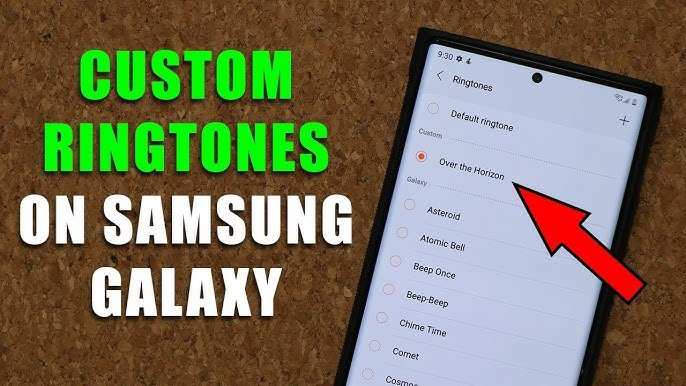
To make custom ringtones for Android, start by selecting your favorite song or sound clip. **Simply trim it using a ringtone maker app or your device’s built-in editor.** With a few taps, you can create a personalized tone that fits your style perfectly.
Knowing how to make custom ringtones for Android allows you to easily set unique alerts for calls, messages, or notifications. It’s a quick process that adds a personal touch to your device.

How to Make Custom Ringtones for Android
Creating your own unique ringtones for your Android phone is a fun way to personalize your device. Whether you want a catchy song, a funny sound, or a special voice clip, making custom ringtones is simple and affordable. This guide will walk you through every step, from selecting the right audio to setting your new ringtone on your device. You’ll learn different methods, tools, and tips to create perfect ringtones that match your style and needs.
Understanding Ringtones and Why Custom Ringtones Matter
Before diving into the process, it helps to understand what ringtones are and why making your own can be exciting.
- What are ringtones? Ringtones are sound alerts that play when someone calls or sends a message. They let you know who is contacting you without looking at the screen.
- Why create custom ringtones? Custom ringtones showcase your personality. They help you easily recognize calls and messages from specific people. Plus, making your own sounds feels more personal than using generic tones.
Choosing the Right Audio Files for Your Ringtones
The first step to making a good ringtone is selecting the right audio. Not all files work well, so keep these tips in mind:
- File Format: Your audio should be in MP3, WAV, or OGG formats. MP3 is the most common and widely supported on Android devices.
- Audio Length: Keep your ringtone between 15 to 30 seconds. Shorter clips are more suitable and avoid cutting off awkwardly.
- Audio Quality: Use high-quality sound files to ensure clear playback. Avoid low-quality recordings that sound muffled or noisy.
- Source: You can select songs from your music library, record sounds yourself, or download audio clips from trusted websites.
How to Cut and Edit Audio Files for Ringtones
Once you have your audio file, you may want to trim or edit it. This step ensures your ringtone starts exactly where you want and ends smoothly.
Selecting the Right Editing Tool
Choose an easy-to-use app for editing audio files. Some popular options include:
- Ringdroid – Simple and free, designed specifically for creating ringtones on Android.
- Audacity – Available for PC, offers advanced editing features.
- MP3 Cutter and Ringtone Maker – User-friendly app available on the Google Play Store.
Steps to Edit Audio Files
Follow these simple steps in your chosen app:
- Open the app and load your selected audio file.
- Use the trimming tools to select the part of the audio you want as your ringtone.
- Preview the clip to ensure it sounds perfect.
- Save the edited file. Be sure to give it a recognizable name.
Converting Audio Files to Compatible Formats
Most Android devices handle MP3 files effortlessly, but sometimes you need to convert your audio. Here’s what to do:
- Download a free audio converter app, like File Converter or Audio Converter.
- Open the app and select your audio file.
- Choose MP3 as the output format.
- Convert and save the new file to your device.
Storing and Organizing Your Ringtone Files
Keep your ringtone files neat and easy to find:
- Create a dedicated folder named “Ringtones” in your device’s internal storage.
- Save all your custom ringtones in this folder.
- Remember the exact filename or location to find the file quickly when setting it as your ringtone.
How to Set Your Custom Ringtone on Android
After preparing your audio file, it’s time to set it as your ringtone:
Using the Settings App
1. Open the Settings app on your Android device.
2. Tap on Sound & Vibration or just Sound depending on your device.
3. Select Ringtone.
4. Browse through your list of available tones and tap Add or choose ringtone.
5. Locate your custom ringtone in the folder where you stored it.
6. Tap on it to select, then confirm.
Using File Manager Apps
If you prefer, you can set your ringtone directly from your file manager app:
1. Open your preferred file manager.
2. Navigate to the folder containing your custom ringtone.
3. Tap and hold the audio file.
4. Choose Set as or Use as ringtone.
5. Confirm your choice.
Additional Tips for Making the Best Custom Ringtones
Creating perfect ringtones involves a few extra tips:
- Preview often: Always listen to your clip before saving to avoid abrupt cuts or unwanted sounds.
- Avoid copyrighted music: Use your own recordings or royalty-free sounds to prevent legal issues.
- Make different ringtones for different contacts: Customize alerts for family, friends, or colleagues for quick recognition.
- Use fade-in/out effects: Some editing apps allow fading, making transitions smoother.
Troubleshooting Common Issues
Sometimes, customizing ringtones can lead to minor problems. Here’s how to fix them:
- The ringtone isn’t showing up: Ensure the file is saved in the correct folder and is in a supported format.
- Audio cuts off abruptly: Edit the clip to remove silence or unwanted sections at the beginning or end.
- Sound quality is poor: Use high-quality audio files and avoid re-encoding multiple times, which can reduce quality.
Summary
Making custom ringtones for your Android device is a straightforward process that adds a personal touch to your phone. By choosing the right audio files, editing them for perfection, and setting them the right way, you can enjoy unique sounds that match your personality and style. With a little practice, you’ll become skilled at creating exactly the ringtones you want, making your device truly yours.
Remember, the key is to use accessible tools, keep your audio files organized, and take your time to craft the perfect sound. Whether you want a funny clip, a favorite song, or a voice message, creating your own ringtone offers endless possibilities for customization.
Frequently Asked Questions
What apps can I use to create custom ringtones for my Android device?
You can use various apps such as Zedge, Ringtone Maker, or MP3 Cutter to create personalized ringtones. These apps allow you to trim your favorite songs or audio clips and save them directly as ringtones for your Android device. Choose the app that best fits your needs and follow its instructions to create your custom ringtone.
How can I set a custom ringtone on my Android phone after creating it?
After creating a custom ringtone, open your device’s Settings app, navigate to Sound & vibration, and select Ringtone. From there, you can choose the option to add or browse for the new ringtone. Locate your saved audio file and select it to set it as your default or contact-specific ringtone.
Is it possible to make a ringtone from YouTube videos for Android devices?
Yes, you can turn YouTube videos into ringtones by first downloading the audio using a reliable converter or downloader. After extracting the audio, use a ringtone maker app to trim the section you want and save it as a ringtone. Ensure you follow copyright guidelines when using content from online sources.
What file formats are compatible with Android for custom ringtones?
Android devices generally support audio formats like MP3, OGG, WAV, and ACC for ringtones. When creating a custom ringtone, convert your audio file to one of these formats to ensure compatibility and smooth playback on your device.
Can I assign different custom ringtones to specific contacts on Android?
Yes, you can assign unique ringtones to individual contacts. Open your contacts app, select a contact, and tap the edit option. Look for the ringtone setting within their contact details, choose your desired custom ringtone, and save the changes. This helps you identify callers easily based on their assigned tones.
Final Thoughts
To make custom ringtones for Android, start by selecting a song or sound clip you want to use. Trim the audio with a editing tool to get the perfect segment. Save the file in MP3 format for compatibility.
Next, transfer the ringtone to your device’s ‘Ringtones’ folder using a USB connection or a file manager app. Set your new ringtone by navigating to Settings > Sound > Ringtone, then select your custom file.
Creating custom ringtones is simple and fun. How to make custom ringtones for Android allows you to personalize your device easily, making your notifications uniquely yours.
