

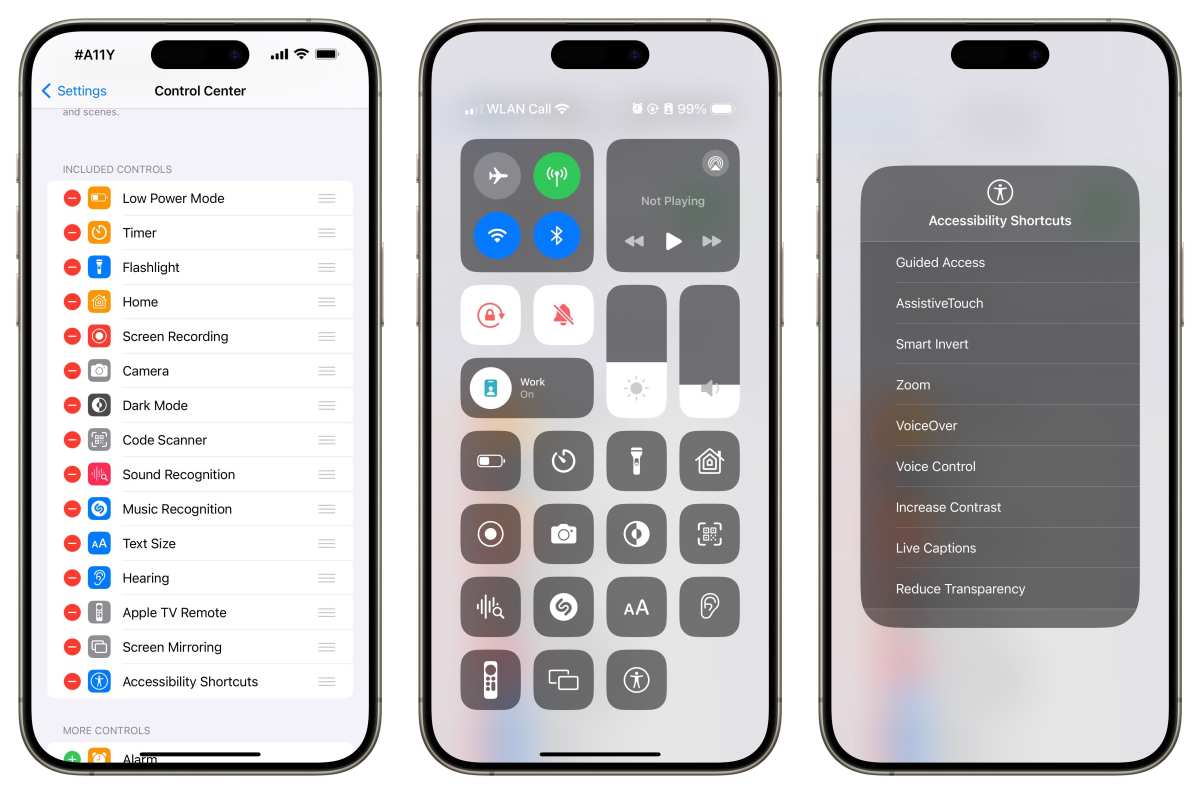
Need to quickly access settings on your iPhone? **Creating an iPhone setting shortcut is the easiest way to do that.** Setting up shortcuts allows you to jump straight to Wi-Fi, Bluetooth, or even your camera with a tap. Instead of navigating through menus, you can customize shortcuts to fit your daily routine. Anyone can set this up effortlessly, making your iPhone more efficient and tailored to your needs.

iPhone Setting Shortcut: Your Complete Guide to Enhancing Efficiency
When you use your iPhone every day, there are many small tasks that can become repetitive or take longer than they should. That’s where setting shortcuts come in. They help you save time by giving quick access to your favorite features and functions. Whether you want to turn on the flashlight, open a specific app, or adjust settings instantly, setting shortcuts make your iPhone more user-friendly and personalized.
In this guide, we’ll explore everything you need to know about iPhone setting shortcuts. From understanding what they are, how to create them, to practical tips on using them effectively, you’ll find all the information you need to make your iPhone even smarter.
What Are iPhone Setting Shortcuts?
iPhone setting shortcuts are quick access links or custom commands that allow you to perform specific actions without navigating through multiple menus. Think of them as shortcuts for your phone’s most common or important tasks. Instead of scrolling through endless options, you tap one button or icon, and the task gets completed instantly.
These shortcuts can be created through different methods, such as using the Shortcuts app, adding widgets to your home screen, or even using Siri voice commands. They are designed to make your life easier by reducing the number of steps needed for routine activities.
Why Use Setting Shortcuts on Your iPhone?
Using shortcuts offers a range of benefits that improve your daily experience:
- Time-Saving: Perform tasks faster by avoiding multiple steps in menus.
- Personalization: Tailor shortcuts to fit your specific needs and routines.
- Accessibility: Simplify complex processes, especially helpful for users with accessibility needs.
- Convenience: Access settings or apps with just a tap or voice command.
Imagine being able to turn on your favorite playlist, activate Do Not Disturb, or adjust screen brightness all with a tap. That’s the power of setting shortcuts.
How to Create Setting Shortcuts Using the Shortcuts App
The Shortcuts app is a built-in tool that lets you craft custom shortcuts for practically anything on your iPhone. It may seem complex at first, but with a step-by-step approach, you’ll be able to create shortcuts that fit your lifestyle.
Getting Started with the Shortcuts App
Before creating your first shortcut, ensure the app is installed and updated on your iPhone. It usually comes pre-installed on iOS devices, but you can download or update it from the App Store if needed.
- Open the Shortcuts app from your home screen.
- Tap the ‘+’ icon in the top right corner to create a new shortcut.
- Choose ‘Add Action’ to begin building your shortcut.
Steps to Create a Custom Setting Shortcut
Suppose you want to create a shortcut to turn on Wi-Fi and enable Do Not Disturb mode simultaneously. Follow these steps:
- Tap ‘Add Action,’ then search for ‘Set Wi-Fi.’ Select it and set it to ‘Turn On.’
- Tap ‘Add Action’ again, search for ‘Set Focus,’ and choose ‘Do Not Disturb.’ Set it to ‘Turn On.’
- Arrange actions in the desired order if needed.
- Tap the settings icon at the top right to name your shortcut, e.g., “Work Mode.”
- Optionally, add it to your home screen or widget for quick access.
Once saved, you can tap this shortcut whenever you need your phone to switch to work mode instantly.
Adding Shortcuts to Your Home Screen or Widgets
Making your shortcuts easily accessible is key. Here are ways to add your created shortcuts where you can access them quickly:
Adding a Shortcut to Your Home Screen
- Open the Shortcuts app and find your shortcut.
- Tap the three dots (…) to open the shortcut details.
- Tap the share icon, then choose ‘Add to Home Screen.’
- Customize the icon and name if desired, then tap ‘Add.’
This creates an icon on your home screen that performs the shortcut with a single tap.
Using Widgets to Access Shortcuts
Widgets provide quick access directly from your Today View or home screen:
- Press and hold on an empty area of your home screen.
- Tap the ‘+’ icon in the top left corner to open the widget gallery.
- Scroll or search for ‘Shortcuts,’ then select it.
- Choose the size of the widget and tap ‘Add Widget.’
- Tap ‘Edit Widget’ to select which shortcuts to display.
Now, you can perform your favorite shortcuts with just a tap on your widget.
Using Siri for Setting Shortcuts
Siri voice commands work seamlessly with your shortcuts. Once you’ve created a shortcut, you can assign a phrase to activate it. Here’s how:
- Go to the shortcut details by tapping the three dots (…).
- Tap ‘Add to Siri.’
- Record a phrase that’ll trigger the shortcut, like “Good Morning” or “Start Workout.”
- Tap ‘Done’ to save.
Now, simply say “Hey Siri,” followed by your phrase, and your shortcut executes instantly. This feature helps you operate your iPhone hands-free.
Best Practices for Creating Effective Shortcuts
Creating shortcuts that truly enhance your productivity involves some planning. Consider these tips:
- Start simple: Begin with basic shortcuts and gradually add more complex ones.
- Name clearly: Use descriptive names so you remember what each shortcut does.
- Combine related actions: For example, turning on Wi-Fi, enabling Bluetooth, and adjusting screen brightness together can save time during a commute.
- Test thoroughly: Run your shortcuts to ensure they work correctly before adding them to your home screen or Siri.
- Keep security in mind: Avoid creating shortcuts that could accidentally trigger privacy concerns or security risks.
Common Setting Shortcuts You Can Create
Here are some practical ideas to inspire your own shortcut creations:
Quick Wi-Fi Toggle
– Turn Wi-Fi on or off depending on your location or needs.
Night Mode Activation
– Reduce blue light by turning on Night Shift and lowering screen brightness.
Home Automation Integration
– Combine your shortcuts with smart home devices, like turning on lights or adjusting the thermostat.
Personalized Workout Setup
– Launch your favorite fitness app, start music playlists, and turn on Do Not Disturb for uninterrupted exercise.
Travel Mode
– Enable airplane mode, toggle location services, and activate your favorite navigation app.
Tips to Optimize Your Shortcut Usage
Making the most of your shortcuts involves more than just creating them. Keep these tips in mind:
- Regularly review your shortcuts and update them as your routines change.
- Combine multiple actions into a single shortcut for efficiency.
- Use consistent naming conventions to keep your shortcuts organized.
- Explore community-shared shortcuts online for inspiration and customization ideas.
- Ensure your shortcuts are simple enough to avoid errors during execution.
Setting shortcuts on your iPhone opens up a whole new level of convenience. By customizing quick access to your favorite settings and routines, you can save time, reduce stress, and make using your device more intuitive. Whether through the Shortcuts app, home screen icons, or Siri voice commands, there are multiple ways to implement shortcuts seamlessly into your daily life. Take the time to explore what your iPhone can do with these tips and watch your device become more aligned with your needs and preferences.
Frequently Asked Questions
How can I create a custom shortcut for a specific setting on my iPhone?
To create a custom shortcut for a specific setting, open the Shortcuts app and tap the “+” button to start a new shortcut. Use the “Add Action” button to search for actions related to the setting you want to automate, such as Wi-Fi or Bluetooth. Select the appropriate action, customize it if needed, then tap on the options to add it to your shortcut. Save the shortcut and assign it a name for easy access from your home screen or Siri.
Is it possible to automate turning on Do Not Disturb during certain hours?
Yes, you can automate this feature using the Shortcuts app or by setting up a scheduled Do Not Disturb. Open the Settings app, navigate to “Focus,” then select “Do Not Disturb.” Tap on “Add Schedule” and choose the time period during which you want Do Not Disturb to activate automatically. Alternatively, create a shortcut that toggles Do Not Disturb on or off and set it to run at specific times using the Automation tab in the Shortcuts app.
How do I add a shortcut for quickly adjusting screen brightness?
Open the Shortcuts app and tap the “+” icon to create a new shortcut. Tap “Add Action,” then search for “Set Brightness.” Choose the “Set Brightness” action and select the desired brightness level. To make this accessible conveniently, save the shortcut and add it to your home screen or widget. You can also command Siri to run this shortcut for quick adjustments.
Can I set a shortcut to enable or disable airplane mode?
Yes, you can create a shortcut to toggle airplane mode, but due to system restrictions, toggling airplane mode directly is limited. Instead, you can create a shortcut that opens the Control Center where you can manually activate or deactivate airplane mode. Alternatively, you may use automation features to trigger airplane mode under specific conditions, although this requires some workarounds or third-party apps.
How can I quickly access a specific Wi-Fi network using shortcuts?
Create a shortcut that opens the Wi-Fi settings using the “Open App” action and directing it to the Settings app. While you can’t directly connect to a particular network through shortcuts, you can prompt yourself to select the desired network quickly. For more convenience, add this shortcut to your home screen or widget for easy access and faster navigation to the Wi-Fi settings page.
Final Thoughts
In summary, mastering the iPhone setting shortcut empowers users to customize their device efficiently. This feature simplifies access to frequently used functions, saving time and effort. By integrating shortcuts into daily routines, users enhance their overall experience. Focusing on the ‘iphone setting shortcut’ ensures you maximize your iPhone’s potential with ease.
