

**To set the correct time zone on your iPhone, simply go to Settings > General > Date & Time and select your location.** If your iPhone isn’t displaying the right time, adjusting the time zone can resolve the issue quickly. The process is straightforward and helps keep your calendar and alarms accurate.
Whether you’re traveling or just need to update your settings, configuring the iPhone setting time zone ensures your device stays synchronized with your locale. It’s a simple step that makes daily device use much smoother.

Getting to Know the iPhone Setting for Time Zone
When you travel across different regions or change your location often, setting the correct time zone on your iPhone becomes very important. It helps keep your schedule accurate, ensures your calendar entries are correct, and makes sure your alarms go off at the right times. But sometimes, your iPhone might not automatically update the time zone, causing confusion. In this section, we’ll explore everything you need to know about how to set your iPhone’s time zone, why it matters, and how to fix common issues.
Understanding Why Your iPhone Needs the Correct Time Zone
Your iPhone uses the time zone information to display the current time accurately, whether you’re at home or on the go. When the time zone is wrong, it can lead to missed appointments, late alarms, and even confusion about when events are scheduled.
Here are some key reasons why keeping your iPhone’s time zone correct is essential:
- Accurate Calendar and Appointments: Calendar events depend on the right time zone for correct reminders and alerts.
- Proper Alarm Functionality: Alarms set for specific times rely on the accurate time zone to go off at the right moment.
- Travel and Navigation: Apps like Maps use your time zone to provide relevant information and directions.
- Time-stamped Photos and Messages: Timestamps for photos, messages, and emails reflect your current time zone, which is helpful for keeping track of your day.
Knowing all this, it’s clear how crucial it is to set your iPhone’s time zone correctly, especially when traveling or changing locations frequently.
How the iPhone Automatically Detects Your Time Zone
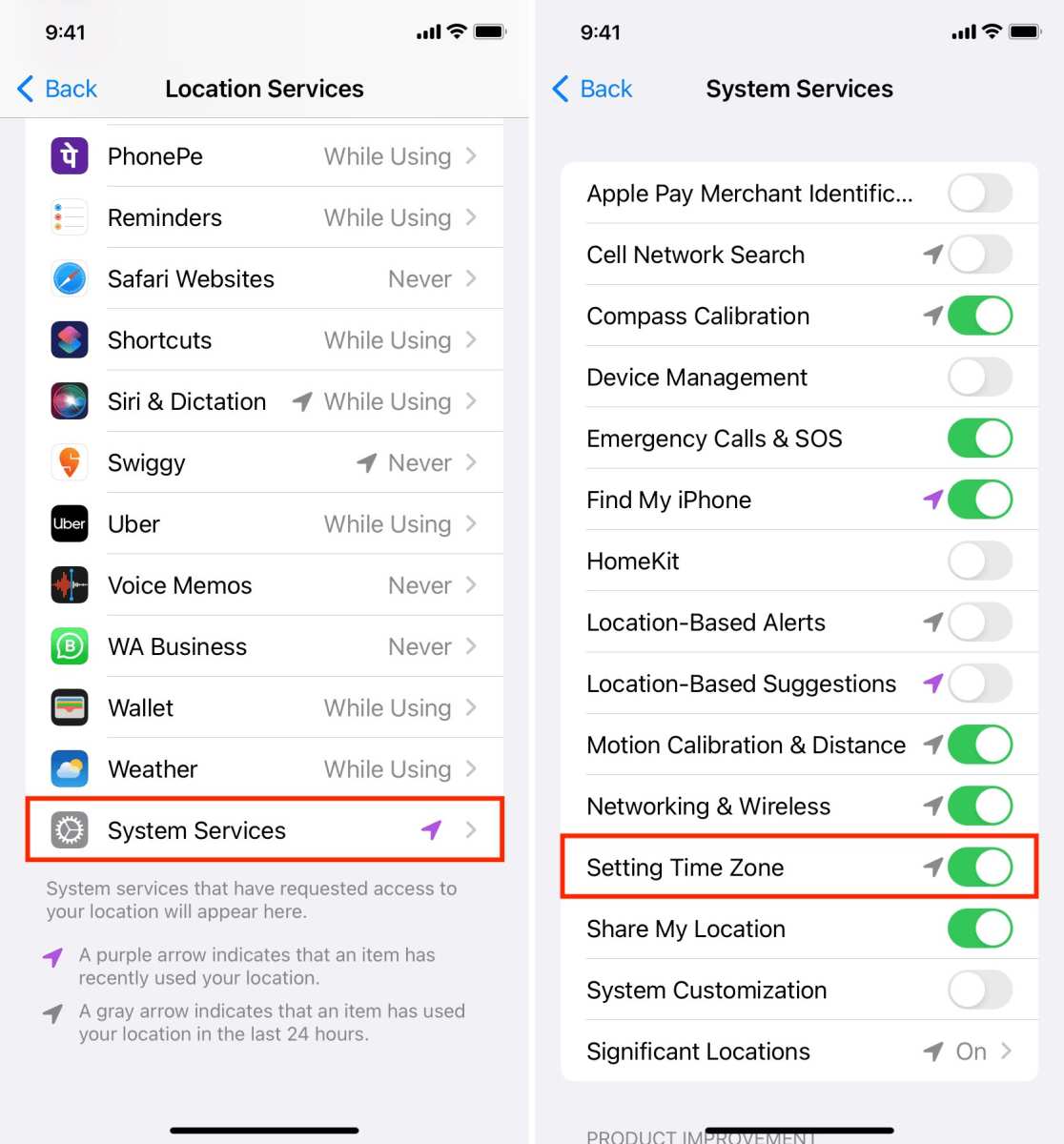
Most iPhones come with a handy feature that automatically detects your current location and adjusts the time zone accordingly. This feature work well when you have location services turned on and a good internet or GPS connection.
Here’s how the auto-detection feature is designed to work:
- Location Services Enabled: Your device needs to have location services turned on for it to detect your whereabouts accurately.
- Network Connection: A reliable internet connection helps the iPhone communicate with servers that provide location information.
- Automatic Time Zone Setting Enabled: This option allows your phone to adjust the time zone based on where you are.
To check if this feature is active, go to “Settings” > “General” > “Date & Time” and look for the “Set Time Zone” option. When “Set Automatically” is turned on, your iPhone will keep the time zone updated automatically.
Why Does My iPhone Sometimes Fail to Detect the Correct Time Zone?
Even though the auto-detect feature is reliable, it might not always work perfectly. Here are some common reasons why your iPhone might show the wrong time zone:
- Location Services Are Turned Off: If location services are disabled, your phone cannot determine your position.
- Poor GPS or Network Signal: Weak signals can prevent the device from accurately recognizing your location.
- Manual Time Zone Settings: If you’ve manually set a time zone, your phone will not auto-update it.
- Software Glitches: Sometimes, bugs or outdated software can interfere with automatic time updates.
If your iPhone isn’t updating the time zone as expected, you might need to troubleshoot these issues.
How to Manually Set the Time Zone on Your iPhone
Sometimes, automatic detection just doesn’t work the way you want. Maybe you’re traveling in a remote area, or your phone isn’t recognizing your location correctly. In such cases, manually setting your time zone is a straightforward solution.
Follow these steps to set it manually:
- Open the Settings app on your iPhone.
- Scroll down and tap on General.
- Select Date & Time.
- Turn off the toggle next to Set Automatically.
- Tap on Time Zone.
- Use the search bar to enter the name of your city or location.
- Tap on the correct city or region from the list to set your time zone.
By setting it manually, you ensure your iPhone displays the correct local time, especially when traveling abroad or in areas with unreliable GPS signals.
Adjusting Time Zone Settings for Different Countries and Regions
Different countries and regions have specific ways of setting the local time. When you travel, it’s helpful to know how to quickly adjust your iPhone to the local time zone to avoid any confusion.
Here are some tips:
- Know Your Destination’s Time Zone: You can do a quick online search for the current local time in your travel destination.
- Use the Search Feature: When setting the time zone manually, type the city or region to find the correct option.
- Be Aware of Daylight Saving Time: Some locations observe daylight saving time, which can affect the local time. Your iPhone usually adjusts for this automatically if the time zone is set correctly.
If you’re moving between regions with different daylight saving policies, check that your device is updated and properly configured to adjust for these changes.
Best Practices to Keep Your iPhone Time Zone Accurate
To prevent issues with incorrect time display, consider following these tips:
- Keep Location Services Enabled: Always allow your iPhone to use location tracking for automatic updates.
- Update Your Software Regularly: Apple releases updates that fix bugs and improve features, including automatic time zone detection.
- Double-Check Settings When Traveling: Before or during your trip, verify that your time zone is correct in the “Date & Time” settings.
- Use Wi-Fi When Possible: A solid Wi-Fi connection can help your device better determine your location compared to cellular data alone.
- Disable Manual Settings When Not Needed: If you prefer automatic updates, keep “Set Automatically” enabled to avoid manual errors.
Following these practices helps ensure your iPhone always shows the right time, no matter where you are.
Troubleshooting Common Problems with Time Zone Settings
Even with the best intentions, some users find that their iPhone isn’t displaying the correct time zone. Here are some simple solutions for common problems:
Time Zone Not Updating Automatically
– Ensure “Set Automatically” is turned on in Settings > General > Date & Time.
– Check that Location Services are enabled for “System Services” in Settings > Privacy & Security > Location Services > System Services.
– Restart your iPhone to refresh the system.
– Make sure your device has a good internet connection.
The Time Zone Is Correct, But Time Is Wrong
– Verify that the time zone is correctly set in “Settings” > “General” > “Date & Time”.
– Check the 24-hour or AM/PM setting to see if there’s a display issue.
– Reset your device’s settings if necessary: go to Settings > General > Reset > Reset All Settings. This will not erase your data but resets preferences.
Manual and Automatic Settings Conflict
– Turn off “Set Automatically” and manually set the time zone, or vice versa.
– Keep only one setting active to avoid conflicts.
Understanding these common problems and their solutions can save you time and make sure your iPhone stays accurate with the correct local time.
Managing your iPhone’s time zone might seem like a small task, but it influences many aspects of your daily digital life. Whether you rely on your device to automatically update based on your location or prefer setting it manually, knowing how to control these settings helps you stay punctual and organized. When traveling, double-check the time zone settings to prevent confusion. Keep your device updated and your location services active, and your iPhone will do the rest. With these tips in mind, adjusting and maintaining your device’s time zone becomes an easy part of managing your digital world.
Frequently Asked Questions
How can I ensure my iPhone automatically updates the time zone based on my location?
To allow your iPhone to update the time zone automatically, go to Settings > General > Date & Time. Toggle on the “Set Time Zone” option. When enabled, your device uses GPS and network data to detect your current location and adjusts the time zone accordingly, ensuring accurate time display without manual adjustments.
What should I do if my iPhone shows the wrong time after changing the time zone?
If your iPhone displays an incorrect time after adjusting the time zone, restart your device to refresh the system settings. Verify that “Set Time Zone” is enabled in Settings > General > Date & Time. If the problem persists, manually select the correct time zone or toggle the automatic setting off and on again to prompt a reset.
Can I set a different time zone for specific apps or activities on my iPhone?
iPhones do not support setting different time zones for individual apps. The device uses one system-wide time zone. However, some apps may have their own time settings, so check within individual apps if you need to display different times. For a consistent experience, keep your device’s time zone settings accurate and synchronized.
Is it possible to change the time zone when traveling internationally without affecting the device’s settings?
Yes, you can manually set a different time zone without affecting your device’s auto-update feature. In Settings > General > Date & Time, turn off “Set Time Zone” and select the desired time zone from the list. This allows you to keep the device in a fixed time zone while traveling, regardless of your current location.
What impact does disabling the automatic time zone setting have on my iPhone’s features?
Disabling automatic time zone updates can affect features that rely on accurate location data, such as calendar events and reminders scheduled based on your current time zone. Make sure to manually update the time zone if you disable automatic setting to prevent discrepancies in scheduled activities.
Final Thoughts
Setting the time zone on your iPhone allows for accurate timekeeping tailored to your location. You can manually choose or automatically set it based on your current position. This ensures your calendar and reminders stay precise.
Adjusting the setting is simple and quick, helping you stay on schedule without hassle. Regularly updating your time zone prevents confusion during travel or time changes.
In summary, understanding how to configure the ‘iphone setting time zone’ guarantees your device reflects the correct local time, simplifying daily routines and communication.
