

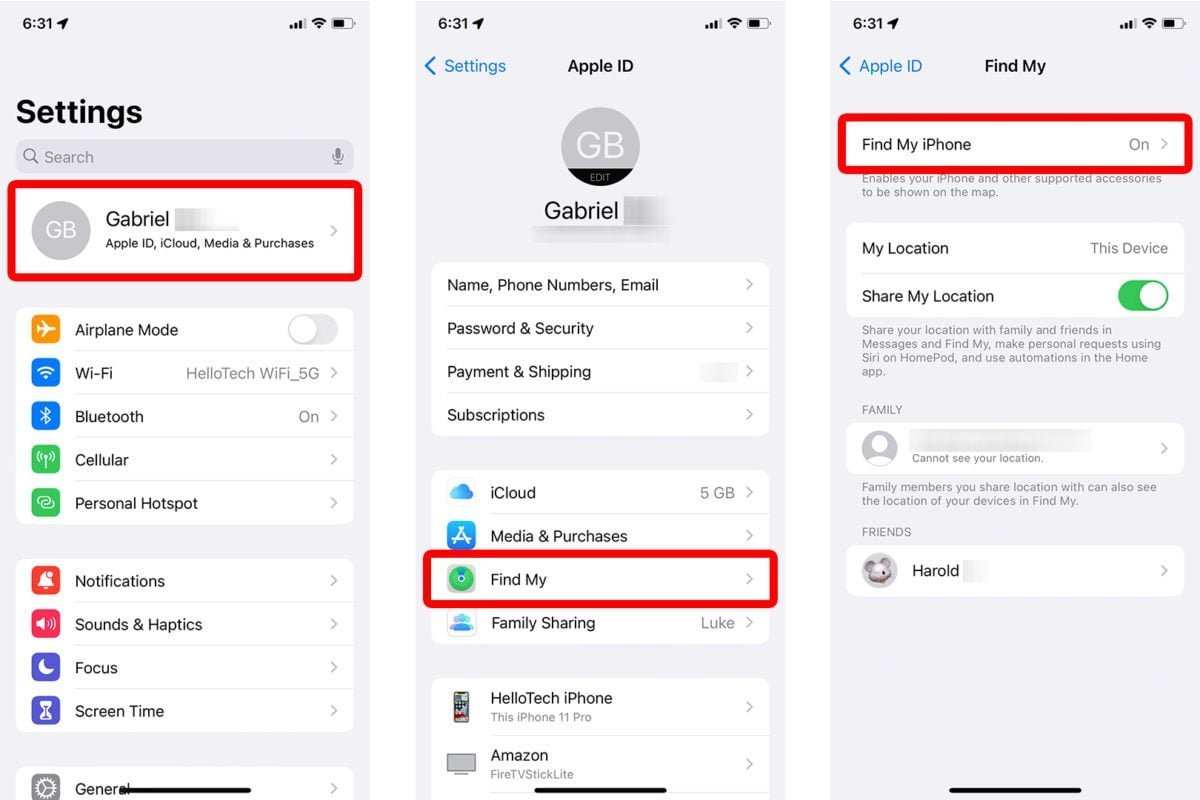
The **where is find my iPhone setting** is located in your device’s Privacy & Security menu. To access it, open the Settings app, tap on your Apple ID at the top, then select “Find My.” This simple step lets you manage your iPhone’s tracking options effortlessly. If you want to enable or turn off Find My iPhone, you’ll find the setting right there. Knowing where to find this feature helps you stay in control of your device’s safety at all times.

Where is Find My iPhone Setting and How to Use It Effectively
Understanding the location of the Find My iPhone setting is crucial for anyone who wants to keep their Apple device safe and recover it if lost. This feature acts as a digital safety net, allowing you to track, lock, or erase your iPhone from anywhere. In this section, we will explore what Find My iPhone is, why it is important, and how to find and enable this feature on your device.
What Is Find My iPhone?
Find My iPhone is an Apple service designed to help users locate their iPhone when it’s lost or stolen. It combines GPS location tracking, Wi-Fi triangulation, and Bluetooth technologies to pinpoint your device’s location on a map. Besides tracking, it offers options like playing a sound on your phone, locking it remotely, or erasing personal data to protect privacy.
The service is part of Apple’s broader ecosystem, working seamlessly with other Apple devices and services. When you set up Find My iPhone, your device regularly shares its location with your iCloud account, making it easy to locate from any other Apple device or through a web browser.
Why Is Find My iPhone Important?
Many people underestimate the value of having Find My iPhone enabled until they face the unfortunate situation of losing their device. Here are some reasons why setting up Find My iPhone is essential:
- Locate Your Device Quickly: Find your iPhone on a map, even if it’s in another city or country.
- Prevent Unauthorized Access: Lock your iPhone remotely to prevent thieves from accessing your private data.
- Erase Personal Data: If you believe your iPhone is stolen or unretrievable, erase its contents to protect your information.
- Play a Sound: Make your iPhone emit a loud sound to locate it nearby.
- Enable Activation Lock: Disable anyone from turning off Find My iPhone or erasing your device without your Apple ID password.
How to Find the Find My iPhone Setting on Your Device
Knowing where to find the setting is the first step toward using it effectively. The process varies slightly depending on your iOS version, but generally, you can locate it through the Settings menu.
Steps to Access Find My iPhone
- Open your device’s Settings app. Look for the gear icon on your home screen and tap on it.
- Scroll down and tap on your Apple ID at the top of the menu. This is your name and profile picture area.
- In the Apple ID menu, select Find My.
- Tap on Find My iPhone from the list of options.
- Here, you will see whether the feature is turned on or off. If it isn’t enabled, you can activate it by toggling the switch to the right.
Enabling Find My iPhone
Enabling this feature is straightforward but essential. Follow these steps if you haven’t turned it on yet:
- Follow the steps above to reach the Find My iPhone menu.
- Ensure that the toggle switch next to Find My iPhone is turned on (green).
- When prompted, enter your Apple ID password to enable Activation Lock.
- Make sure the feature is active on your device for real-time location sharing.
Additional Settings to Consider for Better Protection
Once you locate and activate Find My iPhone, consider setting up a few additional options to enhance your device’s security:
- Send Last Location: Enable this feature to automatically send the device’s last known location to Apple when the battery is critically low.
- Activation Lock: This locks your iPhone with your Apple ID after enabling Find My iPhone, making it difficult for thieves to erase or activate the device with a new account.
- Family Sharing: Share your location with family members for added safety and easier device management.
Using Find My iPhone to Locate Your Device
Finding your iPhone in real life becomes incredibly simple once the feature is turned on. Here’s how to do it effectively:
Locating Your iPhone on a Map
To find your device:
- Open a browser and go to iCloud.com. Sign in with your Apple ID credentials.
- Select the Find iPhone icon.
- Choose your lost device from the list of Apple devices linked to your account.
- The map will display the last known location of your iPhone.
On your iPhone, you can also open the Find My app directly and select your device from the list to see its current location.
Playing a Sound to Find Your iPhone
If your device is nearby but out of sight, use the “Play Sound” feature:
- In the Find My app or iCloud website, select your device.
- Click or tap on Play Sound.
- Your iPhone will emit a loud ringing sound for two minutes, even if it’s on silent mode.
Activating Lost Mode
Lost Mode locks your iPhone with a passcode and displays a custom message with contact information:
- Enable Lost Mode through the Find My app or iCloud.
- Follow the prompts to set up a message that will appear on the lock screen of your lost iPhone.
- Once activated, your device will remain locked until you unlock it with your Apple ID and password.
Erasing Your iPhone Remotely
If you’re sure your iPhone won’t be recovered, you can erase all data to protect your privacy:
- Log into iCloud or open the Find My app.
- Select your device and click or tap on Erase iPhone.
- Confirm the action and enter your Apple ID credentials to authorize the erase.
- This process deletes everything on your device, including your personal information and settings.
Common Troubleshooting Tips
Even when set up correctly, some issues can prevent Find My iPhone from working properly. Here are quick tips to troubleshoot:
- Ensure your device has an active internet connection, through Wi-Fi or cellular data.
- Verify that location services are enabled in Settings > Privacy > Location Services.
- Make sure your device is signed into iCloud with your Apple ID.
- Check that Find My iPhone is turned on and that “Send Last Location” is enabled.
- Update your device to the latest iOS version to avoid software bugs that could interfere with location services.
In Summary
Finding the Find My iPhone setting on your device helps you protect your phone and recover it if lost. Navigating through Settings is straightforward, and enabling the feature takes only a few moments. Once active, you gain access to a suite of tools like locating your device on a map, playing a sound, activating Lost Mode, or erasing data remotely—all designed to keep your information safe and help you retrieve your device quickly. Regularly review your settings and ensure your device is always properly configured. This simple step can save you from potential stress and loss, providing peace of mind knowing you have a reliable way to manage your iPhone if the unexpected occurs.
Frequently Asked Questions
How do I access the Find My iPhone feature on my device?
To access Find My iPhone, open the Settings app on your device. Tap on your Apple ID at the top of the screen, then select “Find My” from the list. Tap on “Find My iPhone” to view and enable the setting if it isn’t already turned on.
What steps should I take if I cannot locate the Find My iPhone setting?
First, ensure your device runs on the latest iOS version. Go to Settings, tap your Apple ID, then “iCloud,” and look for “Find My iPhone.” If you do not see this option, verify your device is properly signed in with your Apple ID or consider resetting your device’s settings for a fresh start.
Can I enable Find My iPhone through the iCloud website?
Yes, you can activate Find My iPhone through iCloud. Sign in to iCloud.com with your Apple ID, click on “Find iPhone,” select your device from the list, and enable “Find My iPhone” if it isn’t already active. This allows you to locate your device remotely.
Is it possible to turn off Find My iPhone and where do I do it?
To turn off Find My iPhone, open Settings, tap your Apple ID, then go to “Find My.” Tap on “Find My iPhone” and toggle the switch off. You will need to enter your Apple ID password to confirm the change. Keep in mind that turning off this feature prevents you from locating your device if lost.
What should I do if I accidentally disabled Find My iPhone and want to enable it again?
Navigate to Settings on your device, tap your Apple ID, then select “Find My.” Tap “Find My iPhone” and toggle the switch on. Enter your Apple ID credentials if prompted, and ensure that “Send Last Location” is enabled to help locate your device accurately.
Final Thoughts
The where is find my iphone setting is easy to locate on your device. You can access it through the Settings app by tapping your Apple ID, then selecting Find My. Ensure the feature is enabled to track your iPhone if needed.
Checking this setting regularly helps keep your device secure. Remember, the where is find my iphone setting is your tool for peace of mind. Keep it active and updated for effective device management.
