How To Troubleshoot Wifi Issues On Your Macbook Effectively
If your MacBook’s WiFi keeps dropping or won’t connect at all, don’t panic—there are simple steps you can take to fix the problem quickly. First, check your network settings, restart your device, and ensure your router isn’t causing the issue. Updating your software and resetting network preferences can also work wonders.
The quickest solution is to restart your MacBook and your router, clear your network settings, and ensure your software is up to date. These straightforward steps often resolve most WiFi issues without the need for technical support.
Are you tired of frustration caused by unstable WiFi on your MacBook? Web browsing, streaming, and working become much smoother when your connection is reliable. WiFi problems can stem from many sources—software glitches, outdated drivers, or interference from other devices. Troubleshooting starts with simple resets and updates, but sometimes requires deeper fixes like resetting network settings or checking your router. This guide walks you through effective, easy-to-follow solutions to get your MacBook’s WiFi back on track and keep you connected seamlessly.

How to troubleshoot WiFi issues on your MacBook
Understanding Common WiFi Problems
WiFi problems with your MacBook can come in many forms. Some common issues include slow internet speeds, dropped connections, or an inability to connect at all. Recognizing these symptoms helps you identify the underlying causes quickly.
Slow internet speeds might be caused by network congestion or interference. Dropped connections often relate to signal strength or router problems. If your MacBook cannot connect, it could be due to network settings or hardware issues. Knowing these common signs guides your troubleshooting process.
Check Your WiFi Signal Strength
The first step is to assess the WiFi signal on your MacBook. Click the WiFi icon on the menu bar to see the signal strength indicator. A weak signal shows fewer bars and may cause slow or unstable connections.
If your signal is weak, try moving closer to your WiFi router. Obstacles like walls or furniture can weaken the signal. Avoid interference from other electronic devices such as cordless phones or microwave ovens.
Improve Signal Quality
– Move your MacBook closer to the router.
– Remove physical obstructions between devices.
– Restart your router to refresh the connection.
– Use a WiFi extender if your home or office is large.
A stronger signal improves connection stability and speeds. Remember, physical distance and obstacles greatly influence WiFi quality.
Restart Your MacBook and Router
Often, simple restarts resolve many WiFi issues. Restart your MacBook by clicking the Apple menu and selecting Restart. Restart your router by unplugging it, waiting 10 seconds, then plugging it back in.
This process clears temporary glitches. It resets network configurations and refreshes connections between your MacBook and the router.
Additional Tips During Restart
– Ensure your MacBook is updated with the latest software. Software updates often include bug fixes for connectivity problems.
– Temporarily disable any VPN or firewall software that may interfere with your WiFi.
– Disconnect from other networks temporarily to test only your main network.
A fresh start helps eliminate temporary software conflicts or network congestion.
Check WiFi Network Settings
Incorrect settings can prevent your MacBook from connecting to WiFi. Open System Preferences and click on Network. Select WiFi from the list on the left.
Make sure your network appears in the list of preferred networks. If not, click the ‘+’ button to add it manually. Also, confirm that “Ask to join new networks” is enabled.
Configure Advanced Settings
– Click on Advanced in the Network window.
– Remove any duplicate or unused networks.
– Ensure your network’s security protocol matches your router settings.
– Check that your IP configuration is set to DHCP for automatic address assignment.
Incorrect IP arrangements or security mismatches can cause connection issues.
Reset Network Settings on Your MacBook
If problems persist, resetting your network settings may help. To do this, go to System Preferences > Network. Select WiFi and click the minus (-) button to remove it.
Then, click the ‘+’ button, add WiFi back, and reconfigure your network details. This resets network configurations, often fixing stubborn connectivity problems.
Clear Network Cache
Network caches sometimes retain corrupt data. To clear cache:
- Open Finder and select Go > Go to Folder
- Type /Library/Preferences/SystemConfiguration/
- Delete the following files:
- com.apple.airport.preferences.plist
- com.apple.network.identification.plist
- NetworkInterfaces.plist
- preferences.plist
- Restart your MacBook
This forces your system to rebuild network settings from scratch.
Update Your MacBook’s Software
Keeping macOS updated is vital for fixing WiFi bugs. To check for updates, go to Apple menu > System Preferences > Software Update.
Download and install any available updates. Updates often include patches that improve network compatibility and security.
Update Router Firmware
Your router’s firmware impacts WiFi performance. Visit your router manufacturer’s website to find firmware update instructions.
Updating firmware can resolve compatibility issues and improve stability, especially if your MacBook struggles with specific network types.
Change Your WiFi Channel
Wireless interference can occur if multiple networks are using the same channel. Use your router’s admin panel to switch to a less congested channel.
Tools like WiFi Analyzer help identify the best channel in your area. Changing channels reduces interference and enhances connection quality.
Switch Between 2.4 GHz and 5 GHz Bands
Modern routers broadcast on two frequencies: 2.4 GHz and 5 GHz. If you experience interference, try connecting to the 5 GHz network, which is less crowded and offers faster speeds.
Remember, 2.4 GHz has better range but slower speeds, while 5 GHz is faster but shorter range.
Use Network Diagnostics Tool
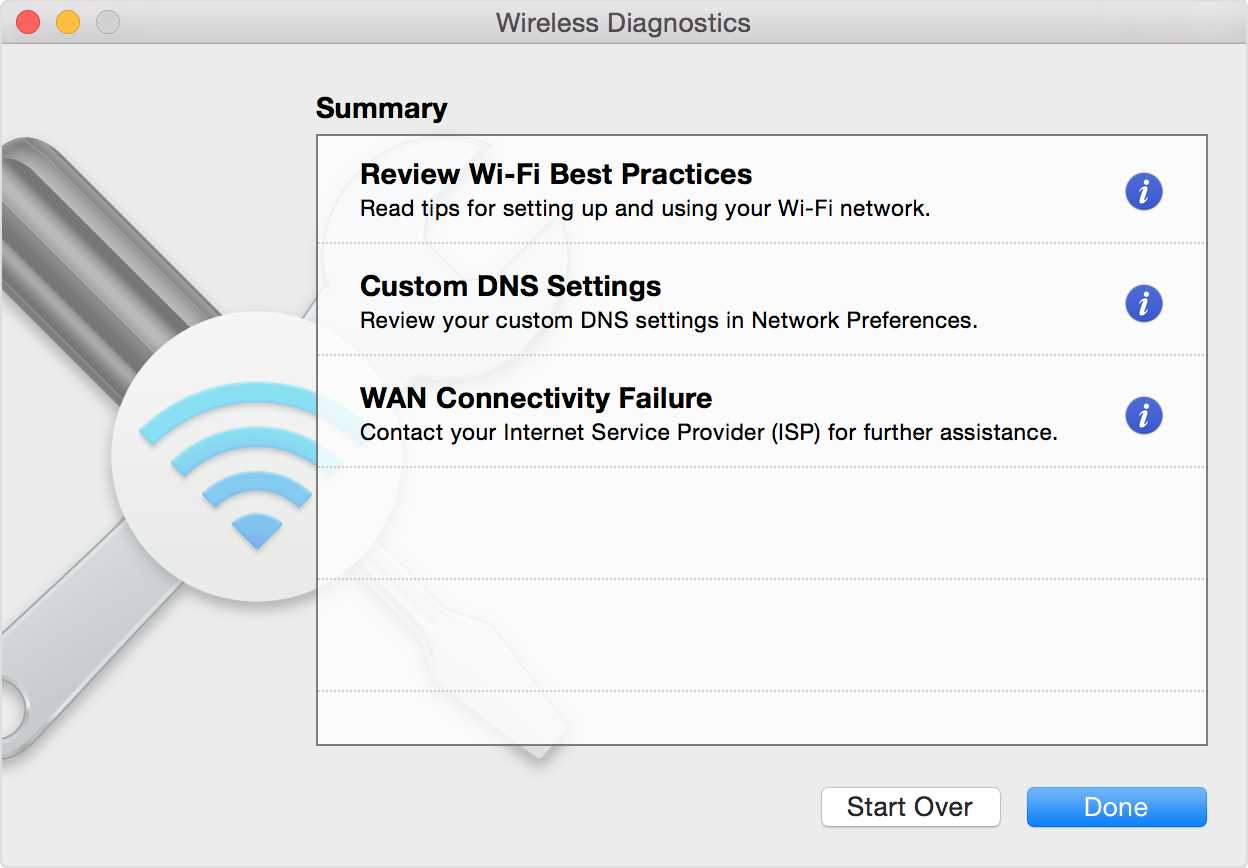
macOS includes a built-in network diagnostics utility. To access it, go to System Preferences > Network and click “Assist me” > “Diagnostics.”
Follow the prompts to identify issues. The tool can suggest automatic solutions or guide you through manual fixes.
Manual Diagnostics
– Restart the diagnostics if issues persist.
– Check your internet connection with other devices.
– Test with a different WiFi network if possible.
Using diagnostics helps pinpoint hardware or configuration errors.
Check Hardware Components
If none of the above solutions work, hardware could be at fault. Inspect your MacBook’s WiFi antenna for damage, especially if you notice inconsistent signals.
Consider visiting an Apple Store or authorized service provider for a hardware checkup. Faulty WiFi cards or antennas require professional repair.
Seek Help From Your Internet Service Provider
Sometimes, the issue lies beyond your local network. Contact your ISP to verify there are no outages or issues in your area. They can provide insight into whether your modem or connection has problems.
Ask your ISP if your router needs a firmware update or replacement. Support teams can help troubleshoot network issues from their end.
Additional Tips for Better WiFi Performance
- Use a wired Ethernet connection when possible for stable internet.
- Disable background applications that consume bandwidth.
- Limit connected devices to reduce network congestion.
- Regularly restart your router to keep performance optimal.
These practices enhance WiFi reliability and speed, making your browsing smoother.
Summary of Troubleshooting Steps
- Check WiFi signal strength and move closer if needed.
- Restart your MacBook and router.
- Review and adjust network settings.
- Reset network configurations and clear caches.
- Update macOS and router firmware.
- Change WiFi channels and bands.
- Run network diagnostics for further insight.
- Inspect hardware components or seek professional help.
- Verify with your internet service provider for outages or issues.
Following these steps ensures a systematic approach to fixing WiFi problems on your MacBook.
In conclusion, troubleshooting WiFi issues involves checking signal strength, updating software, adjusting settings, and sometimes hardware inspection. Taking a step-by-step approach helps identify and fix most connectivity problems efficiently. With patience and the right tools, you can restore a reliable WiFi connection to keep your MacBook running smoothly.
How To Fix MacBook Not Connecting to Wi-Fi or Wi-Fi Not Working[SOLVED]
Frequently Asked Questions
Why does my MacBook keep disconnecting from WiFi networks?
If your MacBook frequently disconnects from WiFi, it could be due to interference from other devices, outdated network settings, or hardware issues. Start by restarting your router and MacBook. Reset the network preferences by deleting the preferred WiFi networks and reconnecting. If the problem persists, run Apple Diagnostics to check for hardware problems, and ensure your macOS is up to date for optimal performance.
How can I verify that my WiFi network is functioning properly?
To confirm your WiFi network is operational, try connecting other devices to the same network. If they experience issues, the problem likely resides with your router or internet service provider. Use another device to access a website or stream content. If the problem is isolated to your MacBook, then the issue might be with your device’s network settings or hardware. Restart your router and modem, and run network diagnostics on your MacBook to identify potential issues.
What steps should I take if my MacBook detects the WiFi network but cannot connect?
When your MacBook detects the network but won’t connect, check the WiFi password for accuracy. Renew the DHCP lease via Network Preferences to refresh network settings. Disable and re-enable WiFi, or turn Airplane Mode on and off. If these steps don’t work, delete the network from your preferred networks list and add it again. Restart your MacBook to clear temporary glitches that might interfere with the connection.
How do I resolve slow WiFi speeds on my MacBook?
Identify if the slowdown is due to network congestion or the distance from your router. Move closer to the router and reduce interference sources like other electronic devices. Reset your network settings and ensure your macOS is current. You can also try switching to a different WiFi band (2.4 GHz or 5 GHz) if supported. Running a speed test will help determine if your internet plan delivers the expected speeds. Contact your service provider if the issue persists.
What can I do if my WiFi connection drops after system updates?
System updates can sometimes introduce network compatibility issues. First, restart your MacBook to apply the update properly. Reset your network preferences and delete any saved WiFi networks before reconnecting. Check for additional updates or patches from Apple that address WiFi problems. If problems remain, reset the System Management Controller (SMC) and NVRAM/PRAM on your MacBook. Consider reinstalling macOS if the issue continues after these steps.
Final Thoughts
How to troubleshoot WiFi issues on your MacBook provides practical steps to resolve common problems efficiently. Start by restarting your MacBook and router to refresh connections. Check your WiFi settings and ensure you are connected to the correct network. If issues persist, resetting network settings or updating macOS can solve underlying software conflicts. These actions often fix connectivity problems quickly, helping you get back online without hassle.

Similar Posts































