How To Check Android Battery Health Effectively
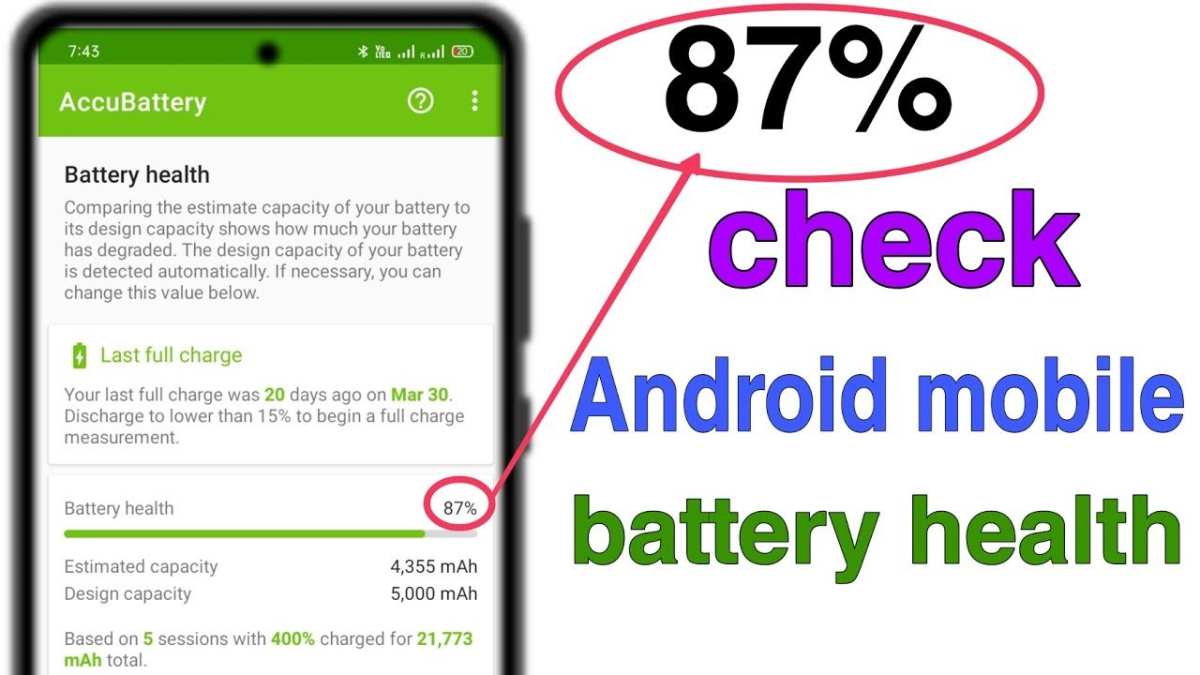
To check Android battery health, start by accessing the device’s settings or using a dedicated app. **You can also dial *#*#4636#*#* to see detailed battery info directly.** Knowing your battery’s condition helps prevent unexpected shutoffs and extends its lifespan. Many Android phones now offer built-in tools to monitor battery performance, making it easier than ever. Simply follow a few quick steps, and you’ll get a clear picture of your battery’s health. Checking regularly keeps your device running smoothly and avoids surprises down the road.

How to Check Android Battery Health
When your smartphone’s battery isn’t holding a charge like it used to, it can be frustrating. Over time, all batteries naturally lose some of their capacity, but knowing exactly how healthy your Android battery is can help you decide whether to replace it or just optimize its usage. In this guide, we’ll explore various ways to check your Android device’s battery health, so you can keep your phone running smoothly.
Why Checking Your Android Battery Health Matters
Understanding the state of your battery can help you:
- Identify if your battery needs replacement
- Maximize battery life through proper usage
- Detect potential issues early before they become bigger problems
Knowing these details empowers you to take better care of your device, saving time and money.
Methods to Check Android Battery Health
There are multiple ways to see how your Android battery is doing. Some methods use built-in tools, while others require third-party apps or even specialized codes. We’ll go through each method step by step.
Using Android’s Built-in Battery Settings
Many Android phones include simple battery information right in the settings menu. Here’s how to access it:
- Open the Settings app on your phone.
- Scroll down and tap on Battery or Battery & Device Care.
- Look for options like Battery Usage or Battery Health.
*Note:* Some Android devices, especially older models or those from certain manufacturers, may not include detailed battery health info here. In such cases, you’ll need to try other methods.
Using Hidden Codes to Check Battery Status
Android phones often have secret codes that reveal detailed device information, including battery health. Here’s how to use them:
- Open your phone’s dialer app.
- Dial *#*#4636#*#*.
- A menu titled Testing will open. Tap on Battery Information.
In this section, you’ll find data such as:
- Battery level (%)
- Battery status (Charging, Discharging)
- Battery health (Good, Overhaul, etc.)
*Important:* Not all Android phones support this code, especially newer models or devices with customized firmware.
Using Third-Party Apps for Detailed Battery Health Reports
Third-party applications give you extensive details about your battery’s health and usage patterns. Some popular options include:
- AccuBattery
- GSam Battery Monitor
- Battery Doctor
**How to use these apps:**
- Download the app from Google Play Store.
- Open the app and grant any necessary permissions.
- Let the app run for some time to collect data about your battery usage.
- Review the battery health report, which typically includes information like battery capacity, wear level, and overall health percentage.
*Tip:* Most apps provide an estimated maximum capacity percentage, which indicates how much your battery has degraded relative to when it was new.
Understanding Battery Health Metrics
Knowing how to interpret the data from these tools is key. Here are common terms and what they mean:
| Term | Description |
|---|---|
| Full Charge Capacity | The maximum charge your battery can hold now compared to when it was new. |
| Design Capacity | The original capacity when the battery was manufactured. |
| Cycle Count | The number of complete charge/discharge cycles your battery has gone through. Higher counts usually mean more wear. |
| Battery Wear | Calculate by comparing current capacity to design capacity. For example, if current capacity is 80% of original, the battery has 20% wear. |
| Health Percentage | Shows the overall battery health, with 100% being brand new and lower percentages indicating degradation. |
**Tip:** Many devices and apps consider 80% capacity as a threshold for replacing a battery.
Signs Your Battery Is Deteriorating
Besides data, keep an eye out for these signs that suggest your battery health may be declining:
- Battery drains faster than before even with normal use
- Unexpected shutdowns when the battery shows 20-30%
- Battery percentage jumps or fluctuates randomly
- Device feels unusually warm during use or charging
- Increased time to charge or difficulty reaching 100%
If you notice any of these signs, checking your battery health with the methods above can confirm whether a replacement might be necessary.
Tips to Extend Your Android Battery Life
Knowing your battery health is useful, but preventing further damage is equally important. Here are some tips:
- Avoid letting your battery fully discharge regularly. Keep it above 20% when possible.
- Don’t leave your device charging for long periods after it reaches 100% — unplug it to prevent overcharging.
- Use the power-saving mode when your battery is running low.
- Reduce screen brightness and turn off unnecessary features like Bluetooth and Wi-Fi when not in use.
- Update your device’s software, as updates often include improvements for battery management.
When Should You Replace Your Android Battery?
Most batteries start to show significant wear after about 300 to 500 full charge cycles. Signs that it’s time for a new battery include:
- Battery capacity drops below 80%
- Frequent unexpected shutdowns
- Rapid battery drain even with minimal use
- Physical swelling or damage to the battery
Replacing the battery can often restore your device’s performance and extend its lifespan.
Keeping track of your Android device’s battery health helps you understand how well it’s performing and when it’s time for new hardware. Whether you use built-in tools, hidden codes, or third-party apps, regularly checking your battery status can save you from unexpected shutdowns and poor performance. Remember, proper charging habits and care can prolong your battery’s life, ensuring your device stays reliable for years to come.
Frequently Asked Questions
What are the signs that my Android battery is deteriorating?
If your Android device’s battery drains quickly, takes longer to charge, or the device randomly shuts down even with a full charge, these can indicate battery health issues. Additionally, overheating during use or experiencing frequent app crashes may be related to battery wear.
Which built-in tools can I use to evaluate my Android battery condition?
Many Android phones include diagnostic options in the settings. Navigate to Settings > Battery > Battery Usage or Battery Health (if available) to see detailed information. Some devices have a ‘Device Care’ or ‘Device Maintenance’ section that offers battery health metrics. These tools often provide an overall assessment and tips for extending battery life.
Are third-party apps reliable for checking my Android battery’s health?
Third-party apps like AccuBattery or Battery Doctor can provide insights into your battery’s status, including capacity and cycle count. Choose well-reviewed applications from reputable developers, and use them as supplementary tools to monitor battery performance over time. Remember that they may require permission to access certain device data.
How does battery cycle count affect my Android device’s performance?
Each time you fully charge and discharge your battery, it completes a cycle. Over time, these cycles degrade battery capacity, resulting in reduced battery life. Monitoring cycle count helps you understand how many charges your battery has gone through and when it might be time to consider replacing the battery or device.
Can software updates impact my Android battery health?
Yes, installing the latest software updates can improve battery management by optimizing power consumption and fixing bugs that cause excessive drain. Conversely, sometimes updates may introduce issues that affect battery life. It’s good practice to review update notes and monitor your battery performance after installing new software.
Final Thoughts
To check Android battery health, start by using built-in features like the Battery Usage option in settings. You can also dial codes such as *#*#4636#*#* to access detailed diagnostics. Third-party apps offer more in-depth insights, revealing battery capacity and performance trends.
Regularly monitoring your battery helps identify issues early and extend your device’s lifespan. Remember, how to check Android battery health is crucial for maintaining optimal device performance and avoiding unexpected shutdowns.

Similar Posts