Chatgpt No Text Could Be Extracted From This File Solution

Understanding “chatgpt no text could be extracted from this file”
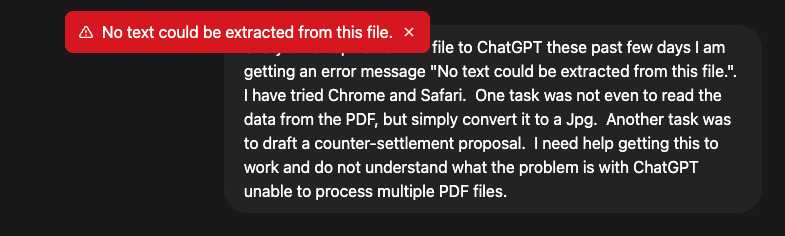
The message **“chatgpt no text could be extracted from this file”** often puzzles users trying to use AI tools like ChatGPT to read or analyze documents. This phrase usually means the system attempted to scan the file but failed to pull out any readable text. Text extraction issues can happen for several reasons, including file type restrictions, encryption, or the format of the content within the file. When ChatGPT or similar AI tools cannot extract text, it’s generally because the file is either scanned as an image or contains complex formatting. For example, PDF files saved as pictures rather than containing digital text are hard for AI to decode. This limitation affects how users work with documents in AI applications, making it essential to understand the causes and solutions.Why Does ChatGPT Fail to Extract Text?
Several factors cause the error message related to text extraction failure. The most common reasons include:- Image-based Files: If a file is scanned as an image, it contains no actual text for AI to read. This often happens with scanned PDFs or screenshots saved as PDFs.
- Encrypted or Password-protected Files: Files that are locked with passwords or encryption prevent AI tools from accessing their contents.
- Unsupported File Formats: Some formats use complex structures or non-standard encoding, confusing the system.
- Corrupted Files: Damaged files may not allow proper reading or extraction of text.
- Text in Unusual Fonts or Languages: Very stylized fonts or rare scripts may not be recognized accurately.
Common File Types and Extraction Challenges
Different file types bring distinct challenges for text extraction by AI tools. Understanding these can help users prepare files better.PDF Documents
PDFs are among the most common file types uploaded for text extraction. However, they come in several varieties:- Text-based PDFs: These contain actual digital text and are easiest to extract information from.
- Image-based PDFs: These are created by scanning paper documents resulting in images embedded in the PDF.
Scanned Documents and Images
Files such as JPEG, PNG, or scanned TIFF images usually do not contain textual data directly readable by AI tools. These formats store visual information, which requires specialized software to read text from pictures.Word and Text Files
Formats like DOCX or TXT generally have text in an accessible form. However, if the file is corrupt or contains embedded objects, extraction can fail.Techniques to Fix Text Extraction Issues
Users encountering the “no text could be extracted” problem can try several approaches to improve results. Here are some practical options:- Using OCR Tools: Optical Character Recognition converts images of text into actual text. Tools like Adobe Acrobat, Tesseract, or online OCR services help make scanned PDFs searchable.
- Converting Files to Supported Formats: Transforming files into plain text or searchable PDFs increases compatibility with ChatGPT.
- Removing Passwords or Encryption: Unlocking protected files before uploading allows AI systems to access the content.
- Checking File Integrity: Repairing corrupt files can restore readable content.
How OCR Enhances Text Extraction
Optical Character Recognition plays a crucial role in converting images into text data. It scans every pixel in a file to identify letters and words, producing editable and searchable text.Benefits of OCR:
- Accessibility: Makes scanned documents readable by AI systems and humans.
- Searchability: Enables keyword searches within scanned files.
- Editability: Allows changes to previously locked or image-only text.
Handling Encrypted or Password-Protected Files
Files locked with passwords or encryption prevent AI tools from reading their contents. Before uploading for analysis, users should:- Remove or enter passwords to unlock the files.
- Use trusted software to decrypt files if necessary.
- Ensure compliance with any legal or privacy considerations.
Best Practices to Prepare Files for ChatGPT
To avoid the “no text could be extracted” issue, users should optimize their files before submission. Here are some tips:- Convert scanned documents to searchable PDFs using OCR.
- Save documents in standard formats like DOCX, TXT, or text-based PDFs.
- Remove encryption and passwords where possible.
- Check file size limits and reduce if necessary.
- Clean up formatting issues and embedded objects.
How ChatGPT Processes Uploaded Files
Understanding the way ChatGPT interacts with files can clarify why text extraction sometimes fails.- First, ChatGPT scans the file format to identify whether it contains extractable text.
- It then attempts to parse the text layers or metadata.
- If the file is image-based or encrypted, the system cannot find readable text.
- In such cases, an error message like “no text could be extracted” is returned.
Alternatives for Extracting Text from Difficult Files
If ChatGPT cannot extract text, users can consider alternative tools or methods:| Tool/Method | Description | Best For |
|---|---|---|
| Adobe Acrobat OCR | A professional solution for converting scanned PDFs into searchable documents. | High-quality scans, business documents. |
| Tesseract OCR | An open-source OCR engine supporting multiple languages. | Developers and tech-savvy users. |
| Online OCR Services | Web-based apps for quick image-to-text conversion. | Small files, casual use. |
| Manual Transcription | Typing the text by hand if automated tools fail. | Critical data or complex layouts. |
Impact of Language and Fonts on Extraction
Certain languages and font styles challenge text extraction tools. Examples include:- Scripts with complex characters like Mandarin, Arabic, and Hindi require specialized OCR models.
- Stylized or handwritten fonts reduce recognition accuracy.
- Mixed languages within a document can confuse language detection algorithms.
Future Improvements in AI Text Extraction
As AI develops, text extraction capabilities continue to improve. Future enhancements may include:- Better recognition of handwriting and stylized fonts.
- Improved language detection for mixed or rare scripts.
- Integrated OCR directly within AI platforms like ChatGPT for seamless processing.
- Greater support for encrypted or complex file formats.
How To Use ChatGPT PDF Analysis Tool & Read Any File For Beginners
Frequently Asked Questions
What causes ChatGPT to fail extracting text from certain files?
ChatGPT might not extract text from a file if the file format is unsupported, corrupted, or contains encrypted or scanned images instead of selectable text. Additionally, files with complex layouts or embedded objects can prevent successful text extraction.
How can I prepare a file to improve text extraction results with ChatGPT?
Ensure your file is saved in a widely supported format such as plain text, PDF with selectable text, or DOCX. Avoid scanned images or screenshots, and check that the file is not password-protected or corrupted. Cleaning up formatting and removing embedded non-text elements can also help.
Are there alternative methods to obtain text from files that fail with ChatGPT?
Yes, you can use Optical Character Recognition (OCR) tools to convert scanned images or PDFs into editable text. Software like Adobe Acrobat, Google Drive OCR, or standalone OCR applications can help extract text before inputting it into ChatGPT.
Why does ChatGPT sometimes extract incomplete text from a document?
Incomplete extraction may occur due to complex layouts, multiple columns, non-standard fonts, or embedded images that interrupt the text flow. Also, large files or those with embedded scripts might interfere with the extraction process, causing partial results.
Can file size impact ChatGPT’s ability to extract text effectively?
Yes, very large files may cause timeouts or performance issues during text extraction. Splitting large documents into smaller parts or focusing on specific sections can improve extraction success and processing speed.
What steps should I take if ChatGPT continuously fails to extract text from my files?
First, verify the file format and content to confirm it contains selectable text. Try opening and saving the file in a different compatible format. If the problem persists, use specialized OCR software to convert images or scanned documents into text before submitting them to ChatGPT.
Final Thoughts
ChatGPT encountered a situation where no text could be extracted from this file, highlighting the challenge of working with certain document types. Users should verify file formats and ensure text content is accessible to avoid this issue. When extracting text, keep in mind that some files may contain only images or encrypted data, which prevents text retrieval. Understanding these limitations helps set realistic expectations during content processing. In summary, “chatgpt no text could be extracted from this file” serves as a clear indicator to check file compatibility and content before attempting text extraction. This awareness supports smoother interaction with text-based tools.
Similar Posts