Understanding Android Battery Status: Tips And Tricks
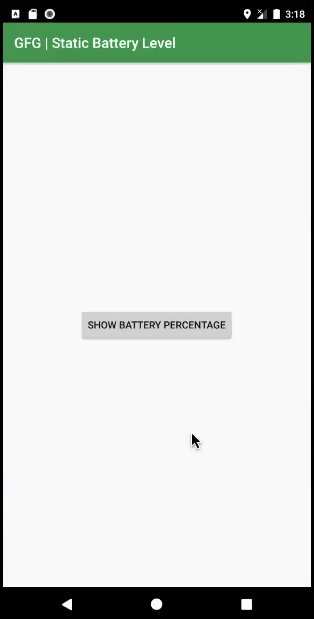
If your phone’s battery drains too fast, checking the Android battery status provides quick insights to improve its life. **Android battery status shows the remaining charge and apps consuming the most power**, helping you manage usage effectively. Many users find it helpful to monitor this information regularly to prevent sudden shutdowns. Simply accessing your device’s settings reveals details about battery health and consumption patterns. Staying informed makes it easier to extend your phone’s battery life and keep it running smoothly.

Understanding the Android Battery Status: Everything You Need to Know
Monitoring your Android device’s battery status is essential for keeping your phone running smoothly throughout the day. Whether you’re trying to extend your battery life or just curious about how your device’s power levels are doing, understanding what the battery status means can help you make smarter choices. In this section, we’ll explore the key aspects of Android battery status, what the different indicators mean, and how you can interpret your device’s battery information effectively.
What Is Android Battery Status?
Android battery status is a way your phone informs you about how much power remains and how your device is using it. It tells you whether your phone is charging, discharging, or fully charged. You can see it in the battery icon on your screen, usually in the top right corner, as well as in the device settings.
The battery status provides crucial insights, such as:
- How much battery power is left
- Whether your phone is charging or not
- The estimated remaining usage time
- Which apps are consuming the most power
Understanding these details can help you decide when to plug in your device or manage app usage to save power.
Basics of the Battery Icon and What It Tells You
When you look at your Android device, the battery icon is the first visual cue about your phone’s power. The icon can change in several ways:
- Full Battery Icon: Indicates your battery is fully charged or near full.
- Charging Icon: Usually shows a lightning bolt symbol inside the battery icon, meaning your device is plugged in and charging.
- Discharging Icon: No lightning bolt; shows the current charge level while your device is in use and not charging.
- Battery Warning Icon: Often displays a red color or a low battery symbol, alerting you to low power levels.
Knowing what these icons mean helps you manage your device’s power more effectively.
Interpreting Battery Percentage and Time Remaining
Most Android devices display a percentage value next to the battery icon, showing exactly how much charge remains. This number is the clearest indicator of your current battery level.
Additionally, some Android versions or apps estimate how much time you have left before your battery drains completely. While these estimates can be helpful, they are not always precise because they depend on your usage patterns. For example, heavy gaming or video streaming can deplete your battery faster than light browsing.
Battery Percentage Tips
- Keep an eye on the percentage to avoid sudden shutdowns.
- Reduce screen brightness or close unused apps if the percentage drops rapidly.
- Charge your device before it reaches too low a percentage, ideally before hitting 10%.
Estimating Time Remaining
While time estimates are useful, remember they fluctuate based on what you’re doing. For example, watching videos may drain your battery faster than browsing text.
How Android Monitors Battery Usage
Android devices keep track of how different apps and functions consume power. You can access this information in your device settings, usually under “Battery” or “Battery Usage.” This feature provides a detailed breakdown of power consumption, helping you identify apps that drain your battery excessively.
Accessing Battery Usage Details
To see which apps use the most power:
- Open Settings on your device.
- Scroll down and tap on “Battery” or “Battery & Performance.”
- Select “Battery Usage” or “App Usage.”
Here, you’ll see a list of apps with their respective battery consumption percentages, as well as system functions like screen, Wi-Fi, or Bluetooth.
Identifying Power-Hungry Apps
Apps that consume a significant amount of battery include:
- Social media apps
- Video streaming services
- Games with high graphics
- Navigation apps with GPS
- Background processes running without your knowledge
Managing or limiting these apps’ usage can help extend your battery life.
Battery Health and Its Significance
Beyond the current charge level, knowing your battery’s health is vital. Over time, batteries lose capacity, meaning your device won’t last as long between charges. Android phones have features that give you information about your battery’s health status, such as maximum capacity or wear level.
How to Check Your Battery’s Health
While some Android devices include built-in tools for this purpose, others might require third-party apps. These apps can indicate:
- The maximum capacity of your battery compared to when it was new
- Cycle count (how many times your battery has been charged and discharged)
- Potential issues or need for replacement
Monitoring battery health allows you to plan for replacements or manage your usage to preserve battery longevity.
Tips to Maintain and Improve Android Battery Life
Keeping your Android device’s battery in top shape involves simple habits and settings adjustments:
- Reduce screen brightness or enable auto-brightness.
- Limit background activity for apps that don’t need to run all the time.
- Turn off Wi-Fi, Bluetooth, and GPS when not in use.
- Enable battery saver mode during low power situations.
- Keep your device’s software updated for optimal battery management improvements.
- Avoid letting your battery fully drain frequently; aim to keep it above 20% whenever possible.
Applying these tips can significantly extend daily battery life and improve your device’s overall performance.
Common Battery Problems and How to Fix Them
Even with careful management, you might face battery issues. Some common problems include rapid battery drain, overheating, or the battery not charging properly.
Signs of a Failing Battery
- Battery percentage drops suddenly without reason.
- Phone heats up excessively during charging or use.
- Device turns off unexpectedly even with a high percentage shown.
- Battery health status indicates poor performance.
Fixes and Solutions
- Restart your device to clear background processes.
- Close apps that use a lot of power.
- Update your device software to get latest battery management features.
- Calibrate your battery by letting it drain to 0%, then fully charging it to 100% without interruption.
- If problems persist, consider replacing the battery or visiting an authorized service center.
Using Third-Party Apps to Monitor Android Battery Status
Many apps are available on the Google Play Store that provide detailed insights into battery health, usage patterns, and recommendations to save power. Popular options include:
- AccuBattery
- GSam Battery Monitor
- Battery HD
- JuiceBattery
These apps offer features like real-time battery consumption graphs, detailed app analysis, and tips to prolong battery life. Before installing, check reviews and permissions to avoid apps that might compromise your privacy.
Understanding your Android battery status is key to getting the most out of your device. From reading the battery icon and percentage to exploring detailed usage reports, being aware of how your phone consumes power helps you make smarter decisions. Regularly monitoring your battery health and managing app behavior is essential in extending battery life and maintaining performance. Proper habits, along with thoughtful use of Android’s built-in features and third-party apps, ensure your device stays powered longer and performs reliably day after day.
Frequently Asked Questions
How can I check the current battery level on my Android device?
To see the current battery level, swipe down from the top of your screen to open the notification panel. The battery percentage is usually displayed here. You can also go to Settings > Battery to view detailed information about your battery’s current status, including the percentage remaining and the estimated time left before it drains.
What are some ways to extend my Android device’s battery life?
To conserve battery life, lower the screen brightness, enable battery saver mode, and close apps running in the background. Turning off Wi-Fi, Bluetooth, and location services when not in use also helps. Additionally, avoid leaving your device on charge for extended periods and keep your apps updated to improve efficiency.
Why does my Android battery drain quickly even when I am not using my phone?
Background apps and processes can drain your battery without your knowledge. Notifications, location services, and syncing data frequently consume power. Check which apps consume the most battery in your device’s battery settings, and consider restricting background activity or uninstalling apps that drain significant power without your consent.
How can I identify which apps are affecting my Android battery health?
Go to Settings > Battery to view the detailed breakdown of battery consumption by individual apps. This section shows you which apps use the most power over a specific period. If an app consumes an unusual amount of battery, consider restricting its background activity or deleting it if it’s unnecessary.
Is it safe to leave my Android device charging overnight?
It is generally safe to leave your device charging overnight, as modern smartphones are designed with safeguards to prevent overcharging. However, keeping your device on charge for extended periods can generate heat, which may affect battery health over time. To maintain optimal battery performance, try to unplug your device once it reaches full charge when possible.
Final Thoughts
Maintaining awareness of your Android battery status helps optimize device performance and prolong usage. Regularly checking battery health allows you to identify issues early and take action. Using built-in tools and settings provides clear insights into remaining power and app consumption.
In conclusion, being mindful of ‘android battery status’ empowers you to manage your device more effectively, ensuring longevity and efficiency. Staying informed helps you make better decisions to extend battery life and improve overall experience.

Similar Posts