Android Battery Exclamation Point Fix Tips
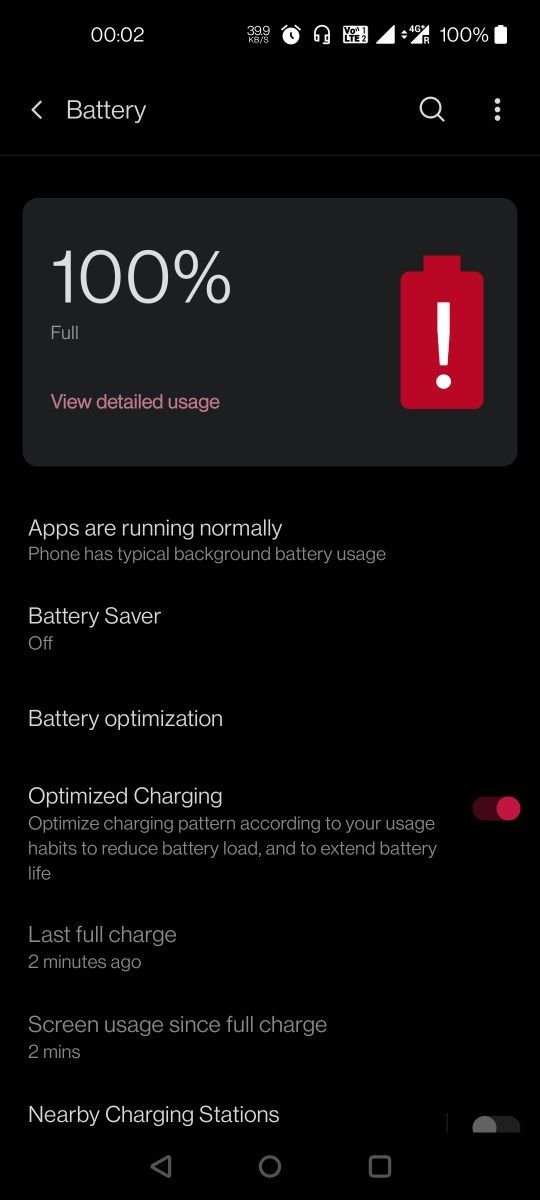

Understanding the Android Battery Exclamation Point: What it Means and How to Fix It
When you see an exclamation point next to your Android battery icon, it can be confusing. This small symbol carries a lot of important information about your device’s power status, and knowing what it means can help you take the right steps to keep your phone running smoothly. In this part of the article, we’ll break down the reasons behind this warning, what it indicates about your battery health, and how to troubleshoot common problems.What Does the Android Battery Exclamation Point Signify?
The exclamation point next to the battery icon is a warning symbol. It typically appears when your device detects an issue with the battery or charging system. Usually, it shows up in these circumstances:- Your battery is critically low and needs charging
- There is an error with the battery’s calibration or hardware
- Charging isn’t functioning properly due to a faulty cable or port
- The system recognizes a battery health decline
- Your device is running on a damaged or incompatible battery
Common Causes Behind the Exclamation Point on Android Battery Icon
Understanding the root causes of this icon helps you address the problem effectively. Let’s examine common issues that trigger the warning:Battery Calibration Issues
Over time, the battery’s internal software may misread its actual charge level. This leads to incorrect battery percentage displays and can cause the exclamation point to appear even when the battery isn’t truly drained.Faulty Charging Accessories
Using incompatible, damaged, or low-quality chargers and cables can interfere with proper charging. If your device isn’t charging correctly, the warning icon may appear as a safeguard to protect the battery from damage.Software Bugs and Glitches
Sometimes, software updates or bugs cause the battery indicator to malfunction. These glitches can falsely show the exclamation point, even if the hardware is fine.Battery Age and Wear
As your battery ages, its capacity decreases. The device might detect that the battery can’t hold a proper charge and display the warning to alert you about potential battery health issues.Hardware Damage
Physical damage from drops or exposure to moisture can harm the battery or charging port, which can trigger the warning icon.How to Diagnose the Cause of the Exclamation Point
Before jumping into fixes, it’s essential to identify the root issue. Here are some steps to help you analyze the problem:- Check the Battery Percentage: Is your device shutting down unexpectedly or showing a very low battery percentage?
- Test Different Charging Cables and Ports: Does using a different charger fix the issue?
- Observe Battery Behavior: Does it drain quickly or charge slowly?
- Look for Physical Damage: Are there any visible cracks or corrosion on the battery or charging port?
- Monitor System Updates: Has your device recently updated, and did the warning start afterward?
Steps to Fix the Android Battery Exclamation Point
Once you identify the cause, you can try these solutions to resolve the issue:Calibrating Your Battery
Battery calibration helps your device accurately read the remaining charge, which can fix false warnings.- Charge your phone to 100% and leave it charging for an additional 30 minutes.
- Use your device normally until it drains to 5-10%, or until it powers off.
- Charge the device back to 100% without interruption.
- Repeat this process once or twice if needed.
Replacing Faulty Charging Accessories
Poor quality or damaged chargers can cause charging problems.- Use the original charger provided with your device or a certified alternative.
- Inspect cables for fraying, bends, or corrosion.
- Try charging with a different cable or charger to see if the warning disappears.
Updating Your Device Software
System bugs can cause false warnings.- Go to Settings
- Select System or Software Update
- Download and install any available updates
Performing a Factory Reset
When software glitches persist, a factory reset can help.- Back up your important data
- Navigate to Settings > System > Reset options
- Select Factory Data Reset
- Follow the prompts to reset your device
Checking and Replacing the Battery
If your battery is old or physically damaged:- Visit an authorized service center for a professional diagnosis
- Replace the battery if necessary
Preventative Tips for Maintaining Battery Health
Taking good care of your Android battery can help prevent warning signs in the future:- Avoid exposing your device to extreme temperatures
- Use a quality charger and avoid overnight charging
- Keep your device updated with the latest software
- Do not let your battery drain completely frequently
- Disable background apps that drain power unnecessarily
- Enable power-saving modes when needed
When to Seek Professional Help
If you’ve tried all the above and the warning persists, it’s time to visit a professional. A certified technician can perform comprehensive checks to diagnose hardware issues and recommend repairs or replacements. Some signs that you should see a specialist include:- Persistent warning icon despite troubleshooting
- Physical damage to the battery or device
- Device overheating during charging
- Rapid battery drain even after calibration
Frequently Asked Questions
What does the battery exclamation point icon indicate on an Android device?
The battery exclamation point icon appears when your device detects a problem with the battery, such as low charge, overheating, or charging issues. It serves as a warning to alert you that your device’s battery may not function properly or safely, prompting you to take necessary actions to address the issue.
How can I troubleshoot the battery warning symbol on my Android?
Start by disconnecting your device from the charger and turning it off. Inspect the charging port and cable for dirt or damage. Try using a different charger or cable to see if the problem persists. If the warning continues, consider calibrating the battery or performing a factory reset after backing up your data. In some cases, replacing the battery might be necessary if it no longer holds a charge or shows signs of damage.
What steps should I take if my Android phone’s battery overheats and shows a warning?
If your device overheats, disconnect it from power and turn it off immediately. Move it to a cooler place away from direct sunlight or heat sources. Allow it to cool down before attempting to charge or use it again. Check for any software updates, as these can include fixes for overheating issues. If overheating persists, consult a professional technician or visit a service center for an in-depth diagnosis and possible battery replacement.
Can a software update fix issues related to the battery warning indicator?
Yes, updating your device’s software can resolve bugs or glitches that cause false battery warnings. Manufacturers often release updates that improve battery management and fix known issues. To update your Android device, go to Settings > System > Software Update, and follow the prompts to install the latest version available. Keeping your software current helps ensure optimal performance and battery health.
Is it safe to continue using my Android device if the battery exclamation point persists?
If the warning remains, especially if accompanied by overheating or rapid battery drain, it’s best to stop using the device until you identify the cause. Continuing to use a compromised battery can pose safety risks, including overheating or potential damage to your device. Seek professional assistance to diagnose the problem and determine if a battery replacement or repair is necessary to ensure safe operation.
Final Thoughts
The ‘android battery exclamation point’ indicates a battery issue on your device. Addressing this warning promptly can prevent unexpected shutdowns and data loss. Check for software updates, remove unnecessary apps, and replace the battery if needed. Taking these steps helps maintain your device’s longevity. In conclusion, understanding the ‘android battery exclamation point’ helps you troubleshoot problems quickly and keep your phone running smoothly.
Similar Posts