

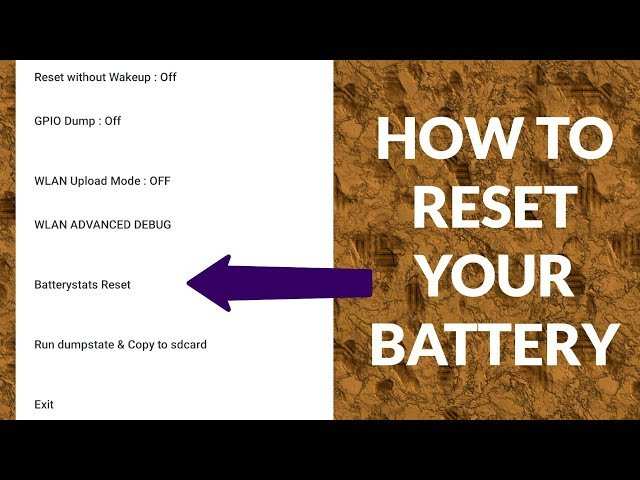
If your Android battery isn’t holding a charge like it used to, resetting it can often help. **To reset your Android battery, calibrate it by fully draining and then charging it to 100%.** Knowing how to reset Android battery can extend your device’s lifespan and improve performance. Simply follow a few quick steps to recalibrate, and you’ll notice better battery health. This simple process restores the battery’s accuracy and ensures it functions optimally.

How to Reset Android Battery
When your Android device’s battery starts acting up—like draining too fast, not holding a charge, or showing inaccurate readings—you might wonder how to fix these issues. Resetting your Android battery is a practical step that can help recalibrate and improve battery performance. In this guide, we’ll explore in detail how to reset your Android battery, why it’s important, and what steps you should follow to get the best results.
Understanding Why Your Android Battery Needs Resetting
Before diving into the steps to reset your battery, it’s helpful to understand why this process can make a difference. Over time, batteries can develop inaccurate charge readings or poor performance due to:
- Battery calibration issues: Your device’s software might lose track of the actual battery level, causing inaccurate display of remaining charge.
- Battery wear and tear: Age and repeated charging cycles cause chemical changes inside the battery, reducing its capacity.
- Software glitches: Some apps or system updates can interfere with proper battery management.
- Overcharging or deep discharges: Frequently charging beyond 100%, or letting the battery drain completely, can affect battery health.
Resetting the battery can help realign the software and hardware, providing more accurate charge readings and sometimes improving battery lifespan.
Preparing to Reset Your Android Battery
Before you start the process, it’s wise to prepare your device to ensure a smoothReset process. Here’s what you need to do:
- Charge your device: Make sure your phone has at least 50% charge to prevent it from turning off during the reset process.
- Backup important data: Although resetting the battery itself doesn’t delete personal data, some methods involve restarting or performing a factory reset. Always back up your files just in case.
- Update your software: Make sure your Android OS is up to date. Sometimes software updates fix battery issues.
After preparing, you can choose between a simple calibration or a more thorough reset, depending on the battery problem you’re facing.
Method 1: Battery Calibration — The Simple Reset
Battery calibration is the easiest way to reset your Android battery. This process involves fully charging and then fully discharging the battery to help your device better estimate the battery’s true capacity.
Steps to Calibrate Your Battery
- Charge your device fully until it reaches 100%. Keep it plugged in for about an extra 30 minutes to ensure the battery is completely topped off.
- Use your phone normally, but avoid unplugging it. Use apps, watch videos, and do tasks that drain the battery.
- Allow the battery to drain naturally. Use the device until it turns off automatically due to low battery.
- Once it turns off, do not turn it back on. Leave it off for at least 3 hours to ensure the battery is fully drained.
- Plug in your device and charge it without interruption until it reaches 100% again. Keep it plugged in for another 30 minutes after reaching full charge.
- Now, turn on your device. You should see that the battery percentage is more accurately displayed.
This method is simple but effective for recalibrating the battery’s charge indicator. It doesn’t physically repair the battery but helps your device estimate charges better.
Method 2: Factory Reset for Deep Battery Issues
Sometimes, battery problems are caused by deeper software glitches or hardware issues. In such cases, performing a factory reset (which wipes data and restores your device to default settings) can help. Remember, this method should be a last resort unless you back up your data because it erases everything.
Steps to Perform a Factory Reset
- Back up all important data to a cloud service or external storage.
- Go to Settings > System > Reset options (or similar, depending on your device).
- Select “Erase all data (factory reset).”
- Confirm your choice and wait for the device to reset. This process may take several minutes.
- After the reset completes, set up your device as new and restore your backup if needed.
Note: While a factory reset can fix software issues affecting battery performance, it does not repair damaged batteries physically. If the battery is old or damaged, replacing it might be necessary.
Additional Tips to Improve Battery Life and Performance
Resetting your battery or calibrating it is just one part of maintaining good battery health. Here are some additional tips to keep your Android device running longer:
- Use power-saving mode: Many Android devices have a built-in mode to reduce background activity and screen brightness.
- Limit background apps: Closing unnecessary apps can significantly reduce battery drain.
- Reduce screen brightness: A brighter screen consumes more power. Adjust brightness manually or use adaptive brightness settings.
- Turn off GPS, Bluetooth, Wi-Fi when not in use: These features drain power when active but aren’t always necessary.
- Avoid extreme temperatures: High heat or cold can damage your battery and diminish lifespan.
- Use original chargers: Cheap or incompatible chargers may cause improper charging, affecting battery health.
Signs It Might Be Time to Replace Your Battery
While resetting and calibration can prolong your battery’s life, sometimes the only solution is a new battery. Watch out for these signs:
- Rapid battery drain: If your battery percentage drops suddenly and quickly even with minimal usage.
- Swollen or physical damage: An inflated or damaged battery poses safety risks and won’t hold a charge.
- Inconsistent charge readings: If your device shows erratic or unchanging battery percentages.
- Device overheating during charging: Excessive heat indicates underlying battery issues.
In such situations, visiting a professional for battery replacement is recommended.
Resetting your Android battery, either through calibration or factory reset, can address many common battery issues. Calibration is quick, simple, and effective for restoring accurate charge readings, while a factory reset may resolve persistent software glitches. Remember, proper maintenance—like avoiding overcharging, reducing background activity, and replacing old batteries—can help extend your device’s battery life. If your battery continues to underperform despite these efforts, it might be time to consider a professional replacement to keep your Android device functioning optimally.
Frequently Asked Questions
What steps should I follow to recalibrate my Android battery for better accuracy?
To recalibrate your Android battery, first, use your device until it fully drains and turns off. Then, charge it uninterrupted to 100%, preferably with the device turned off. Once fully charged, unplug the charger and restart your phone. This process helps your device recognize the actual battery capacity, improving the accuracy of battery readings.
How can I safely reset my Android battery without causing damage?
Resetting your Android battery involves calibrating it rather than physically resetting the hardware. To do this safely, avoid overcharging or discharging the battery completely too often. Use the calibration method by draining the battery to zero and then charging it to full without interruptions. This method does not harm your device if done periodically and correctly.
Is it necessary to perform a battery reset after a software update?
While it’s not mandatory, performing a battery calibration after installing a software update can help improve battery performance. Updates may affect power management systems, so recalibrating ensures your device’s battery percentage reflects the actual charge, helping you better manage device usage post-update.
What tools or apps can assist in resetting or calibrating my Android battery?
Several third-party apps are available that can assist with battery calibration by providing detailed battery health data and calibration tools. However, most devices do not require dedicated apps for calibration; a manual process of draining and charging typically suffices. Always ensure any app you use is reputable to avoid security risks.
Can performing a battery reset improve the lifespan of my Android battery?
Final Thoughts
To reset Android battery, start by fully charging your device. Then, use it until the battery drains completely. Recharge it to 100% without interruption.
This process recalibrates the battery indicator for more accurate readings. Regularly performing this reset can improve your battery’s overall performance.
Remember, how to reset android battery can vary slightly between models, so consult your device manual if needed. Properly resetting your battery extends its lifespan and maintains optimal functionality.
