

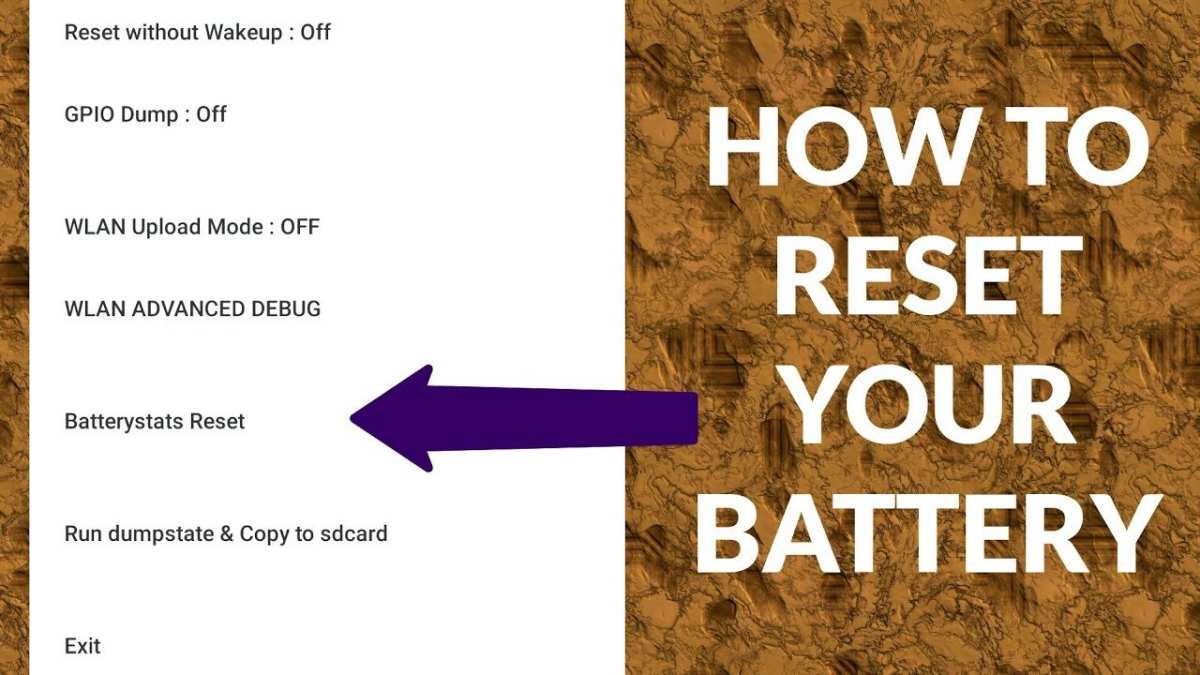
If your Android battery drains quickly, resetting it can often improve performance. **Reset android battery by recalibrating it, which helps the device’s system better estimate remaining power.** Simply let the battery drain completely, then recharge it to 100% without interruptions. This process can restore battery accuracy and efficiency. Resetting your Android battery is a quick fix that may extend its lifespan and enhance your overall experience. Keep this method in mind whenever your device’s battery seems off; it can make a noticeable difference.

Resetting Your Android Battery: A Complete Guide to Improving Battery Life
Understanding Why Your Android Battery Loses Power
Before jumping into how to reset your Android battery, it’s important to understand why batteries tend to drain faster over time. Several factors contribute to poor battery performance, including app usage, battery aging, and software issues.
- Battery Age: Over months and years, batteries naturally lose their ability to hold charge. This degradation causes shorter usage times and more frequent charging needs.
- Heavy App Usage: Running multiple apps simultaneously or using high-power apps like games and streaming services can accelerate battery drain.
- Poor Charging Habits: Frequently overcharging or letting the battery completely die can damage the battery’s health, reducing its capacity over time.
- Software Bugs: Sometimes, bugs or outdated software can cause background processes to consume excessive power, leading to faster battery depletion.
- Background Processes: Apps running in the background might use up resources and drain the battery without your knowledge.
What Does Resetting Your Android Battery Mean?
Resetting your Android battery involves recalibrating the battery’s software profile or performing a hardware reset (sometimes called a battery reset). This process helps your phone’s system better understand the battery’s true capacity, leading to improved performance and more accurate battery level readings.
- Battery Calibration: This helps your device recognize the actual battery percentage, making usage more reliable.
- Hardware Reset: Disconnects and reconnects the battery internally or externally to fix hardware issues or reset the battery’s capacity.
How to Reset Android Battery: Step-by-Step Instructions
There are several methods to reset or recalibrate your Android battery, depending on your device model and whether it has a removable battery.
Method 1: Calibrating the Battery Without Removing It
This method is suitable for most smartphones where you don’t need to physically access the battery.
- Charge your phone to 100% and keep it plugged in for an additional 30 minutes.
- Unplug your device and use it normally until the battery completely drains and the phone turns off.
- Connect your phone to a charger and let it charge uninterrupted to 100%.
- Once fully charged, unplug the charger and restart your device. Repeat this process 2-3 times to ensure proper calibration.
Method 2: Performing a Hardware Battery Reset (For Devices with Removable Batteries)
If your phone has a removable battery, follow these steps:
- Power off your device and remove the battery carefully.
- Use a clean cloth or tissue to wipe any dirt or corrosion from the contacts.
- Reinsert the battery securely back into the phone.
- Charge your device to full capacity without turning it on, then turn it on and check the battery status.
Method 3: Using Built-in Battery Calibration Options
Some Android devices have a built-in option to calibrate the battery or restore factory settings related to battery management.
- Navigate to Settings > Battery or Settings > Device Care (depending on your device).
- Look for options such as “Battery health” or “Optimize battery usage.”
- Follow on-screen instructions to calibrate or reset the battery management system.
Additional Tips for Better Battery Management
Resetting your battery helps, but adopting good habits can ensure your battery lasts longer and performs better.
- Limit Background Apps: Regularly close apps running in the background that you don’t need.
- Adjust Screen Brightness: Use adaptive brightness or manually reduce screen brightness to save power.
- Enable Battery Saver Mode: Activate power-saving features when battery is low or during heavy usage.
- Manage Connectivity: Turn off Wi-Fi, Bluetooth, or GPS when not in use.
- Keep Software Updated: Ensure your device runs on the latest Android version for improved battery efficiency.
- Avoid Extreme Temperatures: High or low temperatures can damage the battery and reduce its capacity.
- Use Original Chargers: Always charge your device with the recommended chargers and cables for safe and efficient charging.
Common Issues That Can Be Fixed by Resetting the Battery
Resetting the battery can solve several typical problems, such as:
- Inaccurate Battery Percentage Display: The percentage can become unreliable, showing wrong levels.
- Unexpected Shutdowns: Your phone shuts down unexpectedly before reaching 0%.
- Rapid Battery Drain: The battery drains faster than usual without heavy app usage.
- Battery Not Charging Fully: The device stops charging before reaching 100% or shows inconsistent charging levels.
- Overheating During Charging: Excessive heat can indicate a battery or hardware problem that resetting might help address.
When to Replace Your Android Battery
While resetting can help with certain issues, it’s crucial to recognize when a battery needs a full replacement.
- Persistent Battery Drain: Even after multiple resets and optimizations, the battery doesn’t last more than a few hours.
- Physical Damage: Swelling, leakage, or visible damage indicates that replacing the battery is necessary.
- Overheating Issues: Excessive heat during charging or normal use can be a sign of a failing battery.
- Battery Age: If the battery is over 2-3 years old and performance has declined significantly, consider replacement.
Resetting your Android battery offers a simple way to improve your device’s battery life and fix common issues caused by software or calibration errors. Remember, proper battery care and management play vital roles in extending the lifespan of your device. By combining reset procedures with good usage habits, you can enjoy longer, more reliable battery performance and keep your Android device running smoothly for years to come.
Frequently Asked Questions
How can I calibrate my Android battery to improve its accuracy?
To calibrate your Android battery, fully drain the battery until the phone turns off. Then, charge it uninterrupted to 100% without using the device. Once fully charged, unplug the charger and use the device normally. Repeating this process every few months can help your battery meter reflect the actual battery capacity more accurately.
What steps should I follow to reset battery settings on my Android device?
First, go to your device’s Settings > Battery. Look for an option like “Reset Settings” or “Reset Battery Stats” (availability varies by device). Tap this option to reset the battery data, which can help resolve inaccurate battery readings. Keep in mind that this resets the internal battery usage statistics but doesn’t affect your data or device settings.
Can restarting my Android phone help in resetting the battery health?
Restarting your Android phone can temporarily resolve issues related to battery performance or misreporting. It stops background processes that may drain the battery unnecessarily and refreshes system functions. However, it doesn’t directly reset the battery health; for that, calibration or more detailed troubleshooting may be necessary.
Is it possible to perform a factory reset to fix battery problems on Android?
A factory reset can help resolve software issues that cause abnormal battery drain. Before proceeding, back up your important data. To perform a reset, go to Settings > System > Reset options, and select “Factory data reset.” This process restores your device to its original state, which can improve battery performance if the issue stems from software conflicts.
What are some best practices for maintaining my Android battery after resetting?
After resetting, avoid using your device while charging, and try to keep the battery charge between 20% and 80%. Use the original charger and avoid exposing your device to extreme temperatures. Limiting background apps and enabling battery saver mode can also extend your battery’s lifespan and prevent unnecessary drain.
Final Thoughts
reset android battery is an effective way to improve your device’s battery performance. It clears any software glitches causing quick battery drain.
Performing a reset helps your phone recalibrate its battery sensor, providing more accurate usage readings.
Always back up important data before resetting to avoid losing anything essential.
In conclusion, reset android battery to restore your device’s optimal battery life and ensure smoother performance.
