

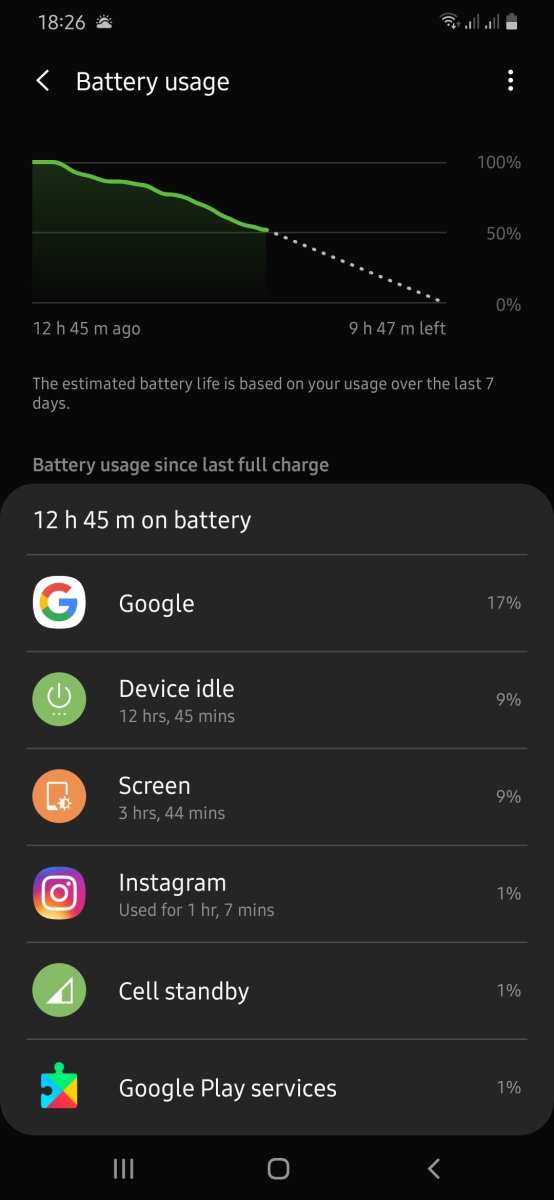
If your Android battery drains quickly, the solution is often simple: identify power-hungry apps and adjust settings accordingly. **Monitoring your Android battery usage can help pinpoint the culprits** and extend your device’s life.
Understanding which apps and functions consume the most power allows you to make smarter choices. Small adjustments can significantly improve battery longevity. Take control of your device by regularly checking and managing your Android battery usage.

Understanding Android Battery Usage: How to Keep Your Phone Running Longer
Many Android users find their devices drain battery faster than they expect. Whether you’re out for the day or trying to save power during a busy schedule, knowing how your phone uses its battery can help you make smarter choices. In this guide, we’ll look at what impacts Android battery life, how to check which apps use the most power, and simple tips to extend your device’s battery life.
What Affects Android Battery Consumption?
Several factors can influence how quickly your Android battery drains. Let’s explore the main ones:
- Apps and their activity: Some apps use more energy, especially if they run in the background or use location services.
- Screen brightness and timeout: The display is one of the biggest power consumers on a phone. Bright screens and long screen-on times eat up battery fast.
- Network usage: Using Wi-Fi, mobile data, or Bluetooth constantly can drain battery quickly, especially if the signal is weak or the connection is unstable.
- Operating system updates and background processes: Sometimes, updates or processes running in the background can cause increased power use.
- Hardware features: GPS, camera, sensors, and other hardware components consume energy when active.
- Battery health: As your phone ages, its battery capacity decreases, leading to shorter battery life even with normal use.
How to Check Battery Usage on Android Devices
Knowing which apps and services drain your battery helps you manage power better. Here is how you can check your Android’s battery usage:
Using Built-in Battery Usage Tools
Most Android phones have a feature built into settings to show battery usage details:
- Open the Settings app on your device.
- Scroll down and select Battery.
- Tap on Battery Usage. Here, you’ll see a list of apps and services with the percentage of battery they’ve used since your last charge.
This list helps you identify which apps consume the most power and decide whether to limit their use or close them.
Interpreting Battery Usage Data
When you view battery usage, look for:
- Apps with high percentage: These use the most power. Consider closing or uninstalling apps you don’t need.
- Background activity: Some apps run in the background even when you’re not actively using them. Limiting background activity can save energy.
- Battery-consuming features: Features like GPS and Bluetooth may show up as significant power consumers.
Practical Tips to Improve Android Battery Life
Here are effective ways to make your Android device last longer between charges:
Manage Screen Brightness and Timeout
The display accounts for a large portion of battery use. Adjust these settings to save power:
- Set your brightness to auto or manually lower it to a comfortable level.
- Reduce screen timeout duration so the display turns off quicker when not in use.
Limit Background Apps and Activity
Many apps run in the background, updating content or syncing data. You can restrict these activities:
- Close apps that you’re not using.
- Disable background activity for apps in the device settings.
- Use the built-in battery saver mode to automatically restrict background processes.
Optimize Network Usage
Network features can drain your battery if used excessively. Simple steps include:
- Turn off Wi-Fi, Bluetooth, or mobile data when not needed.
- Use airplane mode in areas with no signal to prevent your device from constantly searching for a network.
- Enable Wi-Fi or Bluetooth only when actively using them.
Manage Location Services
GPS and location services are power-hungry. Use them wisely:
- Set location mode to battery saving or device only instead of high accuracy.
- Turn off location services when not needed.
- Allow apps to access location only when in use.
Adjust App Notifications and Sync Settings
Frequent notifications and auto-syncing can increase battery drain. To reduce this:
- Limit notifications from less important apps.
- Disable auto-sync or set it to manual for less critical apps.
- Uninstall apps that you rarely use.
Battery Saving Modes and Their Effectiveness
Most Android phones offer a built-in battery saver mode. When activated, it reduces performance, limits background activities, and disables features like vibration and background data refresh to extend battery life.
While battery saver modes help during low battery situations, they can also be used proactively to conserve power when you know you’ll be away from charging options.
Maintaining Healthy Battery Life Over Time
Battery health declines as your device ages, which means your battery won’t hold a charge as well as it used to. Here are some tips to keep your battery healthy:
- Avoid letting your phone completely run out of power frequently.
- Charge your device between 20% and 80% when possible.
- Use the original charger or a certified alternative to avoid damaging the battery.
- Avoid exposing your device to extreme temperatures, especially excessive heat.
Additional Tools and Apps to Help Manage Battery Usage
Several third-party apps can monitor and optimize your Android battery consumption:
- Battery monitoring apps like AccuBattery provide detailed insights into battery health and usage patterns.
- Cleaning apps can close background apps and clear cache, but use them cautiously to avoid unnecessary system interference.
- Task managers can help you identify and stop power-hungry apps.
Managing Android battery usage requires a combination of understanding how your device consumes power and making smart adjustments. Regularly checking your battery usage habits, adjusting settings like brightness and app activity, and maintaining good battery health practices can make your phone last much longer each day. Whether you’re trying to squeeze more hours out of your device or just want to keep it healthy over time, these strategies will help you get the most out of your Android phone’s battery life. Remember, small changes can lead to significant improvements, keeping your device ready whenever you need it most.
Frequently Asked Questions
How can I identify apps that drain my Android battery the most?
To find out which apps consume the most battery, go to your device’s Settings, then select Battery or Battery Usage. This section provides a detailed breakdown of app activity, showing which applications use the most power. Use this information to manage or restrict background activity for those apps, helping extend your device’s battery life.
What are some practical ways to reduce background activity on my Android device?
You can limit background activity by adjusting app permissions and restricting background data. Navigate to Settings, then Apps & Notifications, select individual apps, and disable background activity or restrict data usage. Additionally, enabling battery saver mode can automatically limit background processes to conserve power and improve overall battery endurance.
Is it necessary to calibrate my Android battery regularly?
While not mandatory, calibrating your battery periodically can help improve accuracy in battery level readings. To calibrate, fully drain your battery until the device turns off, then charge it uninterrupted to 100%. This process recalibrates the battery sensor, providing more reliable estimates of remaining battery life.
How does screen brightness impact my Android battery consumption?
Screen brightness significantly affects battery usage because the display consumes a large portion of power. Lowering brightness or enabling adaptive brightness, which adjusts based on ambient light, can substantially extend your battery life. Turning off unnecessary screen features like auto-rotate or reducing screen timeout duration also helps conserve energy.
Are there specific settings that can optimize my Android device’s power management?
Yes, enabling Power Saving Mode on your device can optimize power consumption. This mode reduces background activity, limits app updates, and disables certain features like animations. You can access this setting through your device’s Quick Settings panel or in the Battery menu, allowing your device to operate more efficiently when battery life is low.
Final Thoughts
In conclusion, managing android battery usage helps prolong your device’s battery life and enhances overall performance. By monitoring app activity and adjusting settings, you can reduce unnecessary power drain. Regularly updating apps and limiting background processes also make a significant difference. Staying aware of how different activities impact your battery helps you use your device more efficiently. Properly managing android battery usage ensures your phone remains reliable throughout the day and beyond.
