

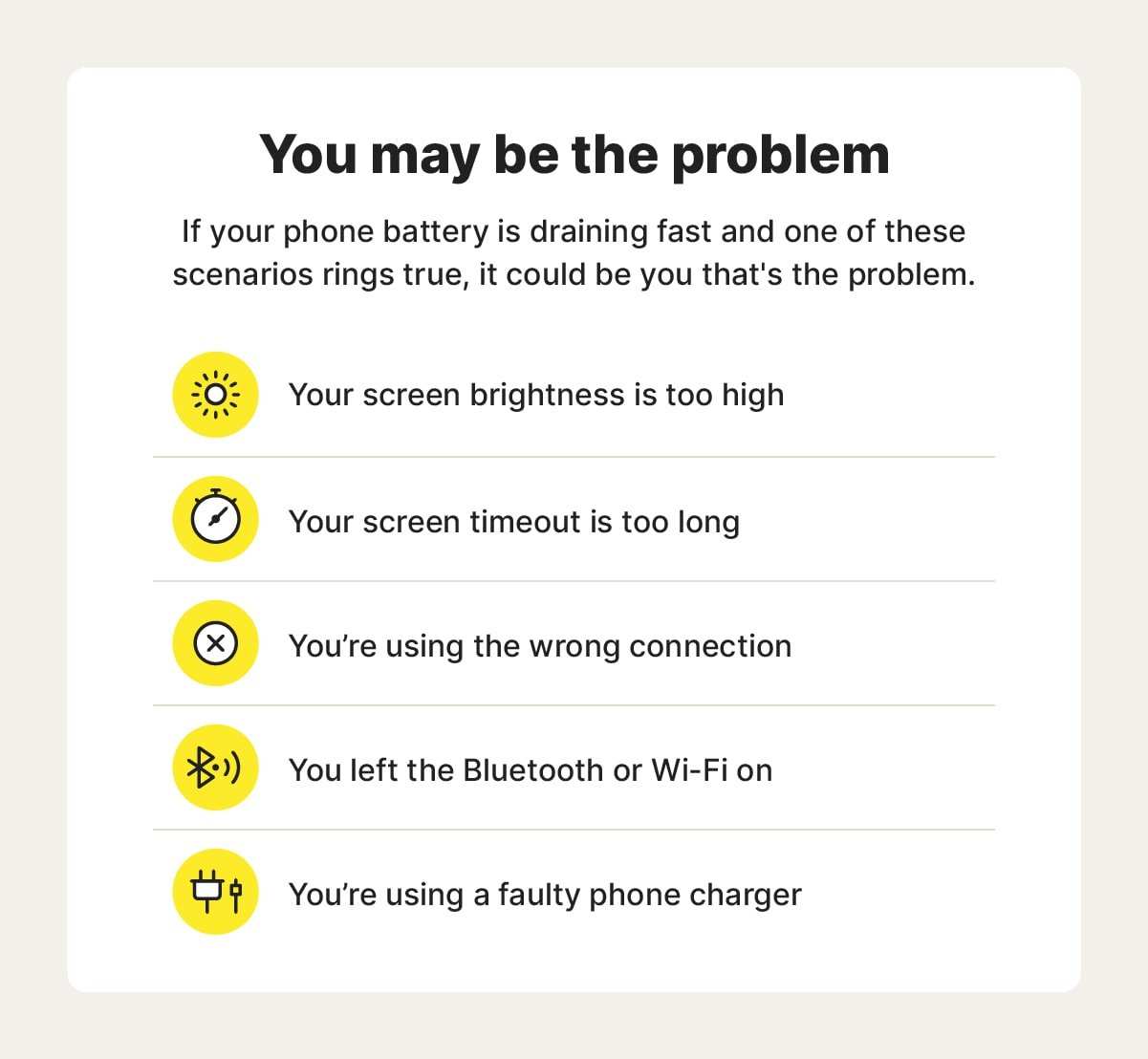
If you’re wondering why your battery drains so quickly on Android, a few simple steps can help. **Reducing screen brightness, closing unused apps, and turning off background activities** can make a huge difference.
Many factors, like faulty apps or outdated software, contribute to rapid battery loss.
Knowing what causes the issue empowers you to take quick action and extend your device’s battery life.

Why is My Battery Draining So Fast on Android?
If you’ve ever looked at your Android phone and wondered why your battery percentage drops so quickly, you’re not alone. Many Android users face this frustrating issue, especially when their devices seem to shut down unexpectedly or don’t last through the day. Understanding the reasons behind rapid battery drain can help you take simple steps to extend your device’s battery life and get better performance from your phone.
In this guide, we’ll walk through the common causes of fast battery drain on Android phones, explore how different apps and settings affect your battery life, and suggest practical tips to help you keep your device running longer.
Understanding How Your Android Battery Works
Before diving into reasons why your battery drains quickly, it’s helpful to understand how your Android device consumes power. Your phone’s battery is made of lithium-ion cells that store and release energy. Several components and activities draw power from your battery, including:
- Display (screen brightness and usage)
- Apps running in the background
- Connectivity features (Wi-Fi, Bluetooth, GPS, mobile data)
- System processes and updates
- Hardware components (camera, speaker, sensors)
The more energy-intensive activities and settings you use, the faster your battery can drain. Identifying which of these are causing the issue can helptarget your efforts to extend battery life.
Common Causes of Fast Battery Drain on Android
Many factors can cause your Android device’s battery to drain quickly. Some of these are related to how you use your device, while others are tied to software or hardware issues. Let’s examine the most typical causes.
1. High Screen Brightness and Screen Timeout
Your phone’s display consumes the most power among all components. Bright screens and long screen-on times significantly reduce your battery life.
**What you can do:**
- Lower screen brightness or enable adaptive brightness
- Reduce screen timeout duration so the screen turns off faster when not in use
- Use dark mode if your device supports it to save power, especially on OLED screens
2. Background Apps Running Unnecessarily
Many apps keep running even when you’re not actively using them. These apps can continue to use CPU, GPS, and network resources, leading to faster battery drain.
**What you should check:**
- Review which apps are running in the background through your device’s settings
- Close or disable apps that you don’t need active at the moment
- Use the built-in battery optimizer to restrict background activity
3. Connectivity Features—Wi-Fi, Bluetooth, GPS, and Mobile Data
Keeping these features turned on when you don’t need them is a common reason for battery loss.
**Tips:**
- Turn off Wi-Fi and Bluetooth when not in use
- Enable airplane mode in areas without network coverage
- Use location services selectively, turning them off for apps that don’t need GPS
4. Software and App Updates
Outdated apps and system software can cause battery issues by misusing resources or containing bugs.
**What to do:**
- Regularly update your apps via the Google Play Store
- Keep your Android system updated to the latest version for optimal performance
- Uninstall apps that you no longer use or need
5. Battery-Intensive Apps and Features
Some apps, especially games, streaming services, or apps that use location and camera features heavily, drain power faster.
**Advice:**
- Monitor app battery usage in your device settings
- Limit the use of heavy apps or configure them for lower power consumption
- Use offline modes where possible to reduce online activity
6. Battery Age and Wear
Over time, batteries lose their capacity to hold charge, which results in faster drain times.
**What you can do:**
- Check your battery health using built-in diagnostics or third-party apps
- Replace the battery if it is old or degraded beyond usable levels
How to Identify the Apps and Settings That Drain Your Battery
Knowing which apps consume the most power can help you make informed decisions about usage and restrictions.
Using Battery Usage Stats
Most Android devices provide a detailed view of battery consumption:
- Go to Settings
- Tap on Battery or Battery & device care
- Select Battery Usage
This screen shows you the percentage of battery each app and service has used since your last charge. Look for apps that consume a disproportionate amount of power even when you haven’t used them much.
Monitoring Real-Time Battery Drain
Some devices and apps offer real-time insights:
- Use third-party battery monitor apps for detailed analytics
- Observe how your battery percentage decreases during typical usage
Practical Tips to Improve Battery Life
Now that you understand what causes rapid battery drain, here are some effective steps to help your Android device last longer.
Adjust Display Settings
Since the display uses a lot of power, optimizing its settings makes a big difference.
- Reduce screen brightness manually or turn on adaptive brightness
- Set a shorter screen timeout duration
- Enable dark mode if available to cut down on display power consumption
Limit Background Activity
Prevent unnecessary apps from running in the background:
- Use battery saver mode to restrict background processes
- Review app permissions and restrict background activity for apps that don’t need it
- Force stop apps that aren’t needed anymore
Manage Connectivity Features
Turn off features not in use:
- Disable Wi-Fi, Bluetooth, and GPS when not needed
- Limit apps’ access to location services to only when they’re actively used
Optimize App Usage and Updates
Keeping your apps and system software updated reduces bugs and inefficiencies:
- Update apps regularly from the Google Play Store
- Uninstall unused apps to free resources
- Use lite versions of apps when available
Battery Optimization Settings
Your device likely has built-in tools to conserve power:
- Activate battery saver mode when your charge is low
- Use built-in optimization features for apps and system processes
Consider Battery Replacement
If your battery is old or no longer holds a good charge, replacing it can revive your device’s battery life.
**Advice:**
- Visit a certified service center for battery replacement
- Check whether your device model offers easy-to-install batteries
Dealing with a fast-draining Android battery can be frustrating, but most issues are fixable with some simple adjustments. Keeping track of which apps and features drain your power helps you make smarter choices about usage. Regular maintenance, software updates, and a few battery-saving habits can extend your device’s battery life significantly. Whether your battery is wearing out or you just want to use your phone longer between charges, these tips will help you get the most from your Android device every day.
Frequently Asked Questions
Could background apps be causing my battery to drain quickly?
Yes, many apps continue running in the background even when you’re not actively using them. These background processes consume power, leading to faster battery depletion. Check your device’s settings to see which apps are running in the background and close those that aren’t necessary. Limiting background activity can help extend your battery life.
How does screen brightness affect my phone’s battery life?
High screen brightness uses a significant amount of power, draining your battery faster. If your screen brightness is set to maximum or auto-brightness is turned off, it can lead to unnecessary battery consumption. Adjusting the brightness to a lower level or enabling adaptive brightness helps reduce power usage and prolong battery life.
Can location services impact my battery, and how can I manage this?
Location services use GPS and other sensors, which can drain your battery quickly if left on constantly. To conserve power, turn off location services when you don’t need them or set apps to access your location only when in use. Managing location settings helps prevent unnecessary battery drain caused by continuous GPS activity.
Why do software updates sometimes cause increased battery consumption?
Software updates often introduce new features or improvements that may initially consume more power until your device adjusts to these changes. Occasionally, updates contain bugs affecting battery life. Make sure to install the latest patches and monitor your phone’s performance after updates. If battery issues persist, consider resetting settings or reaching out to support.
Could battery health decline be causing my device’s rapid drain?
Over time, batteries degrade and lose their ability to hold a charge effectively. If your device’s battery health has declined significantly, it will drain faster regardless of usage. Check your device’s battery health status in the settings and consider replacing the battery if it shows signs of deterioration to restore optimal performance.
Final Thoughts
The main reason why my battery draining so fast android often relates to background apps consuming power. Apps running constantly or syncing data can significantly deplete your battery.
Additionally, screen brightness and timeout settings play a crucial role; high brightness levels drain energy quickly.
Ensuring your device’s software is up to date can fix bugs that cause excessive power drain.
In conclusion, understanding why is my battery draining so fast android helps you manage your device better, extending its battery life effectively.
