

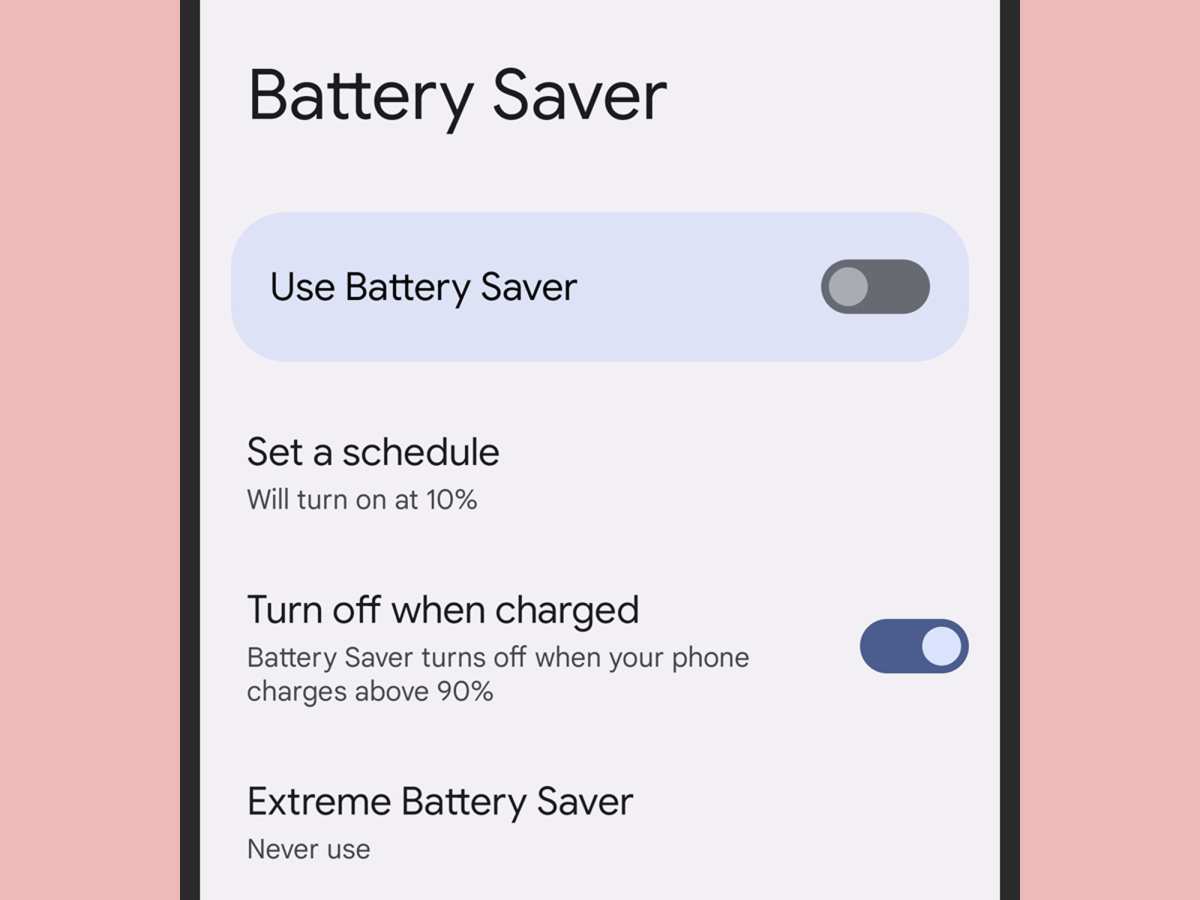
The battery saver on Android can be found in the Settings menu, usually under Battery or Device Care. **It’s designed to extend your device’s battery life by limiting background activity and reducing power consumption.** If you want to activate it, open Settings, tap on Battery, and then select Battery Saver. Knowing where it is helps you easily manage your phone’s power throughout the day.

Where is Battery Saver on Android?
When your phone starts running low on power, finding the Battery Saver option can feel like a puzzle. Don’t worry — it’s usually easier than you think! This guide will walk you through exactly where to find the Battery Saver on Android devices, how to turn it on, and why it helps extend your phone’s battery life. Whether you’re using a Samsung, Google Pixel, or other Android phones, the steps are similar, but a few details might differ. Let’s explore everything in detail so you can keep your phone running longer.
Understanding the Battery Saver Mode on Android
Before diving into how to locate the Battery Saver feature, it’s helpful to understand what it does. Battery Saver mode is a built-in function that helps conserve energy by reducing background activity, lowering screen brightness, and limiting certain notifications and functions. Enabling Battery Saver can give your phone extra hours of use when you’re running low or away from charging sources.
In most Android phones, activating this mode automatically limits:
- Background app activity
- Location services
- Visual effects and animations
- Automatic updates
This way, your device prioritizes essential functions, ensuring you stay connected for longer.
Locating Battery Saver on Different Android Devices
The location of the Battery Saver option varies slightly depending on your device manufacturer and Android version. Here, we’ll go through the most common methods to find it.
Finding Battery Saver Using Quick Settings
Most Android phones include a quick access menu where you can toggle various features, including Battery Saver. Here’s how to find it:
- Swipe down from the top of your screen to open the notification shade.
- Pull down again to expand the quick settings panel if necessary.
- Look for the battery icon or a labeled button that says “Battery Saver” or similar.
- Tap on the icon to enable or disable Battery Saver mode.
**Note:** Some devices might display the icon directly in the quick settings, while others may require you to edit the quick setting tiles to add the Battery Saver option.
Accessing Battery Settings Through Device Settings
If you prefer to use the Settings app, follow these steps:
- Open the Settings app on your phone. You can usually find it in the app drawer or by tapping the gear icon in quick settings.
- Scroll down and tap on “Battery” or “Battery & Performance.”
- Look for a section labeled “Battery Saver,” “Power Saving,” or similar.
- Tap on this option to toggle Battery Saver mode on or off.
**Tip:** On some devices, you might find an “Adaptive Battery” feature that adjusts power settings automatically. While similar, this feature functions differently from manual Battery Saver mode.
Using Google Assistant or Voice Commands
For hands-free control, you can also use voice commands:
- Say, “Hey Google, turn on Battery Saver.”
- The assistant will then activate the feature for you.
This method is quick and convenient, especially when your hands are busy.
Customizing Battery Saver Settings
Once you’ve located the Battery Saver feature, explore its options to tailor its functioning:
- Scheduling automatic activation: Some devices allow you to schedule Battery Saver to turn on automatically at a specific battery percentage or time.
- Adjusting power-saving levels: Certain phones offer different levels of power saving — from basic to maximum — which control how aggressive the mode is.
- Managing app restrictions: You can select which apps are exempt from restrictions, allowing essential apps to run even in Battery Saver mode.
To customize, go to Settings > Battery > Battery Saver > Set up or similar options based on your device. Adjust these settings to match your needs and keep your phone active longer.
Why Enabling Battery Saver Should Be Your Go-To When Power Is Low
Using Battery Saver appropriately can do more than just extend your battery life; it can also improve your device’s overall efficiency. Here’s why activating it during low power situations makes sense:
- Prolongs usage time: Enables you to stay connected and access essential apps for longer periods.
- Reduces unnecessary data usage: Limits background data, which can prevent apps from running wastefully.
- Maintains core functions: Keeps important features like calls and messages active while limiting non-essential activities.
- Helps plan for charging: Gives you extra hours to find a power source before your battery runs out completely.
Remember, it’s good practice to turn off Battery Saver when you no longer need it to enjoy full device capabilities.
Tips for Maximizing Battery Life on Your Android Device
While Battery Saver is helpful, you can also take additional steps to optimize your phone’s power consumption:
- Reduce screen brightness manually or set it to auto-brightness.
- Limit the time your screen stays on after inactivity.
- Disable Wi-Fi, Bluetooth, GPS, and mobile data when not in use.
- Close apps running in the background that you don’t need at the moment.
- Uninstall or disable apps that drain battery unnecessarily.
- Switch off vibrate and haptic feedback if not needed.
- Use dark mode or wallpapers, especially on AMOLED screens, to save power.
Implementing these practices alongside Battery Saver can significantly extend your phone’s battery life.
Understanding Battery Usage Statistics
Most Android devices include a section showing which apps and functions use the most power. To check this:
- Go to Settings > Battery or Battery & Performance.
- Select “Battery Usage” to see a detailed breakdown.
- Identify apps that consume a lot of battery and consider restricting or uninstalling them.
Monitoring these stats helps you make informed decisions about how to conserve energy better.
What to Do When Battery Saver Isn’t Working Properly
Sometimes, the Battery Saver mode might not activate or work as expected. Here are some troubleshooting tips:
- Ensure your device’s software is up to date.
- Restart your phone to refresh the system.
- Check for any conflicting settings or third-party apps that might interfere.
- Reset app preferences if necessary.
- If issues persist, contact your device manufacturer or visit a service center.
Having a functioning Battery Saver helps manage power effectively, especially during critical moments.
Summary
Locating the Battery Saver on Android is straightforward once you know where to look. Use quick settings for fast toggling, or access detailed options through the device’s Settings app for more customization. With a little adjustment, enabling Battery Saver can give you more time to use your phone when it’s low on power. Remember, combining Battery Saver with good habits like reducing screen brightness and closing unused apps will maximize your device’s battery life and keep you connected longer.
By understanding exactly where the Battery Saver feature is and how to use it effectively, you make smarter choices about powering your device. Keep this guide handy so that whenever your battery dips low, you can activate this helpful feature quickly and continue your day without interruption.
Frequently Asked Questions
How can I quickly access Battery Saver settings on my Android device?
To quickly access Battery Saver, swipe down from the top of your screen to open the notification shade. Look for the Battery Saver icon, which often appears as a battery with a plus sign or a similar symbol. Tap on this icon to enable or disable Battery Saver mode instantly. For more options, tap and hold the icon or go to Settings > Battery to customize your preferences.
Where is the Battery Saver option located within the device settings?
You can find Battery Saver under the Settings menu of your Android device. Open Settings, then navigate to the Battery or Battery & Performance section. There, you will see the Battery Saver option, which allows you to turn it on manually or set it to activate automatically at certain battery levels.
Can I add a Battery Saver shortcut to my home screen for easier access?
Yes, most Android devices support adding shortcuts for quick access. To do this, open the Settings app, go to Battery, and look for the Battery Saver section. Tap the menu icon (three dots or lines) and select ‘Add shortcut’ or ‘Create shortcut.’ This will place a shortcut on your home screen, enabling you to toggle Battery Saver mode with a single tap.
Is there a way to automate Battery Saver activation on Android?
Many Android devices allow setting up automation for Battery Saver. Head to Settings > Battery or Battery & Performance, then look for options like ‘Battery Optimization’ or ‘Automatic power saving.’ Some devices support third-party apps that enable scheduled activation of Battery Saver when your battery drops below a certain percentage.
What should I do if I cannot find Battery Saver on my Android device?
If you cannot locate Battery Saver, your device might have a different terminology or interface. Check your user manual or search for ‘Power Saving’ or ‘Battery Optimization’ in settings. Additionally, some manufacturers customize Android, so the feature could be in a different section or labeled uniquely. Updating your device software can also bring back or enhance Battery Saver features.
Final Thoughts
The battery saver on Android helps extend your device’s battery life effectively. You can find it in the quick settings panel or through the Settings menu under Battery. Turning it on minimizes background activity and conserves power.
Knowing where is battery saver on android ensures you can quickly activate it when needed, keeping your device running longer. It’s a simple way to manage power and maintain device performance.
