

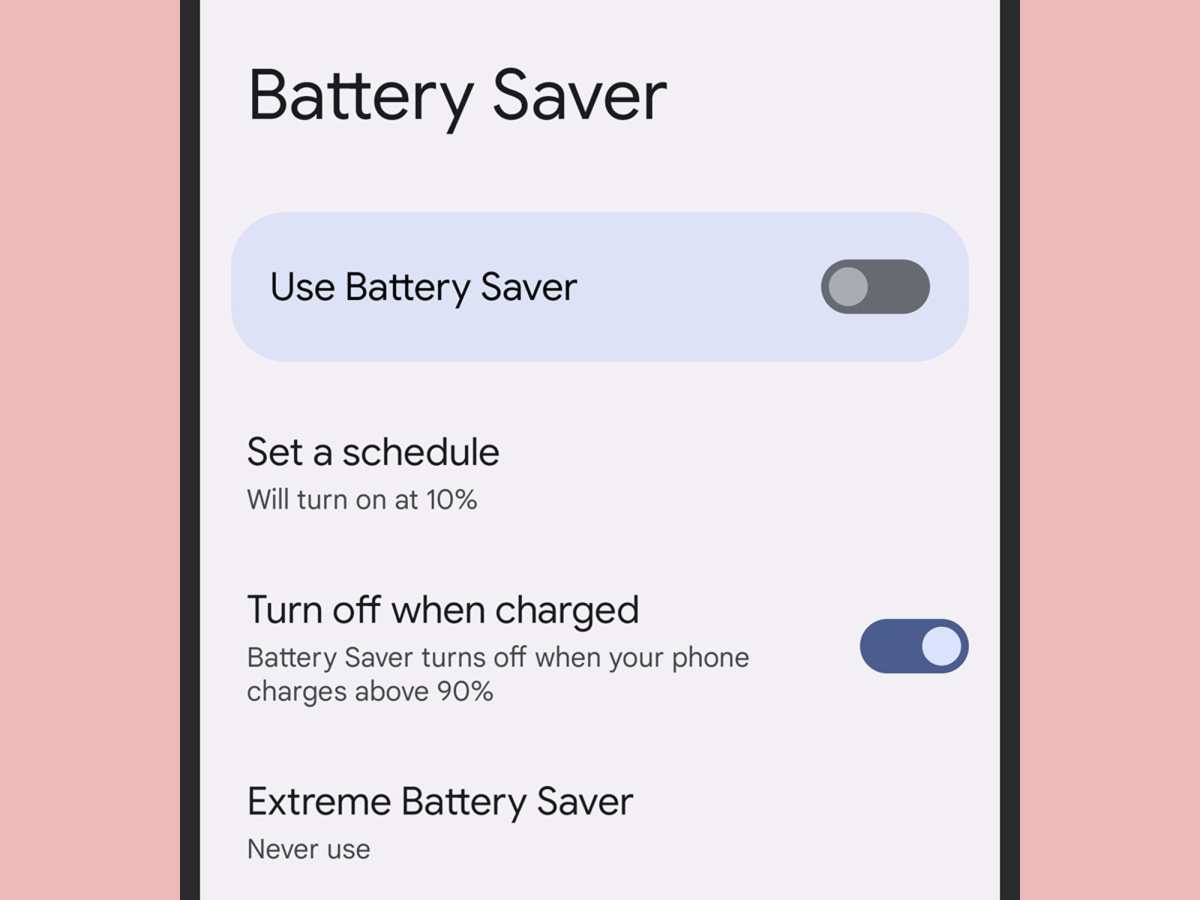
To turn off battery saver on Android, go to Settings, then Battery, and toggle off the Battery Saver option. If you’re wondering how to turn off battery saver on Android, this quick step ensures your device uses maximum power.
Battery saver mode helps extend battery life but can limit performance. Turning it off restores full functionality and speeds up your device.
With a few taps, you can stay connected and enjoy your phone without restrictions.

How to Turn Off Battery Saver on Android
When your Android device enters power-saving mode, it automatically limits background activity, reduces screen brightness, and disables some features to conserve battery life. While this feature can be handy when your battery is running low, you might want to turn it off when you need full device performance — especially if you’re not in a hurry for your battery to drain quickly. In this guide, we’ll walk through how to turn off battery saver on Android step by step, covering different Android versions and device models. We’ll also discuss why you might want to disable this feature and explore related tips to manage your device’s power settings effectively.
Understanding Battery Saver on Android
Before diving into how to disable it, let’s understand what battery saver mode does. When activated, it:
- Reduces the device’s performance to save power
- Limits background activity for apps you use less often
- Disables or reduces animations and visual effects
- Suppresses notifications or updates from certain apps
- Decreases screen brightness automatically or manually
This mode is designed to extend your battery life, especially when you’re away from a charger and need your device to last longer.
Why You Might Want to Turn Off Battery Saver
Though battery saver mode helps conserve energy, it can sometimes hinder your device’s usability. For example:
- Apps may update or sync less frequently, leading to delays in notifications or data synchronization
- The screen might be dimmer than desired, making it harder to view content
- Performance could feel sluggish, which affects gaming or multitasking
- You might miss important alerts if background activity is limited
In such cases, turning off battery saver mode provides a smoother and faster experience, especially if your battery is still relatively full.
Steps to Turn Off Battery Saver on Android Devices
The process to disable battery saver mode varies slightly depending on your device’s manufacturer and Android version. However, the general steps are similar across most devices.
Using the Quick Settings Panel
This is the fastest way to turn off battery saver mode:
- Swipe down from the top of your Android screen to open the notification shade
- Look for the battery icon or a quick settings tile labeled ‘Battery Saver’
- If the icon is highlighted or colored, it indicates that the mode is active
- Tap on the ‘Battery Saver’ icon to toggle it off
- Once disabled, the icon should become grayed out or disappear
This method works on most Android phones including Samsung Galaxy, Google Pixel, OnePlus, and others.
Disabling Battery Saver via Settings Menu
If you prefer deeper control or need to turn off battery saver from the settings:
- Open the Settings app on your device
- Scroll down and tap on ‘Battery’ or ‘Battery & Performance’ (name may vary)
- Find the ‘Battery Saver’ or ‘Power Saving Mode’ option
- Tap on it, then toggle the switch to the ‘Off’ position
In some devices, especially older models, the option might be located under ‘Device Care’ or ‘Device Maintenance.’
Using Google Assistant to Turn Off Battery Saver
For hands-free control, you can ask Google Assistant:
- Say “Hey Google,” or press and hold the home button to activate Assistant
- Say “Turn off battery saver” or “Disable power saving mode”
- The Assistant will execute the command if supported on your device
This method offers quick access, especially when your hands are busy or you prefer voice commands.
Additional Tips for Managing Power Settings
Turning off battery saver isn’t the only way to optimize your device’s power consumption. Here are some additional tips:
Adjust Screen Brightness
Reducing brightness can significantly save battery life:
- Use automatic brightness settings to adapt to ambient light
- Set a lower manual brightness level when in bright environments
Limit Background Activity
Some apps consume power even when you’re not actively using them:
- Go to Settings > Apps & Notifications > App info
- Select individual apps and restrict background activity
- Use battery optimization features to manage app activity
Disable Unnecessary Notifications and Location Services
Notifications and GPS tracking can drain battery:
- Turn off notifications for less important apps
- Disable location services when not needed or set to ‘Device only’ mode
Enable Dark Mode
If your device supports it, switching to dark mode reduces power consumption on OLED screens:
- Go to Settings > Display > Dark theme
- Activate the dark mode option
Understanding When to Keep Battery Saver On or Off
Knowing when to enable or disable battery saver helps you make the most of your device:
- Keep it on when your battery is low and you need extra longevity
- Disable it when you require maximum performance for gaming, streaming, or multitasking
- Turn it off temporarily if you’re expecting important notifications or updates
Monitoring your device’s battery health and usage patterns can guide you on whether to leave battery saver mode active.
Common Troubleshooting Tips
Sometimes, turning off battery saver on Android might not work as expected. Here are some troubleshooting tips:
- Restart your device if the setting doesn’t seem to take effect
- Update your device’s software to the latest version for optimal performance
- Clear cache of the Settings app if options are not responsive
- If the mode appears to turn on automatically, check for third-party battery management apps that might override system settings
Having a healthy understanding of your device’s power management helps you make better decisions about when and how to turn off battery saver.
Turning off battery saver mode on your Android device is a simple process that offers you full control over your device’s performance. Whether you want to enjoy more responsive apps, brighter screens, or smoother multitasking, knowing how to quickly disable this feature helps you get the most from your device. Remember, managing your device’s power settings thoughtfully can extend battery life without sacrificing usability. Use the quick settings panel for swift toggling, explore your device’s settings menu for more options, or utilize voice commands to keep your hands free. Combining these approaches with good device habits ensures you stay connected and productive without unnecessary interruptions from battery saver mode.
Frequently Asked Questions
How can I access the battery saver settings on my Android device?
To access the battery saver settings, open the Settings app on your Android phone. Scroll down and tap on “Battery” or “Battery & Power.” In this menu, you’ll find options related to battery management, including the battery saver feature. Tap on “Battery saver” or “Power saving mode” to adjust its settings or turn it off.
Is there a quick way to disable battery saver mode from the notification panel?
Yes, you can quickly disable the battery saver mode from the notification panel. Swipe down from the top of your screen to open the notification shade. Look for the battery saver icon or a toggle labeled “Battery Saver” or “Power Saving.” Tap on it to turn the mode off immediately without navigating through the settings menus.
What should I do if the battery saver option is greyed out and I can’t turn it off?
If the battery saver option appears greyed out, ensure your device isn’t in a battery-saving restriction mode that cannot be modified. Check if your phone is in a power-saving mode automatically enabled by your manufacturer or carrier. Restart your device to refresh system settings, or update your software. If the issue persists, contact your device manufacturer or visit a service center for further assistance.
Final Thoughts
To turn off battery saver on Android, simply go to your device’s Settings menu. Tap on Battery or Battery & Device Care, then locate the Battery Saver option. Toggle the switch off to disable the feature.
This process ensures your phone operates at full capacity without unnecessary restrictions. Remember, knowing how to turn off battery saver on Android helps maintain optimal performance when needed.
