

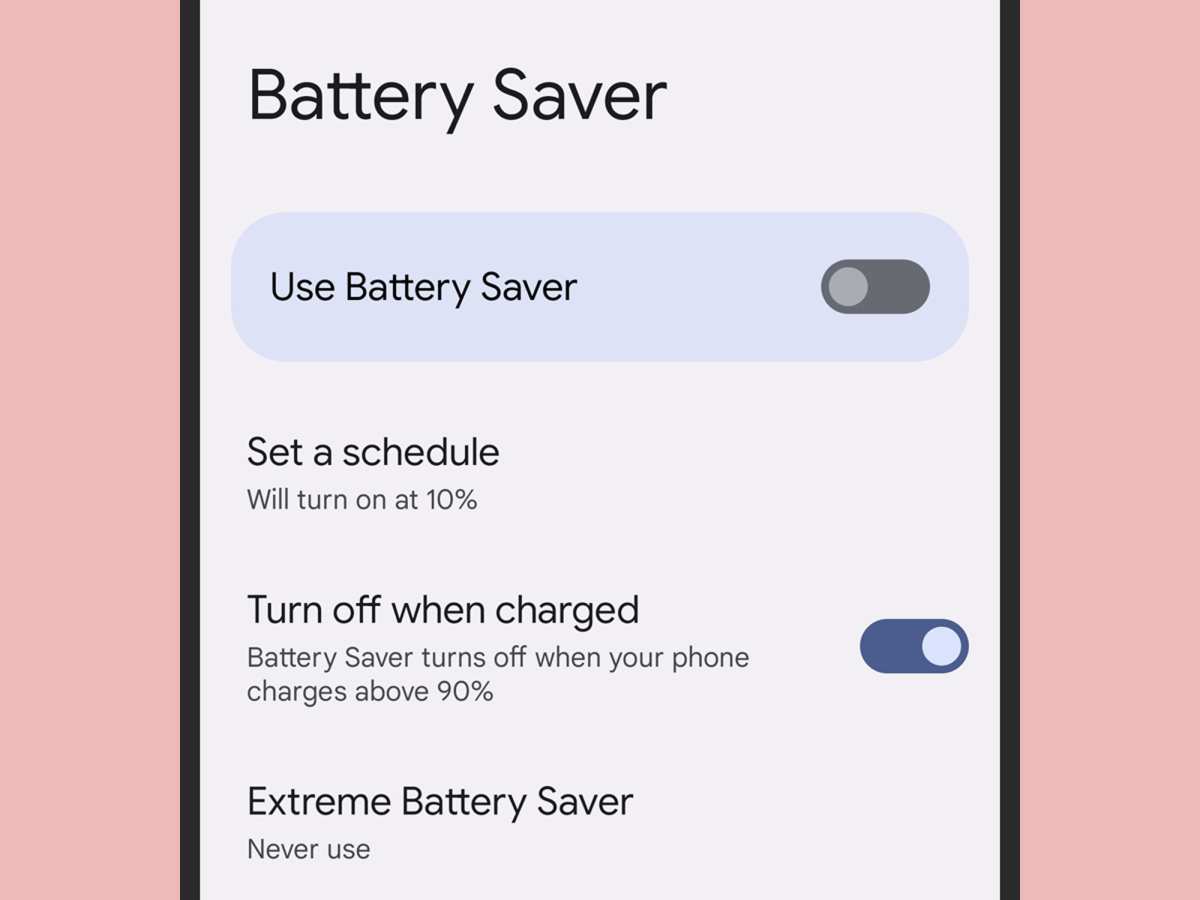
Struggling to keep your Android device powered throughout the day? The solution is simple: use an Android battery saver. This feature extends your battery life by optimizing background activity and adjusting settings. Turning it on can make a noticeable difference, especially when you’re away from chargers. With just a few taps, you can boost your device’s longevity and stay connected longer. No need for extra apps—your Android already has what it takes to save energy efficiently.

Everything You Need to Know About Android Battery Saver
When your Android phone starts to run low on power, it can feel like an emergency. You need your device for calls, messages, photos, or even navigation, and suddenly, your battery is draining faster than you expected. That’s where Android’s built-in battery saver feature comes into play. This tool helps extend your battery life so you can use your phone longer without worrying about losing power at the worst moment.
In this article, we’ll explore what Android battery saver is, how it works, and how you can best use it to keep your device running smoothly. Whether you’re a tech novice or a seasoned Android user, understanding the ins and outs of battery saver options can help you manage your device more efficiently.
What Is Android Battery Saver and How Does It Work?
Android battery saver is a feature built into most Android devices that helps conserve power. It works by reducing the phone’s overall energy consumption, especially when your battery gets low. When you turn it on, the device makes small adjustments that extend battery life without turning off essential features.
Here’s a simple way to understand how it functions:
- Limits background activity: It reduces or pauses applications running in the background, which often consume a lot of power.
- Reduces screen brightness: Since the screen is one of the biggest battery drainers, lowering brightness saves significant energy.
- Disables location services: GPS and location-based services are energy hogs. Turning them off when not needed helps conserve power.
- Restricts notifications and updates: It minimizes background data activity that can wake up your phone frequently.
- Adjusts CPU and network activity: It limits the processing power and network activity to reduce power consumption.
This combination of actions helps you get more time from your battery, especially during long days or when you’re unable to charge your phone immediately.
How to Enable and Use Android Battery Saver
Most Android phones have a quick way to turn on battery saver mode. Here’s a step-by-step guide to activate it:
Using the Quick Settings Panel
- Swipe down from the top of your screen to open the notification shade.
- Look for the “Battery Saver” icon. It may look like a battery with a plus sign or a shield symbol.
- Tap on it to activate the mode immediately.
Using Settings Menu
- Open the Settings app on your device.
- Find and tap on the “Battery” or “Battery & Performance” option.
- Locate the “Battery Saver” toggle switch and turn it on.
- Some devices allow you to schedule automatic activation at a certain battery percentage or time. Explore these options to customize your experience.
Once enabled, your device will automatically apply power-saving measures. Remember, you can always turn it off when you want full device performance again.
Customizing Battery Saver Settings for Better Power Management
To make the most of the battery saver, customize its settings to suit your usage habits. Here are some tips:
Set a Battery Percentage Threshold
Many Android devices let you choose at what battery level the saver turns on automatically. For example, you might set it to activate at 15% or 20%, ensuring you’re prepared before your battery runs out.
Enable or Disable Specific Features
Some phones allow you to decide what gets restricted or preserved. For example:
- Keep Wi-Fi or Bluetooth on if needed.
- Allow certain notifications even when in power-saving mode.
- Maintain connectivity for essential apps like messaging or navigation.
Use Battery Optimization for Individual Apps
Beyond the overall mode, you can optimize specific apps to prevent them from draining your battery unnecessarily. Go to Settings > Apps > [App Name] > Battery and select “Optimize.”
Benefits of Using Android Battery Saver
Using battery saver mode offers several advantages:
- Extended usage time: Keep your phone working longer between charges, especially during long outings or travel.
- Prevents abrupt shutdowns: Avoid sudden power loss when you need your device most.
- Reduces energy waste: Less background activity and reduced screen brightness save power.
- Customizable options: You can tailor the mode to fit your style and needs, choosing what to restrict and what to keep on.
However, keep in mind that activating battery saver might temporarily limit some functionalities. For instance, you may notice slower app updates or delayed notifications. Usually, this trade-off is worth it when you need more time on your phone.
Other Battery-Saving Tips for Android Users
Besides using the built-in battery saver, there are additional strategies to extend your device’s battery life:
Reduce Screen Brightness and Timeout
Since the screen consumes the most power, lowering brightness and shortening the screen timeout can make a big difference.
Limit Background App Refresh
Close apps you aren’t using and disable background refresh for non-essential apps.
Turn Off Unnecessary Connectivity
Switch off Wi-Fi, Bluetooth, or GPS if you’re not actively using them.
Disable Wi-Fi or Mobile Data When Not Needed
If you’re in an area with no service or only need internet occasionally, turn off data to save power.
Use Dark Mode
Many Android devices support dark themes, which use less power on OLED screens.
Comparing Android Battery Saver with Third-Party Apps
While Android’s built-in battery saver is effective, some users opt for third-party apps claiming to optimize power usage further. Be cautious when choosing these options:
- Research reviews and ratings: Ensure the app has good feedback.
- Avoid apps asking for excessive permissions: Protect your privacy.
- Understand the features offered: Some apps may offer more detailed control over background activities and CPU management.
Popular third-party battery savers include apps like Greenify or AccuBattery. These can sometimes help identify apps that drain your battery and give you more control over how they operate.
Battery Maintenance Tips for Long-Term Battery Health
Taking care of your battery not only helps it last longer but also maintains overall device performance. Here are some simple tips:
- Charge your device before it drops below 20%, but avoid constant full charges above 100%.
- Keep your device cool; heat can degrade the battery’s chemical composition.
- Avoid using your phone while charging, especially during fast charging, as it produces more heat.
- Update your device’s software regularly—it often includes battery management improvements.
By maintaining good battery habits and optimizing your device’s settings, you can enjoy longer-lasting power and healthier battery life over time.
Final Tips for Maximizing Your Android Battery Life
In summary, you should:
- Make full use of the built-in battery saver mode.
- Customize your settings to suit your routine.
- Limit resource-intensive activities when possible.
- Keep your software updated and maintain good charging habits.
Implementing these strategies will help you get more from each charge and keep your Android device functioning smoothly when you need it the most.
Frequently Asked Questions
How can I customize the battery saver settings on my Android device?
To customize battery saver settings, open the Settings app, tap on Battery, and then select Battery Saver. From there, you can choose to turn it on manually or schedule it based on your preferred battery percentage. Some devices also allow you to select which apps or features to restrict when the battery saver is active, giving you control over performance and power consumption.
Will enabling the battery saver mode affect app notifications?
Yes, activating battery saver mode may limit background activity for certain apps, which can delay or reduce notifications. To ensure you receive important alerts, check your notification settings within the battery saver options. You can often customize which apps are exempted from restrictions, allowing critical notifications to come through uninterrupted.
Does using battery saver mode impact device performance during regular tasks?
Battery saver mode often reduces device performance by limiting background processes and lowering CPU activity, which can make some apps and tasks run more slowly. This trade-off helps conserve power, but if you need full performance for intensive tasks, you might consider turning off the mode temporarily. Adjusting individual app restrictions can also help balance power saving and device responsiveness.
Are there any risks associated with frequent use of battery saver mode?
Frequent use of battery saver mode generally doesn’t harm your device, but it may lead to reduced functionality or slower app performance when active. Relying heavily on it could also cause you to miss important notifications or updates. It’s best to use battery saver mode when your battery is low, and turn it off when you need optimal device performance.
Can I automate battery saver activation based on specific conditions?
Yes, most Android devices allow you to set up automatic activation of the battery saver mode based on certain conditions, such as reaching a particular battery percentage or during specific times of the day. You can find these options in the Battery Saver settings or Accessibility features, enabling your device to optimize power management without manual intervention.
Final Thoughts
Adopting an android battery saver is essential for extending your device’s lifespan. It helps reduce unnecessary power consumption and optimizes performance during heavy usage. By enabling these features, users can enjoy longer battery life throughout the day.
In conclusion, android battery saver tools offer effective solutions to keep your device running smoothly. They conserve energy and ensure you stay connected without frequent recharges. Implementing these tips guarantees a more efficient and satisfying smartphone experience.
