

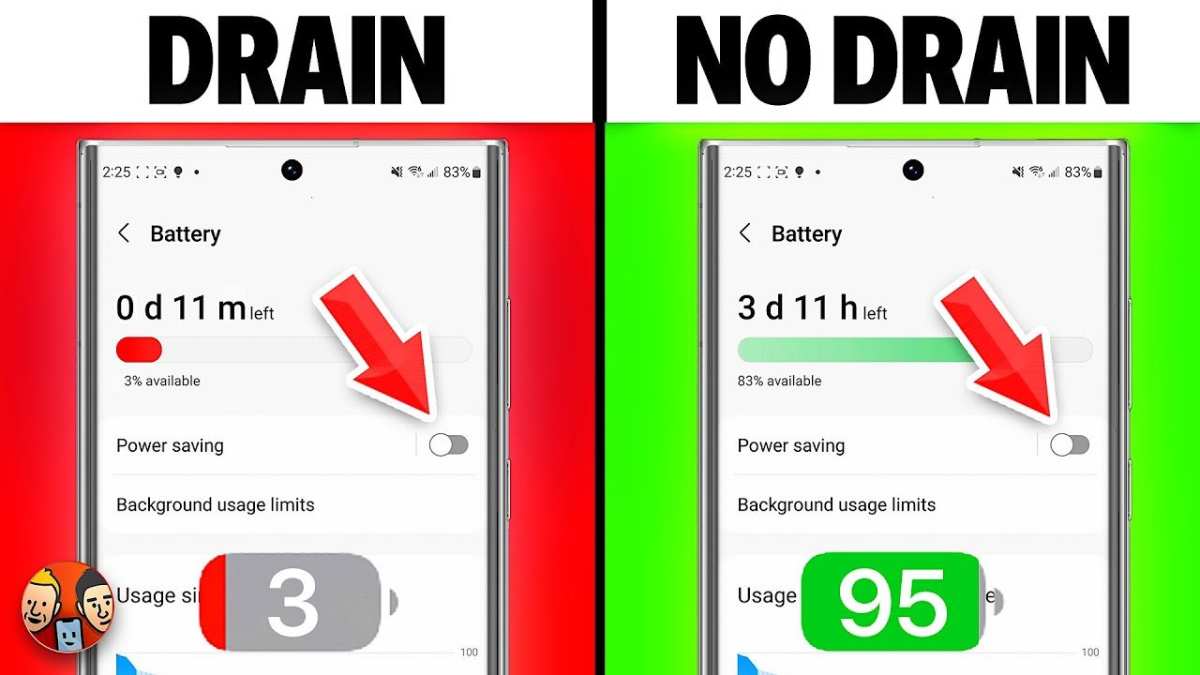
If your Android battery drains fast, the simple fix is to identify and close unnecessary background apps. **Adjusting your screen brightness and disabling unused features can also help extend battery life.** The key to fixing the android battery draining fast fix lies in managing app activity and settings. Regularly updating your device and removing apps you no longer use can prevent rapid battery loss. Follow these tips to keep your Android device running longer throughout the day.

Android Battery Draining Fast Fix
If you notice your Android phone’s battery is disappearing quickly, you’re not alone. Many users face this frustrating problem and want a simple, effective way to fix it. The good news is, most battery drain issues happen because of small settings, apps, or processes that can be adjusted or closed. Here, we’ll go into detail about what causes Android batteries to drain fast and how you can fix the issue step by step. Whether you’re using a Samsung, Google Pixel, or other Android devices, these tips apply universally. Let’s explore how to make your battery last longer and restore your phone’s energy efficiency.
Understanding Why Your Android Battery Drains Quickly
Before jumping into fixes, it helps to understand why your Android device may be losing power so rapidly. Knowing the common causes allows you to pick the best solutions.
Apps Running in the Background
Many apps continue running even when you’re not using them, consuming energy without your knowledge. Social media apps, email clients, or games often stay active in the background for notifications or updates, which can drain your battery over time.
Screen Brightness and Timeout Settings
The display is one of the biggest battery consumers on your phone. Keeping the brightness high or the screen on for a long time can significantly decrease how long your battery lasts.
Network and Connectivity Settings
Wi-Fi, Bluetooth, GPS, and mobile data tend to be power-hungry, especially when these features are constantly active or searching for signals. If left on unnecessarily, they can drain your battery fast.
Outdated Software or Apps
Old version software or apps bugged with glitches might cause increased battery usage. Regular updates often include optimizations that improve power efficiency.
Battery Age and Wear
Over time, batteries lose capacity and become less efficient. If your phone is a few years old, the battery might simply be degraded and need replacement.
Practical Fixes to Prevent Android Battery Drain
Now that we understand the main causes, let’s look at effective ways to fix and prevent your Android battery from draining quickly.
Close Unnecessary Apps and Processes
– Open your recent apps menu by tapping the square or multitasking button.
– Swipe away all apps running in the background that you no longer need.
– For a more thorough cleanup, go to Settings > Apps & notifications > See all apps.
– Select apps you do not use regularly and force stop or uninstall these apps.
Adjust Screen Brightness and Timeout Settings
– Enable adaptive brightness through Settings > Display > Brightness.
– Set a lower brightness level that is comfortable for your eyes.
– Reduce the screen timeout duration to the shortest period you find reasonable, such as 30 seconds or 1 minute.
– Use dark mode if your phone supports it, as darker themes consume less energy on OLED screens.
Turn Off Unused Connectivity Features
– Disable Wi-Fi, Bluetooth, and GPS when not in use.
– Use airplane mode if you’re in an area with no network coverage, as your phone won’t try to search for signals.
– Consider using the quick settings panel for easy toggling.
Enable Battery Saver Mode
Most Android devices include a battery saver feature that limits background activity, reduces screen brightness, and pauses non-essential processes:
– Go to Settings > Battery > Battery Saver.
– Turn it on manually or set it to activate automatically at a certain battery percentage, like 15%.
Update Your Software and Apps
– Regularly check for system updates via Settings > System > Software update.
– Update your apps through the Google Play Store under My apps & games.
– Updates often include improvements that make your device run more efficiently.
Check for Battery Draining Apps
– Visit Settings > Battery to see which apps consume the most power.
– If a particular app is draining your battery excessively, consider uninstalling or disabling it.
– Sometimes, permissions or app settings cause higher battery use; review permissions and adjust accordingly.
Manage Your Battery Usage with Power Saving Apps
– Some Android phones come with built-in power management tools.
– You can also find third-party apps that help monitor and optimize battery life.
– Use these tools to identify battery-hungry apps and manage their activity.
Advanced Tips for Better Battery Life
If basic fixes don’t work sufficiently, consider these advanced measures to extend your Android battery life.
Disable Unnecessary Notifications
– Notifications often wake your device, causing additional battery drain.
– Turn off notifications for apps that aren’t essential via Settings > Notifications.
– Use “Do Not Disturb” mode during times when you want to save power.
Reset App Preferences or Factory Reset
– If you suspect apps are causing issues, reset app preferences via Settings > Apps & notifications > Advanced > Reset app preferences.
– For severe or persistent battery issues, performing a factory reset may help but back up your data first.
Replace the Battery
– For older devices, the battery might have worn out.
– Contact a professional to replace the battery if possible, especially if your device is no longer covered by guarantee.
Optimize Background Data Usage
– Limit background data for apps that don’t need constant updates.
– Adjust data restrictions in Settings > Network & internet > Data usage.
Monitoring and Maintaining Optimal Battery Health
– Keep your Android device at moderate temperatures; excessive heat can damage the battery.
– Avoid letting your battery completely discharge frequently; instead, recharge it when it drops to around 20-30%.
– Use original chargers and cables to prevent battery damage.
Using Built-in Battery Monitoring Features
– Access your device’s battery health status via Settings > Battery > Battery health or similar options.
– Regularly check battery usage patterns and make adjustments as needed.
Proper Charging Habits
– Don’t leave your phone charging overnight constantly.
– Avoid charging your device to 100% all the time; keeping it around 80-90% can prolong battery life.
Summary of Key Fixes for Android Battery Draining Fast
- Close background apps, especially those that are power hogs
- Lower screen brightness and reduce timeout duration
- Disable Wi-Fi, Bluetooth, and GPS when not needed
- Activate battery saver mode during low battery situations
- Keep your software and apps updated
- Review battery usage to identify problematic apps
- Limit notifications and background data
- Regularly monitor battery health and consider battery replacement if necessary
By applying these tips consistently, you should notice a significant improvement in your Android device’s battery life. When your settings are optimized and unnecessary processes are stopped, your phone will run smoothly for longer periods without needing frequent recharges. Remember, a little maintenance and attention can go a long way in keeping your device’s battery healthy and efficient.
Frequently Asked Questions
Why does my Android battery drain quickly even when I am not using my phone?
Many background processes and apps continue running without your knowledge, consuming power. Additionally, unnecessary notifications, location services, or outdated software can cause rapid battery drain. To prevent this, disable unused apps, turn off location services when not needed, and keep your device updated with the latest software.
How can I identify which app is draining my Android battery the most?
You can check battery usage in your device’s settings to see detailed information about app consumption. Navigate to Settings > Battery to view a list of apps ordered by their power consumption. Uninstall or restrict background activity for apps that consume excessive power to improve battery life.
What steps can I take to extend my Android device’s battery life during the day?
Reduce screen brightness, enable battery saver mode, and limit background activity for apps. Turning off Wi-Fi, Bluetooth, or mobile data when not in use also helps conserve power. Additionally, disable auto-sync and close apps running in the background to maximize battery longevity.
Should I replace my Android battery if it drains quickly even after a software update?
If your battery still drains rapidly after updating your device and adjusting settings, the battery might have degraded physically. In such cases, replacing the battery can restore performance. Visit a trusted service center to have a professional assess and replace the battery if necessary.
Can resetting my Android device improve battery performance?
Performing a factory reset can eliminate software issues that cause abnormal battery drain. Before resetting, back up your data. After the reset, monitor the battery to see if the problem persists. If it does, consider hardware issues as a potential cause and seek professional assistance.
Final Thoughts
In conclusion, addressing the issue of your Android battery draining fast fix is straightforward by adjusting settings and managing apps. Disable unnecessary background processes and limit location services to conserve power. Keeping your software updated and using battery saver modes further extends your device’s life. Following these tips can significantly improve battery performance and ensure your device lasts longer throughout the day.
