

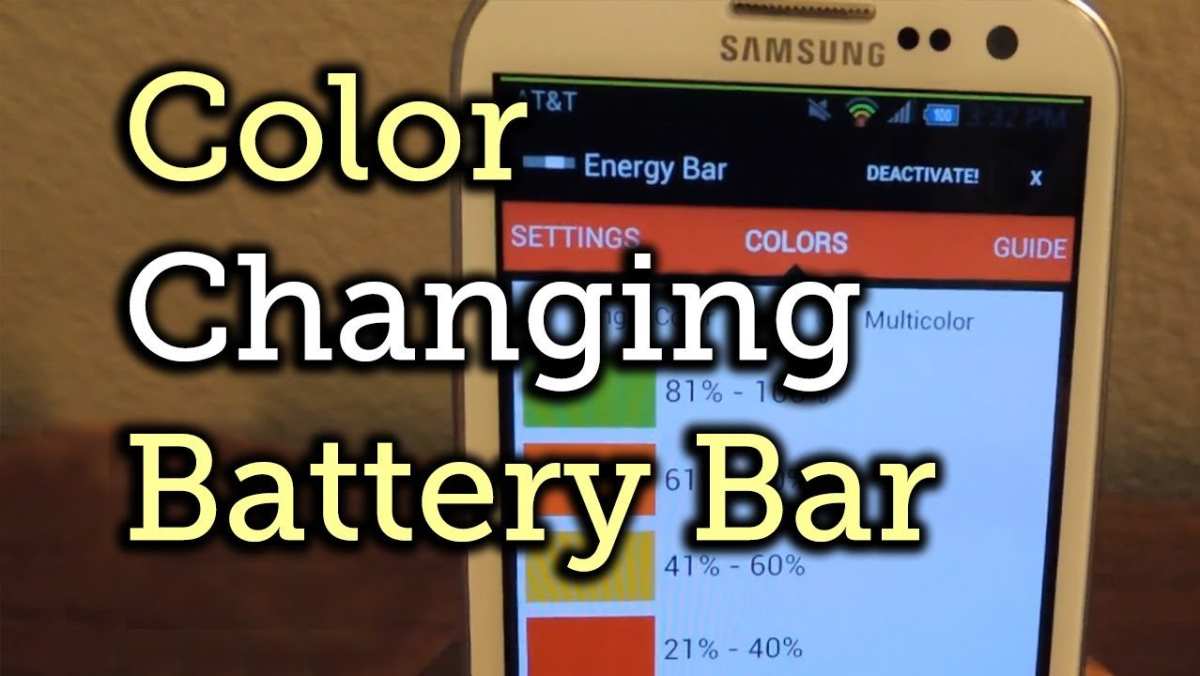
If you’re curious about how the ‘android battery color’ works, the answer is simple: it indicates your battery’s status through different colors. **Changing these colors can be straightforward with various settings or apps.** This feature helps you quickly assess your battery life at a glance, avoiding surprises. Whether you want a custom look or need to troubleshoot, understanding how android battery color functions makes managing your device easier. Keep reading to learn how to personalize and interpret this handy feature effortlessly.

Understanding Android Battery Color: What It Means and How to Use It
When you look at your Android device’s battery icon, you might notice different colors flashing or being displayed. These colors are not just for decoration—they carry important information about your device’s battery status. Knowing what each color indicates can help you manage your phone better, prevent unexpected shutdowns, and even extend your battery life. Let’s explore what these different colors mean and how you can make the most out of this feature.
What Do Different Battery Colors Signify?
Android devices often use colors to give you quick visuals of your battery status. Typically, the colors are designed to catch your eye and inform you about your battery’s current state without needing to unlock your phone or open an app. The commonly used colors are green, yellow, orange, red, and sometimes blue or purple. Each color has a specific meaning:
- Green: The battery is fully charged or nearly full. Your device is in good shape, and there’s no immediate concern about power running out soon.
- Yellow or Yellow-Green: The battery is moderately charged. You still have some time before you need to recharge, but it’s a good idea to start thinking about plugging in soon.
- Orange or Amber: The battery level is getting low. It’s time to find a charger to avoid the device shutting down unexpectedly.
- Red: The battery is critically low. Charging is urgent to keep your device working properly.
- Blue or Purple: Some devices use these colors to show charging status or other custom notifications related to battery health or power-saving modes.
Understanding these colors helps you to act promptly and avoid situations where your device runs out of power unexpectedly. Plus, it can help you make smarter decisions about when to charge your phone, especially when you’re out and about.
How Android Devices Use Battery Color Indicators
Default Battery Color Features
Most Android devices come with built-in battery indicators that change color based on the battery percentage. You can usually see this in the status bar or the notification area. For example:
| Battery Percentage Range | Color Displayed | Meaning |
|---|---|---|
| Above 80% | Green | Battery is healthy. Plenty of charge remains. |
| 50% to 80% | Light Green or Slightly Yellow | Battery level is moderate, no immediate worry. |
| 20% to 50% | Yellow or Amber | Battery is getting low. Consider charging soon. |
| Below 20% | Orange or Red | Battery is very low. Charge immediately to avoid shutdown. |
Battery Color Customization
Some Android phones, especially those with custom skins like Samsung’s One UI, allow users to customize how battery colors appear. This customization can help you personalize your device or make certain statuses more noticeable. For example:
- Changing default color schemes for different battery levels
- Adding notifications for specific battery percentages
- Adjusting battery indicator colors based on themes or personal preferences
To customize these settings, go to your device’s Settings menu, select “Battery,” then look for options related to battery status indicators or themes. Keep in mind that not all Android devices support extensive customization, but many offer at least basic options.
Monitoring Battery Color with Third-Party Apps
If your device doesn’t display battery colors clearly or if you want more detailed insights, third-party apps can help. These apps often provide customizable battery indicators, notifications, and detailed stats. Some popular options include:
- AccuBattery: Shows real-time battery health, capacity, and charging status with color indicators.
- Battery Widget Reborn: Offers customizable widgets and color themes for battery status.
- GSam Battery Monitor: Provides detailed battery usage stats along with visual cues like color codes.
Using these apps, you can set specific colors to alert you at certain battery levels, helping you stay aware of your phone’s power status at all times.
Why Battery Color Matters for Users
Prevent Unexpected Shutdowns
Knowing your battery’s color helps you to act before your device runs out of power. If you see the orange or red indicator, you might want to find a charger quickly, especially if you rely on your phone for important calls or navigation.
Extend Battery Life
Adjusting your usage based on battery colors can help you save power. For example, if your battery turns yellow or orange, you can enable power-saving modes, close background apps, or lower screen brightness to make your battery last longer.
Manage Battery Health
Over time, the health of your Android device’s battery can decline. Some apps and settings can monitor this, and the battery color can serve as an early warning for potential battery issues, prompting you to replace the battery or seek professional help.
Tips to Make the Most of Battery Color Indicators
- Regularly check your battery status: Keep an eye on the battery icon and its color to stay aware of your power level.
- Use power-saving modes: When your battery turns yellow or orange, switch to power-saving mode to extend usage.
- Avoid letting your battery fully drain: Try to keep your device charged above 20% for optimal battery health.
- Optimize charging habits: Avoid overcharging or leaving your device plugged in for long periods after reaching 100%, as this can degrade your battery.
- Customize alerts for low battery: Set notifications to alert you when the battery reaches specific levels, allowing you to act promptly.
Understanding the different colors of Android battery indicators provides you with quick insights into your device’s power status. Whether it’s the vibrant green signaling full charge or the urgent red warning of a critically low battery, these visual cues help you manage your device more efficiently. By paying attention to these colors and leveraging customization options or third-party apps, you can extend your battery life, avoid surprises, and keep your device running smoothly. Next time you see a change in your battery icon’s color, remember that it’s more than just a shade— it’s a helpful guide to your device’s energy health and your usage habits.
Frequently Asked Questions
How can I change the color of my Android battery indicator?
You can customize your Android battery indicator color by installing third-party battery apps or using device settings if your phone supports it. Some Android versions or manufacturers offer built-in options to change the battery icon color through the display or notification settings. Additionally, certain custom launchers or themes allow you to modify the appearance of your battery indicator for a more personalized look.
What do different battery indicator colors mean on Android devices?
Battery indicator colors typically signal the current charge status. For example, green usually indicates a healthy charge level, yellow or orange suggests moderate battery levels, and red warns that the battery is low and needs charging soon. Some devices or apps may also use other colors to alert you to specific issues, like overheating or anomalies in battery performance.
Can I set custom colors for my Android battery icon based on battery percentage?
Yes, many third-party battery management apps allow you to set custom colors that change depending on the remaining battery percentage. This feature helps you quickly see when your battery is running low without checking exact figures. These apps often provide options to choose specific colors for different charge levels, giving you a visual cue tailored to your preferences.
Are there any risks associated with changing the battery indicator color on Android?
Modifying the battery indicator color through third-party apps or system tweaks typically does not pose risks if you choose reputable sources. However, using unreliable apps or unauthorized modifications may cause system instability or drain your battery more quickly. Always back up your device and install apps from trusted developers to avoid potential issues.
Do all Android devices support customization of the battery indicator color?
No, not all Android devices support direct customization of the battery indicator color through system settings. Support for such features depends on the manufacturer, device model, and Android version. Devices running stock Android may have limited options, while those with custom UI layers like Samsung’s One UI or Xiaomi’s MIUI often provide more customization capabilities.
Final Thoughts
In summary, understanding the ‘android battery color’ feature helps users better manage their device’s power. Customizing the battery indicator provides quick insights into remaining charge, preventing sudden shutdowns. This simple visual cue enhances user experience by making battery status clear at a glance. Ultimately, paying attention to battery color settings can extend your device’s longevity and efficiency.
