

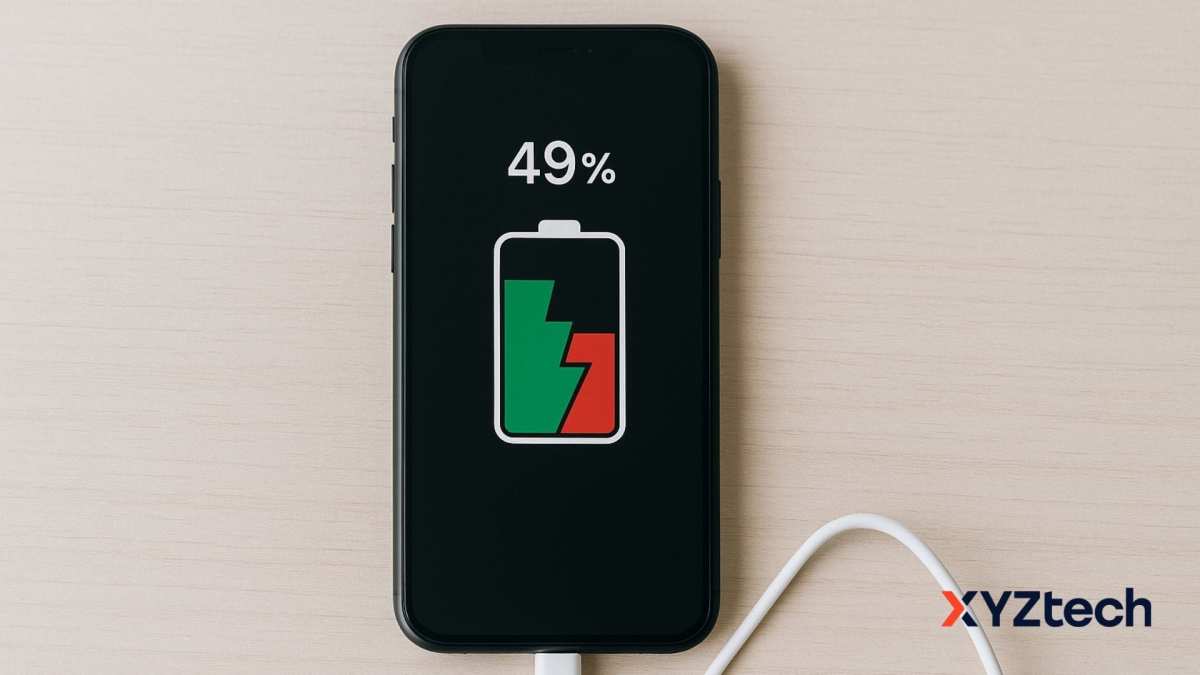
To calibrate your Android phone battery for accurate readings, fully drain the battery, then charge it to 100% without interruption. **This process resets the battery indicator and improves accuracy.** Knowing how to calibrate Android phone battery for accurate readings helps you monitor usage better and avoid sudden shutdowns.
Start by using your device until it powers off naturally. Next, charge your phone uninterrupted to full capacity. Regular calibration ensures your battery percentage reflects real-time usage and health.

How to calibrate Android phone battery for accurate readings
Calibrating your Android phone’s battery might seem complicated, but it is a simple process that can greatly improve how your device reports its battery level. Over time, your phone’s battery indicator can become inaccurate, leading you to think your battery is worse or better than it really is. This can cause unexpected shutdowns or premature charging cycles. By properly calibrating your battery, you give your device a fresh start, helping it display more precise battery readings. In this guide, we will walk you through step-by-step instructions on how to calibrate your Android battery effectively, along with tips to keep your battery healthy in the long run.
Understanding why battery calibration is important
Before diving into the calibration process, let’s quickly understand why calibration is necessary. As you use your phone, the internal software that keeps track of the battery’s remaining capacity can become misaligned with the actual battery’s health. This misalignment often happens because:
- Your phone’s battery reports charge levels based on voltage, which can fluctuate over time.
- Repeated charging cycles, especially partial charges, can skew the battery’s internal reporting system.
- Battery aging causes capacity loss, but the software may not immediately reflect this change.
When your battery indicator is off, you might see your phone shutting down earlier than expected or showing full charge even when the battery is low. Calibration corrects this inconsistency, leading to more reliable battery percentage readings, which helps you plan charging better and extend your device’s usability.
Steps for proper Android battery calibration
Calibrating your Android phone’s battery involves a few straightforward steps. Keep in mind that the goal is to fully discharge and then fully recharge your device, allowing the system to reset its battery meter. Here’s the detailed process:
Fully drain your battery
Start by letting your phone discharge completely. Use the device normally until it powers off by itself. To speed up this process:
- Reduce screen brightness to minimum.
- Close all background apps to prevent unnecessary power consumption.
- Disable Wi-Fi, Bluetooth, and mobile data once the battery drops below 10%.
- Play videos, music, or games to drain the battery faster, but don’t force it into shutdown too abruptly.
Once the phone turns off, proceed to the next step.
Charge your phone uninterrupted to 100%
Now, connect your phone to a charger and let it charge without interruptions until it reaches full capacity. To ensure proper calibration:
- Use the original charger or a reliable charger compatible with your device.
- Charge the phone directly from a wall socket; avoid charging through a computer or a power bank, which may not deliver consistent power.
- Don’t use your phone while charging, as this can extend charging time or cause inaccurate readings.
- Allow the battery to charge to 100% without unplugging it prematurely.
Once the device indicates a full charge, the calibration process is complete.
Perform a warm restart and repeat if necessary
After reaching 100%, disconnect the charger and perform a soft restart of your device:
- Press and hold the power button, then tap “Restart” or “Reboot”.
- This helps reset the battery indicator’s internal software.
Some users find it beneficial to repeat this full discharge and recharge cycle 2-3 times to maximize calibration accuracy.
Additional tips for maintaining battery health and accuracy
Calibration is a helpful step, but maintaining your battery’s health is equally important. Here are some practical tips:
Avoid frequent partial charges
While it’s tempting to top up your battery often, frequent partial charges can diminish the battery’s capacity over time. Instead, try to keep your battery level between 20% and 80% for regular use.
Keep your software updated
Android updates often include improvements for battery management. Keeping your device’s software current ensures you benefit from the latest power optimization features.
Limit background processes and optimize settings
Many apps run in the background, consuming power and affecting battery readings. Use your device’s battery usage settings to identify and restrict high-consuming apps. Also, enable battery saver modes when appropriate.
Use recommended chargers and avoid extreme temperatures
Always use chargers that meet your device’s specifications, and avoid exposing your phone to very hot or cold environments, as extreme temperatures can damage the battery and affect its accuracy.
Common mistakes to avoid during calibration
While calibrating your Android battery is straightforward, some mistakes can make the process less effective:
- Never turn off your device during charging; this can interfere with the calibration process.
- Avoid disconnecting the charger before reaching full charge.
- Don’t repeatedly discharge a nearly full battery; only do full cycles when calibration is necessary.
- Refrain from using third-party apps claiming to calibrate batteries; manual calibration is usually more reliable.
When to consider professional help
If calibration doesn’t solve your battery accuracy issues or your device’s battery drains rapidly despite proper care, it may be time to consider replacing the battery. Batteries have a limited lifespan, and after a certain number of charge cycles, they lose capacity. Professional technicians can help determine if your battery needs replacement or if other hardware issues are affecting performance.
Calibrating your Android phone’s battery isn’t a complicated process, but it requires patience and consistency. By carefully fully discharging and then charging your device, you ensure that the internal battery meter is synchronized with the actual capacity. Regular calibration can lead to more accurate battery readings, helping you avoid unexpected shutdowns and plan your charging routines better. Remember, maintaining good battery habits and avoiding extreme conditions will extend the life of your device’s battery and keep it functioning properly for longer. Keep your device’s software up to date, limit background activities, and handle your battery with care for the best results.
Frequently Asked Questions
What are the initial steps to prepare my Android phone for battery calibration?
Start by fully charging your Android phone until it reaches 100%. Then, use your phone normally until the battery drains completely and the device turns off. This process helps the battery’s software accurately gauge its capacity and performance.
How can I prevent software issues from affecting battery calibration results?
Before calibrating, ensure that all unnecessary apps are closed, and disable any power-saving modes. Restart your device and avoid using intensive applications during the calibration process to obtain precise readings.
What is the best way to calibrate my Android battery after a full drain?
After allowing the battery to drain completely and the device powers off, recharge it uninterrupted to 100%. Once fully charged, restart your device and monitor the battery percentage for more accurate readings moving forward.
How often should I perform battery calibration on my Android device?
Calibrating your battery once every one to three months helps maintain accurate battery readings. However, if you notice sudden drops in battery percentage or inconsistent readings, performing calibration can improve accuracy.
Are there any precautions I should take during the calibration process?
Yes, avoid disconnecting the charger before reaching 100%, and do not use your phone heavily during calibration. Also, avoid performing calibration in extreme temperatures, as this can impact the battery’s behavior and the calibration results.
Final Thoughts
In summary, how to calibrate Android phone battery for accurate readings involves draining the battery completely then charging it to 100% without interruption. This resets the battery’s sensor and improves accuracy.
Calibrate regularly to maintain precise battery status and avoid false readings. Following these steps ensures your phone provides reliable battery information.
