

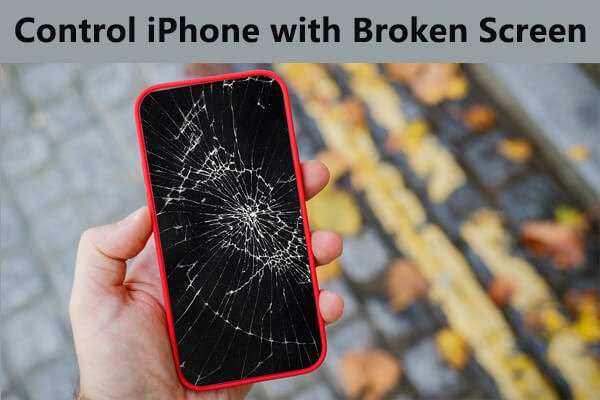
If your iPhone screen is broken, the first step is to enable accessibility features like VoiceOver or switch to an external keyboard. **This allows you to navigate your device despite the damaged display.** Knowing how to use iPhone screen broken can save you time and frustration. You can also connect your phone to a computer and use iTunes to back up your data before seeking repairs. With a few simple tricks, you can continue to use your iPhone efficiently until you fix the screen.

How to Use an iPhone with a Broken Screen
When your iPhone screen is cracked or shattered, it can feel frustrating or even overwhelming. But don’t worry! You can still use your iPhone effectively, even with a damaged screen. In this guide, we’ll walk you through different ways to operate your iPhone when the display isn’t working normally, from basic navigation to useful tips and safety measures. Whether your screen has small cracks or is completely broken, this article will help you keep using your device until you decide on repairs or replacements.
Understanding Your Broken Screen and Its Impact
Before diving into solutions, it’s important to understand how a broken screen affects your iPhone. Depending on the damage, you might experience:
- Touch sensitivity issues: Some parts of the screen might not respond to your taps or swipes.
- Visual problems: Cracks, discoloration, or black spots can make it hard to see everything clearly.
- Potential safety hazards: Broken glass can sometimes be sharp, risking cuts.
Knowing these helps you choose the safest and most effective ways to operate your phone. Now, let’s look at methods to use your iPhone despite the damage.
Using AssistiveTouch to Control Your iPhone
AssistiveTouch is a built-in feature in iOS that creates on-screen buttons to replace physical buttons and gestures. It’s perfect when the screen is broken but the touch response still works in some areas.
How to Enable AssistiveTouch
- Navigate to the Settings app on your iPhone.
- Tap on “Accessibility.”
- Scroll to “Touch,” then select “AssistiveTouch.”
- Toggle the switch to turn it on.
Once enabled, a floating button appears on your screen. You can customize this button to perform various actions:
- Access the Home screen
- Open Control Center
- Switch between apps
- Lock the screen
- Adjust volume and more
Using AssistiveTouch with a Broken Screen
Since the button floats on the screen, you can move it to a safe corner where the damage is minimal. Tap the button to access functions just like you would with physical buttons, such as saying “Home” or “Control Center.”
**Tip:** Combine AssistiveTouch with voice commands for hands-free operation, especially if parts of the screen are unresponsive.
Relying on Voice Control and Siri
If your screen’s touch responses are limited or unresponsive, voice commands come to the rescue. Both Voice Control and Siri can perform many tasks on your iPhone without touching the screen.
Setting Up Voice Control
- Go to Settings > Accessibility > Voice Control.
- Turn on Voice Control.
- You may need to download necessary files if prompted.
**Using Voice Control:** Say commands like “Open Messages,” “Call Mom,” or “Turn on Wi-Fi.” You can also perform gestures, scroll, and tap using voice.
Using Siri for Fast Commands
Activate Siri by saying “Hey Siri” or holding the side button (or Home button, depending on your iPhone model). Then, give commands such as:
- “Send a message to John.”
- “Play my music.”
- “Set an alarm for 7 AM.”
- “Open WhatsApp.”
Siri can help you operate your iPhone without needing to see the screen.
Connecting External Devices for Better Control
For some users, connecting external devices offers an easier way to control a broken iPhone.
Using an External Keyboard
You can connect a Bluetooth keyboard to your iPhone. Once paired, you can:
- Navigate through apps using arrow keys.
- Type messages and emails.
- Use keyboard shortcuts to perform functions.
**How to Pair a Bluetooth Keyboard**
- Enable Bluetooth on your iPhone in Settings.
- Put your keyboard in pairing mode.
- Tap on the keyboard’s name when it appears on your iPhone to connect.
Connecting a Mouse or Trackpad
While newer iPhone models support mouse and trackpad connections, it might require iOS updates or specific accessories. Once connected, you can:
- Use a cursor to tap on-screen items.
- Navigate menus more precisely.
- Perform tasks with greater control than finger taps.
Utilizing Screen Mirroring and External Displays
If you have access to an Apple TV or compatible monitor, you can mirror your iPhone screen. This helps you see everything clearly on a larger display.
How to Mirror Your Screen
- Ensure your iPhone and Apple TV or compatible device are on the same Wi-Fi network.
- Open Control Center by swiping down from the top-right corner (or up from the bottom depending on your device).
- Tap “Screen Mirroring.”
- Select your device from the list.
Once mirrored, you can control your iPhone with other devices if they support remote control apps, or simply view your content more easily.
Handling Data and Backing Up Important Information
Using these methods, it’s crucial to keep your data safe. If your screen is broken but your device works, consider backing up your information.
Back Up via iCloud
- Connect to Wi-Fi.
- Go to Settings > [Your Name] > iCloud > iCloud Backup.
- Tap “Back Up Now.”
**Tip:** Make sure iCloud Backup is enabled for contacts, photos, and app data to reduce data loss.
Back Up Using a Computer
Connect your iPhone to a Mac or Windows PC with iTunes/Finder. Follow prompts to back up your device.
Safety Tips for Using a Broken Screen
While operating your iPhone with a damaged display:
- Wear gloves if there are sharp glass shards.
- Handle your device gently to avoid worsening the damage.
- Keep the screen away from water or extreme temperatures.
- Consider applying a screen protector or tape over cracks to prevent cuts.
When to Repair or Replace Your Broken iPhone Screen
Using your iPhone with a cracked screen is manageable temporarily, but it’s best to plan for repairs:
- Cracks worsening over time.
- Touch response becoming unresponsive.
- Dark spots or black screens.
- Additional damage or safety issues.
Visit authorized service providers or Apple Stores to get your screen repaired professionally.
—
Using a broken iPhone screen doesn’t mean you need to stop using your device. With built-in accessibility features like AssistiveTouch, voice commands with Siri and Voice Control, external accessories, and screen mirroring options, you can operate your iPhone effectively until repairs happen. Always prioritize safety and back up your essential data. Remember, even with a damaged display, your iPhone remains a valuable tool—just use the right techniques to keep it working smoothly.
Frequently Asked Questions
How can I read my iPhone screen if it’s cracked and difficult to see?
If your screen is cracked and hard to read, you can increase the display size by enabling the Zoom feature. Go to Settings > Accessibility > Display & Text Size, then turn on Zoom. You can double-tap with three fingers to zoom in on the screen. Additionally, adjust the text size to make content more legible. Using VoiceOver, which reads aloud on-screen content, can also help navigate your device without relying on the visual display.
What steps should I take to operate my iPhone with a shattered screen safely?
When your iPhone screen is broken, avoid pressing directly on cracked areas to prevent further damage. Use assistive features like Voice Control or Siri to perform tasks hands-free. Connect your device to a computer and use iTunes or Finder to back up your data before attempting any repairs. If the touch response is unreliable, consider using an external keyboard or mouse via adapters to help operate your device safely.
How can I access my apps and data if the screen is unresponsive due to damage?
If your screen is unresponsive, connect your iPhone to a computer to back up your data via iTunes or Finder. Once backed up, you can erase the device and install a new screen or perform repairs. Using a third-party accessory such as a Lightning to USB adapter, you can also connect external peripherals like a keyboard or mouse to navigate your device and access important information.
Is there a way to temporarily use my iPhone without fixing the screen immediately?
Yes, you can enable AssistiveTouch in Settings > Accessibility > Touch > AssistiveTouch. This feature displays an on-screen button that offers quick access to functions like volume control, home button, and more. You can customize it to perform specific tasks, which allows you to operate your iPhone more easily without relying on the damaged screen. Using voice commands with Siri also provides short-term access to many features.
What precautions should I take before repairing my cracked iPhone screen?
First, back up your data to prevent any loss during repairs. Turn off your device to avoid electrical damage. If you’re not experienced, consider going to a certified repair professional who uses genuine parts. Avoid attempting to fix the screen yourself, as improper handling could cause additional damage or void any warranty. Protect your device from dust and static during transportation to the repair shop for optimal results.
Final Thoughts
Using an iPhone with a broken screen can still be manageable. Try enabling AssistiveTouch to navigate your device without needing to see the screen clearly. Connect your phone to a computer to back up important data before attempting repairs.
If necessary, seek professional repair services to fix or replace the screen.
In conclusion, knowing how to use iPhone screen broken allows you to continue using your device smoothly. Focus on alternative navigation methods and professional help to keep your device functional until repairs are complete.
