

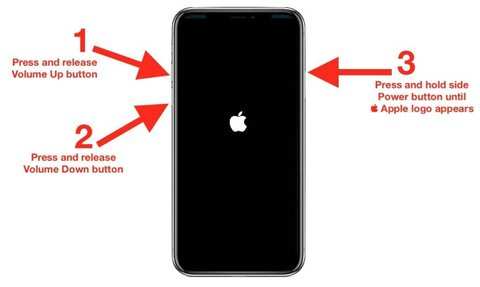
If your iPhone screen is broken, **a quick restart can sometimes resolve temporary glitches**. To restart an iPhone with a damaged screen, press and hold the side button and volume button simultaneously until the Apple logo appears. Knowing how to restart iPhone screen broken helps you regain control quickly. Even with a cracked display, performing this step may enable you to access essential functions or prepare your device for repair. Don’t let the damage stop you—restart and see if your iPhone responds.

How to Restart iPhone Screen Broken
When your iPhone screen gets cracked or begins to malfunction, it can be quite frustrating. You may wonder whether you can restart your device without using the touchscreen or if there’s a way to do it despite the broken screen. Restoring your iPhone’s functionality might seem complicated at first, but with the right steps, you can restart your phone safely and efficiently. This guide will walk you through various methods to restart your iPhone when the screen is broken, including hardware-based solutions and software tricks that help you regain control over your device.
Understanding the Impact of a Broken Screen on Restarting Your iPhone
Before diving into the steps, it’s important to understand how a broken screen affects your ability to restart your device. A damaged display might not respond to touch commands, making it challenging to navigate menus or press buttons. Sometimes, the screen may be completely unresponsive, or certain areas might be frozen. In these cases, standard restart methods using touch or on-screen options become impossible.
However, even if the display is damaged, your iPhone still responds to hardware buttons, which means you can often restart or force your iPhone to reset using physical controls. This approach remains effective regardless of the extent of the screen damage.
Using Hardware Buttons to Restart Your iPhone
One of the most straightforward ways to restart an iPhone with a broken screen involves the use of hardware buttons. This method is useful when your screen doesn’t respond to touch, but the device itself is still functioning internally.
Performing a Standard Restart with Hardware Buttons
If your iPhone’s power button works, you can perform a standard restart by following these steps:
- Press and hold the side button (or top button, depending on your model) along with the volume down button simultaneously.
- Keep holding both buttons until the Apple logo appears on the screen.
- release the buttons and wait for your device to restart.
> **Note:** On some older models, the process involves holding the power button and the home button together.
Force Restart Your iPhone with a Broken Screen
When your iPhone becomes unresponsive, and you need to force restart it, use the following steps based on your device model:
For iPhone 8 and Later (including iPhone SE 2nd Generation and newer)
- Press and quickly release the volume up button.
- Press and quickly release the volume down button.
- Press and hold the side button until the Apple logo appears, then release.
For iPhone 7 and iPhone 7 Plus
- Press and hold both the side (or top) button and the volume down button simultaneously.
- Keep holding until the Apple logo appears, then release.
For iPhone 6s and Earlier
- Press and hold the home button and the power button at the same time.
- Continue holding until the Apple logo shows up, then release both buttons.
**Tip:** Performing a force restart does not erase your data. It simply forces your device to reboot.
Restarting iPhone When Touchscreen Is Broken but Device Still Works
In some cases, your iPhone may respond to the hardware buttons, but the touchscreen is unresponsive. If this happens, following the hardware button steps becomes your best option. However, if your device responds to certain touches, you can also try using assistive features to aid in restarting.
Using AssistiveTouch for Restarting
AssistiveTouch is an accessibility feature that adds a virtual button on your screen, allowing you to perform hardware functions without touching physical buttons.
- Go to Settings > Accessibility > Touch > AssistiveTouch.
- Turn on AssistiveTouch.
- Tap the floating AssistiveTouch button.
- Navigate to Device > More.
- Tap Restart if this option appears, or press and hold the Lock Screen icon, then tap Restart.
> **Note:** If your screen is too damaged to see or interact with AssistiveTouch properly, hardware methods remain the best option.
Using External Tools and Software to Restart Your iPhone
In certain situations, particularly when the hardware buttons aren’t functioning or your device is completely unresponsive, connecting your iPhone to a computer equipped with iTunes (on Windows or macOS Mojave and earlier) or Finder (on macOS Catalina and later) can help.
Connect Your iPhone to a Computer
Follow these steps carefully:
- Use a compatible USB cable to connect your iPhone to a computer.
- Open iTunes or Finder, depending on your operating system.
- If your device is recognized, you will see options to update or restore your iPhone.
Force Restart via iTunes or Finder
Once connected:
- Perform the force restart procedure for your specific model as described earlier.
- When the Apple logo appears, keep holding the buttons until a recovery mode screen shows up in iTunes or Finder.
- Choose the option to Update or Restore your device. Updating attempts to fix the software problem without erasing data, while restoring erases all data.
**Important:** Restoring your iPhone will erase all data. Before doing this, ensure you have a backup if possible.
Precautions and Tips for Restarting a Broken Screen iPhone
While restarting your iPhone helps solve many issues, handling a broken screen requires additional care:
- Protect your eyes: If the screen is shattered, avoid looking directly at glass fragments or sharp edges.
- Use protective gear: Wear gloves or use a screen protector to prevent cuts when handling the device.
- Avoid further damage: Do not apply excessive force or attempt to fix the screen yourself unless you’re experienced.
- Backup your data: Regular backups ensure you don’t lose important information if the device needs professional repair or replacement.
When to Seek Professional Repair
If hardware button methods and software tricks don’t work, or if your device shows signs of severe damage, visiting an authorized service center becomes necessary. Professionals can replace or repair your broken screen and ensure your device functions properly again.
Summary of Best Practices
| Method | Applicable When | Effectiveness |
|---|---|---|
| Hardware Buttons | Buttons are functional, screen unresponsive | High |
| AssistiveTouch | Device responds to touch, but screen is unresponsive | Moderate |
| Connecting to Computer | Hardware buttons don’t work, device is unresponsive | High, but may erase data |
In conclusion, restarting your iPhone with a broken screen involves understanding the options available based on your device’s condition. Hardware button methods remain the most reliable, especially if your phone responds to physical controls. When those fail, using software and external tools can help you reboot or reset your device, though with some risks involved. Always prioritize safety and data security, and consider professional repair options if your screen damage is severe. Knowing these techniques ensures you stay in control of your device, even when the screen is compromised.
Frequently Asked Questions
What are the options to restart an iPhone with a broken screen?
If your iPhone screen is damaged but the device still responds to touch or button presses, you can perform a force restart. Depending on your iPhone model, pressing specific button combinations will restart your device. For example, on newer models, simultaneously press and quickly release the volume up button, then do the same with the volume down button, and finally hold the side button until the Apple logo appears. This process forces your iPhone to reboot even if the screen is unresponsive or damaged.
Can I restart my iPhone without using the screen if it’s broken?
Yes, you can restart your iPhone without using the screen by utilizing hardware button combinations. For iPhone models with Face ID, press and release the volume up button, then press and release the volume down button, and then hold the side button until the Apple logo appears. If you have an iPhone with a home button, press and hold the home button along with the side or top button until the Apple logo shows. This method works regardless of the screen’s condition, as it relies on physical buttons.
What should I do if my iPhone does not respond to force restart commands?
If your iPhone does not respond when you try to force restart it, ensure that the buttons are functioning correctly. Sometimes, damaged buttons or hardware issues can prevent proper restarts. If the buttons are unresponsive, consider connecting your iPhone to a computer with iTunes or Finder (on Mac) and performing a device restore or update. As a last step, visit an authorized service center to assess and repair the hardware if necessary.
Is there a way to restart my iPhone using assistive features with a broken screen?
If your iPhone screen remains unresponsive, you can attempt to use accessibility features like AssistiveTouch. However, if the screen is completely non-functional, this may not be feasible directly on the device. In such cases, hardware button combinations are your best bet. Once the device restarts, you can enable accessibility features to help navigate the device more easily in the future.
Final Thoughts
Pour conclure, knowing how to restart iPhone screen broken helps you quickly regain control of your device. If your screen is unresponsive, force a restart by pressing specific buttons based on your iPhone model. This method clears minor glitches and refreshes the system.
Always handle a broken screen with care and consider professional repair options if necessary. Remember, how to restart iPhone screen broken is a straightforward process that can save you time and frustration.
