

To quickly identify which apps are guzzling your battery in the background, you can check your device’s battery usage stats through built-in settings or use specialized apps that provide detailed reports. These tools help you pinpoint energy hogs so you can take action to extend your device’s battery life.
In short, to request a list of background apps draining your battery, access your device’s battery usage section to view detailed app activity. For more precise data, consider using third-party battery monitoring apps that give a clear overview of background activity and energy consumption.
If your device is draining batteries faster than usual, understanding which apps are running in the background is crucial. Many smartphones and tablets allow you to view a breakdown of energy consumption by app, helping you identify the culprits. This process often involves navigating to your device’s settings, finding the battery or power section, and then checking the detailed usage. For more advanced insights, third-party apps can be downloaded to give you more granular control and data. Knowing how to access and interpret this information empowers you to manage your device’s energy better and prolong your battery life effectively.

How to request a list of background apps that drain battery
Understanding Why Background Apps Use Battery
Background applications operate without your direct interaction, and they can sometimes drain your device’s battery quickly. These apps run processes in the background to update information, send notifications, or sync data. Knowing which apps are consuming your battery helps you manage your device more effectively.
Importance of Monitoring Background Apps
Monitoring background apps is essential to extend your device’s battery life. Too many apps running simultaneously can cause your device to work harder, leading to faster battery depletion. Requesting a list of these apps gives you clear insight into which ones may need to be closed or restricted.
Methods to Request a List of Background Apps
Different devices and operating systems offer various ways to view background apps. Whether you use Android or iOS, understanding how to retrieve this information is key to optimizing your device’s performance.
Checking Background Apps on Android Devices
On Android, you can view recent background applications through built-in settings or developer options. Most Android phones display active apps in the multitasking view, but for a detailed list, you may need to access specific settings.
Using the Battery Usage Feature
A quick way to identify apps draining your battery is via the battery usage feature. This feature shows the percentage of battery used by each app over a specified period. It helps you see which apps are the biggest culprits.
Steps to Access Battery Usage on Android
- Open the Settings app on your device.
- Tap on “Battery” or “Battery & Performance.”
- Select “Battery Usage” or “Usage Details.”
- Review the list of apps and their respective battery consumption.
Viewing Background Processes on Android via Developer Options
Activating Developer Options unlocks more detailed information about background processes. To enable them:
- Navigate to Settings > About Phone.
- Tap on “Build Number” multiple times until it confirms developer mode activation.
- Go back to Settings > Developer Options.
- Look for “Running Services” or “Process Stats” to see background apps.
Checking Background Apps on iOS Devices
iOS users have different tools at their disposal, primarily within the Settings app. The system manages background processes differently but provides insights into app activity.
Using Battery Usage on iOS
To see which apps consume most battery:
- Open Settings.
- Tap on “Battery.”
- Scroll down to view battery usage by app.
Identifying Background Activity on iOS
iOS shows whether an app has recently used significant background activity. This helps you know which apps are active in the background.
Third-Party Apps for Monitoring Background Processes
If built-in tools are not enough, several third-party applications can provide more detailed insights. Apps like “GSam Battery Monitor” or “AccuBattery” for Android, and “Battery Life” for iOS, offer extended data about background activity and battery drain.
Understanding App Permissions and Restrictions
Reviewing app permissions can help reduce unnecessary background activity. Limiting background data, disabling auto-refresh, or restricting location access for certain apps can significantly improve battery life.
Managing App Permissions on Android
- Open Settings.
- Select “Apps & Notifications” or “Applications.”
- Tap on the app you want to manage.
- Choose “Permissions.”
- Adjust permissions, especially those related to background activity.
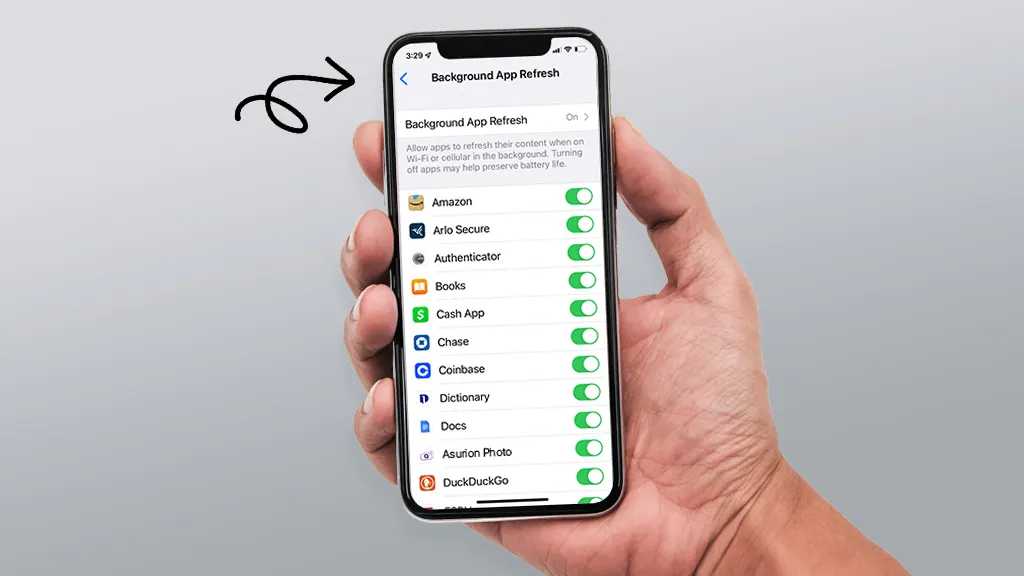
Managing Background App Refresh on iOS
- Open Settings.
- Tap on “General.”
- Select “Background App Refresh.”
- Disable it for apps that don’t need to update in the background.
How to Limit Background Activities to Save Battery
Reducing background activity helps conserve power and prolong battery life. You can do this by restricting certain apps or turning off background refresh features.
Disabling Background Refresh on Android and iOS
- Access the app settings or general settings.
- Toggle off background refresh or background data options.
Using Power-Saving Modes
Most devices feature power-saving modes that automatically limit background activity and reduce app refresh rates. Turning on power-saving mode is a quick way to extend battery life during low charge.
Best Practices for Managing Background Apps
Regularly closing apps that are draining your battery is good practice. Always review app permissions, update apps to get bug fixes, and keep your device’s software current.
Steps to Manually Close Background Apps
– On Android: Open multitasking view and swipe away unnecessary apps.
– On iOS: Double-tap the Home button or swipe up, then swipe away apps you want to close.
Automating App Management
Some devices allow you to automatically restrict background activity for specific apps, saving you time. Use built-in settings or third-party tools for automation.
Additional Tips for Optimizing Battery Life
Limit notifications, reduce screen brightness, turn off Wi-Fi or Bluetooth when unused, and avoid running multiple demanding apps simultaneously to conserve energy.
Knowing how to request and view a list of background apps draining your battery empowers you to manage your device better. Regularly monitoring these apps helps keep your device running efficiently and prolongs battery life. Use the built-in tools or third-party apps to stay informed and take action when necessary. This simple habit ensures your device remains responsive and ready for use throughout the day.
Control Apps Battery usage in background | one ui 5.1 | Galaxy A14 5G ❤️ #shorts
Frequently Asked Questions
What steps should I follow to identify apps that consume the most battery in the background?
To identify apps draining your battery, first access your device’s battery usage settings. On most devices, navigate to Settings > Battery or Battery Usage. Here, you’ll see a list of apps and the amount of power they’ve used recently. Focus on apps showing high background activity and consider restricting their background access or closing them if they are not in use.
How can I monitor which applications are running in the background without my knowledge?
Most smartphones display active background apps in the recent apps menu or through developer options. On Android devices, you can enable developer options and check running services to see active background processes. On iOS, you can view background activity under Settings > General > Background App Refresh. Regularly reviewing these lists helps you identify apps that might be operating in the background unexpectedly.
Is there a way to generate a detailed report of background app activity and their impact on battery usage?
Yes, some devices and third-party apps provide detailed reports on app activity. For instance, certain Android devices include diagnostic tools or battery health reports that show detailed app usage and background activity. Additionally, apps like AccuBattery or Battery Guru can give in-depth insights into which apps consume the most power, helping you make informed decisions about managing background activity.
Can I set restrictions for background activity on specific applications to conserve battery life?
Absolutely. Most devices let you restrict background activity per app. On Android, you can go to Settings > Apps & notifications > App info, select an app, and choose to restrict background data or battery optimization. On iOS, navigate to Settings > General > Background App Refresh, and disable it for specific apps. These restrictions help prevent unnecessary background activity, extending your battery life.
Are there built-in tools to alert me when an app is excessively draining my battery in the background?
Many smartphones notify you when an app consumes a significant amount of battery. For example, Android’s battery settings display recent foreground and background activity, highlighting power-hungry apps. Some devices also offer alerts or suggestions to optimize battery use if an app is draining power unexpectedly. Monitoring these alerts helps you identify and address problematic apps promptly.
Final Thoughts
To request a list of background apps that drain battery, start by accessing your device’s settings. Navigate to battery or device care sections. Tap on battery usage to see which apps consume the most power. This step helps you identify apps running in the background. Knowing this allows you to take action and optimize your device’s performance efficiently.
