

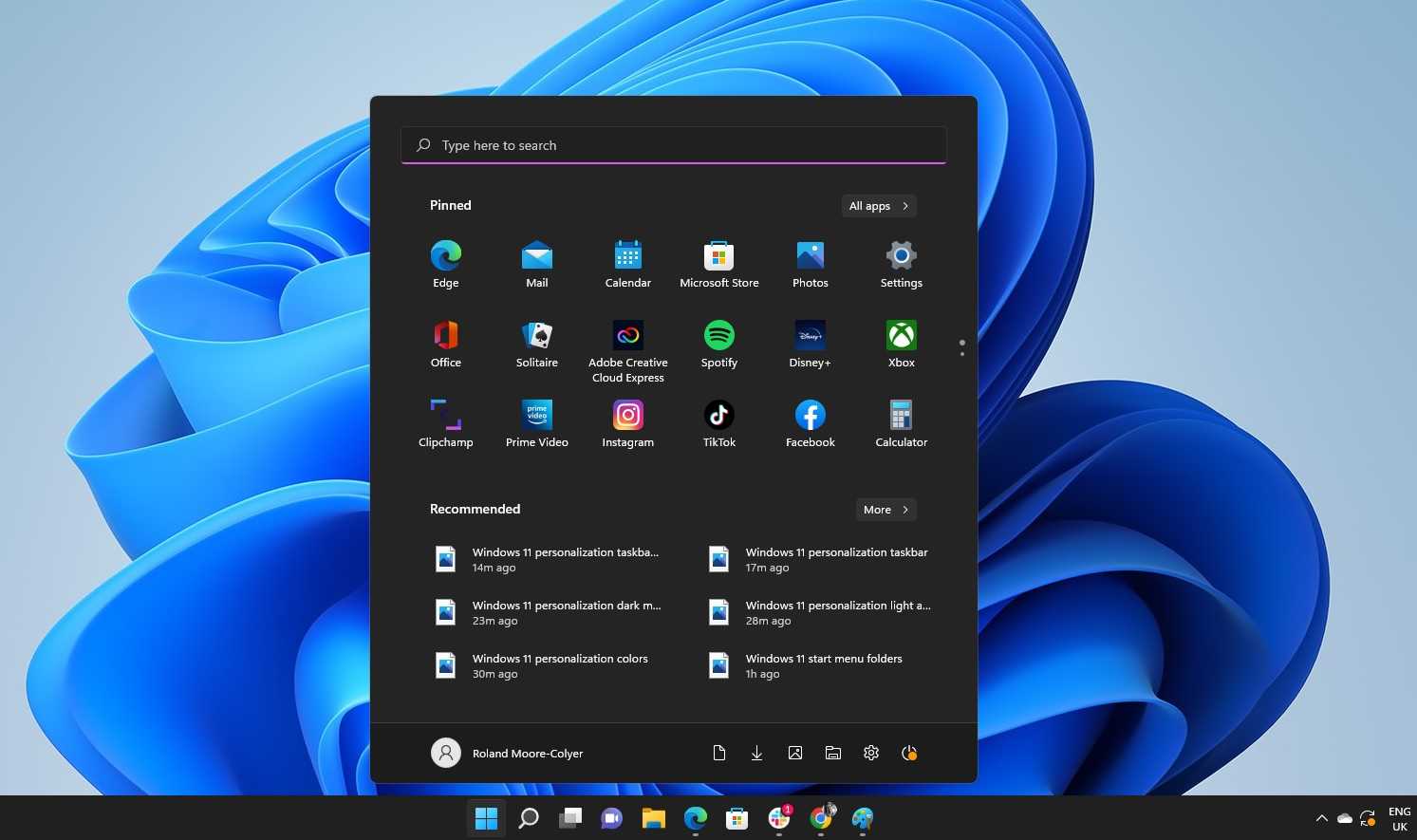
To customize the Windows 11 start menu, simply right-click on app icons or tiles to pin, unpin, resize, or move them. You can also access the settings to choose which folders appear and personalize the layout to suit your style. These tweaks make your start menu more intuitive and tailored to your needs.
In brief, customizing the Windows 11 start menu involves adjusting your pinned apps, reorganizing tiles, and tweaking the menu’s appearance through settings. This guide walks you through the simple steps to transform your start menu into a more functional and personalized hub.
Looking to make your Windows 11 start menu truly yours? Whether you want to declutter or add quick access to your favorite apps, customizing the start menu is straightforward and rewarding. By adjusting what appears and how it looks, you can create a workspace that’s more efficient and visually appealing. Let’s dive into easy tips to help you take full control of your start menu and make your Windows experience uniquely suited to your lifestyle.

How to customize the Windows 11 start menu
Personalizing the Windows 11 start menu helps you access your favorite apps quickly and makes your desktop more organized. This guide will walk you through simple steps to make your start menu suit your style and needs.
Understanding the Windows 11 start menu layout
The Windows 11 start menu has a fresh, centered design that differs from previous versions. It features a clean, minimal look with pinned apps, recently used files, and a search bar. Knowing its layout helps you decide how to customize it effectively.
Pinned apps area
This section displays your favorite or most-used apps. You can pin or unpin apps to keep your most important ones at your fingertips. Drag apps in or out of this area to organize it.
Recommended section
This area shows suggested files and recent activity. You can customize which items appear here or hide this section if you prefer a cleaner look.
The search and profile options
The search bar replaces the traditional start menu search, making it easier to find apps and files. Your profile picture is located at the bottom, giving quick access to account settings and power options.
Pinning and unpinning apps on the start menu
Pinning your favorite apps makes them easily accessible. To pin an app, right-click on it and select “Pin to Start.” To unpin, right-click the app and choose “Unpin from Start.”
Adding apps to the start menu
If an app isn’t pinned yet, find it in the All Apps list. Right-click the app and select “Pin to Start” to add it to your pinned section.
Organizing pinned apps
You can drag and drop apps to reorder them within the pinned area. Group related apps together for easier access, creating a personalized layout that matches your workflow.
Customizing the start menu layout
Windows 11 allows you to modify the layout by resizing or rearranging the pinned apps. This helps you create a clean, efficient start menu tailored to your preferences.
Resizing pinned app tiles
Right-click on a pinned app and select “Resize” to choose small, medium, wide, or large tiles. Adjust sizes based on how often you use each app.
Rearranging apps
Simply click and drag apps to new positions. Group similar apps together to streamline your start menu and make it more intuitive.
Personalizing the start menu background and appearance
Changing the background color and theme of your start menu creates a more cohesive look with your desktop. You can set this through Windows personalization settings.
Changing the start menu color
Go to Settings > Personalization > Colors. Select your preferred color, and it will apply to the start menu, taskbar, and other elements.
Applying a theme
Choose a Windows theme under Settings > Personalization > Themes. Themes change the overall look, including wallpapers, sounds, and color schemes.
Customizing the start menu search experience
The search feature is central to Windows 11 functionality. You can tweak its settings to improve your experience.
Enabling or disabling search suggestions
Navigate to Settings > Privacy & Security > Search permissions. Toggle “Show search suggestions” on or off based on your preference.
Using advanced search filters
You can filter search results to include only applications, files, or web results. This makes finding items quicker and more precise.
Adding or removing folders from the start menu
This feature allows quick access to specific folders directly from the start menu, improving your navigation efficiency.
Pinning folders for quick access
Right-click on the folder you wish to add, then select “Pin to Start.” The folder will appear among your pinned items.
Removing folders from the start menu
To remove a folder, right-click the pinned folder and choose “Unpin from Start,” freeing up space for other items.
Using third-party tools for enhanced customization
If you want more control over your start menu, consider third-party customization software. These tools offer additional features beyond native options.
Popular third-party start menu apps
- Start11
- Object Desktop
- Classic Shell
Features offered by third-party tools
- Custom themes and skins
- Advanced layout options
- Enhanced icon customization
Saving your start menu layout for future use
Once you’ve customized your start menu, you might want to save your layout. This ensures you can restore it if settings get reset or after Windows updates.
Creating a backup system
Use Windows Backup or third-party tools to save your layout configurations. Keep backup files in a safe location.
Restoring your layout
Re-import your saved settings if you need to revert to your preferred start menu setup. This can save time and maintain consistency.
Tips for efficient start menu customization
Keep your start menu clutter-free by only pinning frequently used apps. Regularly update your layout to match changing needs.
Organizing with folders and groups
Create folders within the start menu to categorize apps. This reduces clutter and makes navigation faster.
Regularly reviewing pinned items
Remove apps you no longer use and add new ones to keep your start menu fresh and relevant.
Final thoughts on customizing your Windows 11 start menu
Customizing the start menu makes daily tasks easier and your workspace more personalized. Experiment with different layouts and settings until you find what works best for you. Regular updates to your setup can keep your Windows experience efficient and enjoyable.
How to Customise your Windows 11 Start Menu
Frequently Asked Questions
How can I add or remove apps from the Start menu in Windows 11?
To add or remove apps from the Start menu, open the Start menu, right-click on an app, and select “Pin to Start” to add it. To remove an app, right-click on the app icon and choose “Unpin from Start.” This allows you to customize your Start menu to include only the apps you frequently use.
What options are available for resizing tiles on the Windows 11 Start menu?
You can resize tiles by right-clicking on a pinned app and selecting “Resize,” then choosing from Small, Medium, Wide, or Large. Adjusting tile sizes helps organize your Start menu, making important apps more accessible while keeping less-used apps tucked away.
How do I organize my pinned apps and folders in Windows 11 Start menu?
To organize your pinned apps, drag and drop them into different positions or groups within the Start menu. You can also create folders by dragging one app over another. Renaming folders helps categorize apps for easier access, ensuring your Start menu stays tidy and tailored to your needs.
Can I customize the appearance of the Start menu in Windows 11?
Yes, you can personalize the appearance by changing the accent color, choosing whether to show recent apps or recommended content, and customizing the layout through the Settings app. These options allow you to match the Start menu’s look to your preferences and enhance your overall experience.
Is it possible to modify the layout of the Start menu for better accessibility?
Absolutely. You can adjust the size of text and icons in the Settings under Accessibility options. Additionally, arranging your pinned apps and folders in a way that suits your workflow can improve navigation and make the Start menu more user-friendly for your needs.
Final Thoughts
To customize the Windows 11 start menu, begin by right-clicking on app icons to pin or unpin them. Use the personalized settings to rearrange tiles and organize your favorites. You can also resize or group elements for better accessibility.
Adjusting the start menu’s appearance and layout makes it more functional and tailored to your needs. Remember, how to customize the Windows 11 start menu is straightforward with these simple steps. Creating a setup that suits your workflow enhances efficiency and makes daily tasks easier.
