

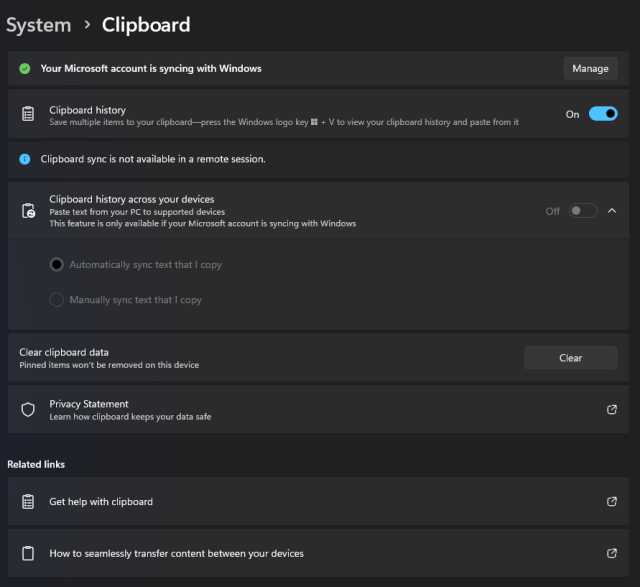
To stop unnecessary accounts from syncing automatically, simply head into your device’s settings and turn off auto-sync for those specific accounts. This quick adjustment can save battery life, improve device performance, and protect your privacy by reducing unnecessary data sharing.
Disabling auto sync for accounts you no longer need is a simple yet effective way to optimize your device. It helps prevent unwanted background data usage and keeps your information more secure. By managing these settings, you regain control over what apps and services access your data. In this article, we’ll walk you through the easy steps to turn off auto sync for unnecessary accounts, ensuring your device runs smoothly while protecting your privacy. Whether you’re a tech newbie or a seasoned user, these tips will help you keep your device clutter-free and working at its best.

Disabling auto sync for unnecessary accounts
Understanding what auto sync is and why it matters
Auto sync is a feature that allows apps and accounts on your device to automatically update data in the background. This includes emails, contacts, calendar events, and app data. While auto sync helps keep information fresh, it can also drain battery life and consume data unnecessarily.
Disabling auto sync for accounts that you don’t frequently use can improve your device’s performance. It also helps conserve battery and data, making your device run more smoothly. Knowing which accounts to disable auto sync for is an essential step in managing your device effectively.
Identifying unnecessary accounts on your device
Many devices come preloaded with multiple accounts, such as Google, Facebook, Twitter, and others. Some of these accounts may no longer be relevant to your daily use. To identify unnecessary accounts:
- Review the list of accounts in your device’s settings.
- Check which accounts are actively used for your daily tasks.
- Identify dormant or rarely used accounts.
- Consider removing or disabling auto sync for these accounts.
Removing unnecessary accounts simplifies your account list and reduces background activity. It also enhances your device’s privacy by limiting data sharing with unused accounts.
How to disable auto sync on Android devices
Disabling auto sync on Android devices is straightforward and can be done through the settings menu. Follow these steps:
- Open the Settings app on your device.
- Scroll down and select Accounts & sync or Accounts.
- Tap on Auto-sync data to toggle it off.
- Alternatively, select individual accounts to disable auto sync for each one.
For specific accounts like Google, you can go deeper:
- Tap on Google in Accounts list.
- Select the account you want to modify.
- Toggle off sync options such as Contacts, Calendar, and Gmail.
Disabling auto sync for unnecessary accounts prevents background data updates, saving battery and bandwidth.
Disabling auto sync on iOS devices
iOS manages account synchronization slightly differently. To disable auto sync for unnecessary accounts:
- Open the Settings app.
- Scroll to Passwords & Accounts or Mail.
- Select the account you want to modify.
- Toggle off Mail, Contacts, or Calendars as needed.
This method allows you to control sync settings for each account individually. It helps reduce unnecessary background activity and prolongs battery life.
Benefits of disabling auto sync for unnecessary accounts
Turning off auto sync on accounts you no longer need offers several benefits:
- Battery life improves as less background activity occurs.
- Data consumption decreases, saving your mobile data plan.
- Device performance enhances with reduced background processes.
- Privacy is better protected by limiting data sharing with inactive accounts.
These advantages contribute to a smoother device experience and better control over your data.
Risks and precautions when disabling auto sync
While disabling auto sync offers benefits, it may also lead to missing updates. For example:
- You may not receive real-time emails or notifications.
- Calendar events and contacts might not stay current.
- Some apps may require sync to function properly.
Before turning off auto sync, review which accounts are essential for your daily use. It’s wise to enable sync again if you depend on timely information.
Best practices for managing account sync settings
To optimize your device, follow these best practices:
- Regularly review your accounts and their sync settings.
- Disable auto sync for accounts you no longer use.
- Enable sync on critical accounts to stay updated.
- Use manual sync when needed to fetch data at your convenience.
This approach helps balance device performance, data usage, and timely updates.
Tools and apps to help manage sync settings
Several third-party apps and built-in tools can assist in managing sync settings more efficiently:
- Device optimization apps that monitor background activity.
- Built-in battery managers that highlight apps consuming excessive resources.
- Account management apps to quickly toggle sync options.
Utilizing these tools can simplify the process of managing multiple accounts and conserve device resources.
Related topics to consider
Managing auto sync relates to broader device maintenance strategies:
- How to clear cache and data for better device performance.
- Managing app permissions to enhance privacy.
- Optimizing device storage to improve speed.
- Securing your devices with proper privacy settings.
Incorporating these practices alongside disabling unnecessary auto sync maximizes your device’s efficiency and privacy.
Final thoughts on disabling auto sync for unnecessary accounts
Turning off auto sync for accounts you seldom use is a simple yet effective practice. It helps your device use less battery and data, making it faster and more responsive. Regularly reviewing and adjusting sync settings ensures your device works exactly as you need it to, without unnecessary background activity. Remember, balance is key—keep syncing where it matters and disable it where it doesn’t to enjoy a smoother, more efficient device experience.
Disable This Android Privacy Setting ASAP!
Frequently Asked Questions
How can I identify which accounts are syncing automatically on my device?
To determine which accounts sync automatically, go to your device’s settings and look for the ‘Accounts’ or ‘Users & Accounts’ section. Here, you’ll see a list of all accounts linked to your device. Select each account to view its sync settings, where you’ll find options indicating whether auto-sync is enabled or disabled for specific services like email, contacts, or calendar. Reviewing these settings helps you pinpoint accounts that are syncing data in the background.
What are the steps to disable auto sync for individual accounts on Android?
Navigate to your device’s Settings and tap on ‘Accounts’ or ‘Accounts & Sync.’ Select the account you wish to modify. Within the account details, find the toggle or checkbox labeled ‘Sync automatically’ or similar. Turn off this option to prevent the account from syncing data in the background. Repeat this process for any other accounts you want to disable auto sync for, ensuring your device conserves resources and maintains only necessary updates.
Are there any risks associated with disabling auto sync on certain accounts?
Disabling auto sync can result in delayed updates for emails, contacts, or calendar events, which may affect your ability to access up-to-date information promptly. If you disable sync for work or important personal accounts, you might miss critical notifications. Additionally, some apps rely on synced data to function correctly, so turning off sync could impact their performance. Evaluate which accounts are essential before disabling auto sync to avoid missing important updates.
Can I automate the process of disabling auto sync for multiple accounts?
While most devices do not offer a built-in feature to disable auto sync for multiple accounts simultaneously, you can use third-party apps or automation tools to streamline this process. These tools allow you to create rules or scripts that disable sync for selected accounts at specific times or under certain conditions. However, use such tools carefully to avoid unintentional deactivation of important services.
What is the impact of disabling auto sync on app notifications and updates?
Turning off auto sync may reduce background data usage and save battery life, but it also means your apps won’t receive real-time updates. Notifications from email, social media, or messaging apps might be delayed until you manually open the app and sync the data. Consider your priority for staying informed when deciding to disable auto sync, especially for accounts where timely information is critical.
Final Thoughts
Disabling auto sync for unnecessary accounts helps conserve battery life and reduces data usage. It prevents your device from constantly fetching updates that you don’t need.
By turning off auto sync for unneeded accounts, you gain more control over your device’s performance. This simple step enhances privacy and minimizes distractions.
In conclusion, focusing on disabling auto sync for unnecessary accounts optimizes your device’s operation and saves resources, making your experience smoother and more efficient.
