

To extend your Android device’s battery life, enabling the right settings can make all the difference. The best battery saver settings include activating built-in power saving modes, disabling unnecessary apps and background processes, and optimizing display brightness. These tweaks can drastically improve your device’s longevity without sacrificing performance.
In brief, turn on your device’s battery saver mode, reduce screen brightness, and limit background activity for apps you don’t use often. Additionally, disable Wi-Fi, Bluetooth, and location services when not needed. These simple steps can help you go longer between charges and keep your device running smoothly throughout the day.
If you find your Android battery draining faster than expected, don’t worry—there are straightforward ways to extend its life. Starting with the default battery saver feature and customizing settings to suit your usage patterns can significantly improve battery efficiency. From reducing screen brightness to managing app activity, these strategies are easy to implement and highly effective. Whether you’re traveling or simply want your phone to last through a busy day, adopting these best battery saver settings ensures you stay connected longer without constantly reaching for the charger.

Best Battery Saver Settings to Enable on Android
Introduction to Battery Saving on Android
Smartphones are essential now, but their batteries can drain quickly. Optimizing your Android device with the best battery saver settings helps extend battery life. These settings are simple to activate and can make a big difference in how long your phone lasts each day. Let’s explore the most effective ways to save power on your Android device.
Enable Built-in Battery Saver Mode
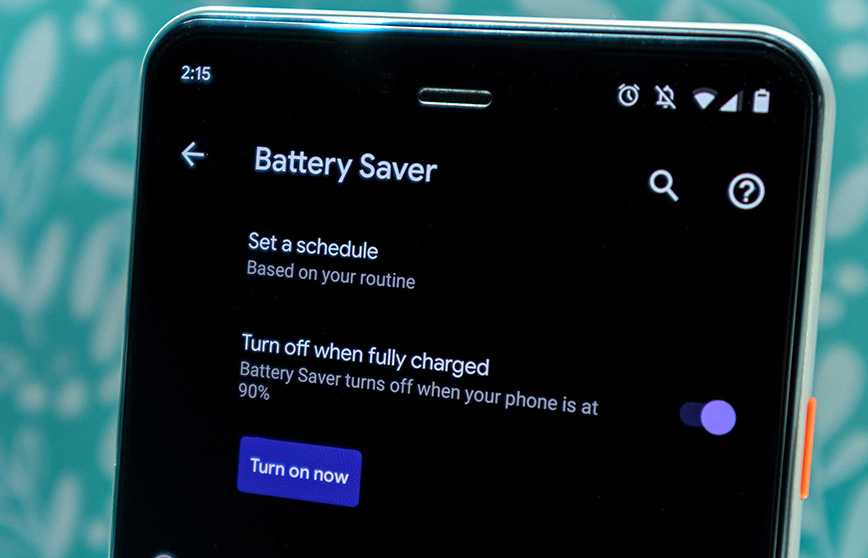
Most Android phones come with a built-in battery saver feature. Turning it on automatically reduces background activity, lowers screen brightness, and stops non-essential notifications. To activate this mode:
- Open your device’s Settings app.
- Tap on Battery or Battery & Performance.
- Select Battery Saver or Power Saving Mode.
- Toggle the switch to turn it on.
Use this mode when your battery drops below 15 percent for maximum efficiency.
Adjust Screen Brightness and Timeout
The display uses the most power on your phone. Lowering its brightness helps conserve battery life. Set brightness to automatic or manually reduce it to a comfortable level.
- Navigate to Settings > Display.
- Adjust Brightness slider or enable Adaptive Brightness.
- Set Screen Timeout to a shorter duration, like 30 seconds or 1 minute.
This ensures your screen isn’t staying on longer than necessary.
Disable Unnecessary Connectivity Features
Wireless features like Wi-Fi, Bluetooth, and Location services drain power when active unnecessarily. Turn them off when not in use:
- Pull down the Quick Settings panel.
- Tap the icons for Wi-Fi, Bluetooth, and GPS to disable them.
- For more control, go to Settings > Connections or Location.
Consider turning on Airplane Mode temporarily in areas with no signal to save power.
Manage App Background Activity
Many apps run in the background, wasting battery without your knowledge. Restrict background processes to save energy:
Restrict Background Data
- Open Settings > Data Usage.
- Select individual apps and disable background data access.
Force Stop or Uninstall Unused Apps
- Navigate to Settings > Apps & Notifications.
- Choose apps you rarely use and tap Force Stop or Uninstall.
This limits unnecessary activity and conserves power.
Use Dark Mode or Dark Theme
Dark mode reduces the power consumption of OLED screens by turning off pixels when black is displayed. Activate dark mode in:
- Settings > Display.
- Tap Dark Theme or Night Mode.
Switching to dark themes can save significant battery when used consistently.
Optimize Battery Usage for Individual Apps
Some apps are more power-hungry than others. You can restrict or optimize their battery usage:
- Go to Settings > Battery & Performance.
- Tap on Battery Usage.
- Select apps that use the most power and choose optimized or restricted modes.
This prevents major apps from draining your battery excessively.
Limit Location Services and GPS Access
Location services are useful but can drain your battery fast. Use them wisely:
- Go to Settings > Location.
- Choose the Mode: High Accuracy, Battery Saving, or Device Only.
- Disable location access for apps that don’t need it.
Using the Battery Saving mode for location also helps extend battery life.
Turn Off Vibrations and Haptic Feedback
Vibrations and haptic feedback can add to battery drain, especially if used continually:
- Access Settings > Sound & Vibration.
- Turn off Vibrations for calls, notifications, and system controls.
Switching off haptic feedback reduces power consumption subtly but effectively.
Manage Push Notifications
Constant notifications can wake your device frequently, consuming power. Limit their frequency:
- Go to Settings > Apps & Notifications > Notifications.
- Disable notifications for non-essential apps.
- Use Do Not Disturb mode during important periods.
This keeps your device inactive longer, saving energy.
Disable Automatic Sync
Auto-sync features for email, contacts, and other accounts can run in the background:
- Open Settings > Accounts.
- Disable auto-sync for accounts like Gmail, Calendar, and others.
You can manually sync when necessary to save power.
Keep Your Software Up to Date
Manufacturers often release updates that improve power efficiency:
- Go to Settings > System > Software Update.
- Download and install latest updates.
Updated software manages resources better, prolonging battery life.
Use Power-Saving Apps and Battery Optimization Tools
Third-party apps can help identify battery hogs and offer additional controls:
- Download trusted power management apps from Play Store.
- Use built-in battery optimization features in your device’s settings.
Be sure to pick apps with good reviews and avoid unnecessary permissions.
Remove Unnecessary Widgets and Live Wallpapers
Widgets and live wallpapers may look appealing but often consume power:
- Delete unused home screen widgets.
- Switch to static wallpapers for better battery life.
Keeping the home screen simple helps conserve energy.
Use Airplane Mode in Low Signal Areas
Searching for a signal in poor reception areas consumes extra power:
- Activate Airplane Mode temporarily.
- Disable it once you’re back in an area with better reception.
This trick can dramatically extend your battery in emergencies.
Final Tips to Maximize Battery Life
Combine multiple settings for optimal results. Always keep your device’s software up to date and routinely check for apps that use excess power. Maintaining a balance between usability and power saving ensures your Android device stays alive longer.
Implementing these settings will help your device perform better throughout the day, reducing the need for frequent charging. Remember, small changes often lead to significant savings, so explore the options and adjust them according to your needs for maximum battery longevity.
How to extend Android phone battery life
Frequently Asked Questions
What are the key settings to disable for better battery life on Android?
Turning off Bluetooth, Wi-Fi, and location services when not in use can significantly save battery. Reducing screen brightness and shortening the screen timeout duration also helps. Additionally, disabling background data for apps and turning off notifications for non-essential apps can prevent unnecessary battery drain.
How can I optimize app usage to conserve battery on my Android device?
Limit background activity for apps by adjusting their permissions and restricting background data. Use the device’s built-in battery optimization feature to identify and restrict apps that consume excessive power. Regularly closing apps that are not in use and uninstalling unused apps also contribute to better battery performance.
What system features should I enable or disable to extend battery life?
Enable battery saver modes available on your device, which automatically adjust settings to conserve power. Turn off automatic syncing for accounts, disable location services for apps that don’t need it, and reduce screen refresh rates if possible. Keeping software updated also ensures improvements in power management are implemented.
Are there specific display settings that help in saving battery on Android?
Yes, lowering the screen brightness and enabling adaptive brightness can reduce power consumption. Using dark themes or wallpapers especially on devices with OLED screens also helps conserve battery. Additionally, decreasing the screen timeout duration ensures the display turns off quickly when not in use.
How does restricting background processes improve battery life?
Limiting background processes prevents apps from running and consuming power when you’re not actively using them. You can do this through the device’s application manager or battery settings, which restrict activities of non-essential apps, leading to longer battery life and more efficient power usage.
Final Thoughts
Adoptez les meilleures réglages pour économiser la batterie sur Android pour prolonger l’autonomie de votre appareil. Activez le mode économie d’énergie, qui limite les activités en arrière-plan et réduit la consommation d’énergie des applications. Désactivez également la localisation et le Wi-Fi lorsque vous ne les utilisez pas. Ajustez la luminosité de l’écran et limitez les notifications pour maximiser la durée de vie de votre batterie.
En somme, faire ces ajustements dans “Best battery saver settings to enable on Android” peut significativement améliorer la performance de votre appareil. Adoptez ces stratégies pour garder votre smartphone opérationnel plus longtemps sans compromis.
