

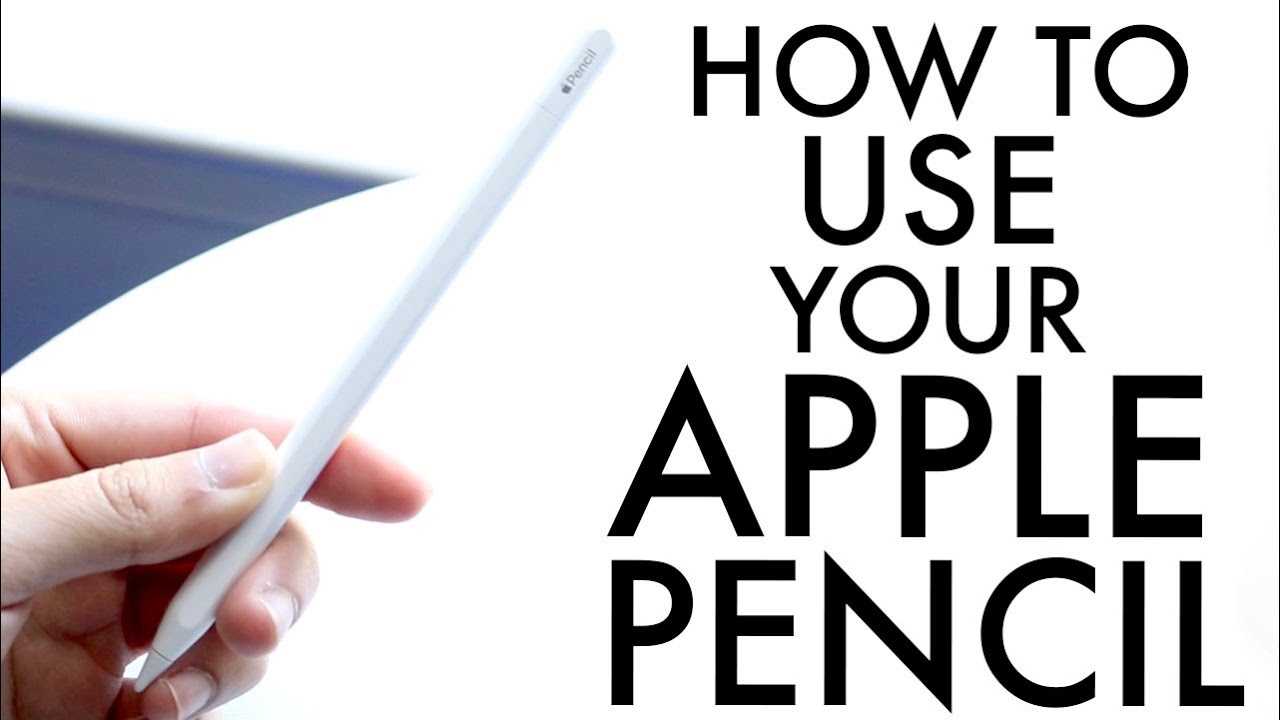
To use your Apple Pencil on your iPad, simply pair it via Bluetooth, then start tapping and drawing directly on the screen. Make sure your Pencil is charged, connect it to your iPad, and you’re ready to go! You can customize settings and use different apps to get the most out of your stylus experience.
Using your Apple Pencil on an iPad is a game-changer for creativity and productivity. It allows you to sketch, take notes, or edit documents with incredible precision. Getting started is easier than you think—just pair your Pencil with your iPad and explore the compatible apps that turn your device into a portable studio or workspace. Whether you’re an artist or a student, mastering the basics unlocks a whole new way to interact with your iPad, making every task more intuitive and fun.

How to Use Pencil on iPad: A Complete Guide
Getting Started with the Apple Pencil
Using the Apple Pencil on your iPad can feel natural once you understand its basic features. First, ensure your iPad model supports the Apple Pencil, such as the iPad Pro, iPad Air (4th generation and later), or the standard iPad (6th generation and later).
Before using it, remove the cap from the Pencil and connect it to your iPad’s lightning connector or USB-C port, depending on your model.
A prompt will appear to pair the Pencil with your device, and once paired, it will connect automatically when you start drawing or writing.
Properly Connecting and Charging the Apple Pencil
To keep your Pencil ready for use, learn how to connect it properly.
For first-time setup, plug the Pencil into the iPad’s port until the pairing prompt appears.
After pairing, you can charge the Pencil by connecting it to your iPad or using a compatible charging adapter.
Make sure to keep your Pencil charged for seamless performance during drawing or note-taking sessions.
Using the Apple Pencil for Drawing and Writing
Select a compatible app like Apple Notes, Procreate, or Adobe Fresco to start drawing.
Hold the Pencil comfortably, making sure you’re not pressing too hard.
Use the Pencil tip to tap, sketch, or write naturally, as if using a regular pen or pencil.
Zoom in for detailed work and zoom out to view your entire composition.
Adjusting Settings for Better Performance
Different apps offer settings to customize Pencil behavior.
Adjust tilt sensitivity, pressure sensitivity, and stroke thickness within app settings for optimal results.
In the iPad settings menu, enable “Apple Pencil” options to fine-tune features like double-tap functions.
Some apps allow you to customize the double-tap action, such as switching tools or undoing actions.
Using Apple Pencil for Precision Tasks
For detailed work like digital art, illustration, or text editing, activate the most precise brush or pencil tool in your app.
Utilize the Pencil’s pressure sensitivity to vary line thickness naturally.
Tilt the Pencil to shade or create textured effects, similar to traditional art tools.
Adjust brush settings to control opacity and flow for more realistic shading.
Implementing Shortcuts and Gestures
Many apps support gestures with the Pencil.
Double-tap or tap twice to switch tools quickly.
Use palm rejection features to rest your hand on the screen without interacting with the display.
Some apps may have specific gestures to undo, redo, or access menus efficiently.
Maintaining and Caring for Your Apple Pencil
Keep the Pencil tip clean to avoid scratches and poor performance.
Replace the tip when it becomes worn or damaged for smoother drawing.
Avoid dropping the Pencil or exposing it to extreme temperatures.
Use a protective sleeve or case to prevent damage when not in use.
Discovering Additional Features of Apple Pencil
Explore advanced features like pressure and tilt sensitivity for dynamic strokes.
Some apps allow you to customize the double-tap to switch tools, switch colors, or undo actions.
Use the Pencil for annotating PDFs, marking up documents, or creating detailed sketches.
Take advantage of third-party accessories, such as grips or replacement tips, to enhance your experience.
Best Apps for Using Your Apple Pencil on iPad
Choose from a wide selection of apps tailored for Pencil users.
Notable options include Apple Notes for quick notes, Procreate for professional art, and GoodNotes for handwriting.
Other apps like Concepts, Affinity Designer, and Clip Studio Paint offer advanced features for artists.
Each app provides unique tools and settings optimized for Pencil use, so explore different options based on your needs.
Tips for Improving Your Drawing Skills on iPad
Practice regularly to sharpen your skills and familiarize yourself with Pencil’s nuances.
Use reference images within your app to improve accuracy.
Experiment with different brushes and tools to find your preferred style.
Watch tutorials and join online communities for inspiration and feedback.
Using Accessories to Enhance Pencil Performance
Consider investing in a Pencil grip for added comfort during long sessions.
Use a screen protector designed for stylus use to prevent scratches and improve glide.
Some manufacturers offer custom tips with different textures for varied effects.
A protective case or holder can keep your Pencil safe when not in use.
Troubleshooting Common Issues with Apple Pencil
If your Pencil isn’t responding, check the Bluetooth connection in settings.
Re-pair the Pencil if it disconnects frequently or doesn’t respond.
Replace the tip if the line quality becomes inconsistent or scratchy.
Ensure your iPad software is up to date for seamless Pencil compatibility.
Final Tips for Using Pencil on iPad
Get comfortable with your favorite apps and explore all available tools.
Regularly clean your Pencil tip for smooth drawing.
Adjust app settings to customize the experience to your preferences.
Enjoy experimenting with different styles, techniques, and accessories to get the most out of your Apple Pencil on iPad.
This comprehensive guide provides everything you need to know about using the Pencil on iPad effectively. Whether for sketching, note-taking, or professional art, mastering these tips helps you make the most of your device.
Frequently Asked Questions
How can I customize the settings for the Apple Pencil on my iPad?
To customize your Apple Pencil settings, open the Settings app on your iPad. Navigate to “Apple Pencil” to access options such as enabling or disabling double-tap functionality, adjusting pressure sensitivity, or configuring handwriting gestures. You can also assign specific actions or shortcuts to different gestures for a more personalized experience.
What apps support Apple Pencil input and how do I get started with them?
Many apps support Apple Pencil, including note-taking, drawing, design, and photo editing applications. To get started, open the App Store and search for apps labeled with Apple Pencil compatibility. Download and open your preferred app, then select the drawing or editing tools to begin interacting with your Pencil. Most apps provide tutorials to help you utilize Pencil features effectively.
How do I troubleshoot Apple Pencil connection issues with my iPad?
If your Apple Pencil isn’t connecting properly, ensure it’s charged or has fresh batteries if it’s a first-generation model. Remove and reattach your Pencil to the iPad’s magnetic connector or re-pair via Bluetooth through the Settings menu. Restart your iPad, update the device software, and check for any debris on the Pencil tip or iPad’s charging surface. If problems persist, reset the Bluetooth connection or contact Apple Support for assistance.
Can I use my Apple Pencil for precise handwriting or sketching on my iPad?
Yes, the Apple Pencil is designed for precise input, making it ideal for handwriting, sketching, or detailed work. Choose compatible apps like Notes, Procreate, or Adobe Fresco for the best experience. Use gentle, controlled pressure on the Pencil to achieve varied line weights and detail, ensuring your work displays clarity and precision.
What are some tips for preventing damage to my Apple Pencil while using it on the iPad?
Handle your Apple Pencil carefully, avoiding dropping it or exposing it to harsh impacts. Keep the tip clean to ensure smooth interaction with the screen, and replace the tip if it shows signs of wear. Store the Pencil securely in a protective case or attach it magnetically to your iPad when not in use. Regularly check the charging connector and tips for damage to maintain optimal performance.
Final Thoughts
Using a Pencil on iPad is straightforward. First, ensure your Apple Pencil is paired with your device via Bluetooth in settings. Open your preferred drawing or note-taking app, then select the Pencil tool. Adjust the settings like pressure sensitivity and brush options for better control.
To enhance your experience, practice using different strokes and techniques. With simple steps, you can efficiently take notes or create artwork. In conclusion, knowing how to use pencil on iPad simplifies your digital creative process effortlessly.
