

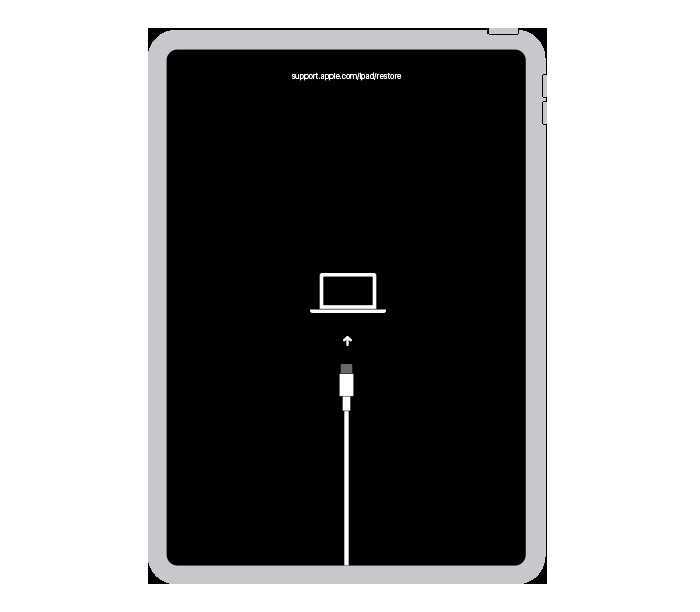
To quickly put your iPad into recovery mode, connect it to your computer, open iTunes or Finder, then press and hold the power and volume buttons until the recovery mode screen appears. This process can seem tricky, but with the right steps, you’ll have your device ready for updates or troubleshooting in no time.
In a nutshell, entering iPad recovery mode helps resolve issues like frozen screens or software errors. Just connect your iPad to a computer, follow specific button presses, and you’ll be able to restore or update your device efficiently. Whether you’re fixing a glitch or preparing for a reset, recovery mode is a vital tool for getting your iPad back in working order.
If your iPad is unresponsive, frozen, or stuck in a boot loop, recovery mode is often the best way to fix the problem. It allows you to reinstall iOS or iPadOS without losing your data or, in some cases, helps you erase the device to start fresh. Learning how to enter recovery mode is essential for any iPad user who wants to troubleshoot effectively. This guide will walk you through the simple steps required to activate recovery mode, ensuring you’re prepared to handle any unexpected issues with your device.

How iPad Recovery Mode Works and How to Use It
If your iPad is acting strangely or won’t turn on normally, recovery mode can be a lifesaver. This special state allows you to connect your iPad to a computer and fix common issues. Learning how to put your iPad into recovery mode is essential for troubleshooting problems and restoring your device.
What Is iPad Recovery Mode?
Recovery mode is a built-in diagnostic tool that helps you fix software issues on your iPad. When your device is in recovery mode, it can communicate with iTunes or Finder on your computer. This allows you to update or restore your iPad to factory settings.
Why Use Recovery Mode?
You should use recovery mode if your iPad is stuck on the Apple logo or shows a black or frozen screen. It also helps when you cannot update or restore your device normally. Recovery mode is useful for resolving issues caused by corrupted software or failed updates.
Prerequisites Before Entering Recovery Mode
- Make sure you have the latest version of iTunes installed on your Windows PC or Mac with macOS Mojave or earlier.
- Use a compatible USB or Lightning cable to connect your iPad to your computer.
- Back up your iPad if possible, as restoring may erase all data.
Step-by-Step Guide to Enter Recovery Mode on Your iPad
Identify Your iPad Model
The process varies slightly depending on the model. Check whether your iPad has a home button or uses Face ID, as steps differ for each.
Entering Recovery Mode for iPads with a Home Button
- Connect your iPad to your computer using a cable.
- Open iTunes or Finder.
- Press and hold the Home button and the top (or side) button simultaneously.
- Keep holding both buttons until you see the recovery mode screen, which shows a computer and cable icon.
Entering Recovery Mode for iPads with Face ID
- Connect your iPad to your computer with a cable.
- Open iTunes or Finder.
- Quickly press and release the volume up button.
- Quickly press and release the volume down button.
- Press and hold the top button until the recovery mode screen appears.
How to Recognize When Your iPad Is in Recovery Mode
Once in recovery mode, your iPad screen will display a Connect to iTunes or Connect to Finder message. Your computer will also detect the device and prompt you with options to update or restore.
Restoring or Updating Your iPad via Recovery Mode
- Update: Choose this if you want to reinstall iOS without erasing data. It attempts to fix software issues while preserving your content.
- Restore: Select this if updating doesn’t work. It wipes your device and installs a fresh copy of iOS, erasing all data.
Using iTunes or Finder to Fix iPad Issues
Follow these steps after connecting your iPad and entering recovery mode:
- Select your device when it appears on the screen.
- Choose between ‘Update’ or ‘Restore’ depending on your needs.
- Wait for the process to complete, ensuring your device stays connected.
Possible Problems and How to Fix Them
Device Won’t Enter Recovery Mode
If your iPad doesn’t enter recovery mode, try restarting your computer and reconnecting the device. Repeat the steps carefully, ensuring you follow the process for your specific model.
Computer Doesn’t Detect Your iPad
Ensure your USB cable is working properly and try different ports. Also, make sure your computer has the latest version of iTunes or macOS.
Restoring Fails or Gets Stuck
Sometimes, the restore process can hang. If this happens, restart your computer and iPad, then try again. You might also need to put your iPad into DFU (Device Firmware Update) mode for more advanced repair.
Understanding DFU Mode as an Alternative
DFU mode is a more comprehensive recovery state that allows complete reinstallation of iOS. Use it if recovery mode doesn’t resolve your issues. The steps to enter DFU are slightly more involved but can be very effective for stubborn problems.
How to Exit Recovery Mode
If you want to cancel recovery mode, disconnect your iPad from the computer and restart it normally. Simply hold down the power button until the device powers off, then turn it back on.
Tips for a Smooth Recovery Process
- Ensure your computer has a stable internet connection during the process.
- Keep your device connected until the process completes.
- Do not disconnect your iPad during updates or restores.
When to Seek Professional Help
If recovery mode and DFU fail to fix your iPad, consider visiting an Apple Store or authorized repair center. Hardware issues often require expert diagnosis.
Related Topics to Explore
- How to Back Up Your iPad Data
- Difference Between Recovery Mode and DFU Mode
- Common iPad Troubleshooting Tips
- Updating iOS on Your iPad Safely
- Restoring Factory Settings on iPad
Understanding how to use recovery mode on your iPad opens up a reliable way to troubleshoot many common issues. By following proper steps and precautions, you can often fix problems without needing professional help. Keep this knowledge handy to maintain your device’s health and performance.
How to Put iPad Pro 2021 Into Recovery Mode – Exit iPad Recovery Mode
Frequently Asked Questions
How do I enter recovery mode on an iPad running iOS 15 or later?
To put your iPad into recovery mode on iOS 15 or later, connect your iPad to a computer using a Lightning or USB-C cable. Then, quickly press and release the volume up button, followed by the volume down button. Press and hold the top button until the recovery mode screen appears. Keep holding until you see the screen that prompts you to connect your device to iTunes or Finder.
What should I do if my iPad gets stuck in recovery mode?
If your iPad remains stuck in recovery mode, try force restarting it. For models with a Home button, press and hold both the Home and side or top button until the Apple logo appears. For Face ID models, press and quickly release the volume up button, then the volume down button, and hold the side button until the Apple logo appears. If that doesn’t work, reconnect your iPad to your computer and use Finder or iTunes to restore or update your device.
Can I exit recovery mode without restoring my iPad?
Yes, you can exit recovery mode without restoring your iPad by performing a force restart. For iPads with a Home button, press and hold the Home and top or side buttons simultaneously until the Apple logo appears. For other models, press and release the volume up button, then the volume down button, and hold the side button until the device restarts. Keep in mind, exiting recovery mode without restoring will not resolve underlying issues if your device was in recovery mode due to errors.
Does entering recovery mode erase all data on my iPad?
Entering recovery mode itself does not erase any data. However, when you restore your iPad through Finder or iTunes, it performs a factory reset, erasing all content and settings. If you want to preserve your data, ensure you have a recent backup before restoring your device. Restoring is often necessary if your iPad has software issues or becomes unresponsive.
What tools do I need to put my iPad into recovery mode?
Your primary tools are a compatible computer (Mac or Windows) with the latest version of Finder or iTunes installed and a suitable cable to connect your iPad. Make sure your iPad has adequate battery charge before initiating recovery mode to prevent any interruptions during the process.
Final Thoughts
In summary, knowing how iPad recovery mode works helps you fix common issues swiftly. By following simple steps, users can reset their device without hassle. Understanding this process ensures your iPad stays functional and ready for use.
Getting into and out of recovery mode is straightforward once you know the method. Remember, how iPad recovery mode is utilized can save you time and frustration. Keep these tips handy to manage your iPad efficiently when problems arise.
