

Yes, you can update your old PC to Windows 11 if it meets the system requirements. However, many older computers may not support the upgrade due to hardware limitations. It’s important to check your device’s specifications before attempting the update.
If your PC is relatively old, it might not be compatible with Windows 11, but there are ways to determine compatibility and options for upgrading or sticking with Windows 10. Upgrading can breathe new life into your device but ensure your hardware aligns with Microsoft’s standards for a smooth experience. This article will explore how to find out if your PC can handle Windows 11, what requirements need to be met, and what steps to follow if you’re considering an upgrade. Whether your old PC can handle the latest OS or not, you’ll find all the essential info to make an informed decision.

Can I update my old PC to Windows 11?
Understanding Windows 11’s Hardware Requirements
To determine if your old PC can run Windows 11, you first need to review its hardware specifications. Windows 11 has specific minimum requirements that ensure the operating system runs smoothly and securely. These requirements are more demanding than those of Windows 10, so not all older computers will qualify.
The key hardware components to check include the processor, RAM, storage, graphics card, and firmware. Understanding these will help you decide if an upgrade or a new PC might be necessary.
Processor Requirements
Windows 11 requires a compatible 64-bit processor with at least a dual-core and a clock speed of 1 GHz or higher. The processor must be on the approved list from Microsoft and support features like Secure Boot and TPM 2.0.
Older CPUs, especially those released before 2018, may not meet these requirements. You can check your processor model on your PC or by using system information tools to see if it qualifies.
RAM and Storage Needs
A minimum of 4GB of RAM is necessary, although 8GB or more is recommended for better performance. Storage space should be at least 64GB, but having more free space helps with updates and general use.
If your PC has been running low on memory or storage, consider upgrading these components before attempting to install Windows 11.
Graphics and Display
Windows 11 requires a compatible graphics card that supports DirectX 12 and a display with 720p resolution or higher. If your old PC has integrated graphics or older dedicated cards, verify their compatibility.
An outdated or incompatible graphics card may prevent the interface from rendering properly or impede certain features.
Firmware and Security Features
Secure Boot and TPM (Trusted Platform Module) version 2.0 are crucial for Windows 11 installation and security. Many older PCs lack these features or have them disabled in BIOS settings.
You can access BIOS to enable Secure Boot and TPM if they are present but turned off. Otherwise, hardware upgrades or a new device might be the only way to meet these security requirements.
How to Check if Your PC Meets Windows 11 Requirements
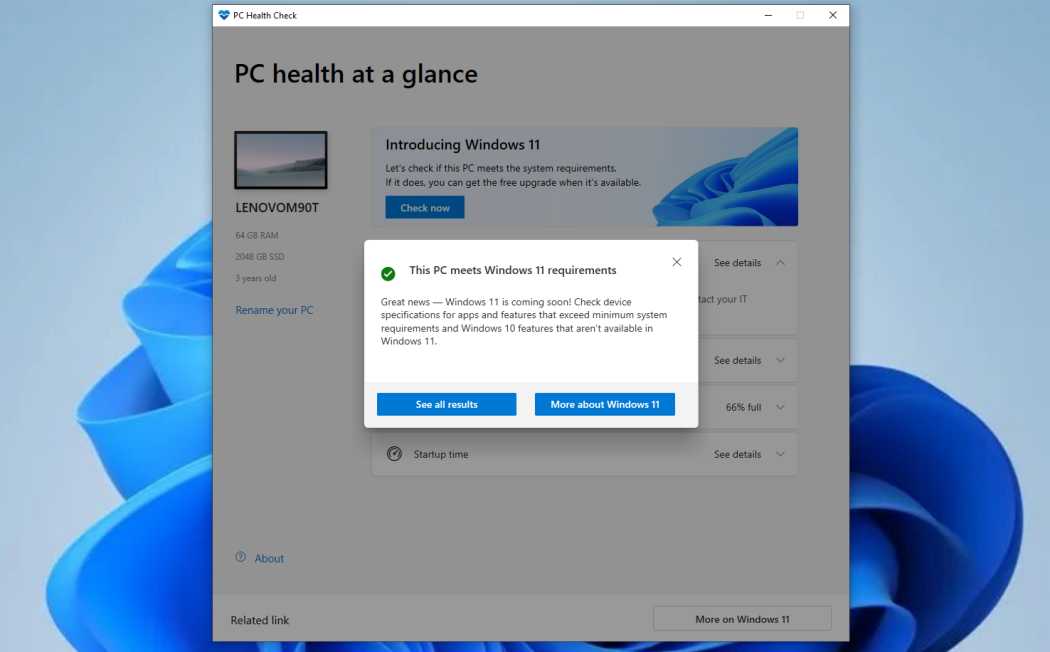
Microsoft offers a handy tool called the PC Health Check that helps identify if your hardware is compatible. Download and run this tool to get a detailed report on your system’s readiness for Windows 11.
Alternatively, you can manually check your hardware specifications through system information or device manager. Compare your hardware specs with Microsoft’s official requirements to see if you’re eligible.
Using the PC Health Check Tool
Visit the official Microsoft website and download the PC Health Check application. Run the tool and wait for the analysis to complete.
If your device passes the test, you’re good to proceed with the upgrade. If not, review the specific components that need upgrading.
Manual Hardware Inspection
On Windows, press Windows + R and type msinfo32 to open System Information. Review details about your processor, RAM, and BIOS firmware.
Check the manufacturer’s website for your PC model to verify whether TPM 2.0 and Secure Boot are supported and enabled.
Can My Old PC Be Upgraded to Windows 11 Without Hardware Changes?
Some older computers may meet the basic specifications but lack certain features. If your machine qualifies in most areas but lacks TPM 2.0 or Secure Boot, there are options.
First, check if firmware updates are available from your motherboard or PC manufacturer. Sometimes, BIOS updates add support for these features.
If updates are not available or your hardware is fundamentally incompatible, upgrading hardware components like the TPM module or motherboard might be necessary.
Upgrading Hardware Components
Adding a TPM module can be straightforward if your motherboard supports it. Verify compatibility with your device before purchasing.
Enabling Secure Boot in BIOS often involves changing settings from “Disabled” to “Enabled.” Consult your motherboard manual for specific instructions.
Remember, newer hardware might be more cost-effective than attempting extensive upgrades on an old PC.
Potential Risks and Limitations of Upgrading Old PCs
While upgrading components can make an old PC compatible with Windows 11, it has limitations. Older hardware may struggle with performance issues even after upgrades.
Furthermore, some components might be impossible to upgrade, especially in laptops or sealed systems. In such cases, replacing the device might be more practical.
Limited hardware capacity can also hinder future updates or software compatibility, so weigh the costs of upgrades against buying a new device.
Performance Expectations
Even if your old PC meets the minimum requirements, it might not deliver optimal performance. Windows 11 is designed for modern hardware, so expect slower speeds and potential stability issues on older systems.
Prioritize upgrading RAM and storage first for better responsiveness and smoother user experience.
Compatibility with Software and Peripherals
Older PCs might face compatibility issues with new drivers or peripherals designed for Windows 11. Check with device manufacturers for Windows 11 driver support.
Having incompatible hardware or outdated drivers can lead to system crashes or peripheral malfunctions.
Key Takeaways for Updating Your Old PC to Windows 11
Assessing your hardware’s compatibility is the first step. Use tools like the Microsoft PC Health Check to get accurate insights.
Upgrading components such as RAM, storage, or firmware can help your old PC meet Windows 11’s specifications.
Always consider the cost-effectiveness of upgrades versus buying a new device, especially if your computer is very old or has limited upgrade options.
Finally, keep in mind that even with upgrades, your PC’s overall performance might not match that of newer models optimized for Windows 11.
Related Topics for Further Consideration
- Benefits of Windows 11: Discover what new features and improvements Windows 11 offers for users.
- Windows 10 Support End Date: Understand when Microsoft will stop supporting Windows 10 and the importance of upgrading.
- Building a Budget-Friendly New PC: Explore options for affordable devices that are compatible with Windows 11.
- Data Backup and Migration: Learn how to safely back up your data before upgrading or replacing your PC.
This guide should help you decide whether your old PC can be upgraded to Windows 11. With proper hardware checks and possible upgrades, many users can enjoy the latest Windows experience without purchasing a new device. However, always consider the long-term benefits of investing in a newer computer if upgrades are limited or costly.
BEFORE you update to Windows 11 – do these 5 things!
Frequently Asked Questions
What are the key system requirements for installing Windows 11 on an older PC?
To upgrade your old PC to Windows 11, ensure it meets the minimum system requirements. Your device should have a compatible 64-bit processor with at least 1 GHz, 4 GB of RAM, 64 GB storage, and UEFI firmware with Secure Boot capability. Additionally, TPM version 2.0 must be present and enabled. Check these specifications before attempting the upgrade to avoid compatibility issues.
How can I verify if my hardware supports Windows 11 updates?
You can use the PC Health Check tool provided by Microsoft to evaluate your hardware compatibility. Download and run this tool, and it will analyze your system’s components, including CPU, RAM, storage, and TPM version. The tool then provides a clear assessment of whether your PC qualifies for the Windows 11 update or if you need hardware upgrades.
Are there any risks involved in updating an older PC to Windows 11?
While upgrading is generally safe, older hardware might encounter driver compatibility issues or performance limitations. Always back up your important data before initiating the update. Ensure that you have the latest drivers from your hardware manufacturers, and consider creating a recovery point to revert to your previous setup if needed. Taking these precautions helps reduce potential risks during the upgrade process.
Can upgrading to Windows 11 improve the performance of my old PC?
Upgrading to Windows 11 can improve system security and provide a more modern interface, but it may not significantly boost hardware performance if your PC is already outdated. In some cases, newer operating system requirements may slow down older devices. Consider upgrading hardware components, such as adding RAM or replacing an aging hard drive with an SSD, alongside the OS update for better performance gains.
What steps should I follow to update my old PC to Windows 11?
Start by verifying your device meets Windows 11 requirements through the PC Health Check tool. Backup all your important data. If your system qualifies, download the Windows 11 installation via Windows Update or the media creation tool. Follow the on-screen prompts to complete the installation. Afterward, check device drivers and update them as necessary to ensure smooth operation on your upgraded system.
Final Thoughts
Updating an old PC to Windows 11 depends on hardware compatibility and system requirements. Microsoft lists specific criteria, such as a compatible 64-bit processor, TPM 2.0, and Secure Boot capability. Some older devices may not meet these standards, making the upgrade impossible.
Check your PC’s specifications before attempting the update. If your system qualifies, you can proceed with the installation; if not, sticking with Windows 10 might be the best choice.
Can I update my old PC to Windows 11? In many cases, the answer is no, especially if hardware components are outdated. Confirm your device’s compatibility first to make an informed decision.
