

Looking to enhance your creative experience on Android? If you’re searching for an app that supports pen pressure, you’re in the right place! Many Android apps now incorporate pen sensitivity features, making your digital drawing and writing feel more natural and precise.
In short, several Android apps like Autodesk SketchBook, Infinite Painter, and Adobe Photoshop Express support pen pressure, allowing for dynamic stroke control and detailed artwork. These apps give you the tools to truly leverage your pen tablet or stylus for a more professional and intuitive artistic process.
For anyone passionate about digital art or note-taking, finding an Android app that supports pen pressure can be a game-changer. Whether you’re sketching intricate designs or adding nuanced shading, pen pressure sensitivity brings a level of depth and control that mimics traditional art tools. With numerous options available, it’s all about choosing the app that best fits your creative style and device compatibility.

Android App That Can Support Pen Pressure
Understanding Pen Pressure Support in Android Apps
Pen pressure support allows users to create more detailed and nuanced artwork on their Android devices. When an app recognizes how hard or soft you press the stylus, it can change the thickness, opacity, or texture of the strokes. This feature is especially important for artists, graphic designers, and students who want a natural drawing experience. Many Android apps now include this feature to compete with professional drawing tablets.
How Pen Pressure Enhances Digital Creativity
Using pen pressure in apps makes digital drawing feel more like working with traditional tools. For instance, pressing lightly might create thin, delicate lines, while pressing harder results in thick, bold strokes. This capability allows for shading, blending, and detailed line work that looks realistic. Artists often find that pen pressure support helps them express their ideas more freely and accurately.
Why Support for Pen Pressure Matters
Support for pen pressure in Android apps is vital because it adds a layer of control and precision. Without it, digital artwork can feel stiff and less natural. Pen pressure enables a more fluid and expressive creation process. It also makes technical tasks, like handwriting or diagramming, more intuitive and responsive.
Top Android Apps Supporting Pen Pressure
Many apps have incorporated pen pressure support. Here are some popular options:
- Autodesk SketchBook
- Ibis Paint X
- Medibang Paint
- Infinite Painter
- ArtFlow
- Clip Studio Paint
These apps vary in features but all support pen pressure to enhance drawing and designing.
Features to Look for in a Pen Pressure Support Android App
When choosing an app, consider the following features:
- Pressure Sensitivity: Ensures your stylus reacts to different levels of pressure.
- Brush Customization: Lets you modify how brushes respond to pressure.
- Layer Support: Enables complex artwork with multiple layers.
- Responsive Interface: Provides a smooth drawing experience without lag.
- Compatibility: Works with various styluses, including Samsung S Pen, Wacom, or third-party styluses.
Popular Styluses Compatible with Pen Pressure Android Apps
Using the right stylus improves the pen pressure experience. Some popular styluses include:
| Stylus Model | Features | Compatibility |
|---|---|---|
| Samsung S Pen | High precision, pressure sensitivity, tilt controls | Samsung Galaxy devices |
| Wacom Bamboo Ink | Pressure sensitivity, palm rejection | Android devices with Bluetooth |
| Adonit Note-M | Fine tip, pressure sensitivity | Android tablets, smartphones |
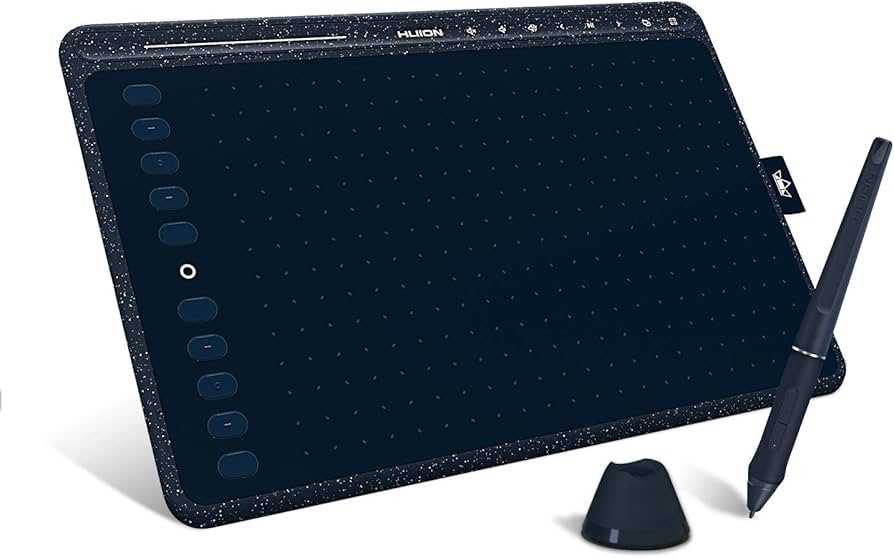
| Huion H610 Pro | Large drawing surface, pressure support | Android via compatible adapters |
Setting Up Pen Pressure on Android Devices
To get the best experience, you need to set up your stylus correctly. First, ensure your stylus is compatible with your device and the app. Next, go into the app’s settings menu and activate pen pressure support. Some apps may require calibration to detect pressure levels accurately. Testing your stylus on the app will help fine-tune the sensitivity.
Common Challenges With Pen Pressure on Android and How to Fix Them
While pen pressure support is beneficial, some users face issues like lag or inconsistent pressure detection. To fix these problems:
- Update your app and device software regularly for compatibility.
- Make sure your stylus has fresh batteries or is fully charged.
- Adjust pressure sensitivity settings within the app.
- Clean your stylus tip and screen for optimal contact.
- Restart your device if you experience erratic behavior.
These tips help maintain smooth and accurate pen pressure performance.
Comparing Pen Pressure Support App Features
It’s helpful to compare different apps based on pen pressure features. Here’s a quick overview:
| App Name | Pressure Sensitivity | Brush Customization | Layer Support | Price Range |
|---|---|---|---|---|
| Autodesk SketchBook | Yes | Extensive | Yes | Free |
| Ibis Paint X | Yes | Advanced | Yes | Free with in-app purchases |
| Medibang Paint | Yes | Yes | Yes | Free |
| Procreate (via Android Emulator) | Yes | Yes | Yes | Paid |
Future Trends in Pen Pressure Support on Android Apps
As technology advances, Android apps will likely offer even better pen pressure support. Expect improvements in multi-touch gestures, tilt sensitivity, and real-time responsiveness. Developers are also working on more customizable brushes and better stylus compatibility. These innovations will make digital art more accessible and more natural for everyone.
Apps that support pen pressure on Android devices open up a world of creative possibilities. They allow users to simulate traditional art techniques digitally, making sketches, illustrations, and designs more expressive. Choosing the right app and stylus combination is key to experiencing the full potential of pen pressure support. With ongoing technological progress, the future of digital art on Android looks promising and exciting for artists of all levels.
This stylus works on ANY device! (Android/iOS/Tablet) | Goojodoq Stylus Pen
Frequently Asked Questions
How can I check if my Android device supports pen pressure sensitivity?
To determine if your Android device supports pen pressure, review the device specifications provided by the manufacturer. You can also test using a stylus known for pressure sensitivity on compatible apps. If the app detects varying pressure levels during drawing, your device likely supports pen pressure input.
What features should I look for in an Android app to utilize pen pressure effectively?
Choose an app that explicitly mentions support for pressure-sensitive styluses and offers adjustable brush dynamics based on pressure input. Features like pressure-sensitive brushes, customizable pen settings, and pressure-sensitive layer control enhance your experience and allow precise control during digital art creation.
Are there specific styluses compatible with pressure-sensitive Android apps?
Yes, many styluses are designed with pressure sensitivity in mind and work well with Android devices supporting this feature. Look for styluses like the Samsung S Pen, Wacom Bamboo Sketch, or other active styluses that specify pressure sensitivity compatibility. Ensure your device supports the stylus for optimal performance.
How can I troubleshoot issues with pen pressure sensitivity on my Android app?
Start by checking the stylus’s compatibility with your device and app. Update both the app and your device’s firmware to the latest versions. Calibrate the stylus if the app provides calibration options. If problems persist, test with different styluses and settings, or contact the app’s support team for assistance.
Can regular styluses be used with pressure-sensitive apps on Android?
Most regular styluses do not support pressure sensitivity, but they can work for basic drawing functions. To utilize pen pressure features fully, invest in an active stylus designed with pressure sensitivity, ensuring your device and app support this feature for a more natural drawing experience.
Final Thoughts
In summary, choosing an android app that can support pen pressure enhances your creative process. Such apps offer precise control, making sketches and notes more natural. They cater to artists and professionals seeking better accuracy. Selecting the right app ensures you leverage your device’s full potential for detailed work.
