
If you’re looking to unsync Google Photos from your iPhone without losing your precious images, you’re in the right place! The good news is that you can easily stop the sync process while keeping all your photos safely stored on your device. This means you won’t have to worry about your images disappearing. All you need to do is adjust some settings in the Google Photos app. By following a few simple steps, you can disconnect the syncing feature while ensuring your photos remain intact on your iPhone. Let’s dive into the straightforward process that will give you control over your photo storage without any hassle.

How to unsync Google Photos without deleting from iPhone?
Unsyncing Google Photos from your iPhone can feel a bit tricky, especially if you’re not sure how it all works. When you sync Google Photos, you may find that all your photos and videos are backed up to the cloud, which can be great. However, when you want to unsync them without losing your precious memories, things can get complicated. This guide will break it down for you in simple terms.
Understanding Google Photos Syncing
Google Photos is a fantastic app for storing and sharing your photos. Syncing means that your pictures are uploaded to Google’s servers. While this feature is handy, it can occasionally lead to confusion.
– **What does syncing do?**
– Syncing uploads your photos to Google Photos, so they are stored in the cloud.
– It allows access to your photos from any device.
– **Why unsync?**
– You might want to free up storage on your iPhone.
– You may prefer to have photos only on your device for privacy reasons.
Steps to Unsync Google Photos
Unsynching Google Photos can be done easily by following a few steps. Here’s how you can do it without losing any photos from your iPhone.
1. Open the Google Photos App
Start by locating and opening the Google Photos app on your iPhone. Make sure you are signed in with the correct Google account.
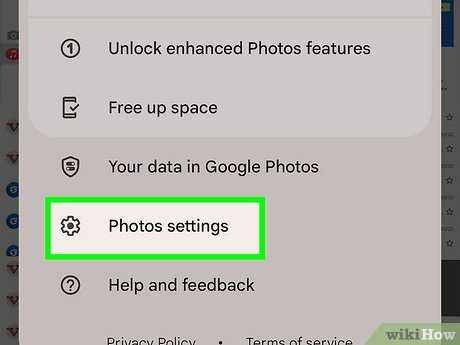
2. Access the Settings Menu
– Tap on your profile picture in the top right corner of the screen.
– Scroll down to “Photos settings” and tap on it.
This section contains all the options related to Google Photos, including backup and sync settings.
3. Turn Off Backup & Sync
– In the settings menu, look for “Backup & sync.”
– Tap on it, and you will see a toggle switch.
– Switch it off.
This action stops Google Photos from automatically syncing your photos. It will not delete any of your existing photos from your device.
4. Confirm Your Choice
A confirmation dialog may appear asking if you wish to stop the backup. Confirm your choice, and the syncing will cease. Remember, this only stops the upload process; your photos remain safe on your iPhone.
Keeping Photos on Your iPhone
After stopping the sync, you might wonder if your photos are still safe on your device. Here’s what to remember:
– **Photos are Safe**: Your photos remain on your iPhone, untouched and intact.
– **Access to Google Photos**: Even though syncing is off, you can still access your Google Photos library online.
Managing Local and Cloud Storage
Once you have unsynced Google Photos, managing your storage becomes essential.
1. Check Local Storage
To verify how much local storage you have:
– Go to “Settings” on your iPhone.
– Tap “General” and select “iPhone Storage.”
Here, you will see a breakdown of storage usage, including photos.
2. Optimize Storage
If your local storage is running low, consider these options:
– **Delete Unnecessary Photos**: Go through your camera roll and remove any photos you no longer need.
– **Use iCloud**: If you want backup without using Google Photos, consider iCloud storage.
Why It’s Important to Unsync
Unsyncing helps streamline your photo management. Here’s why it is significant:
– **Saves Battery Life**: Continuous syncing can drain your battery quickly.
– **Reduces Data Usage**: If you’re on a limited data plan, turning off syncing can help save your data.
Alternatives to Google Photos
If you are considering other options for photo storage, several alternatives can provide functionality without issues related to syncing.
1. iCloud Photos
iCloud is Apple’s cloud solution that syncs photos across all Apple devices.
– **Seamless Integration**: Works smoothly with iOS and macOS devices.
– **Storage Plans**: Offers various storage plans, including a free tier.
2. Dropbox
Dropbox is another excellent cloud storage option.
– **File Organization**: Good for files as well as photos.
– **Cross-Platform**: Accessible on most devices, not just Apple.
3. OneDrive
Microsoft’s OneDrive is another alternative for photo storage.
– **Integration with Office**: Works well if you’re already using Microsoft Office tools.
– **Generous Free Tier**: Offers substantial free storage.
Recovering Deleted Photos from Google Photos
If you accidentally deleted photos from Google Photos, you can recover them within a specific time frame. Here’s how:
1. Open Google Photos
Launch the Google Photos app and go to your albums.
2. Locate the Trash Bin
– Find the “Trash” or “Bin” folder.
– This section holds deleted items for 30 days before permanent deletion.
3. Restore Photos
– Select the photos you wish to recover.
– Tap “Restore.”
Your photos will return to the main library.
Unsyncing Google Photos from your iPhone without losing your images is simple. By following the outlined steps, you can keep your photos on your device while ceasing automatic uploads. Managing your photo storage is essential, and you have alternatives available if you prefer. Overall, protecting your memories while ensuring your device runs smoothly is achievable with the right tools and settings.
How To Delete Photos From Google Photos Without Deleting From Phone
Frequently Asked Questions
“`html
Can I keep my photos on my iPhone while disabling Google Photos backup?
Yes, you can keep all your photos on your iPhone by simply turning off the backup feature in the Google Photos app. Open the app, go to Settings, and then locate the ‘Back up & sync’ option. Toggle it off to stop Google Photos from backing up your device’s images while keeping them stored on your iPhone.
What happens to my photos if I turn off Google Photos sync?
If you turn off syncing, Google Photos will stop backing up any new images or videos from your iPhone. However, your existing photos will remain on your device. Syncing only affects the backup process; it does not delete any images from your iPhone.
Will disabling Google Photos affect my existing albums?
No, disabling sync will not affect your existing albums in Google Photos. You can still access and view your photos in those albums; however, no new photos will be added to your albums from your iPhone unless you manually upload them.
How can I delete photos from Google Photos without removing them from my iPhone?
To delete photos from Google Photos without affecting the images on your iPhone, open the Google Photos app, select the photos you want to remove, and choose the delete option. Make sure not to enable the ‘Remove from device’ option during the deletion process.
Is it possible to access Google Photos after I disable sync?
Yes, you can still access Google Photos even after you disable sync. All your previously backed-up images will remain accessible in the app. You can view, edit, or share them without any issue.
“`
Final Thoughts
To unsync Google Photos without deleting from iPhone, start by opening the Google Photos app. Navigate to the app settings and turn off the backup and sync option. This action will stop syncing photos while keeping your images intact on your device.
Next, ensure you remove the Google Photos app if you no longer want to use it. Your iPhone will retain the photos stored locally. By following these steps, you can effectively answer the question, “How to unsync Google Photos without deleting from iPhone?” while still preserving your cherished memories.
