

If your Google Photos are constantly duplicating, the main reason might be the syncing settings across multiple devices or backup processes running simultaneously. To fix this, you can check your backup settings, ensuring that only one device is uploading photos at a time, or you may want to turn off the automatic backup on one of your devices. Additionally, consider manually deleting duplicates to free up space. Understanding how Google Photos handles backups and synchronization can significantly reduce the occurrence of duplicates and help keep your photo library organized.
Google Photos is a fantastic tool for storing and organizing your pictures, but many users face the frustrating issue of duplicate images cluttering their libraries. This typically happens due to overlapping backup settings, where the same photos are uploaded from different devices or instances of the app. If you’ve ever uploaded a photo from your phone and later found it again after syncing with your tablet, you’ve experienced this firsthand. Fortunately, resolving this issue is often straightforward. By adjusting your settings and properly managing your backups, you can prevent Google Photos from creating those pesky duplicates and enjoy a cleaner, more organized photo collection.

Why Are My Google Photos Keep Duplicating?
Have you ever opened your Google Photos app and noticed that the same image appears multiple times? It can be frustrating, and you might be wondering why this happens. In this article, we will dive deep into the reasons your Google Photos keep duplicating and provide some helpful solutions to manage your photos effectively.
Understanding Photo Duplicates in Google Photos
Photo duplication in Google Photos can occur due to various reasons. Understanding these reasons helps in preventing future duplicates.
– **Automatic Uploads**: When you enable backup and sync, Google Photos uploads your images automatically. If the same image gets uploaded more than once, it creates duplicates.
– **Multiple Devices**: If you use Google Photos on various devices, uploading the same photo from each device can lead to duplicates.
– **Editing and Re-uploading**: When you edit a photo, the edited version might get uploaded as a new file, resulting in two copies of the same image.
By being aware of these issues, you can better manage your photo uploads and prevent duplication.
Common Causes of Duplicate Photos
Now let’s explore some of the most common causes behind photo duplication in Google Photos in more detail.
1. Syncing Issues
Syncing issues frequently lead to duplicate photos. If a photo fails to upload correctly, the app may attempt to upload it again.
– Ensure your internet connection is stable during uploads.
– Check if your device storage is low, as it can affect the syncing process.
2. Manual Uploading
Sometimes, users upload images manually from their devices. If you accidentally upload the same file, it will appear as a duplicate.
– Always check for existing images before uploading new ones.
– Label your images with specific titles to differentiate them.
3. Google Photos Settings
Certain settings in the Google Photos app can contribute to duplicates. If you have backup and sync turned on for multiple folders, images in those folders may upload again.
– Review your backup settings in the Google Photos app.
– Disable backup for folders that do not require syncing.
How to Fix Duplicate Photos
Experiencing photo duplication is annoying, but there are simple steps you can take to fix this issue.
1. Use Google Photos Cleanup Tool
Google Photos has a built-in cleanup tool that helps identify and remove duplicates.
– Open the Google Photos app.
– Navigate to the “Photos” tab.
– Look for suggestions to clean up duplicates, if available.
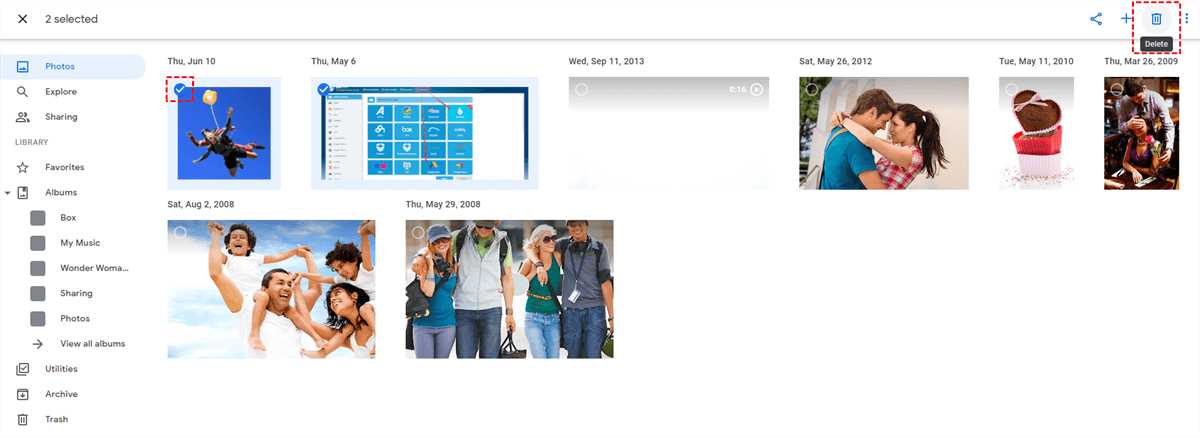
2. Manual Deletion
If the cleanup tool does not suffice, you can manually delete duplicates.
– Switch to grid view for easier navigation.
– Hold and select the duplicate photos to delete them.
3. Use Third-Party Apps
There are many third-party applications available that can help identify duplicate photos in your library.
– Apps like Duplicate Photos Fixer or Remo Duplicate Photos Remover can be effective.
– Ensure you read reviews to select a reliable app.
Preventing Future Duplicates
Taking a few preventive measures can help you avoid future issues with duplicates.
1. Regularly Review Your Photos
Make it a habit to review your Google Photos regularly.
– Set aside a few minutes each week to check for duplicates.
– Delete any unnecessary or duplicate photos promptly.
2. Adjust Sync Settings
By adjusting sync settings, you can prevent unintended uploads.
– Choose specific folders to sync that contain important photos only.
– Disable auto-sync for folders that contain repeated images.
3. Train Your Uploading Habits
Be conscious of how and when you upload photos.
– Avoid multiple uploads from different devices without checking for duplicates first.
– Consider using a single device for uploads to create a consistent process.
The Importance of Organizing Your Photos
Organizing your photos helps maintain a clean library. It minimizes confusion and helps prevent duplicates.
1. Create Albums
Using albums can help sort your photos meaningfully.
– Group photos by events, dates, or themes.
– This organization makes it easier to locate and identify duplicates.
2. Use Tags and Labels
Tags and labels allow for easy searching and sorting.
– Assign tags to significant photos, making retrieval faster.
– Label your images correctly to avoid confusion during uploads.
3. Regular Backups
Regularly backing up your data can also help manage duplicates.
– Schedule backups every week or month based on your photo-taking frequency.
– Having backups ensures that you can restore lost images without worrying about duplicates.
Duplicate photos in Google Photos can lead to clutter and frustration. By understanding the reasons behind duplication and implementing simple preventive measures, you can easily manage your photo library. From adjusting sync settings to using dedicated apps for cleanup, the tools and strategies outlined in this article will help you maintain a well-organized collection. Taking control of your photo management not only helps reduce duplication but also enhances your overall experience with Google Photos.
Why Do My Photos Keep Duplicating Android? – Be App Savvy
Frequently Asked Questions
What steps can I take to prevent duplicate photos in Google Photos?
To prevent duplicates, ensure you only upload photos from one device at a time. Regularly check your backups and delete any duplicates you find. You can also use the built-in ‘Free up space’ feature, which removes photos from your device that are already backed up to Google Photos.
Could syncing issues be causing my photos to duplicate?
Yes, syncing issues can lead to duplicates in Google Photos. If you have multiple devices syncing to the same Google account, an incomplete upload or interrupted sync might create copies of the same photo. Make sure all devices are connected to a stable internet connection during the sync process.
How do third-party apps impact my Google Photos library?
Third-party apps that access your Google Photos may inadvertently upload duplicate photos if not managed properly. Always review permissions for these apps and avoid using multiple apps to manage your photo library simultaneously to reduce the risk of duplication.
Is there a way to automatically remove duplicates in Google Photos?
Google Photos does not have a built-in feature for automatically removing duplicates, but you can manually check for and delete duplicates. Some third-party tools and apps can help identify and remove duplicates within your Google Photos library, so consider using those cautiously.
What happens when I upload the same photo from different devices?
If you upload the same photo from different devices, Google Photos may recognize it as a duplicate and only keep one copy. However, if the files differ slightly in terms of metadata or resolution, it might save them as separate items. Always check your uploads to track any inconsistencies.
Final Thoughts
Google Photos may keep duplicating due to several factors, including syncing issues, multiple uploads from various devices, or sharing settings. Users often upload the same images inadvertently, leading to duplicates.
To prevent this, ensure that your settings are configured correctly. Regularly check for duplicates and delete them, either manually or with tools designed for this purpose.
Understanding “Why are my Google Photos keep duplicating?” can help you manage your photo library better. By staying attentive to uploads and settings, you can maintain a tidy collection.
