

If you've ever asked, "How do I deactivate Instagram temporarily?" you probably already know the feeling. That urge to pull the plug, step back, and stop the endless scroll. It's a digital detox move that millions make every year, but the process isn't as straightforward as it should be.
You just want to vanish for a while without losing your photos or followers.
According to Meta's official Help Center documentation, the deactivation option is intentionally restricted to browser use only. So, before you start digging through app menus and getting frustrated, let's map out exactly what you need to do based on your specific account setup.
Contents
- 1 Is This What You're Looking For? (Or Are You About to Delete Your Account by Mistake?)
- 2 The Quick Decision Tree: Do You Even Need to Deactivate?
- 3 Why the "Temporarily Disable" Button Isn't in the App (and Where to Really Find It)
- 4 Branch 1: You Have a Personal Account
- 5 Branch 2: You Have a Business or Creator Account
- 6 Branch 3: You Just Changed Your Password (or Set Up Two-Factor Auth)
- 7 Common Traps That Block Deactivation
- 8 What Happens During Deactivation (And What Doesn't)
- 9 Should You Deactivate, Delete, or Just Log Out?
- 10 Still Stuck? The One Fix That Works Almost Every Time
- 11 Final Decision Guide: Follow This One Flowchart
- 12 Frequently Asked Questions
Is This What You're Looking For? (Or Are You About to Delete Your Account by Mistake?)
Let's make sure we're talking about the same thing. Instagram gives you two ways to disappear, and they are very different.
Temporary deactivation hides your profile, photos, and comments from other users. Everything stays in your account waiting for you. You just log back in to reactivate it.
Permanent deletion removes everything. You have a 30-day grace period, then your data is gone for good.
Here is a quick comparison to help you decide which one fits your situation.
| Feature | Temporary Deactivation | Permanent Deletion |
|---|---|---|
| Profile Visibility | Hidden instantly | Visible for 30 days, then gone |
| Data Preserved | Photos, followers, messages | Erased after 30 days |
| Reactivation | Log in with username and password | Impossible after 30 days |
| Best for | A break or digital detox | Leaving the platform forever |
If you just need a break from the noise, deactivation is the choice for you. Let's keep going.
The Quick Decision Tree: Do You Even Need to Deactivate?
Before we jump into the settings, check if deactivation actually fits your real goal.
If you are distracted by notifications all day, try just logging out of the app. You can even delete the app from your phone. Your profile stays live, but the temptation to check it goes away.
If you are worried about a specific person seeing your posts, blocking or restricting them is a cleaner fix. It keeps your account active while solving the privacy issue directly.
If you want a complete break for a few weeks or months, temporary deactivation is the right call. It removes the temptation completely without any lasting consequences.
Most people assume they need to deactivate when a simple app delete would work. Think about your real goal here. If you need to disappear completely, follow the steps below.
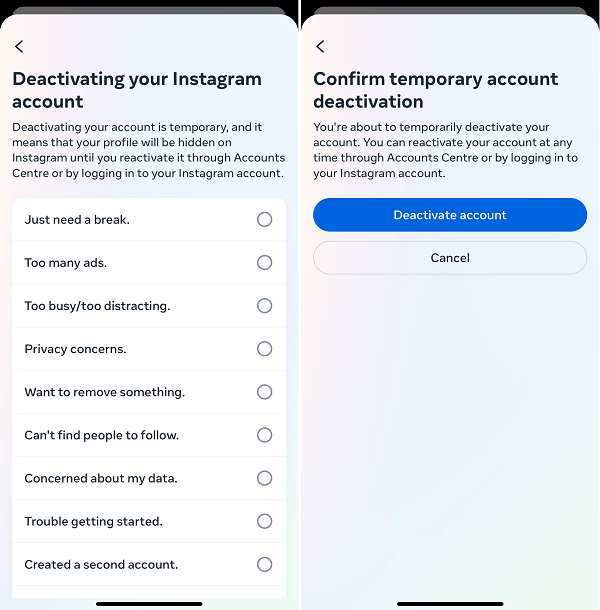
Image source: Bing (Web (fair-use with source credit))
Why the "Temporarily Disable" Button Isn't in the App (and Where to Really Find It)
This is the biggest frustration point. You open Instagram, go to Settings, and the option is just not there. You are not going crazy.
Instagram removed it from the mobile app on purpose.
Meta's internal research suggested that making deactivation harder to find reduces impulsive decisions. They want you to intentionally seek it out on a desktop or mobile browser.
So where do you actually find it?
You need a web browser. Your computer works, or even your phone's browser (Chrome or Safari). Just go to Instagram.com and log in.
The exact path is:
Your Profile > Settings (the gear icon) > Account > Temporarily disable account
It sits at the very bottom of the Account page. You will know you are in the right spot when it asks for a reason and your password.
Branch 1: You Have a Personal Account
If you are on a standard personal profile, you are on the easiest path. The option will be there as long as you are in a browser.
Step-by-Step Via Desktop or Mobile Browser
- Open a browser and go to Instagram.com. Log in.
- Click your profile picture in the top right, then click Settings.
- Click Account in the left-hand menu.
- Scroll down to the bottom. You will see "Temporarily disable account."
- Click it. Instagram will ask why you are leaving. Pick a reason from the dropdown.
- Re-enter your password to confirm your identity.
- Click the blue button that says "Temporarily Disable Account."
That is it. Your profile will vanish from search. Your followers will not see your posts.
Your comments will be hidden. You are off the grid.
What Instagram Asks You Before It Lets You Go
The reason dropdown is required, but do not overthink it. Standard options include "Too much time on Instagram," "Privacy concerns," or "Taking a break." Pick whatever fits. The password re-entry is a security step to prevent someone else from deactivating your account if they get hold of your phone.
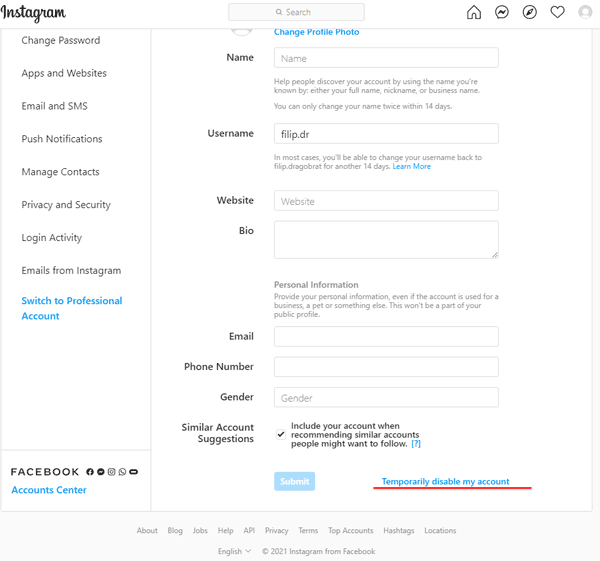
Image source: Bing (Web (fair-use with source credit))
Branch 2: You Have a Business or Creator Account
Here is where things get tricky. If you have a Business or Creator profile, the "Temporarily disable account" button will be invisible. The option simply does not exist for these account types.
Instagram sees business accounts as public entities tied to a brand. They do not want a business to disappear without warning. You have to switch back to a personal account first.
Why the Option Disappears (and How to Switch)
The switch takes about ten seconds. It does not affect your Facebook Business Page or your ad data. It just changes your Instagram account type.
Switching Back to Personal Without Losing Your Data
To switch, follow these steps:
- Go to your profile and tap the hamburger menu (three lines) in the top right.
- Tap Settings and privacy, then Account.
- Look for "Switch account type" or "Account type and tools."
- Tap "Switch to personal account."
Your followers, posts, and saved data all stay intact. You do not lose anything. Once the switch is complete, open your browser.
The "Temporarily disable account" option will appear at the bottom of the Account menu.
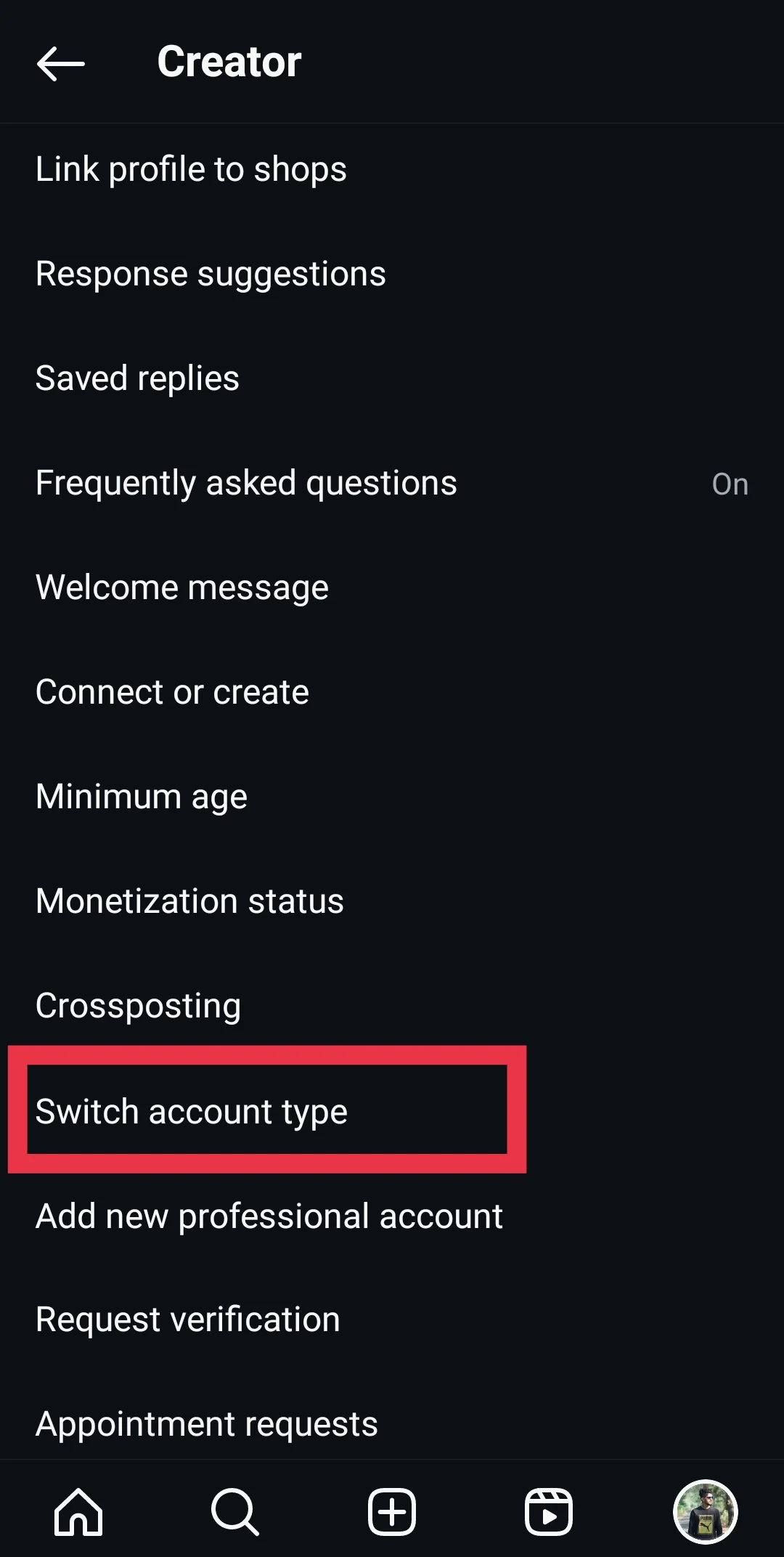
Image source: Bing (Web (fair-use with source credit))
Branch 3: You Just Changed Your Password (or Set Up Two-Factor Auth)
Here is another hidden roadblock. Instagram locks your account settings after a password change. That "Temporarily disable account" button stays hidden for 14 full days.
This applies to two-factor authentication changes too. If you recently added or removed 2FA, the same waiting period kicks in.
Instagram does this to prevent hijackers from locking you out. If someone steals your password and changes it, they cannot instantly deactivate your account and disappear.
So what do you do if you changed your password two days ago and want to deactivate now?
You wait. There is no workaround.
The countdown starts from the moment you hit save on your new password. On day 15, the option will reappear in your Account settings.
What to Do While You Wait
If you cannot wait the full two weeks, you have two alternatives.
First, log out of the app completely. Delete it from your phone. Your profile stays live, but you remove the temptation to check it.
This is not true deactivation, but it works for short-term breaks.
Second, archive your posts. This hides individual photos and videos from your profile. Followers will not see them unless they go searching.
It is not the same as disappearing, but it buys you privacy while the clock ticks down.
Common Traps That Block Deactivation
Even when you follow all the right steps, things can still go wrong. Here are the most common reasons deactivation fails.
You Are Still in the App (Use a Browser)
This is the most frequent mistake. You cannot find the option because you are looking in the wrong place. Instagram's native iOS and Android apps do not have the deactivation button.
Instagram's official Help Center confirms that deactivation is only available on the web version. You need Instagram.com in a browser. Your phone's mobile web browser counts.
The app does not.
Third-Party Apps Holding You Hostage
If you use a third-party scheduling tool like Later or Buffer, your account may be connected through their system. Some of these apps maintain an active session that interferes with Instagram's settings.
Try disconnecting the third-party app first. Go to Instagram Settings, find Apps and Websites, and remove the connection. Then try deactivation again.
Account Suspended or Under Review
If Instagram has flagged your account for suspicious activity, you cannot deactivate. The option will be grayed out or missing entirely.
You need to resolve the suspension first. Check your email for a message from Instagram or look in your notification tab. Follow their instructions to appeal or verify your identity.
Once the restriction lifts, the deactivation option comes back.
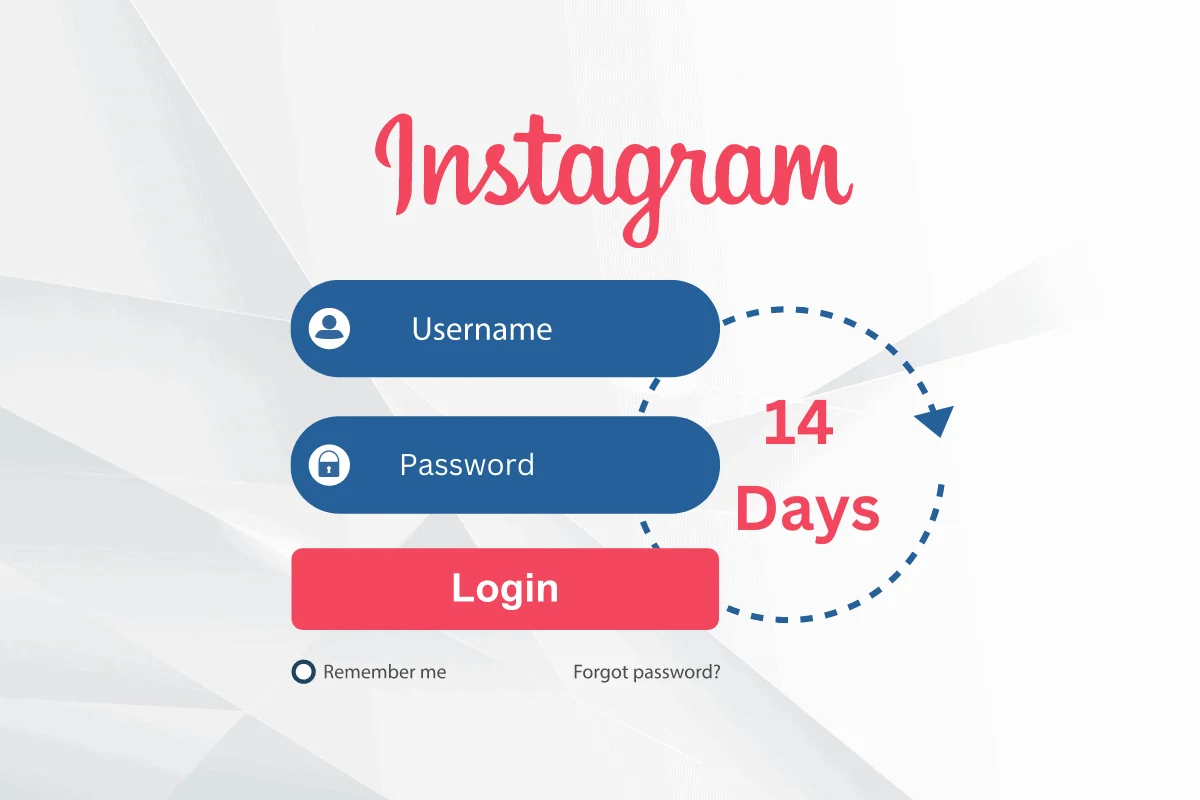
Image source: Bing (Web (fair-use with source credit))
What Happens During Deactivation (And What Doesn't)
Understanding the side effects helps you decide if this is the right move.
Your Posts, DMs, and Followers Stay Intact
Nothing gets deleted. Your photos, videos, stories, and saved drafts all remain in Instagram's servers. Your direct message history stays intact with the people you messaged.
Your follower count and following list wait for you.
When you reactivate, everything returns exactly as you left it.
Links to Your Profile Are Dead or Alive?
This is where it gets tricky. Your profile URL, like instagram.com/yourusername, becomes inaccessible during deactivation. Anyone who clicks it will see a generic error page.
Your past comments on other people's posts will still show your name, but your profile photo will be replaced with a gray silhouette.
Your messages still exist in other people's inboxes. They can see what you wrote, but your profile will show as "Instagram User" instead of your username.
Reactivation Is Just One Login Away
The moment you log back in with your username and password, your profile goes live again. No waiting period. No review process.
Instagram does not notify your followers when you come back. They will simply see your posts in their feed again as if you never left.
Should You Deactivate, Delete, or Just Log Out?
This section helps you pick the right action based on your real goal.
Deactivation vs. Deletion vs. Archiving: Which Fits Your Intent?
Here is a practical breakdown of each option.
| Your Goal | Best Action | Time Commitment |
|---|---|---|
| Take a break from scrolling | Log out or delete the app | Instant |
| Hide from specific people | Block or restrict them | Instant |
| Disappear for a few weeks | Temporary deactivation | One click |
| Quit Instagram forever | Permanent deletion | 30-day grace period |
| Clean up your profile | Archive old posts | Few minutes |
If you want a clean break without losing your data, temporary deactivation is the best option. If you know you are never coming back, permanent deletion is cleaner. If you just need to stop checking the app, logging out fixes the problem without the hassle.
Still Stuck? The One Fix That Works Almost Every Time
If you have followed every step and the button still will not appear, try this universal fix.
Log out of your Instagram account completely on all devices. Open a private or incognito browser window. Go to Instagram.com and log in fresh.
Navigate to Settings, Account, and look for the deactivation option.
The incognito window bypasses cached session data that can hide the button. It also prevents browser extensions from interfering with Instagram's interface.
If that still does not work, clear your browser cookies for Instagram. Then restart the browser and try again. This forces a fresh connection to Instagram's server, which typically resolves the issue.
If none of this works, your account may be under a restriction. Visit Instagram's Help Center and search for "account restricted" to check your status.
Final Decision Guide: Follow This One Flowchart
Here is a simple decision walkthrough that covers every fork in the road. Start at the top and follow the branch that matches your situation.
Step 1: Check Your Account Type
Are you on a Business or Creator account? If yes, switch to Personal first. Go to Settings, Account, Switch account type.
It takes ten seconds. The deactivation option will not appear until you do this.
If you are already on a Personal account, move to Step 2.
Step 2: Check Your Password Age
Did you change your password in the last 14 days? If yes, you must wait until day 15. Instagram blocks deactivation during this window.
Use the waiting time to log out of the app or archive old posts.
If your password is older than 14 days, you are clear. Move to Step 3.
Step 3: Use a Browser
Open a desktop browser or your phone's mobile web browser. Go to Instagram.com. Log in.
The deactivation button only works here, not in the app. Do not skip this step.
Step 4: Choose a Reason
Instagram will ask why you want to leave. Pick any option from the dropdown. The reason does not affect your account.
It is just for their internal data.
Step 5: Enter Your Password and Confirm
Type your password to prove you are the account owner. Click "Temporarily Disable Account." Done.
Decision Summary Table
| Condition | Action | Time |
|---|---|---|
| Business or Creator account | Switch to Personal | 10 seconds |
| Password changed within 14 days | Wait or log out instead | Up to 14 days |
| Using the Instagram app | Switch to browser | 1 minute |
| Normal conditions | Follow Steps 3-5 | 2 minutes |
Frequently Asked Questions
Can I deactivate Instagram from the app?
No. Instagram removed the option from its native iOS and Android apps. You must use a web browser on a computer or a mobile browser like Chrome or Safari.
The setting only appears on Instagram.com.
How many times can I deactivate my account?
Instagram allows one deactivation per week. If you reactivate and try to deactivate again within seven days, the option will not appear. Wait a full week before attempting another break.
Does deactivating Instagram delete my direct messages?
No. Your direct messages remain in the recipients' inboxes. They will see your name as "Instagram User" with a gray silhouette.
The conversation history stays intact for both sides.
What happens to my Instagram Reels and Stories during deactivation?
Reels and Stories you posted before deactivation become hidden from all users. They are not deleted. When you reactivate, Reels return to your profile, and expired Stories remain in your archive.
Can I still use Facebook while my Instagram is deactivated?
Yes. Instagram and Facebook are separate platforms. Deactivating Instagram does not affect your Facebook account, Facebook Messenger, or any connected Facebook Business Pages.
They continue as normal.
