
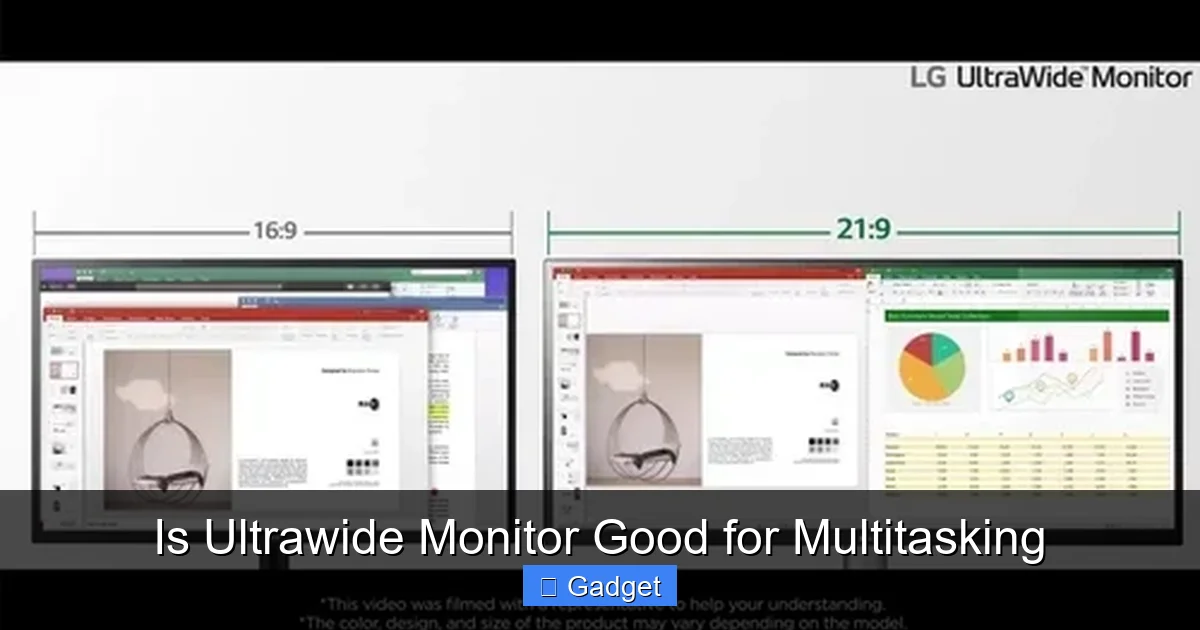
Yes, ultrawide monitors can be excellent for multitasking, offering a vast canvas for productivity. This guide delves into the advantages, such as reduced window switching and improved workflow, alongside potential drawbacks. Learn how to optimize your ultrawide setup for maximum efficiency and discover if this display format is the right fit for your multitasking needs.
Is Ultrawide Monitor Good for Multitasking
In today’s fast-paced digital world, productivity is paramount. We’re constantly juggling emails, research, creative projects, and communication tools. The right monitor can make a world of difference in how efficiently we manage these tasks. One display format that has gained significant traction for its potential in boosting productivity is the ultrawide monitor. But are they truly as good for multitasking as they claim to be? This guide will demystify ultrawide monitors and help you understand if this expansive display is the perfect tool to supercharge your multitasking capabilities.
Contents
Key Takeaways
- Expansive Workspace: Ultrawide monitors provide a significantly wider screen real estate, allowing multiple applications to be displayed side-by-side without overlap.
- Reduced Window Switching: The stretched view minimizes the need to constantly switch between applications, leading to a more fluid and efficient workflow.
- Enhanced Immersion: While primarily for productivity, the expansive view can also offer a more immersive experience for certain creative tasks or media consumption.
- Potential for Distraction: The sheer width can sometimes lead to eye strain or distraction if not managed correctly, requiring good desk ergonomics and software organization.
- Software Compatibility: Most modern operating systems and applications support ultrawide resolutions, but older or specific software might require adjustments.
- Customization is Key: Effective multitasking on an ultrawide monitor relies heavily on utilizing window management tools and personalizing your layout.
Understanding Ultrawide Monitors
Before we dive into the nitty-gritty of multitasking, let’s define what an ultrawide monitor is. Unlike traditional widescreen monitors (like 16:9 aspect ratios), ultrawide monitors boast a wider aspect ratio, typically 21:9 or even 32:9. This means they are significantly longer horizontally, offering more screen real estate to spread your digital workspace. Think of it as having multiple monitors seamlessly fused into one, without the distracting bezel in the middle. This expansive view is what makes them so appealing for users who need to see more at once.
The Case for Ultrawide for Multitasking
So, why are ultrawide monitors often lauded for multitasking? The primary reason lies in their inherent design: more space. This extra horizontal real estate translates directly into several key benefits for those who manage multiple applications simultaneously.
Benefit 1: Seeing More at Once
The most obvious advantage of an ultrawide monitor for multitasking is its ability to display more content simultaneously. Instead of having two or three windows crammed into a standard 16:9 screen, you can comfortably fit two, three, or even more windows side-by-side on an ultrawide display. This means you can have your email open on one side, a research document in the middle, and a communication app on the other, all visible at a glance. This significantly reduces the need for constant window switching, which can be a major productivity drain.
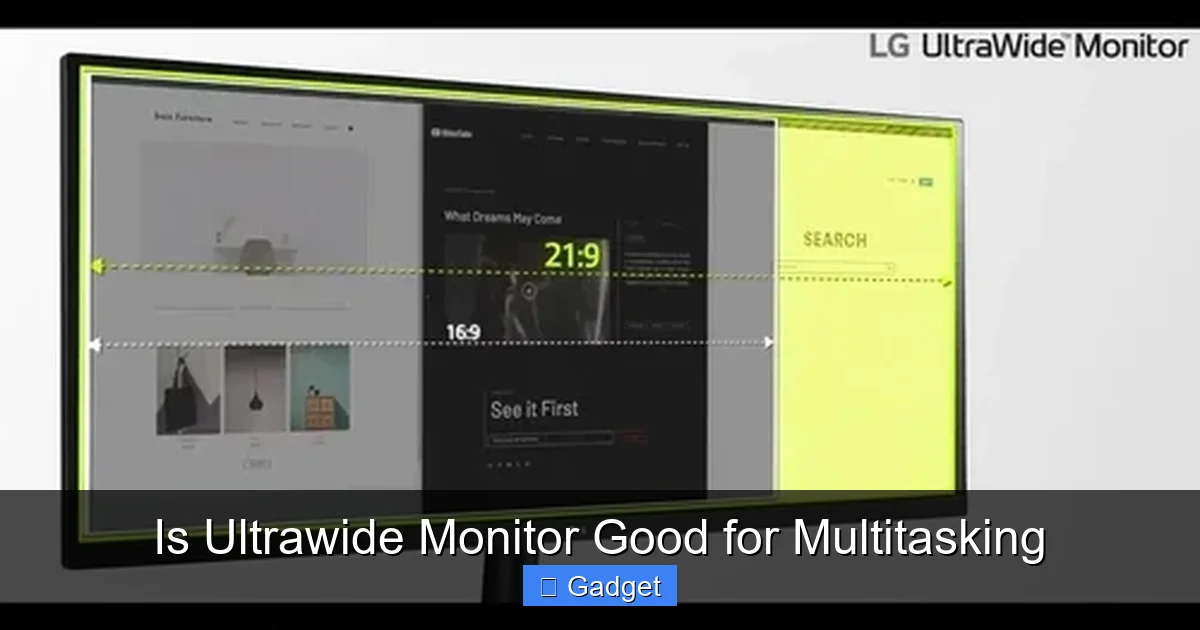
Visual guide about Is Ultrawide Monitor Good for Multitasking
Image source: 5.imimg.com
Benefit 2: Reduced Window Switching
Imagine this: you’re writing a report, and you need to reference a PDF document. On a standard monitor, you’d likely alt-tab to switch from your word processor to the PDF, then alt-tab back. This constant switching breaks your focus and interrupts your workflow. With an ultrawide monitor, you can position your word processor on one half of the screen and the PDF on the other. Both are fully visible, and you can easily glance between them, type a few sentences, and then immediately consult the reference without any disruptive alt-tabbing. This fluid interaction can lead to a noticeable increase in speed and efficiency.
Benefit 3: Improved Workflow Organization
Ultrawide monitors encourage a more organized approach to your digital workspace. Instead of haphazardly opening windows, you’re naturally inclined to arrange them in logical positions. For example, developers might keep their code editor on one side, a browser for testing in the middle, and a terminal window on the other. Designers can have their creative software open alongside reference images or client feedback. This structured layout makes it easier to manage complex projects and find the information you need, when you need it. It creates a more intuitive and less cluttered digital environment.
Benefit 4: Enhanced Productivity for Specific Tasks
Certain professions and tasks particularly benefit from the ultrawide format.
- Programming: Developers can view more lines of code, see multiple files simultaneously, and keep their compiler or terminal readily accessible.
- Video Editing: The extended timeline of video editing software fits perfectly on an ultrawide screen, allowing for more detailed editing and easier navigation.
- Financial Analysis: Spreadsheets and stock charts can be spread out, offering a broader view of market trends and data.
- Content Creation: Graphic designers and illustrators can have their primary software open alongside reference materials or palettes.
- Gaming: While not directly multitasking, the immersive aspect of ultrawide monitors in gaming can be a welcome break and is a significant draw for many users.
Potential Drawbacks and Considerations
While the benefits are compelling, ultrawide monitors aren’t without their potential downsides when it comes to multitasking. It’s important to be aware of these to make an informed decision.
Drawback 1: Eye Strain and Ergonomics
The sheer width of an ultrawide monitor can be a double-edged sword. If you have to turn your head excessively to see content on the far ends of the screen, it can lead to neck strain and eye fatigue. Proper desk setup is crucial. You’ll want to position the monitor at an optimal distance and height, ensuring that your primary field of vision covers the most important areas of the screen. Some users find that keeping the most frequently used applications in the center portion of the screen helps mitigate this issue.
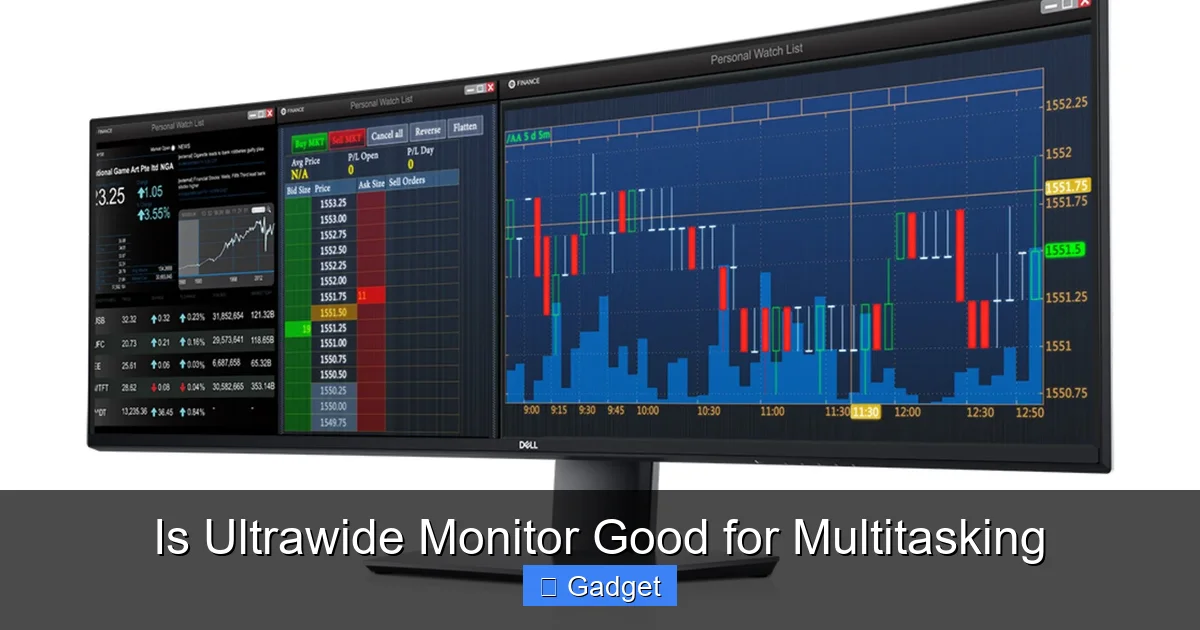
Visual guide about Is Ultrawide Monitor Good for Multitasking
Image source: windowscentral.com
Drawback 2: Window Management Software
While operating systems have built-in window snapping features, they might not always be sufficient for maximizing an ultrawide display. You might need to invest in third-party window management software to create custom layouts and easily snap applications into specific zones. This adds an extra layer of complexity, although many free and paid options are available that can greatly enhance your workflow. Without effective window management, an ultrawide can feel more cluttered than productive.
Drawback 3: Cost and Desk Space
Ultrawide monitors are generally more expensive than their standard counterparts. The larger screen size and often higher resolutions come with a premium price tag. Additionally, they require a significant amount of desk space. Make sure you have ample room before investing, as a cramped desk can negate the organizational benefits of a wider display.
Drawback 4: Software Compatibility (Less Common Now)
In the early days of ultrawide monitors, some older applications or games might not have scaled correctly, leading to stretched or distorted images. However, this is far less of an issue today. Most modern operating systems and applications are designed to handle various aspect ratios, including ultrawide. If you encounter an issue, it’s usually a simple setting adjustment within the application itself.
How to Optimize Your Ultrawide Multitasking Setup
To truly harness the power of an ultrawide monitor for multitasking, you need to set it up correctly. Here’s how to make the most of your expansive digital canvas.
Step 1: Choose the Right Ultrawide Monitor
Consider your primary use case. Do you need a high refresh rate for gaming and fast-paced work? What about color accuracy for design work? Resolution is also important; a 1440p (3440×1440) ultrawide offers a great balance of sharpness and performance, while 4K ultrawides (5120×2160) provide even more detail. The curvature of some ultrawide monitors can also enhance immersion and reduce perceived distortion at the edges.
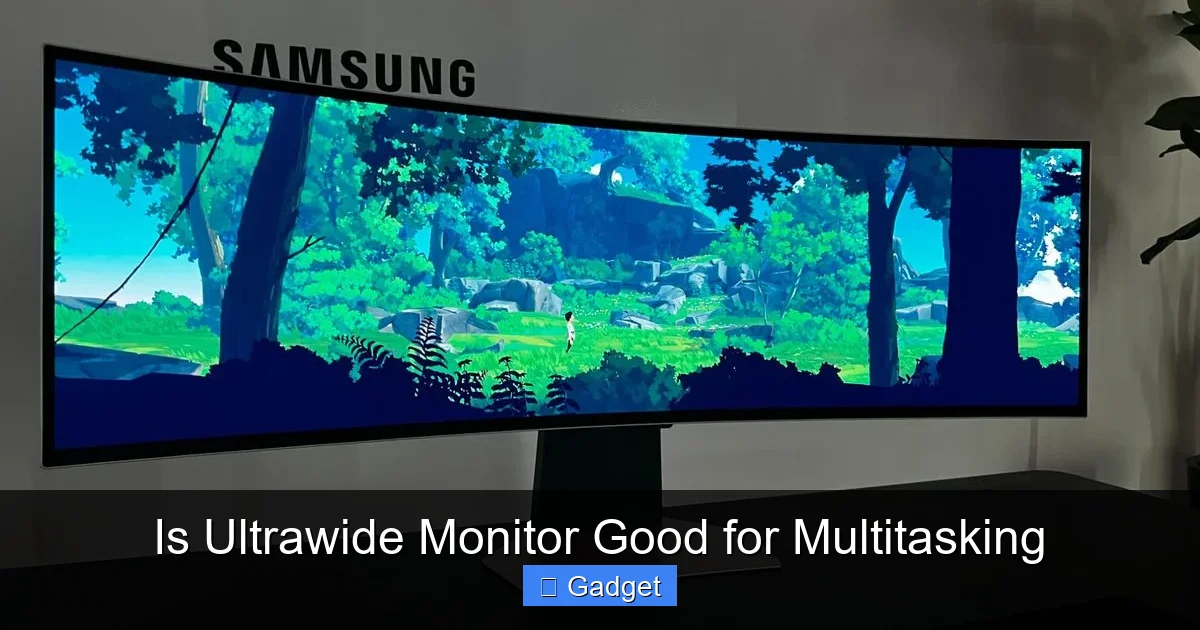
Visual guide about Is Ultrawide Monitor Good for Multitasking
Image source: cdn.mos.cms.futurecdn.net
Step 2: Master Your Operating System’s Window Management
Both Windows and macOS have built-in tools to help.
- Windows: Use the Snap Assist feature by dragging a window to the left or right edge of the screen. You can then choose another window to fill the other half. You can also use keyboard shortcuts like Windows Key + Left Arrow or Windows Key + Right Arrow. For more advanced snapping, explore creating custom layouts in Windows 11’s Snap Layouts.
- macOS: Use Split View by clicking and holding the green full-screen button on a window. You can then select another window to place it side-by-side. Mission Control also offers a good overview of open windows.
Step 3: Explore Third-Party Window Management Tools
For truly granular control over your ultrawide workspace, consider specialized software.
- PowerToys (Windows): This free suite from Microsoft includes “FancyZones,” which allows you to create custom layouts and snap windows into predefined zones. It’s incredibly powerful for ultrawide users.
- Magnet (macOS): A popular paid app that offers intuitive keyboard shortcuts and drag-and-drop functionality to snap windows into various configurations.
- Rectangle (macOS): A free and open-source alternative to Magnet, offering similar window snapping capabilities.
- DisplayFusion: A more robust, paid solution for Windows that offers advanced multi-monitor and window management features, including per-monitor taskbars and custom functions.
Experiment with these tools to find a system that suits your workflow. Creating a few go-to layouts for different tasks can significantly speed up your process.
Step 4: Optimize Ergonomics
- Distance: Position the monitor about an arm’s length away.
- Height: The top of your screen should be at or slightly below eye level.
- Angle: Ensure the screen is angled slightly upwards.
- Lighting: Position your monitor to avoid glare from windows or overhead lights.
- Desk Setup: Invest in a sturdy desk and consider a monitor arm for flexibility and to free up desk space.
Regular breaks are also essential to prevent eye strain and fatigue.
Step 5: Personalize Your Layouts
Don’t be afraid to experiment. What works for one person might not work for another. For example, if you spend a lot of time researching, you might dedicate a large portion of your screen to your web browser and a smaller section to a note-taking app. If you’re a content creator, you might have your editing software prominently displayed with support windows neatly tucked away. The beauty of an ultrawide is its adaptability.
Troubleshooting Common Issues
While ultrawide monitors are generally well-supported, you might encounter a few hiccups.
Issue: Text or Images Appear Stretched
Solution: This usually means the display resolution or aspect ratio settings in your operating system or the application’s graphics settings are incorrect. Ensure your monitor is set to its native ultrawide resolution (e.g., 3440×1440) in your display settings. For games, check the in-game graphics options to set the correct resolution and aspect ratio.
Issue: Windows Don’t Snap Correctly
Solution: If your OS snapping isn’t working as expected, it might be time to try a third-party window management tool like FancyZones or Magnet. Ensure you’ve configured these tools correctly and that they are running in the background.
Issue: Significant Eye Strain
Solution: Re-evaluate your ergonomics. Are you sitting too close or too far away? Is the monitor at the right height? Try reducing the screen brightness and contrast. Utilize dark mode in your applications and operating system if possible. Remember to take regular breaks and practice the 20-20-20 rule (every 20 minutes, look at something 20 feet away for 20 seconds).
Conclusion: Is an Ultrawide Monitor Good for Multitasking?
The answer is a resounding **yes, for many users**. Ultrawide monitors are exceptionally well-suited for multitasking, offering a unique and powerful way to manage your digital workspace. By providing an expansive canvas, they allow you to see more, switch less, and organize your tasks more effectively.
However, the key to unlocking their full potential lies in proper setup and thoughtful workflow management. Without good ergonomics and effective window management tools, an ultrawide could feel overwhelming. But with the right approach, it can transform your productivity, making complex tasks feel more manageable and your daily workflow smoother.
If you find yourself constantly juggling multiple applications, wishing for more screen real estate, and are willing to invest a little time in optimizing your setup, an ultrawide monitor is definitely worth considering. It’s not just a bigger screen; it’s a fundamentally different and often superior way to work and play.
