

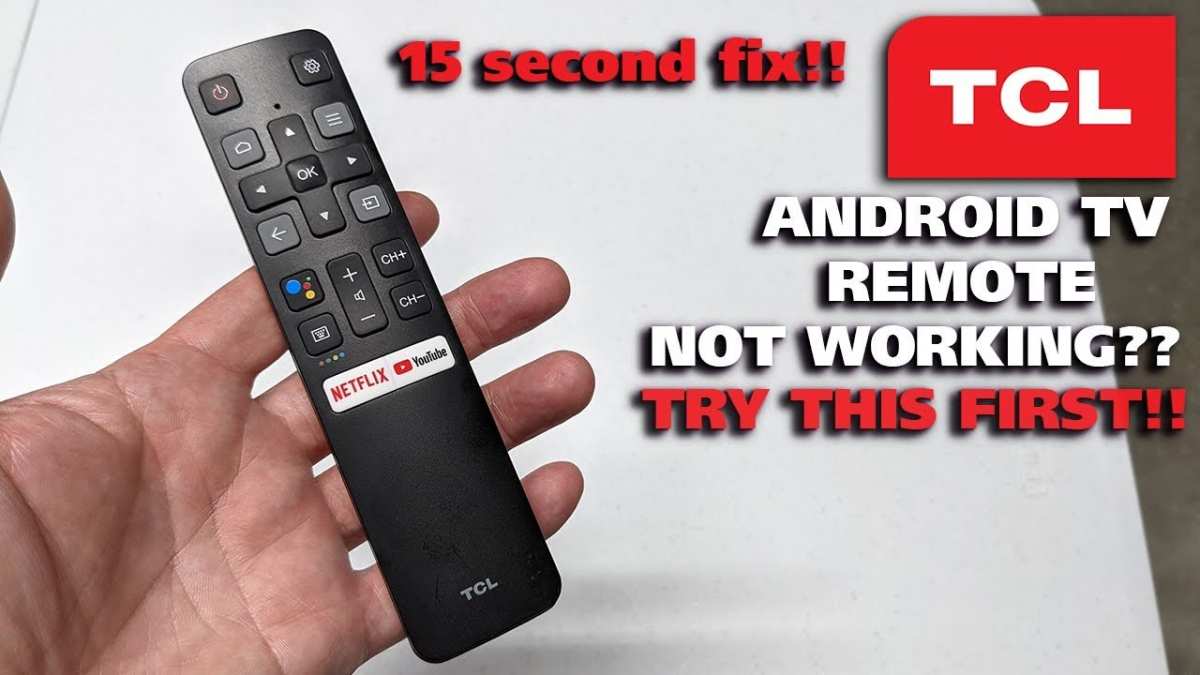
If your Android TV remote stops working, the simple fix is to replace the batteries or reset the device. **To repair your Android TV remote, start by checking the battery connections and cleaning the contacts.** Sometimes, a quick restart of the TV can resolve minor glitches. If these steps don’t work, reprogramming the remote or replacing it might be necessary. Learning how to repair Android TV remote saves you time and avoids costly replacements.

How to Repair Android TV Remote
When your Android TV remote stops working, it can be frustrating. Sometimes, the problem is simple and fixable at home, but other times, it might require more troubleshooting. In this guide, we’ll go through each step to help you understand how to repair your Android TV remote effectively. No matter what issue you’re facing—buttons not responding, the remote not turning on, or connectivity problems—this comprehensive approach aims to get your remote working like new.
Understanding Common Issues with Android TV Remote
Before diving into specific fixes, it’s important to know the typical problems that can happen with your remote. Recognizing these issues helps in choosing the right troubleshooting steps.
- Unresponsive Buttons: Some or all buttons on the remote do not work.
- Remote Not Turning On: The remote doesn’t respond even when pressed.
- Persistent Connectivity Problems: The remote disconnects frequently or doesn’t connect at all.
- Intermittent Signal Loss: The remote works sometimes and then stops.
- Physical Damage: Visible damage like broken buttons or cracked casing.
- Battery Issues: Drained batteries or poor contact causing power failure.
Knowing which issue you’re facing helps streamline the repair process, saving you time and effort.
Initial Checks Before Repairing Your Android TV Remote
Sometimes, the solution is as simple as doing a quick check-up. Before opening or replacing parts, perform these initial tests:
Check the Batteries
- Replace old batteries with fresh ones. Used or drained batteries often cause remote failure.
- Ensure batteries are placed correctly, matching the positive (+) and negative (–) terminals.
Test the Infrared Sensor (if applicable)
- Use a smartphone camera to check if the remote emits an infrared signal. Point the remote at your phone camera and press a button. If the light appears on your camera screen, the infrared is working.
- If no light shows, the remote’s IR transmitter might be faulty.
Verify TV Response
- Try turning on your TV with the remote or the physical button on the TV itself.
- If the TV responds, the issue is likely within the remote; if not, the problem might be with the TV or the connection between remote and TV.
Cleaning Your Android TV Remote
Sometimes, dirt, grime, or sticky residue can block the buttons or interfere with the sensors, causing malfunction.
Gather Cleaning Supplies
- Soft cloth or microfiber cloth
- Isopropyl alcohol (preferably 70%)
- Cotton swabs or soft toothbrush
Cleaning Procedure
- Turn off the remote and remove batteries.
- Damp the cloth with a small amount of isopropyl alcohol and gently wipe the remote’s surface.
- Use cotton swabs or a soft toothbrush dipped in alcohol to clean around the buttons and in crevices.
- Let the remote dry completely before reinserting batteries and testing it.
Physical cleaning can often resolve issues caused by dirt or sticky substances.
Resetting Your Android TV Remote
Resetting the remote can fix certain glitches or temporary software issues.
How to Reset a Remote
- Remove batteries from the remote.
- Press and hold any button for about 10 seconds to discharge any residual power.
- Reinsert the batteries, ensuring they are properly placed.
- Test the remote again to see if it responds.
Some remote models may have a dedicated reset button. Check your remote’s manual for specific instructions.
Updating or Re-Pairing Your Android TV Remote
If your remote connects via Bluetooth or Wi-Fi, re-establishing the connection can resolve persistent issues.
Re-Pair Via Bluetooth
- Access your TV’s Settings menu using the physical buttons or another working remote.
- Navigate to Bluetooth settings and turn Bluetooth on.
- Select “Pair new device” or similar option.
- Put your remote into pairing mode (usually by holding down specific buttons—check your remote’s manual).
- Wait for the remote to appear in the list and select it to pair.
Reconnection via Wi-Fi
- Ensure your remote is connected to the same Wi-Fi network as your TV.
- Go to your TV’s network settings and remove the remote device from paired devices list.
- Perform the pairing process again by following the remote’s instructions.
Re-pairing refreshes the connection, often fixing signal issues.
Replacing the Batteries or Power Components
If initial checks and cleaning don’t work, consider replacing internal components.
Removing the Remote’s Casing
- Use a small screwdriver or prying tool to carefully open the remote’s casing.
- Be cautious not to break any clips or damage internal parts.
Inspecting Internal Components
- Check the battery contacts for corrosion or dirt. Clean with a dry cloth or a mixture of vinegar and water if needed.
- Test the circuit board for visible damage or broken solder joints.
Replacing Damaged Parts
- If you find a damaged battery contact or a broken switch, replace or solder the component if you have the skills.
- Use compatible replacement parts—consult your remote’s model number for specific parts.
After replacing or repairing internal components, reassemble the remote and test its functionality.
Fixing Physical Damage
If your remote has cracked or broken buttons, or the casing is damaged, repair or replace the affected parts.
Button Repair or Replacement
- For sticky or unresponsive buttons, clean the button contacts with alcohol and a soft brush.
- If buttons are damaged, consider buying replacement buttons or a new remote.
Casing Restoration
- Cracks can sometimes be glued with plastic adhesive or epoxy.
- For extensive damage, replacing the casing may be the best option.
Proper physical repair ensures the remote remains durable and functional over time.
When to Replace Your Android TV Remote
Despite many repair options, some issues are best solved by replacement.
- If the remote’s internal circuit board is severely damaged or corroded.
- Persistent connection issues that cannot be fixed with re-pairing or updates.
- Broken or missing buttons that can’t be replaced cost-effectively.
- Physical damage that compromises the remote’s integrity or safety.
Purchasing a new remote compatible with your Android TV can often be more convenient and cost-effective in the long run.
Maintaining Your Android TV Remote for Longevity
Regular maintenance prevents many common problems.
- Keep the remote clean and free of dust.
- Replace batteries promptly before they leak or lose power.
- Avoid exposing the remote to extreme temperatures or moisture.
- Store the remote in a safe place where it won’t fall or get damaged.
- Perform periodic cleaning and check for physical issues.
Following these tips extends your remote’s lifespan and keeps it functioning smoothly.
—
With patience and the right approach, repairing an Android TV remote becomes an achievable task. Remember, many issues are simple fixes like changing batteries, cleaning contacts, or re-pairing devices. For more complex problems, inspecting internal components or replacing damaged parts can restore your remote quickly. Always exercise caution when opening devices, and don’t hesitate to seek professional help if needed. A well-maintained remote ensures uninterrupted enjoyment of your favorite Android TV content.
Frequently Asked Questions
How can I troubleshoot my Android TV remote that is not responding?
If your Android TV remote isn’t responding, start by checking the batteries and replacing them if necessary. Ensure there are no obstructions between the remote and the TV sensor. If the remote still doesn’t work, try resetting it by removing the batteries, pressing any button for 10 seconds, then reinserting the batteries. Pair the remote with your TV again if needed, following the pairing instructions specific to your device. If issues persist, consult the user manual or contact customer support for further assistance.
What steps should I follow to replace the batteries in my Android TV remote?
To replace the batteries, locate the battery compartment usually on the back of the remote. Slide open the cover using your fingers or a small tool if necessary. Remove the old batteries, noting their orientation. Insert new batteries, ensuring the positive and negative ends match the markings inside the compartment. Close the cover firmly and test the remote to confirm it works properly. Always use fresh, compatible batteries for optimal performance.
How do I reprogram or re-pair my Android TV remote with the device?
Re-pair your remote by first turning on your TV. Access the pairing menu through the TV settings, usually under Bluetooth or remotes. Follow the on-screen instructions to put your remote into pairing mode, which may involve holding specific buttons simultaneously. Once the remote appears on the list, select it to complete the pairing process. If pairing fails, restart the TV and remote, then try again. Consult your TV’s manual for model-specific instructions if needed.
What are some common hardware issues that might cause my remote to stop working?
Hardware problems such as a damaged IR transmitter, broken buttons, or a faulty circuit board can prevent your remote from functioning properly. Physical damage from drops or spills might also impair internal components. If the remote shows no signs of response after replacing batteries and resetting, consider inspecting it for visible damage or test the IR emitter with a phone camera. If hardware issues are evident, replacing the remote may be the best option.
Can I repair or fix a broken remote sensor on my Android TV remote myself?
Repairing a broken remote sensor involves delicate work and requires technical skills. If you suspect the IR LED or internal circuit is faulty, opening the remote can void your warranty. For minor issues, replacing the batteries or resetting the remote solves most problems. For internal repairs, it’s safer to seek professional assistance or replace the remote entirely. Attempting to fix internal components without proper knowledge can cause further damage.
Final Thoughts
To repair Android TV remote effectively, start by replacing or recharging the batteries. Inspect the remote for any visible damage or stuck buttons. Clean the remote’s contacts and buttons with a soft cloth and contact cleaner.
If the remote still doesn’t work, reset your TV or re-pair the remote via Bluetooth or infrared settings. Updating your TV’s firmware can also resolve connectivity issues.
In conclusion, understanding how to repair Android TV remote involves simple troubleshooting steps like replacing batteries and cleaning contacts. These actions often fix common problems without needing professional help.
