

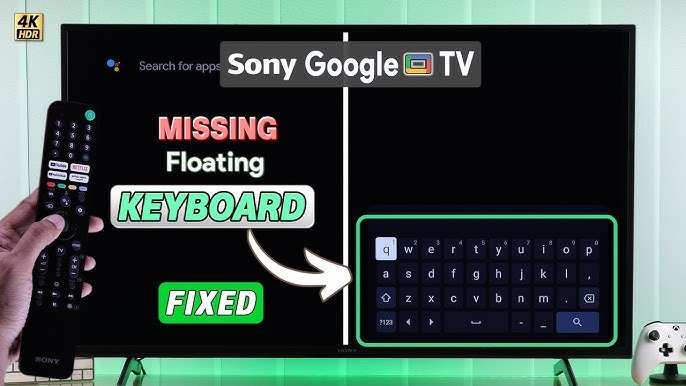
**The solution is to restart your Android TV and update the software.** When Android TV doesn’t show keyboard, it can be frustrating, especially when trying to navigate or enter text. Often, a simple restart or software update can resolve this issue quickly.
In many cases, the problem stems from temporary glitches or outdated apps. Checking for updates and clearing cache can also make a difference. This quick fix helps ensure smooth functioning without complex troubleshooting.

Android TV Doesn’t Show Keyboard: A Complete Guide to Fixing the Issue
When you try to type something on your Android TV, like searching for a movie or entering your Wi-Fi password, you expect the keyboard to pop up seamlessly. But sometimes, the keyboard doesn’t appear at all, leaving you stuck and frustrated. If your Android TV isn’t showing a keyboard, don’t worry — it’s a common problem, and there are simple ways to fix it. In this guide, we’ll explore why this happens and offer step-by-step solutions so you can get back to enjoying your TV without interruptions.
Understanding Why Your Android TV Doesn’t Show the Keyboard
Before jumping into solutions, it helps to understand why this issue occurs. Several factors can cause your Android TV to not display the keyboard properly. Let’s look at the most common reasons:
- Software Glitches: Sometimes, the system experiences temporary bugs that prevent the keyboard from showing.
- Outdated Software: Running an old version of Android TV can lead to compatibility issues where the keyboard doesn’t appear correctly.
- App Conflicts: Certain apps might interfere with the keyboard function, especially if they aren’t optimized for Android TV.
- Input Method Settings: The default or current input method might be misconfigured or disabled.
- Connectivity or Hardware Issues: Problems with the remote control, keyboard, or Bluetooth connection can cause input issues.
- System Storage and RAM Limitations: When your TV is low on memory, it might not load the keyboard properly.
Knowing these causes helps you target the right solution. Next, let’s look at how to troubleshoot and fix this problem step-by-step.
Basic Checks Before Troubleshooting
Sometimes, the problem is minor and can be fixed quickly with basic checks:
- Restart Your Android TV: A simple restart can resolve temporary glitches. Turn off your TV, unplug it for a minute, then plug it back in and turn it on.
- Check Remote Control Batteries: Weak batteries can cause input issues. Replace the batteries and see if the keyboard appears when you try to type.
- Ensure Proper Connectivity: If you use a wireless keyboard or remote, verify that it’s properly connected via Bluetooth or Wi-Fi.
- Switch Input Methods: If you’re using a third-party keyboard app, try switching back to the default input method.
If these simple steps don’t work, move forward with more detailed troubleshooting.
Updating Your Android TV Software
Keeping your TV’s software up-to-date is crucial. Outdated software might have bugs that interfere with the keyboard display. Here’s how to update:
Steps to Update Android TV
- Go to the Settings menu on your Android TV.
- Select Device Preferences or About.
- Choose System Update.
- Follow the prompts to check for updates. If an update is available, install it.
- Wait for the update to complete, then restart your TV.
After updating, try typing again to see if the keyboard appears. If the problem persists, continue with the next troubleshooting step.
Resetting the Input Method or Keyboard Settings
Sometimes, misconfigured input settings cause the keyboard not to display. Resetting these settings can help:
How to Reset Input Method Settings
- Navigate to Settings on your Android TV.
- Go to Device Preferences > Language & Input.
- If available, select Default Keyboard or Current Keyboard.
- Choose the default keyboard (usually Google Keyboard or Gboard).
- If you’ve installed custom keyboards, try disabling or removing them.
After resetting or reverting to default, restart your TV and check if the keyboard shows up when needed.
Clearing Cache and Data of Keyboard Apps
Corrupt cache or data in keyboard apps can cause display issues. Clearing them can resolve the problem:
Steps to Clear Cache and Data
- Open Settings on your Android TV.
- Navigate to Apps or Applications.
- Find your keyboard app (e.g., Gboard or any third-party keyboard).
- Select Storage & Cache.
- Click Clear Cache and then Clear Data.
- Restart your TV and try to bring up the keyboard again.
This process resets the keyboard app, often fixing bugs that prevent the keyboard from appearing.
Reinstalling or Changing Keyboard Apps
If clearing cache doesn’t fix the issue, reinstalling the keyboard app is a good next step:
How to Reinstall Keyboard Apps
- Go to the Google Play Store on your Android TV.
- Search for your current keyboard app (like Gboard).
- Select Uninstall or Disable if available.
- Reinstall the app from the Play Store.
- Set the new keyboard as default in the Input Method Settings.
- Test it by trying to type something on your TV.
Changing to a different keyboard app (like SwiftKey or another) can help identify if the issue relates to a specific app.
Checking Bluetooth and External Device Settings
If you’re using an external keyboard or Bluetooth device, connection issues can prevent the keyboard from showing:
Steps to Troubleshoot External Devices
- Ensure the device is fully charged or has fresh batteries.
- Verify the device is properly paired via Bluetooth settings.
- Remove and re-pair the device if necessary.
- Try connecting a different keyboard to see if it works.
- Test the current keyboard on another device to rule out hardware problems.
Make sure the device functions correctly with other devices before concluding it’s compatible with your Android TV.
Restoring Factory Settings (Last Resort)
If nothing else works, restoring your Android TV to factory settings might solve underlying issues. Keep in mind this resets all settings and deletes apps and data, so back up important things first.
How to Factory Reset Android TV
- Go to Settings.
- Select Device Preferences.
- Choose Reset or Factory Reset.
- Follow the prompts to confirm and complete the reset.
- Set up your TV again and check if the keyboard functions properly.
Use this option only if all other troubleshooting steps fail.
Additional Tips for Smooth Keyboard Functionality
To ensure your keyboard works smoothly in the future:
- Keep your Android TV updated regularly.
- Use a compatible, well-reviewed keyboard device or app.
- Clean your remote and external keyboard to prevent hardware issues.
- Ensure your internet connection is stable, especially if using online keyboards or apps.
- Regularly clear app caches and data of input methods for optimal performance.
By following these organized steps, most users find their Android TV starts showing the keyboard again, allowing them to navigate and input text with ease.
Remember, patience is key. Sometimes, a simple restart or software update can fix the problem, but persistent issues may require more detailed troubleshooting or professional help.
Frequently Asked Questions
Why isn’t my Android TV showing the on-screen keyboard when I try to type?
If your Android TV doesn’t display the on-screen keyboard when needed, it could be due to a temporary glitch or a software issue. Restart your TV to see if that resolves the problem. Ensure your device’s firmware is up to date, as outdated software can cause input problems. Additionally, check if the keyboard app or input method you’re using is compatible with your Android TV version.
How can I enable or reset the on-screen keyboard on my Android TV?
To enable or reset the on-screen keyboard, navigate to your TV’s Settings menu. Go to ‘Device Preferences’ or ‘System,’ then select ‘Language & Input.’ Ensure that the default keyboard is enabled and set correctly. If issues persist, clear the cache and data for the keyboard app under ‘Apps’ in Settings. Restart your device afterward to apply the changes.
Could third-party keyboard apps cause issues with the Android TV keyboard?
Yes, installing third-party keyboard apps can sometimes lead to compatibility problems, causing the keyboard not to appear. To troubleshoot, uninstall any recent third-party keyboards and revert to the default input method. Updating or reinstalling the official keyboard app may also help fix the issue.
What steps should I take if my Android TV’s keyboard still doesn’t show after a software update?
If your keyboard fails to appear following a software update, perform a reset of the input settings. Clear cache and data related to the keyboard app, then restart your TV. If the problem continues, consider performing a factory reset as a last resort, but back up your data beforehand since this will erase customized settings and apps.
Is there a way to troubleshoot hardware issues that might prevent the keyboard from appearing on Android TV?
Hardware issues are less common but can cause input problems. Check your remote control’s batteries and ensure it’s working correctly, as some input methods depend on the remote. If you use a physical keyboard, connect it to verify if it functions properly. For persistent hardware-related issues, contact the device manufacturer or authorized service center for assistance.
Final Thoughts
In conclusion, the issue that android tv doesn t show keyboard can often be resolved by checking your device settings or restarting your TV. Updating the firmware or resetting the app may also help.
Remember to ensure your remote or connected device is functioning properly since connectivity issues can interfere with the keyboard display.
Addressing these common troubleshooting steps provides a simple way to get your keyboard back in action and enhances your overall experience.
