

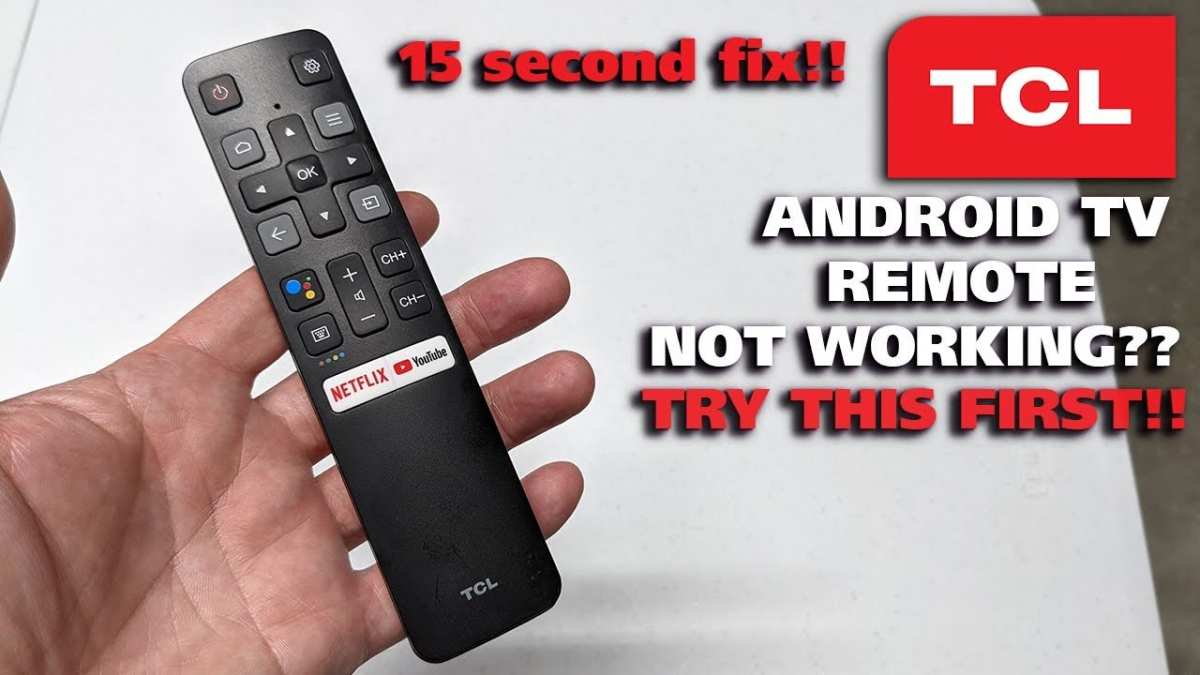
If your Android TV isn’t responding to the remote, **try replacing or recharging the batteries first**, as low power often causes connectivity issues. Android TV not working with remote can be frustrating, but a quick reset or re-pairing the remote usually fixes the problem. Sometimes, interference from other devices or a simple software glitch causes the remote to stop working. Checking these common issues can get your remote back in action swiftly.

Android TV Not Working with Remote: Causes and Solutions
If your Android TV isn’t responding to your remote, it can be very frustrating. You rely on your remote to turn on your TV, change channels, adjust volume, and navigate through menus. When it stops working, watching your favorite shows or movies becomes difficult or impossible. Fortunately, many issues with an Android TV remote can be fixed with simple troubleshooting steps. In this section, we’ll explore common reasons why your Android TV might not be responding to the remote and offer practical solutions to get things back on track.
Understanding Why Your Android TV Remote Might Not Respond
Before jumping into fixes, it’s important to understand the possible reasons why your remote isn’t working. Several factors can cause this problem, and knowing what to look for helps you choose the right solution.
- Dead or Weak Batteries: Often, remote issues happen because the batteries are drained or not properly installed.
- Obstructions or Distance: The remote’s signal can get blocked if objects are in the way or if you’re too far from the TV.
- Infrared (IR) or Bluetooth Malfunctions: Some remotes use infrared signals, while others use Bluetooth. Problems with these components can cause connectivity issues.
- Remote Control Damage: Physical damage or internal component failures can prevent the remote from working properly.
- TV Settings or Software Glitches: Sometimes, the TV’s software can act up, causing the remote to stop responding.
- Interference from Other Devices: Wireless devices nearby can interfere with IR or Bluetooth signals.
By understanding these causes, you can better determine which troubleshooting step to take first.
Checking and Replacing Remote Batteries
The simplest step often involves inspecting your remote’s batteries. It’s easy to forget about this, but weak or dead batteries are among the most common causes of remote failure.
How to Check the Batteries
- Remove the remote’s back cover carefully, following the manufacturer’s instructions.
- Take out the batteries and inspect them for corrosion, leakage, or flatness.
- If the batteries look worn out or are over a year old, replace them with fresh, high-quality batteries.
- Ensure the batteries are installed correctly, respecting the positive (+) and negative (–) markings.
Testing the Remote After Battery Replacement
Once you’ve replaced the batteries:
- Point the remote directly at the TV or the device’s sensor.
- Press the power button or any other control to see if it responds.
- If the TV reacts, the problem was likely weak batteries.
- If not, continue with other troubleshooting steps.
Ensuring Proper Remote-Device Alignment and Range
Sometimes, the remote isn’t working because it’s not aimed correctly or you’re out of the effective range.
Optimal Remote Positioning
- Point the remote directly at the TV’s sensor, which is usually located on the bottom or center of the screen.
- Maintain a distance of no more than 10 feet for optimal operation.
- Avoid pointing the remote at reflective surfaces or objects that could block the signal.
Testing the Remote’s Range
Try moving closer to the TV—sometimes, the remote’s signal might weaken if you’re too far away. If the remote responds at a closer distance but not from afar, consider replacing the batteries or checking for obstructions.
Performing Infrared (IR) or Bluetooth Tests
Depending on your remote type, methods differ for testing its functionality.
Testing IR Remote
- Use a smartphone camera. Open your camera app and point the remote’s IR emitter at the camera lens.
- Press a button on the remote. If the remote is functioning properly, you should see a flashing light on your screen when looking through the camera.
- If no light appears, the remote’s IR component might be damaged or the batteries are dead.
Testing Bluetooth Remote
- Access your TV’s Bluetooth settings.
- Try to pair the remote again or check if it’s connected.
- If it doesn’t connect, the Bluetooth module or the remote itself could be faulty.
Troubleshooting TV Settings and Software Glitches
If the remote seems fine but still doesn’t work, the problem may lie with your TV’s software or settings.
Restarting Your Android TV
- Unplug the TV from the power source.
- Wait for about 30 seconds to allow residual power to drain.
- Plug the TV back in and turn it on.
- Check if the remote now responds.
Updating Your TV’s Firmware
Outdated software can cause remote connectivity issues. To update:
- Navigate to Settings > About > System update.
- If an update is available, follow prompts to install it.
- After updating, restart your TV and test the remote again.
Resetting TV Settings
If issues persist, consider resetting the TV to factory settings. Be aware this may erase customized settings and apps.
- Go to Settings > Storage & reset > Factory data reset.
- Follow on-screen instructions carefully.
- Set up your TV again and check remote functionality.
Addressing Interference and External Factors
Wireless signals can be affected by various external elements. Identifying and minimizing interference can help restore remote responsiveness.
Reducing Signal Obstructions
- Remove objects that might block the remote’s path.
- Ensure there are no reflective surfaces directly behind or near the TV.
- Keep other electronic devices that emit wireless signals away from the TV and remote sensors.
Dealing with Wireless Interference
Some devices, like Wi-Fi routers, cordless phones, or microwave ovens, can interfere with IR or Bluetooth signals.
- Try turning off or moving these devices away from your TV.
- Switch to wired connections if possible to avoid wireless interference altogether.
Replacing or Repairing the Remote
If all else fails, your remote might be faulty or damaged.
Getting a Replacement Remote
- Contact your TV manufacturer or retailer for a replacement remote designed for your model.
- Check online for compatible universal remotes that work with Android TVs.
Repairing the Remote
If your remote is physically damaged:
- Inspect for broken buttons or loose components.
- Replace damaged parts if possible (for remotes with replaceable batteries or components).
- If repair isn’t feasible, replacing the remote may be the best option.
Using Alternative Control Methods
When your remote isn’t working, there are other ways to control your Android TV temporarily.
Using the Android TV App
- Download the official Android TV remote app on your smartphone or tablet.
- Connect the app to your TV via Wi-Fi (both devices need to be on the same network).
- Use your device as a remote to navigate and control your TV.
Connecting a Wired or Bluetooth Keyboard/Mouse
– Use a USB keyboard or mouse if your TV supports USB input.
– Connect a compatible Bluetooth keyboard/mouse if Bluetooth is functioning.
– These can serve as temporary controls until the remote issue is fixed.
Preventative Tips to Keep Your Android TV Remote Working Smoothly
To avoid future problems with your remote, follow these tips:
- Keep batteries fresh and replace them as soon as they run low.
- Store the remote in a safe, easily accessible place.
- Avoid exposing the remote to extreme temperatures or moisture.
- Clean the remote regularly to prevent dust and debris buildup, especially around buttons.
- Use the remote within the recommended distance and avoid aiming at reflective surfaces.
- Update your TV’s firmware routinely to keep software issues at bay.
If you experience consistent remote issues despite these measures, contacting customer support or a professional technician might be necessary. Many problems can be resolved with patience and systematic troubleshooting, ensuring you can enjoy your Android TV without interruptions.
Frequently Asked Questions
What should I do if my Android TV remote is unresponsive?
If your Android TV remote stops responding, start by replacing the batteries to ensure they have enough power. Make sure there are no objects blocking the remote’s signal and try pointing it directly at the TV. If it still doesn’t work, restart your TV and re-pair the remote following the manufacturer’s instructions. Checking for firmware updates can also resolve compatibility issues that might cause unresponsiveness.
How can I reset my Android TV remote to fix connection problems?
To reset your Android TV remote, remove the batteries and press any button for about 10 seconds to drain residual power. Reinsert the batteries and attempt to pair the remote with your TV again. If your remote uses Bluetooth or Wi-Fi, access the pairing settings through the TV menu, select the remote, and follow on-screen prompts to complete the process. Resetting often resolves temporary glitches that hinder connectivity.
What are common reasons my Android TV isn’t responding to remote commands?
Common reasons include low or dead batteries, interference from other electronic devices, or outdated firmware on your TV. Physical obstructions can also block the remote’s signal. Additionally, if the remote’s software isn’t compatible with your TV’s current firmware, it might fail to send commands properly. Addressing these issues usually restores normal operation.
Is there a way to troubleshoot remote issues without replacing batteries?
Yes, start by cleaning the remote’s infrared or Bluetooth sensor to remove dust or debris. Ensure the remote is aimed directly at the TV sensor without obstructions. Restart your TV to refresh its connection and remove any temporary glitches. Additionally, try pairing the remote again or use the TV’s physical buttons as a backup while troubleshooting the remote further.
Can I use a mobile app as an alternative remote for my Android TV?
Many Android TVs support remote control apps compatible with smartphones. Download the official app from your TV manufacturer or a trusted third-party app store. Connect your phone and TV to the same Wi-Fi network, follow the app’s setup instructions, and use your phone as a remote control. This method can be helpful if your physical remote isn’t working properly.
Final Thoughts
In summary, troubleshooting your Android TV not working with remote can often resolve the issue quickly. Check the batteries, ensure there’s a clear line of sight, and re-pair the remote if needed. Sometimes, a simple restart or factory reset helps fix persistent problems.
Ultimately, addressing these common causes restores remote functionality and improves your viewing experience. If issues persist, consult the device manual or customer support. Android TV not working with remote can be frustrating, but with these steps, you can usually fix the problem efficiently.
