

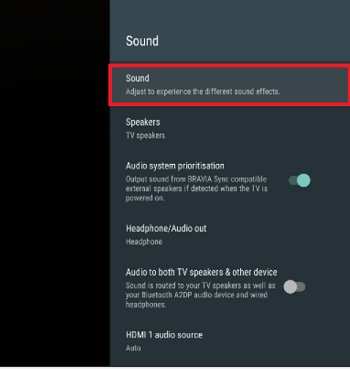
If your Android TV sound settings not working, try restarting the device and checking for software updates—that often solves the issue. **Ensure your audio cables are properly connected and the volume is turned up.** Sometimes, simply resetting the sound settings or unplugging and plugging in the TV can fix the problem.
Troubleshooting these basic steps quickly restores your audio. No need for complex solutions when the fix is often straightforward.

Understanding and Fixing Android TV Sound Settings Not Working
Having trouble with your Android TV sound system? You’re not alone. Many users face issues where the sound suddenly stops working, the volume won’t respond, or sound settings seem to be unchangeable. These problems can be frustrating, especially when you’re trying to enjoy your favorite shows or movies. Luckily, most of these issues are fixable with a few simple steps. In this section, we’ll explore the common causes behind Android TV sound settings not working and provide clear solutions to help you get your sound back on track.
Common Reasons Why Android TV Sound Settings Might Fail
Before diving into fixes, it’s essential to understand what causes sound problems on your Android TV. Here are some frequent culprits:
- Software glitches or bugs: Sometimes, software updates or bugs can interfere with sound settings.
- Incorrect audio output settings: If the TV is set to the wrong audio output, sound may not produce correctly.
- Hardware issues: Problems with the TV’s speakers or audio ports can lead to sound failures.
- Connected devices: External sound systems, soundbars, or HDMI devices may conflict with TV settings.
- Volume controls: Often overlooked, the mute button being active or volume being turned all the way down can cause sound to seem absent.
Understanding these causes helps you identify the right troubleshooting steps to take.
Step-by-Step Troubleshooting for Sound Problems on Android TV
When sound suddenly stops working, start with simple checks, then move on to more detailed fixes. Here’s a practical guide:
Check Basic Settings
– Ensure that your TV isn’t muted. Look for the mute icon on the screen or check the remote’s mute button.
– Verify the volume level is turned up sufficiently.
– Confirm that the audio output is correctly set. For example, if you use an external soundbar, your TV should be set to output sound through the HDMI ARC or optical port.
Inspect External Devices and Connections
– Disconnect any external devices such as soundbars, headphones, or gaming consoles.
– Switch the TV to built-in speakers to test if it produces sound without external hardware.
– Test different input ports, especially HDMI or optical connections, to rule out faulty ports.
Adjust Audio Settings in Android TV
– Navigate to the Settings menu.
– Select ‘Sound’ or ‘Audio’ options.
– Change the sound output type to the correct device.
– Enable or disable features like Dolby Atmos or Surround Sound, which can sometimes cause compatibility issues.
Update Your Android TV Firmware
– Check if your TV has the latest software update. Outdated firmware can cause sound problems.
– To do this, go to Settings > About > System Update.
– Follow prompts to update if needed.
Restart Your TV and Connected Devices
– Turn off your TV completely and unplug it from the power source.
– Wait for about a minute before plugging it back in.
– Turn your TV back on and test the sound.
– Also, restart connected devices like soundbars or HDMI sources.
Perform a Factory Reset (When Necessary)
– If none of the above steps work, consider resetting your TV to factory settings.
– Find this option under Settings > Storage & Reset > Factory Data Reset.
– Remember, this will erase custom settings, so use it as a last resort.
Special Considerations for Sound Issues with External Devices
Sometimes, external equipment causes sound problems. Here’s what you need to know:
Soundbar or External Speakers Not Working
– Confirm that the soundbar is powered on and set to the correct input.
– Check the connection cable (HDMI, optical, or Bluetooth) for damage or looseness.
– Ensure the sound output on the Android TV matches the connected device.
– Try connecting differently or switch cables to rule out hardware issues.
Using Bluetooth Speakers with Android TV
– Ensure Bluetooth is enabled on your TV.
– Put your Bluetooth speaker into pairing mode.
– Select the device from the list of available devices.
– Once paired, test the sound to verify proper operation.
– If Bluetooth connection drops or no sound plays, unpair and re-pair the device.
Dealing with Specific Sound Settings Issues
Sometimes, users face specific problems like volume controls not working or sound distortions. Let’s explore some targeted solutions:
Volume Control Not Responding
– Confirm the remote control is working properly.
– Check if other buttons on the remote respond.
– Replace remote batteries if necessary.
– Reset remote control settings if possible.
Sound Distortion or Echo
– Check for interference from other electronic devices.
– Adjust sound settings for clarity – disable effects like equalization if active.
– Turn off features like surround sound temporarily.
– Test with different content to see if the issue persists.
Sound Cuts Out or Lagging
– Reduce the number of connected devices.
– Update firmware on all connected hardware.
– Use high-quality cables and connections.
– Switch to a wired connection if using wireless devices.
Additional Tips to Maintain Proper Sound Functionality
To prevent future issues, consider these preventive actions:
- Keep your Android TV firmware updated regularly.
- Use quality cables and connections for external devices.
- Store your remote control batteries properly and replace them when needed.
- Avoid overloading the HDMI ports with too many devices.
- Periodically reset your TV settings to clear out any misconfigurations.
When to Seek Professional Help
If you’ve tried all these steps and still can’t fix the sound issues, it might be time to contact customer support or a professional technician. Hardware problems, such as damaged speakers or faulty audio output ports, require expert diagnosis and repair. Remember to check your warranty status before opting for repairs.
—
Addressing Android TV sound settings not working involves a mix of checking connections, adjusting settings, updating software, and sometimes resetting the device. By following these detailed steps, you’ll increase your chances of restoring clear, consistent sound to enjoy your favorite content without interruptions.
Frequently Asked Questions
What should I do if my Android TV sounds are muted or too low even after adjusting the volume?
If your Android TV sounds are muted or too quiet despite increasing the volume, first check if the mute function is enabled. Press the volume button on your remote and ensure the mute icon isn’t active. Also, verify the TV’s sound settings to confirm that the volume level is set appropriately. Disconnect and reconnect any external speakers or soundbars to ensure they’re functioning correctly. Restart your TV to reset the audio system, and test the sound again. If the problem persists, consider updating your TV’s firmware or resetting the sound settings to default.
How can I troubleshoot if my audio output device isn’t recognized by the Android TV?
When your Android TV doesn’t recognize an external audio device, first check the connection cables to ensure they are secure and intact. Switch to a different port if available to rule out port faults. Open the sound settings menu and manually select the preferred audio output device. Restart your TV after connecting the device to refresh the system’s recognition. Test the audio to see if it plays through the external device. If recognition issues continue, try connecting the device to another TV or device to verify if it works properly elsewhere, indicating a potential problem with the TV’s Bluetooth or port functionality.
Why is the audio lagging or cutting out during playback on my Android TV?
Audio lag or interruptions during playback can occur due to outdated software or conflicting settings. Ensure your Android TV has the latest firmware installed. Check if any apps running in the background consume significant resources, and close unnecessary apps. Adjust the sound settings to disable any surround sound or audio processing features that might cause delays. Reset the TV’s audio settings to default to eliminate misconfigurations. If you use external devices like a soundbar, verify their firmware and connection quality. Performing these steps helps improve audio stability during media playback.
What are the steps to perform a factory reset to fix sound issues on my Android TV?
To perform a factory reset on your Android TV, navigate to the Settings menu. Select ‘Device Preferences’ or ‘Storage & Reset’ depending on your model. Choose ‘Factory data reset’ and confirm your selection. Keep in mind this process will erase all your data and settings, restoring the TV to its original state. After the reset, set up your TV again and check if the sound issue remains. If problems persist even after a factory reset, it could indicate a hardware defect, and contacting customer support may be necessary.
How can I update my Android TV’s firmware to resolve sound problems?
Keeping your Android TV’s firmware up to date can resolve many sound-related issues. Access the Settings menu and select ‘About’ or ‘System’. Look for the ‘Software Update’ option and check for available updates. If an update is available, download and install it following on-screen instructions. Your TV may restart during this process. Updating firmware ensures you have the latest bug fixes and performance improvements that could address audio problems. After updating, test the sound to determine if the issue is resolved.
Final Thoughts
In summary, addressing the issue of ‘android tv sound settings not working’ involves checking the connections, restarting the device, and updating the software. Sometimes, resetting sound settings or performing a factory reset can resolve persistent problems. If these steps don’t help, contacting customer support ensures expert assistance. Ensuring your sound settings function correctly improves your viewing experience and avoids frustration.
