

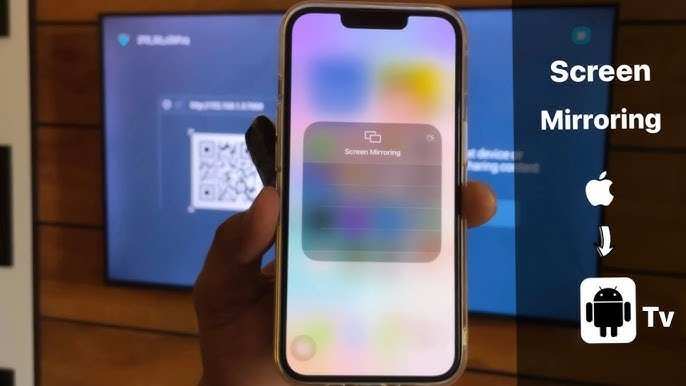
You can use Android TV with iPhone, and it works smoothly with the right methods. **Yes, you can connect your iPhone to an Android TV via various apps and features.** Many users wonder if their Apple device can work seamlessly with Android-based smart TVs. The good news is that with compatible apps like AirScreen or through screen mirroring, you can easily display your iPhone content on an Android TV. This setup provides a simple way to enjoy media without needing specific hardware.

Can You Use Android TV With iPhone?
Many people wonder if they can connect their iPhone to an Android TV and how well these devices work together. While Android TVs and iPhones come from different ecosystems—Google and Apple—they can still be made to work together in several ways. This guide will explore all the methods, devices, and apps that allow you to use an Android TV with your iPhone seamlessly.
Let’s start by understanding the basics of these two tech giants—what makes Android TV and iPhone compatible or incompatible, and what you need to know before trying to connect them. We will cover everything from casting content, using apps, screen mirroring, and troubleshooting common issues. Whether you want to watch your favorite videos, display photos, or use your iPhone as a remote, this detailed guide will help you navigate your options.
What Is Android TV and How Does It Work?
Android TV is a smart television platform developed by Google that puts apps, games, and streaming services right on your TV screen. It is built on the Android operating system, similar to your phone, but optimized for large screens.
Key features of Android TV include:
- Access to Google Play Store for apps and games
- Built-in Chromecast for streaming content from other devices
- Voice control compatibility with Google Assistant
- User-friendly interface designed for TV screens
Android TV is compatible with many streaming apps like Netflix, Hulu, Disney+, YouTube, and more. Its core strength lies in its Chromecast feature, which allows you to cast content wirelessly from your phone or computer.
What Is an iPhone and Its Ecosystem?
The iPhone, created by Apple, is known for its high-quality hardware and seamless integration with the broader Apple ecosystem. It runs on iOS, which is highly optimized for smooth performance and security.
Features of iPhone relevant to connecting with Android TV include:
- AirPlay – Apple’s built-in wireless streaming protocol
- Siri – Voice assistant for controlling your device
- Apple TV app – for streaming and managing content
- Compatibility with other Apple devices like MacBook, iPad, and HomePod
iPhones are designed to work effortlessly with Apple TVs and other Apple devices, but they can also connect to Android-based devices with the right tools.
Can You Cast Content from iPhone to Android TV?
Casting is one of the most straightforward ways to use your iPhone with Android TV. Since Android TV supports Chromecast technology, you can cast videos, music, and photos directly from your iPhone to your TV.
Using Chromecast Built-in
Most modern Android TVs come with Chromecast built-in. To cast from your iPhone:
- Make sure your iPhone and Android TV are connected to the same Wi-Fi network.
- Open a Chromecast-compatible app on your iPhone, such as YouTube or Netflix.
- Tap the cast icon, usually represented by a rectangle with Wi-Fi waves in the corner.
- Select your Android TV from the list of available devices.
- Start playing the content, which will now appear on your TV.
This process works seamlessly with apps that support Chromecast. However, not all apps are compatible, so you might encounter some limitations.
Limitations of Casting from iPhone
While casting is easy, it does have some restrictions:
- Some apps, especially DRM-protected streaming apps, may block casting.
- Control over playback is limited to your iPhone; you cannot always use your Android TV remote for navigation.
- Quality may depend on your Wi-Fi network speed.
Despite these limitations, casting remains one of the best ways to enjoy iPhone content on Android TVs.
Using AirPlay With Android TV—Is It Possible?
AirPlay is a proprietary Apple protocol designed for streaming media wirelessly between Apple devices and Apple TVs. Since Android TVs are not built with AirPlay, you might wonder if there’s a way to make these two work together.
Can You Use AirPlay on Android TV?
Yes, but it requires third-party apps or firmware modifications:
- Some Android TVs come with built-in AirPlay support, especially newer models or those with additional firmware updates.
- If not built-in, you can install third-party apps like ‘AirScreen’ or ‘AirPin(PRO)’ from the Google Play Store. These apps act as a bridge, enabling your Android TV to accept AirPlay streams from your iPhone.
How to Use AirPlay on Android TV
- Install an AirPlay receiver app (like AirScreen) on your Android TV.
- Open the app and follow the instructions to set it up.
- Ensure your iPhone and Android TV are on the same Wi-Fi network.
- Open the Control Center on your iPhone and tap ‘Screen Mirroring’ or ‘AirPlay.’
- Select your Android TV (or the app-specific name) from the list.
- The screen should mirror or stream to your Android TV.
This method allows you to mirror your iPhone screen or stream videos directly, making it a versatile option for many users.
Screen Mirroring and Sharing Content
Screen mirroring is different from casting. It duplicates your iPhone’s display on the bigger screen of your Android TV. This can be useful for presentations, viewing photos, or playing games.
Methods to Mirror Your iPhone Screen
Besides using third-party apps, you can also use wired methods:
- Using an HDMI adapter—connect your iPhone to the Android TV via a Lightning to HDMI adapter and an HDMI cable.
- Employing third-party apps as mentioned above to wirelessly mirror your screen.
Important Tips for Better Mirroring Experience
- Ensure a strong Wi-Fi connection for wireless methods to reduce lag.
- Adjust display resolution and settings on your Android TV for optimal viewing.
- Keep your iPhone updated with the latest iOS version for compatibility.
Apps That Facilitate Connection Between iPhone and Android TV
Several apps make connecting an iPhone to Android TV easier and more reliable. Let’s look at some popular options:
| App Name | Description | Features |
|---|---|---|
| AirScreen | Acts as an AirPlay receiver on Android TV, allowing seamless screen mirroring and streaming from iPhone. | Supports AirPlay, Google Cast, Miracast, and DLNA. |
| ApowerMirror | Allows screen mirroring between iPhone and Android TV over Wi-Fi. | Supports real-time screen sharing, recording, and remote control features. |
| LetsView | Free screen mirroring app supporting multiple platforms including iOS and Android TV. | Wireless connection, screen annotation, and media sharing. |
| Mirror for Samsung TV (or other device-specific apps) | Specialized apps for certain smart TV brands, but some work with Android TVs. | Easy setup, high-quality streaming, and remote controls. |
Choosing the right app depends on your specific needs, whether for streaming, presentations, or entertainment.
Troubleshooting Common Problems
Despite best efforts, you might encounter some issues connecting your iPhone to Android TV:
- Connection drops or lag: Make sure both devices are on the same Wi-Fi and close to the router. Restart your devices if needed.
- Apps not supporting casting or AirPlay: Check for updates or try alternative apps that support your content.
- Screen mirroring not working: Verify all network settings, restart devices, and re-install relevant apps.
- Low video quality: Reduce network congestion or lower resolution settings in apps.
Most problems can be fixed quickly by ensuring compatibility and a strong Wi-Fi signal.
Final Thoughts: Making Your iPhone Work with Android TV
While iPhones and Android TVs belong to different ecosystems, they can still work together through various methods. Casting content via Chromecast-compatible apps offers a simple plug-and-play solution, while third-party apps expand the potential to mirror screens or use AirPlay. Wired options provide excellent quality for presentations or watching videos in high definition.
Remember, the best approach depends on what you want to do—whether it’s gaming, streaming, or sharing photos. With the right setup and apps, you can enjoy your favorite iPhone content on your Android TV without hassle.
By understanding each method, their benefits, and limitations, you can choose what works best for your home entertainment setup. Don’t forget to keep your devices updated and ensure they are connected to the same Wi-Fi network for smooth interaction. Now, you’re all set to enjoy a more integrated media experience, even across different platforms.
Frequently Asked Questions
Can I control my Android TV using my iPhone?
Yes, you can control your Android TV with your iPhone by installing compatible remote control apps, such as Android TV Remote Controller or Google TV. These apps connect through Wi-Fi, allowing you to navigate, search, and control playback directly from your iOS device.
Is it possible to mirror my iPhone screen onto an Android TV?
In most cases, you cannot directly mirror your iPhone screen to an Android TV due to different operating systems. However, some third-party apps like AirScreen or AirPin(PRO) on the Android TV can facilitate screen mirroring from iOS devices using AirPlay protocols. Ensure both devices are on the same Wi-Fi network for optimal performance.
Does Bluetooth compatibility work between iPhone and Android TV?
Bluetooth pairing between an iPhone and Android TV is limited mostly to audio devices like headphones or speakers. If you want to connect your iPhone for media sharing, you’ll need to rely on Wi-Fi-based methods such as casting or using compatible apps, since Bluetooth features are not typically cross-compatible for media transfer.
Can I cast content from my iPhone to an Android TV?
Direct casting from an iPhone to Android TV isn’t natively supported, but apps like Google Cast or third-party casting apps can help. Using these, you can cast videos, photos, and other media from your iPhone to your Android TV over Wi-Fi, provided the TV supports the necessary casting protocols.
Are there any limitations when using an iPhone with an Android TV?
Yes, some features like seamless integration, voice control, or firmware updates may not be as smooth as with native Android or Apple devices. Compatibility can vary depending on the apps and methods you choose, so it’s essential to verify that the specific functions you need are supported by your setup.
Final Thoughts
You can use Android TV with an iPhone through various apps like Apple AirPlay or third-party streaming tools. These options allow seamless connection and content sharing between the devices. Compatibility is improving, making it easier for users to enjoy their favorite shows and apps.
However, some features might be limited compared to using devices within the same ecosystem. It’s important to check app updates and device settings to ensure smooth operation.
In conclusion, can you use android tv with iphone? Yes, it’s possible with the right apps. Although not all features are identical, you can still enjoy a functional connection across both devices.
